Summary Homepage (Rollup Code) Tutorial
A summary homepage, also called a rollup code, gathers many entries into one QR code: scan it once and you can jump to other QR codes, directories, web pages, Official Account articles, or mini programs. Some people use it to collect documents, some as a company homepage or portal, and some post it on site to guide visitors. You can build one with the redirect link, directory list, and navigation bar in the dynamic QR code editor, and the free version is enough.
Here are a few common uses. Scan with WeChat to try them:
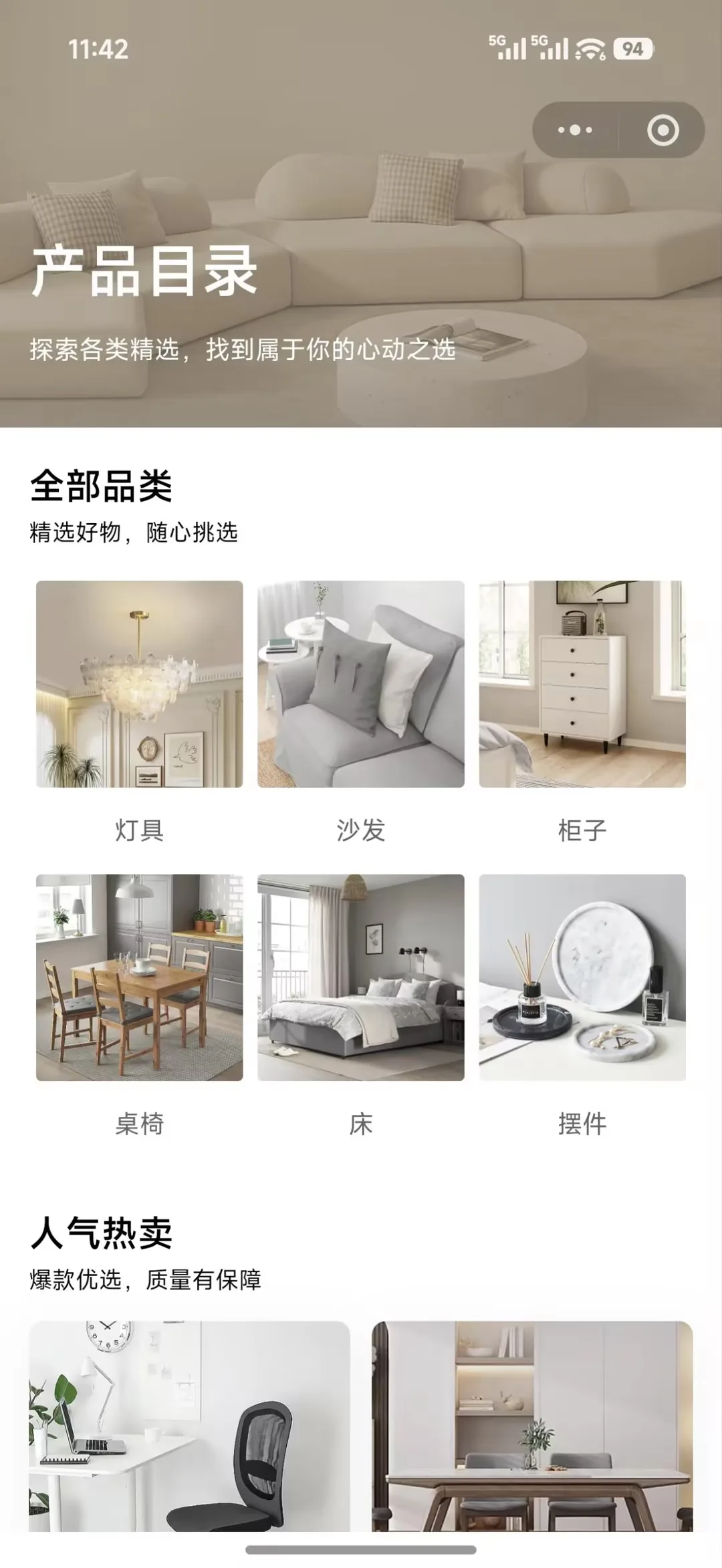
The homepage groups products into lighting, sofas, cabinets, tables and chairs, beds, and decor, with best sellers below. Tap a category or product card to open that product page.
 Scan with WeChat to try
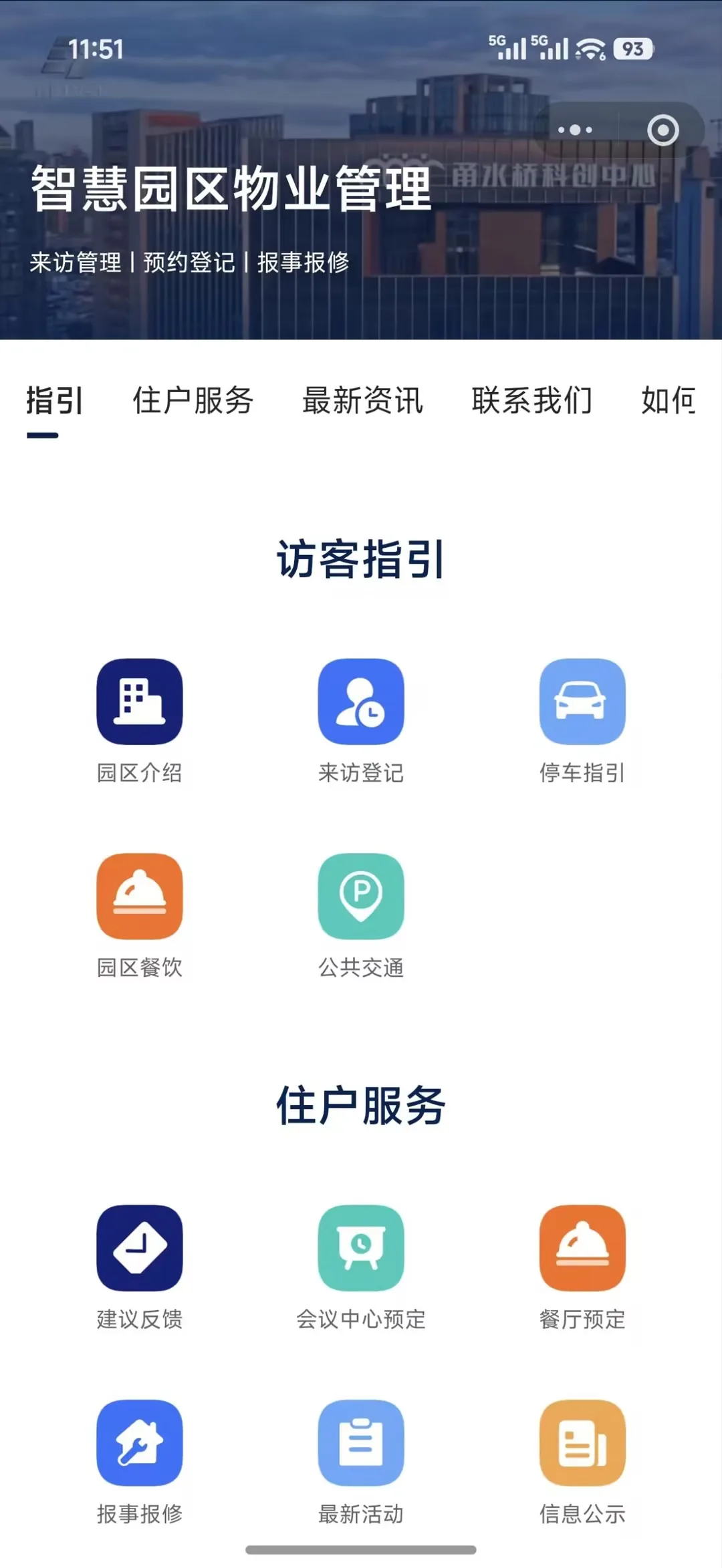
A navigation bar at the top splits the page into Guide, Resident services, News, and Contact us. Visitors tap Visitor registration or Parking guide, residents tap Repair requests or Meeting room booking, and each opens its own page.
 Scan with WeChat to try (click to enlarge)
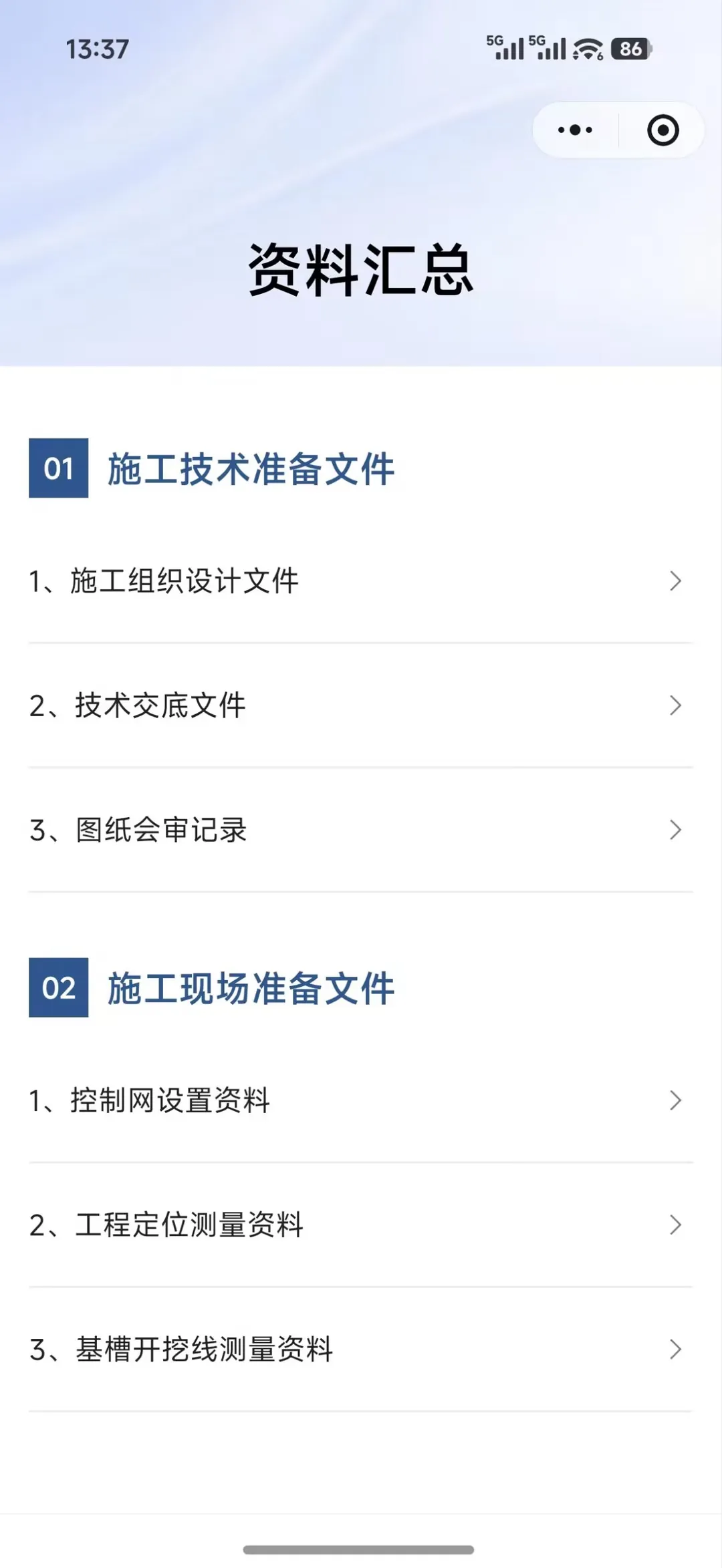
Technical preparation documents and site preparation documents are listed by category, and each document is its own code. Tap a name to open the file. When new documents come in, add an entry on the homepage; the code posted on site stays the same.
 Scan with WeChat to try (click to enlarge)
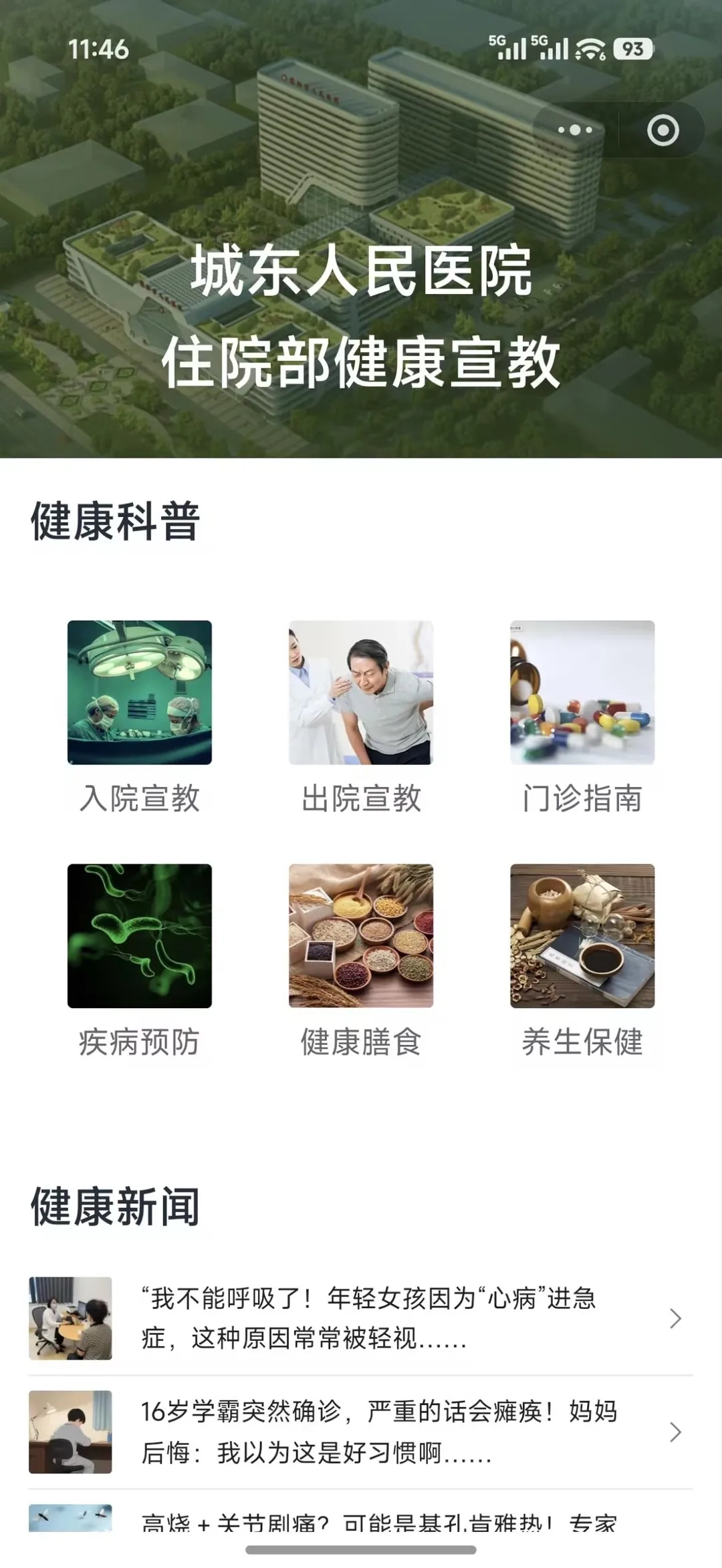
Admission, discharge, outpatient guide, disease prevention, healthy diet, and wellness each have a section, with health news below. Patients and families scan once and read what they need, with no stack of leaflets to post.
 Scan with WeChat to try
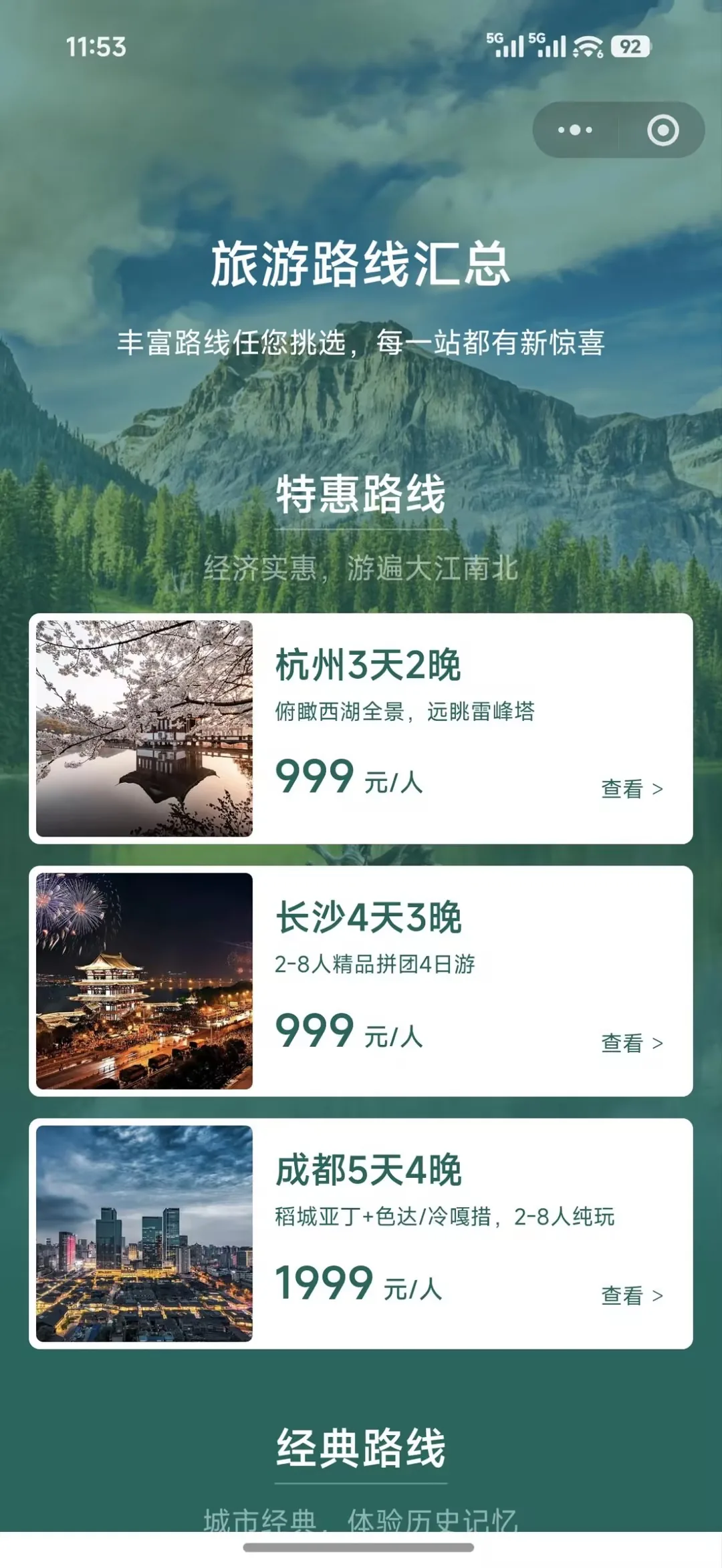
Special-offer and classic routes are shown separately, each with its length, highlights, and price. Tap View to open that route's itinerary.
 Scan with WeChat to try
Each homepage above is a single dynamic QR code built with redirect links, a navigation bar, and similar features. Where a paid version is required, this guide says so.
I. Features Commonly Used to Build a Summary Homepage
A summary homepage is itself a dynamic QR code, so images, files, and contact details work as usual. To gather entries together, these are the features you'll use most. You'll find all of them in the left panel of the dynamic QR code editor:
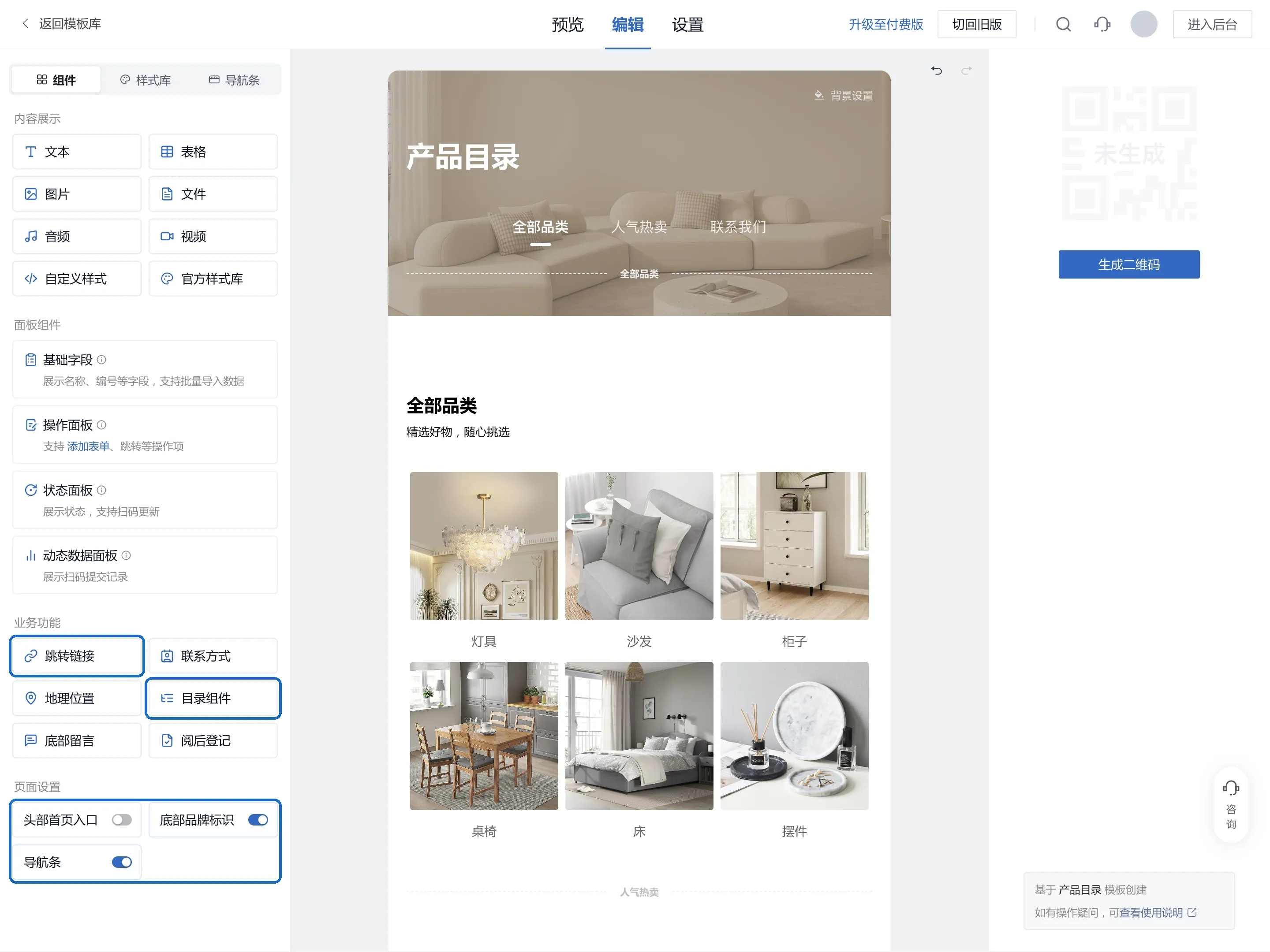
| Feature | What it does | Where to find it | How-to |
|---|---|---|---|
| Redirect link | Turns buttons, grids, cards, and more into entries that open other codes, web pages, Official Account articles, or mini programs | Business functions → Redirect link | Section II |
| Directory list | Lists every code in a directory; new codes added to the directory appear automatically | Business functions → Directory list | Section III |
| Navigation bar | Adds a row of tabs at the top of the page; tap one to scroll to that section | Page settings → Navigation bar | Section IV |
| Header homepage entry | Shows a Home entry on other codes' pages that leads back to this homepage; requires a partition homepage | Page settings → Header homepage entry | Section V |
| Bottom brand mark | Shows your company logo and name at the bottom of the page | Page settings → Bottom brand mark | Section VI |
You don't need all of them, so pick what fits. If you only need one or two, jump straight to those sections.
The page in the screenshots below was made with the Product Catalog template from the template library. It's the first demo code above.
II. Open Other Codes, Web Pages, and Articles on Tap (Redirect Link)
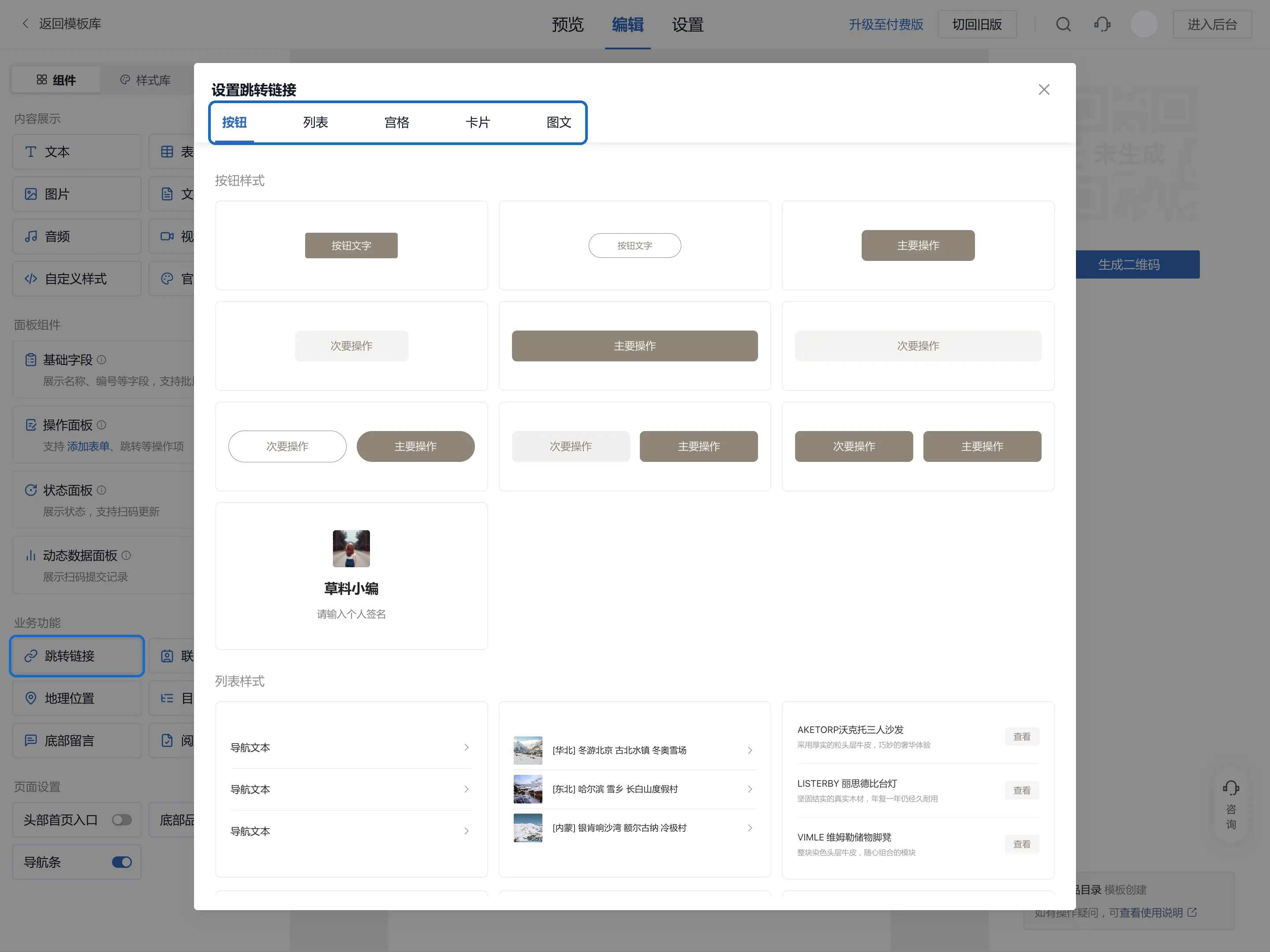
To let viewers open another dynamic QR code, web page, Official Account article, or Mini Program with one tap, use the Redirect link component. It comes in five style groups (button, list, grid, card, and image-text), each with several layouts. The category grid and product cards in the example are built this way.
-
In the left Components panel, under Business functions, click Redirect link, then pick a style in the Set redirect link window.
-
Once the style is on the page, select an item and click Add link.
-
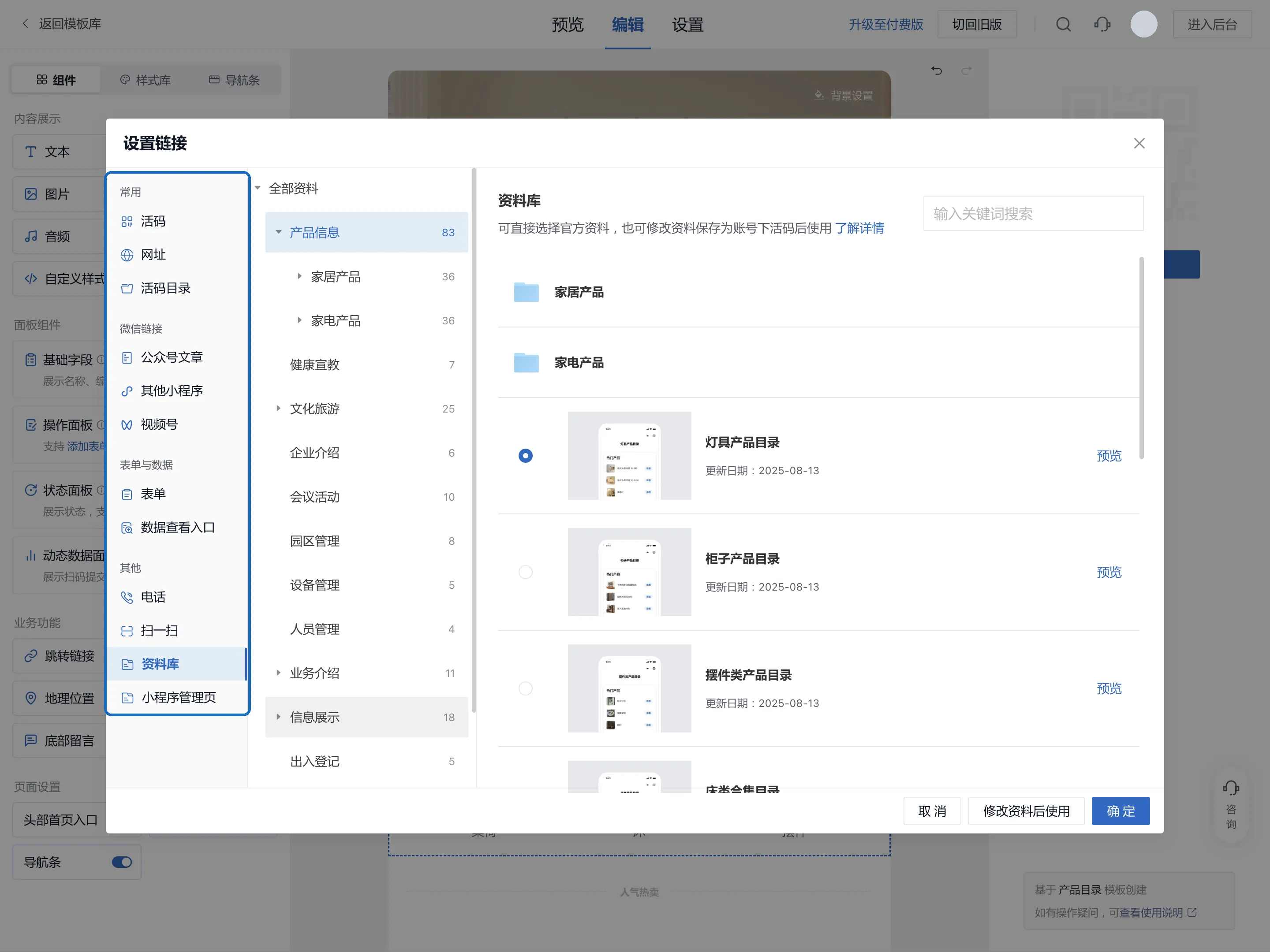
In the Set link window, choose where it goes on the left, pick the specific code or enter the link, and click OK.
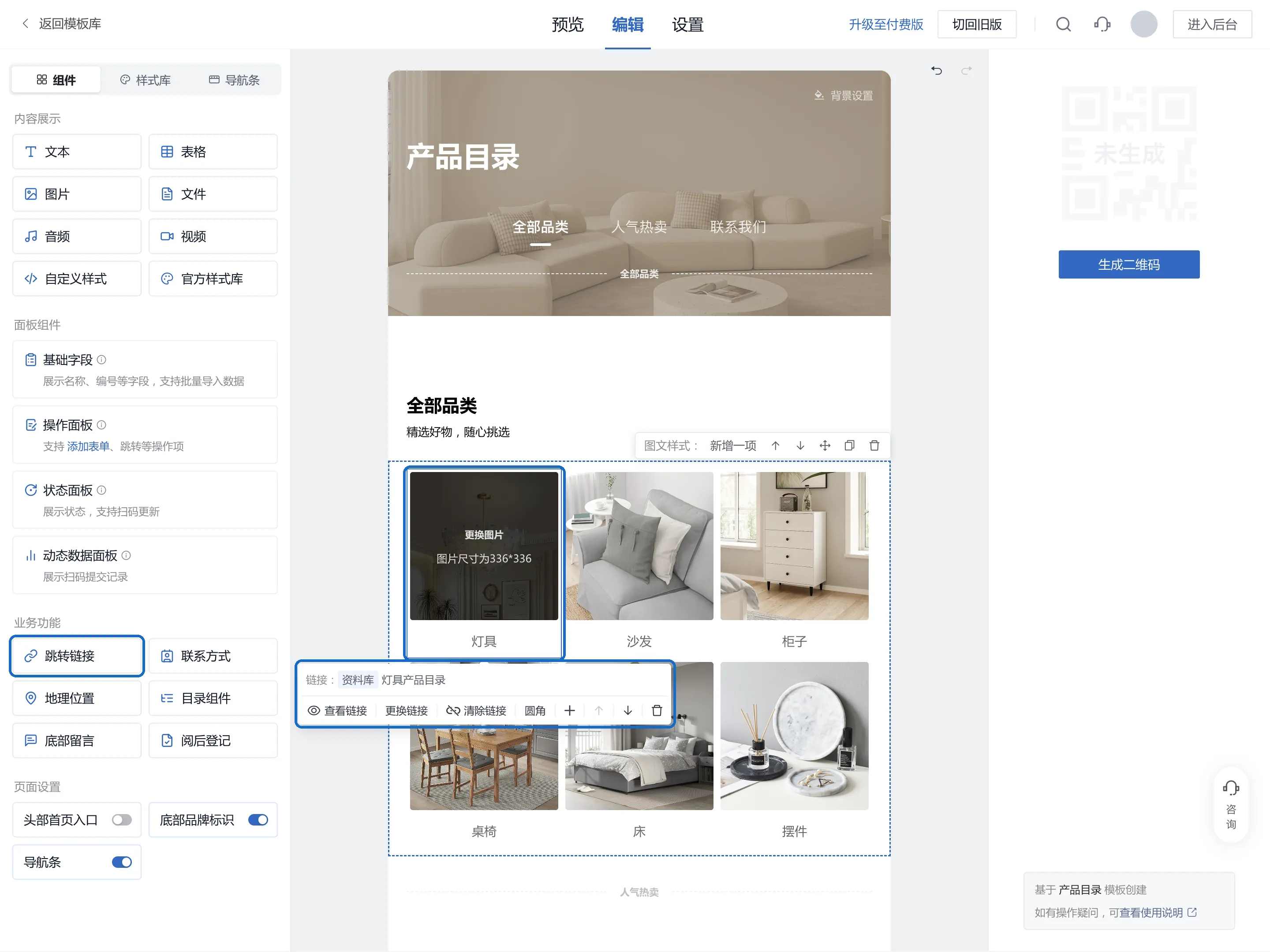
For an entry that already has a link, select it and the current link appears below. Click Change link to edit it.
Available link targets:
| Group | Targets |
|---|---|
| Common | Dynamic QR code, URL, dynamic QR code directory |
| WeChat links | Official Account article, other Mini Program, WeChat Channels |
| Forms and data | Form, data view entry |
| Other | Phone, Scan, resource library, Mini Program management page |
To open another Mini Program, enter its short link. See How to Configure Redirect to a Mini Program.
Two limits to know in advance:
- URLs don't open directly by default. Codes open in the CaoLiao Mini Program by default, and WeChat doesn't allow mini programs to open web pages directly, so viewers have to copy the link into a browser. To open URLs directly, the Basic Edition and above can switch the homepage's WeChat access method to H5 web page. Changing the access method changes the QR code pattern, so you'll need to download it again. Settle this before you print.
- Some styles are paid. Part of the design library is paid, including combined styles, titles, body text, and redirect link styles, and requires the Basic Edition or above.
Property service codes and workshop service codes are built with redirect links the same way. You can start from a ready-made template and swap in your own links: Property Owner Services for business parks and residential compounds, and Site Management for workshops and project sites.
III. List Every Code in a Directory (Directory List)
To list a batch of codes on the homepage, such as one introduction code per product, use the Directory list component. Put these codes in one directory (see Directory Management for how to create one), then add the directory to the homepage, and every code in it is listed. When you add or delete codes in the directory later, the homepage updates automatically, so there's no need to set up links one by one.
- In the left Components panel, under Business functions, click Directory list.
- In the Directory settings window, pick a component style on the left, then click Select directory on the right.
- Set the title, number shown, preview images, content shown, and sort order as needed, then click OK.
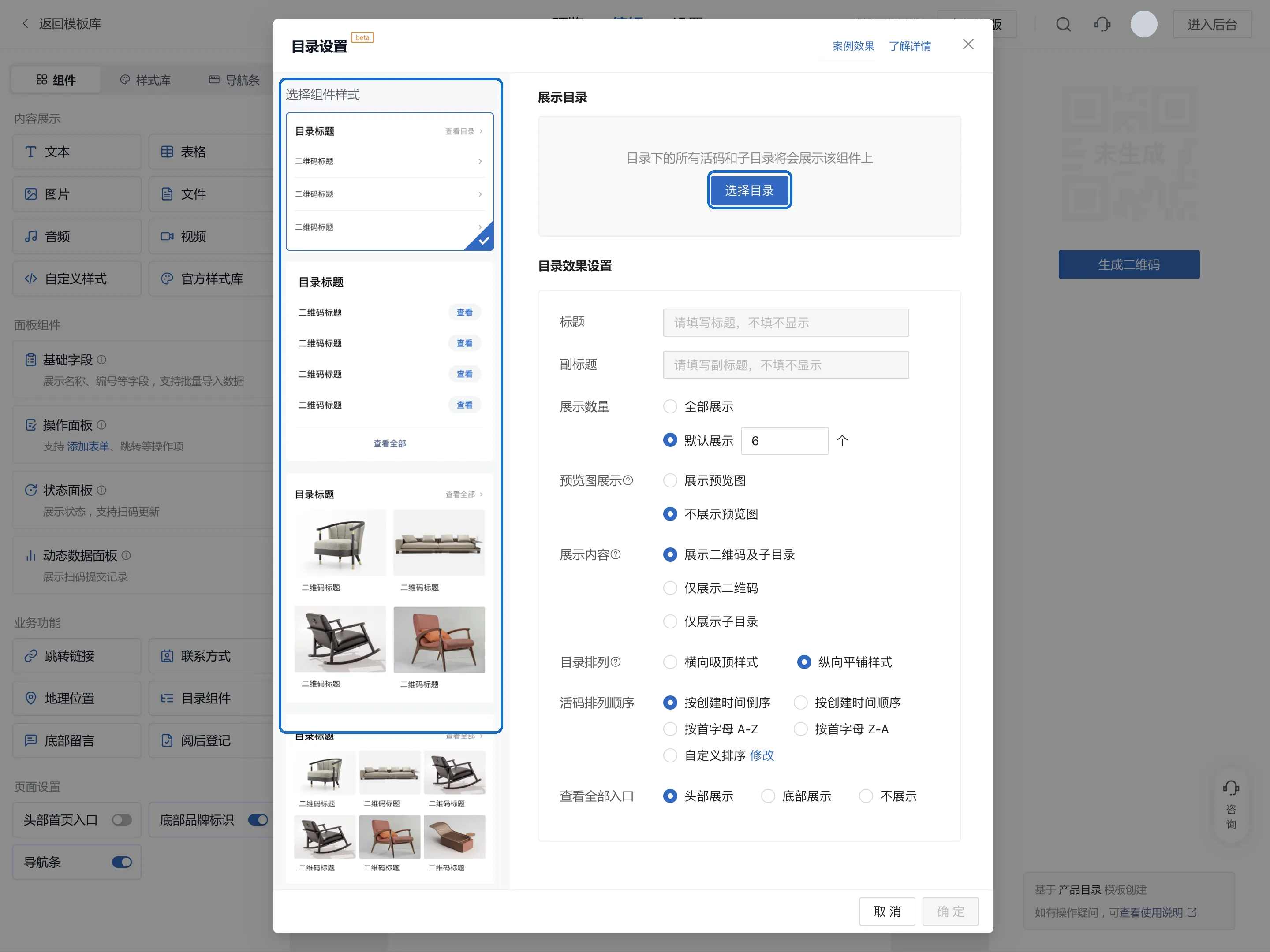
To change a directory's cover image, open the directory's ··· menu in the workbench and choose Directory cover settings. See Directory List.
Only Need to List a Directory, Nothing Else: Generate a Directory List QR Code
If you just need to list the codes in a directory without intros or contact details, you don't need a new code. Generating a directory list QR code in the workbench is faster:
- Open the workbench and click Dynamic QR codes on the left.
- In the directory tree, hover over the directory you want, then click ··· → Directory list QR code. You can also select the directory and click View next to Directory list QR code above the list.
- Choose a scan display style from five options: list, large-image list, grid, menu, or card. If the directory has subdirectories, the menu or grid style shows the categories more clearly.
- Download the QR code.
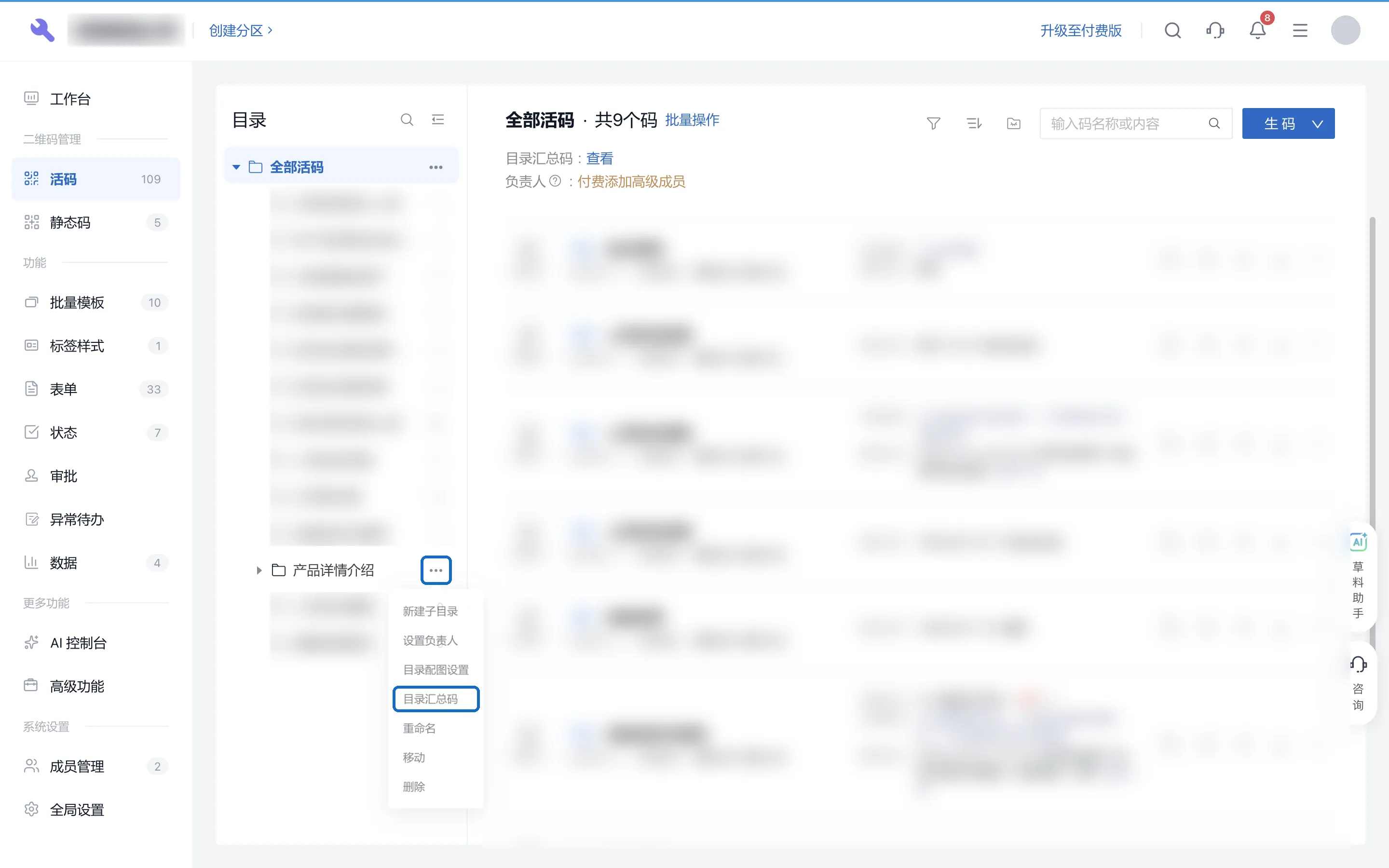
A directory list QR code is generated directly in the workbench, and its page only shows the list of codes, so you can't add other content. On its settings page you can also change the default sort order, set viewing permissions, and embed it in an Official Account. See Directory List QR Code.
IV. Long Page? Jump Around with a Navigation Bar
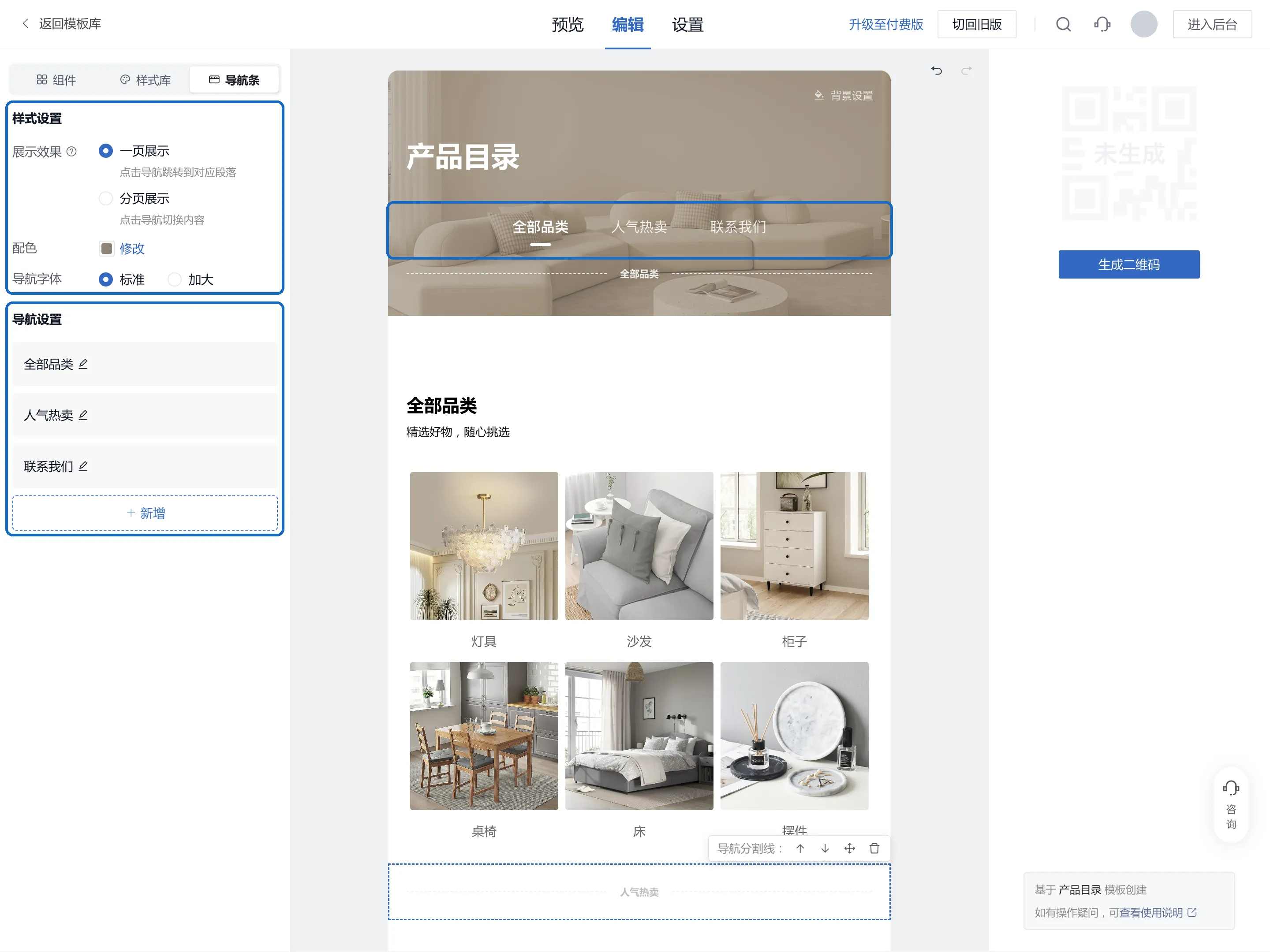
A Navigation bar adds a row of tabs at the top of the page, and viewers tap one to scroll to that section. It's handy when there's a lot of content to scroll through. The example uses three tabs: All categories, Best sellers, and Contact us.
- Under Page settings at the bottom of the left Components panel, turn on Navigation bar. A Navigation bar tab appears on the left, and the first tab is inserted at the top of the page automatically.
- Under Style settings, choose the display effect:
- Single page: tapping a tab jumps to that section, and the whole page stays scrollable. Recommended for a product catalog.
- Paged: tapping a tab shows only that section and hides the rest. Suits pages where every section is long.
- Under Navigation settings, click the edit icon next to a name to rename it after its section, such as "Best sellers". Click Add if you need more tabs.
- In the body, select a section, then click Not inserted next to the matching tab. A navigation divider is added after that section. Use the up and down arrows on the divider to move it to the start of the section.
V. Let Other Codes Lead Back to This Homepage (Header Homepage Entry)
Once Header homepage entry is on, other codes in the same partition show a Home entry on their pages, and one tap returns to this homepage. Whether viewers came in from the homepage or scanned a code stuck on a product, they can always get back and keep browsing. First, set the summary homepage as the partition homepage:
- Under Page settings, turn on Header homepage entry. If there's no partition homepage yet, a Create partition homepage window appears. Click Go create.
- Select this summary homepage as the partition homepage. The summary homepage must be generated as a QR code before you can select it. You can also get there from the workbench via Advanced features → Partition homepage settings → Settings.
- Once it's on, every code in the partition shows the Home entry. For codes that don't need it, turn off Header homepage entry in their editor.
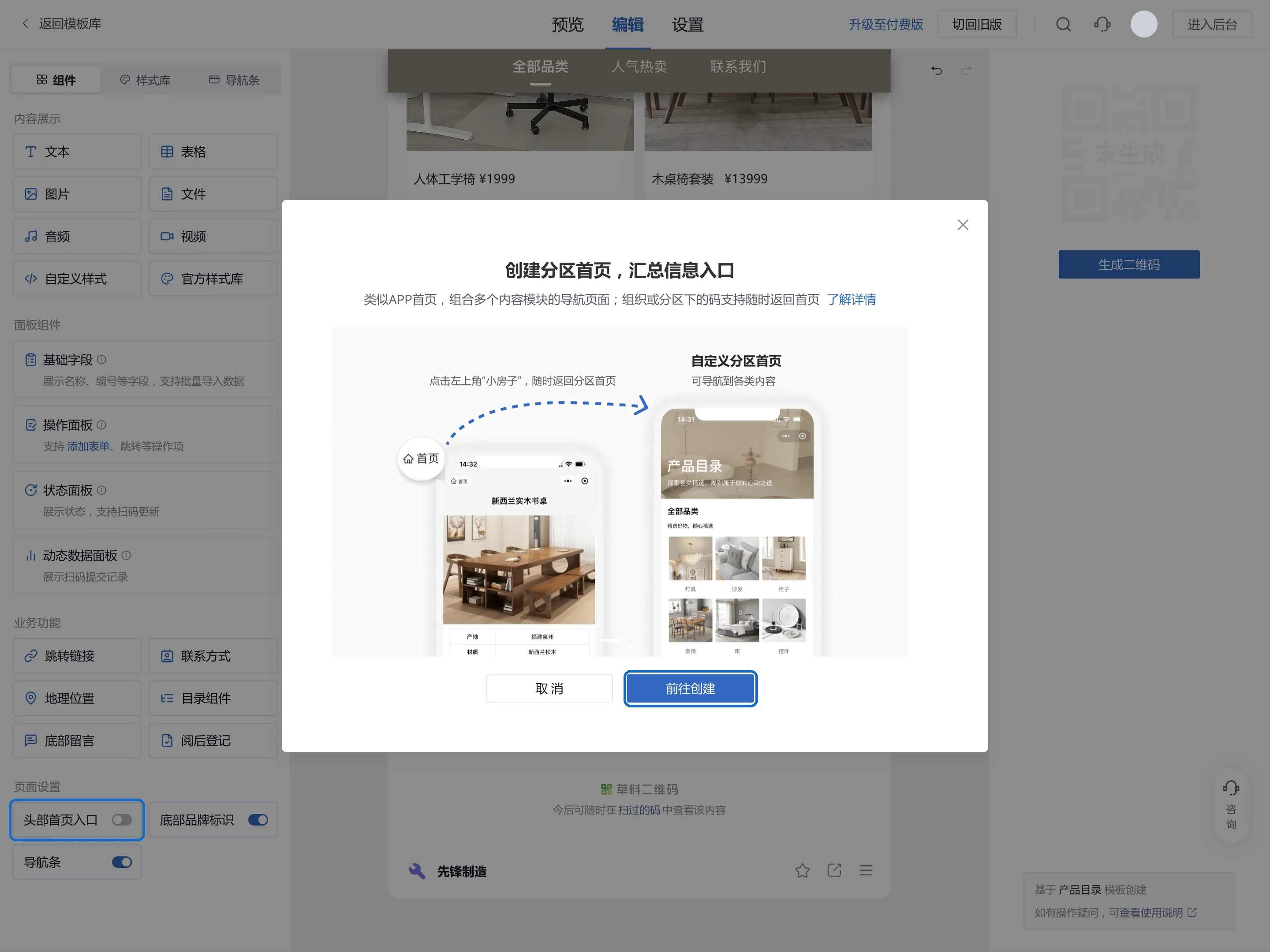
For more partition homepage settings, see Partition Homepage.
VI. Show Your Brand at the Bottom of the Page (Bottom Brand Mark)
If you use the summary homepage as a company homepage or portal, the Bottom brand mark shows your company logo and name at the bottom of the page. Viewers can tap it to open your brand profile page or a page you choose.
- Under Page settings, turn on Bottom brand mark.
- Click the brand bar at the bottom of the page, and in the Brand settings window choose a display style: pinned to the bottom of the screen, floating above the bottom, or shown at the end of the page.
- To change the logo, name, or where a tap goes, click Edit to open Global settings → Brand and display → Brand identity settings in the workbench. A tap opens the brand profile page by default, and you can switch it to another page.
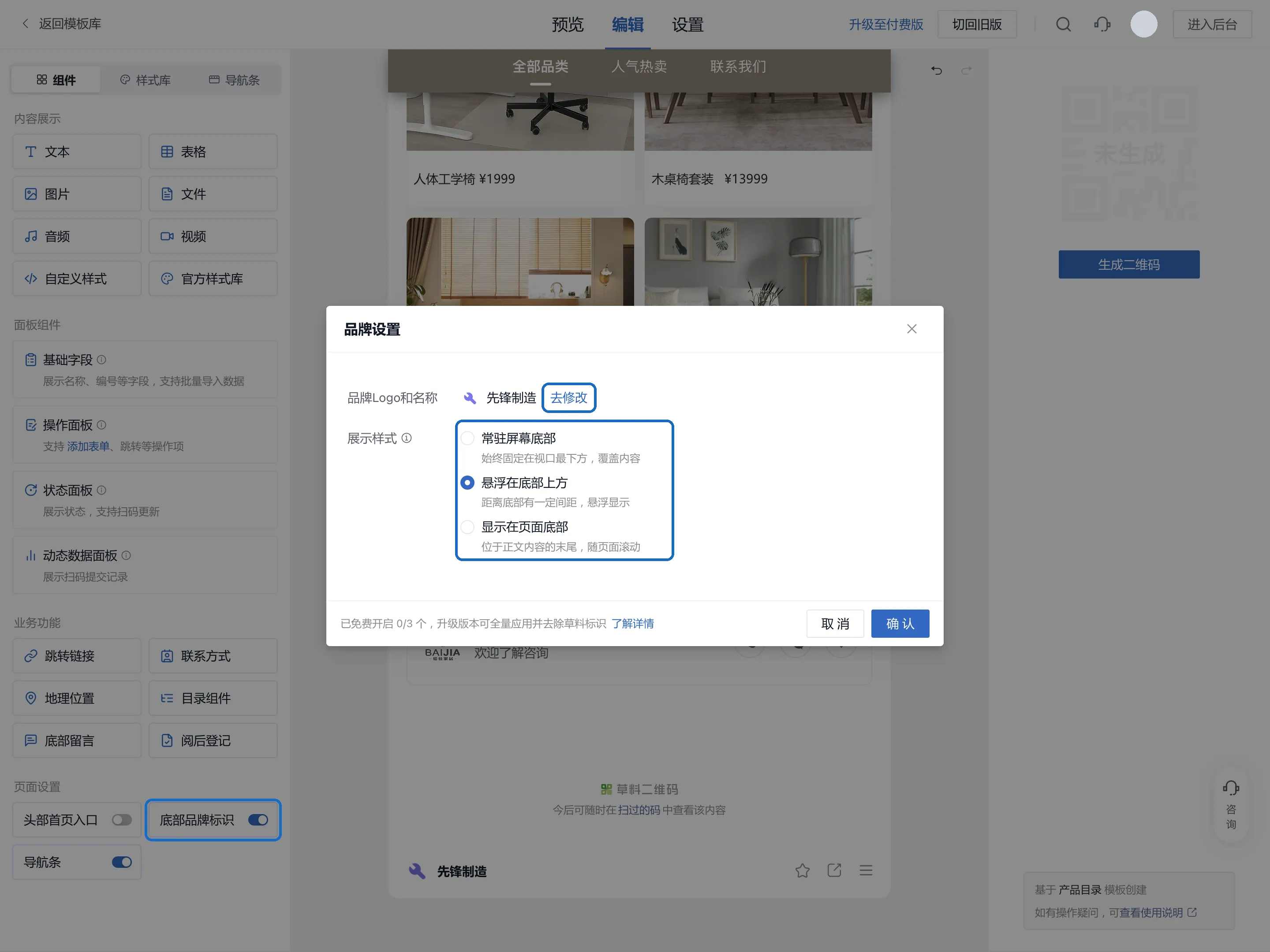
Note: The free version can turn on the brand mark for 3 codes, and the bottom of the Brand settings window shows how many are in use. The Basic Edition and above have no limit. Removing the CaoLiao logo at the bottom of the page requires the Basic Edition or above. See Remove the CaoLiao Logo and Display Your Own Brand Identity.
VII. Generate the QR Code and Test It
When everything is set, click Generate QR code on the right, then download the code. For a code that has already been generated, click Save content after you edit it.
Scan it with WeChat and tap each tab and entry to make sure it goes to the right place. On the free version, tapping a URL entry such as "Website" prompts you to copy the link. That's expected; see Section II for why. If you turned on the header homepage entry, scan a product code too and confirm you can get back to the homepage.
When content changes later, just edit it in the workbench. The QR code stays the same.
FAQ
1. If I change the homepage content, do I need to replace codes that are already printed?
No. A summary homepage is a dynamic QR code. When you edit content or add or remove entries in the workbench, viewers always see the latest version, and the QR code pattern stays the same. The pattern only changes if you change the WeChat access method.
2. Why won't a URL in a redirect link open?
Codes open in the CaoLiao Mini Program by default, and WeChat doesn't allow mini programs to open web pages directly, so viewers are prompted to copy the link into a browser. The Basic Edition and above can switch the code's access method to H5 web page. See How to Enable Direct URL Redirect in Dynamic QR Codes?
3. My page just has lots of files and doesn't need to link anywhere else. How do I make it easy to navigate?
Keep everything in one code and add a navigation bar to split it into sections, following the same steps as Section IV. For a code that only holds files and image-text content, see the Business Introduction QR Code Tutorial.
4. Why is my directory list QR code empty when scanned?
The directory and its subdirectories don't contain any codes yet. Move codes into the directory and scan again.
5. Can I add an access password to the summary homepage?
Yes. In the dynamic QR code editor, go to Settings at the top → Permission settings and set the viewing permission. When viewers are set to Anyone, you can also turn on password access. For a directory list QR code, set this on its settings page. See QR Code Viewing Permission Settings.
6. Each partition has its own homepage. Can I roll them up into one code?
Yes. Copy the Code URL from each partition's homepage settings, then create a new code in the default partition and add each one as a redirect link of the URL type to build a company homepage. See Consolidate Partition Home Pages into a Company Home Page.
Related Resources
- Ready-made templates: Product Catalog, Property Owner Services, Site Management, Document Collection
- Feature guides: Redirect Link, Directory List, Directory List QR Code, Navigation Bar, Partition Homepage
- Prepare a product introduction code: Product Introduction QR Code Tutorial
- Need help: CaoLiao Community