Information Display QR Code Tutorial
An information display QR code puts policy documents, service guides, health education materials, and audio/video into one code. Post it on site or share it in a WeChat group, and anyone can scan to view and download. When a document gets a new version, swap it in the backend and the printed code stays the same. The free version is enough.
I. Pick a Template and Open the Editor
All templates are in the Information Display category. Pick one by what you want to put in it:
- Files and documents: File Display, Technical Disclosure, Operating Procedures, Engineering Documents
- Guides and education: Service Guide, Outpatient Guide, Health Education, Admission Education
- Public notices and introductions: Project Information Notice, Village Affairs Disclosure, Class Introduction, Personal Resume
- Audio and video: Audiobook, English Listening Materials, Exercise Explanations, Scenic Spot Introduction
If you have many documents that need to be sorted into categories, use File Collection. For templates with one code per exhibit or per person, such as Exhibit Introduction and Party Member Information Notice, the template asks whether you want a single code or a batch when you open it. For the batch method, see the Product Introduction QR Code Tutorial.
The steps below use "File Display" as the example. Open the template and click Use Template to Generate to enter the editor.
II. Replace the Content with Your Own
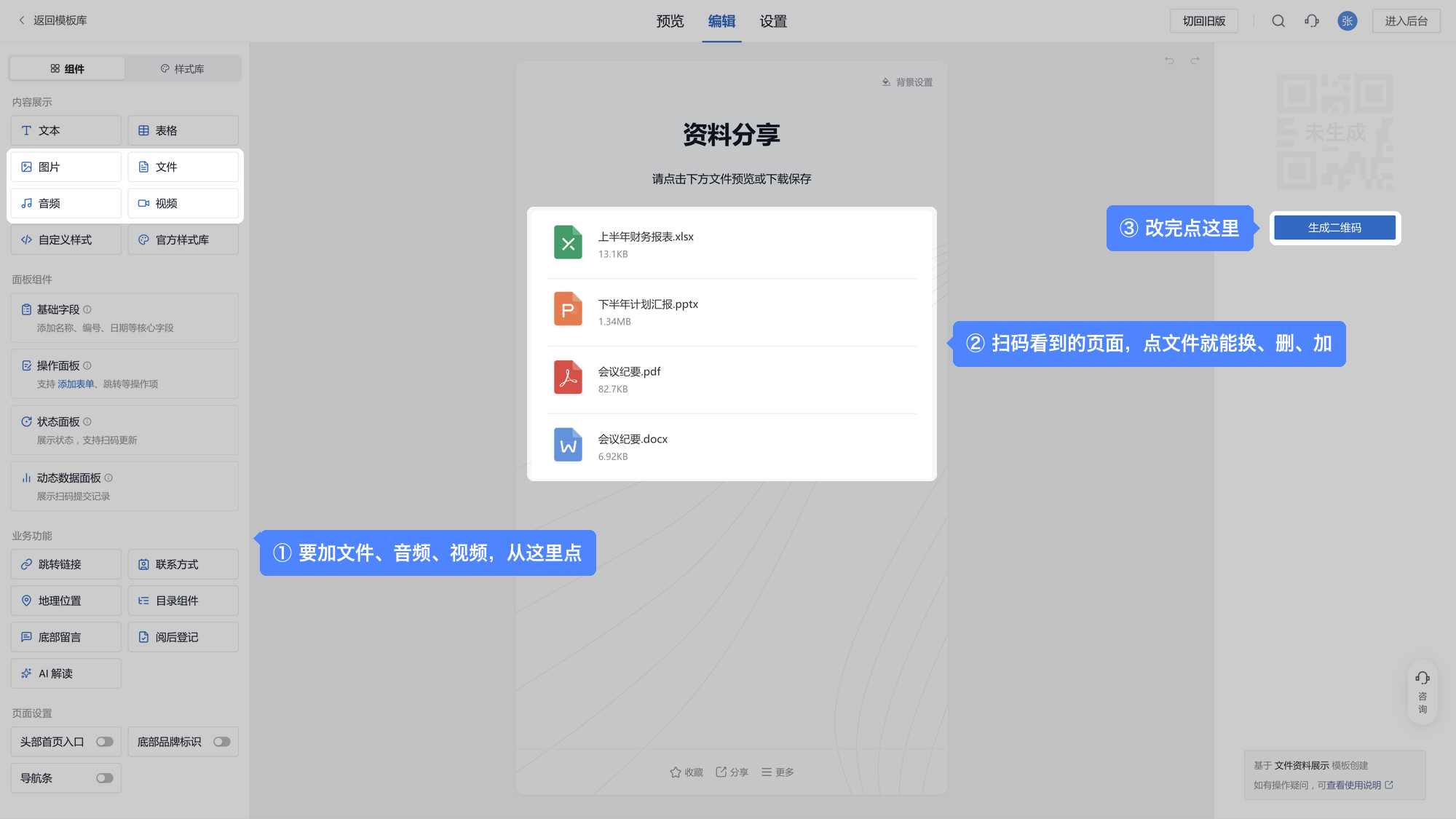
1. Replace the Files
The middle shows the page people see after scanning. Click the title and description text to edit them directly. Click a sample file, then on the toolbar:
- Add File uploads your file.
- In More Settings, click Replace File to swap this file for a new one.
- Click the delete icon to remove sample files you don't need.
You can upload Word, Excel, PPT, PDF, images, compressed archives, and drawings. Each file can be up to 50MB on the free version and 500MB on the Basic edition and above. See Which formats does a file QR code support.
2. Add Descriptions, Images, And audio/video
- To add a description above the files, click "Text" on the left. To add a flowchart or diagram, click "Image". Typing "/" in the body lets you insert components quickly.
- For explainer videos or voice narration, click "Video" or "Audio" to upload. On the free version, each audio or video file can be up to 1 minute long, with unlimited plays and long-term standard-definition playback. The Basic edition and above have no duration limit and include HD playback traffic. See Audio and video FAQ.
- To leave a phone number or guide people to a location, use "Contact" or "Location". People who scan can tap once to call or navigate.
3. Control Downloads and See Who Has Read It
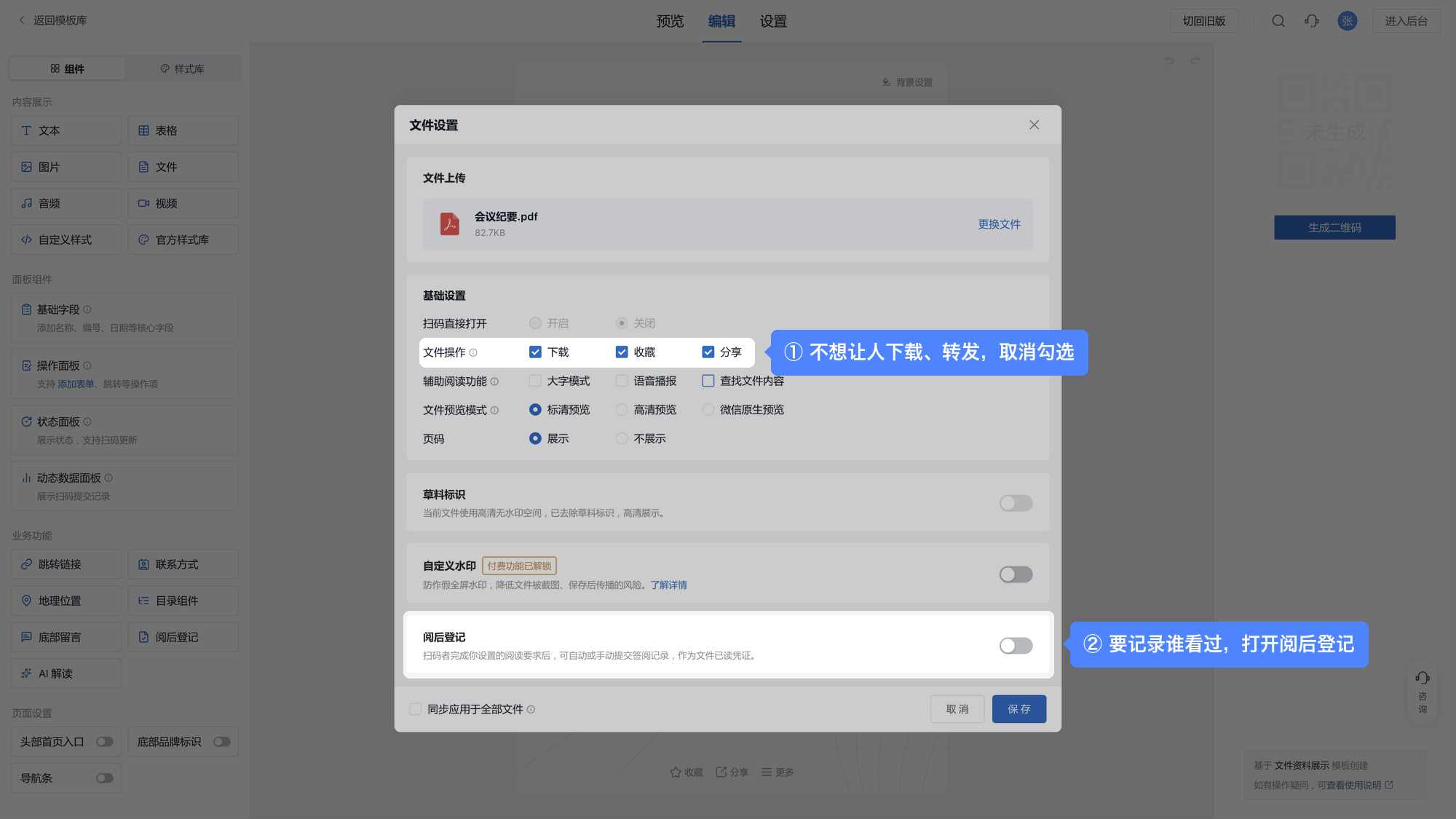
Click a file, then click More Settings on the toolbar to open the file settings:
- File actions: download, favorite, and share are allowed by default. To keep internal documents from being passed on, uncheck "Download" and "Share".
- Read registration: when turned on, people who scan leave a sign-off record after reading, which suits policy acknowledgment and technical disclosures. See File read registration.
- If several files use the same settings, check "Apply to all files" at the bottom.
III. Generate and Download the QR Code
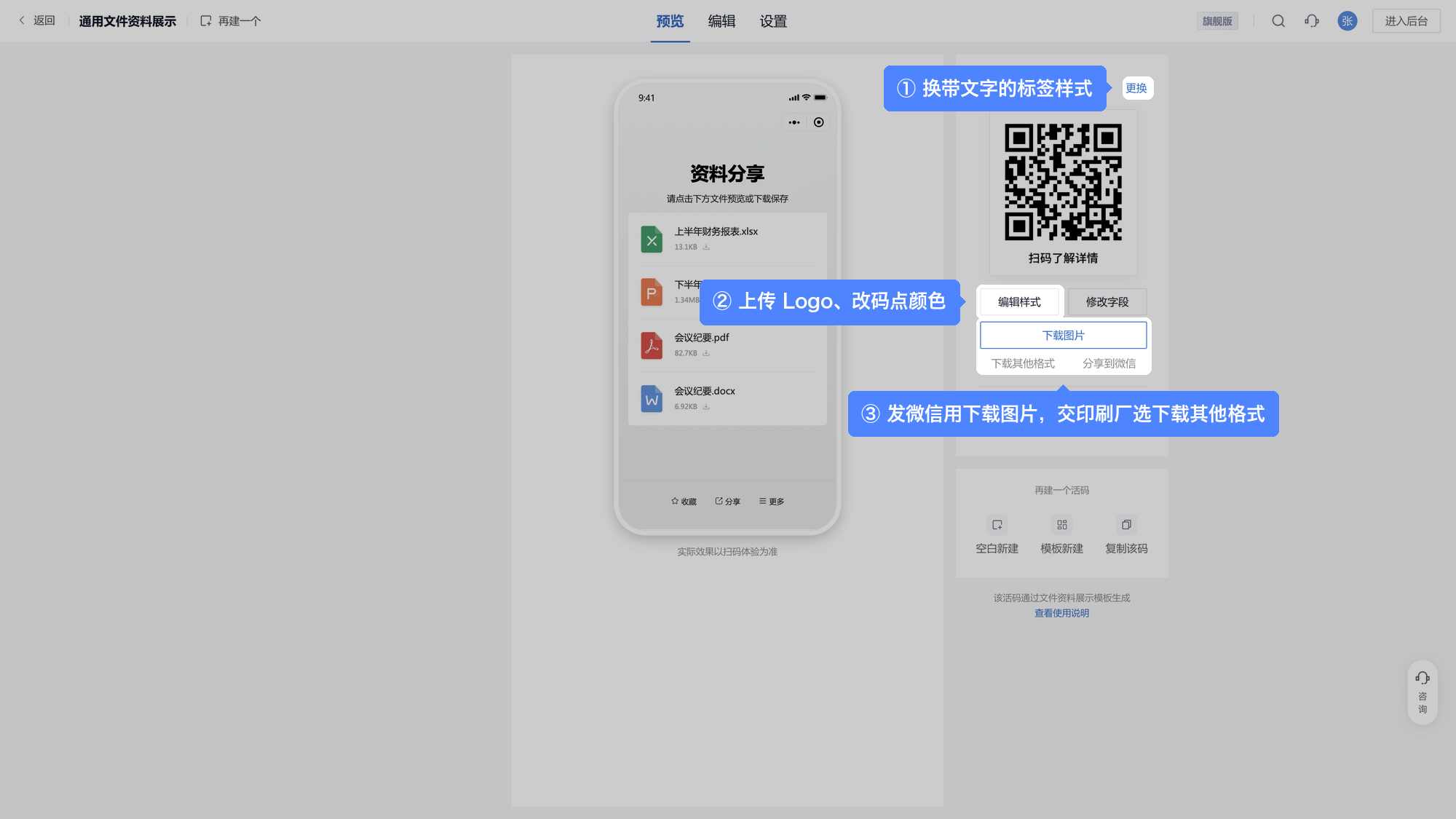
Click Generate QR Code on the right to open the preview page. Scan the code on the screen with WeChat to check that the files open and the videos play.
The QR code label is on the right:
- Next to "Label style", click Change and choose a style with text, then change the text to "Scan to view documents".
- Click Edit Style to upload a logo and change the color of the code.
- To share on WeChat, use Download Image. To send to a print shop, use "Download other formats" and choose PDF or SVG.
IV. Print and Share
1. Post It
- You can post it on bulletin boards, notice boards, next to equipment, on ward walls, or inside books. Before printing in bulk, print one copy and test it with a few phones.
- For materials and sizes, see the QR code label printing guide. If you don't want to find a print shop yourself, you can order directly in the backend and use CaoLiao QR Code printing service.
2. Send It Out
- Send the QR code image directly on WeChat, in work groups or parent groups, or put it in a PPT or email.
- If you have an official account, embed the code in its menu or articles: find the code in the backend, click More → Embed in Official Account, and copy the path. See Embed in Official Account.
V. Manage It Day to Day
1. Replace Files Without Reprinting
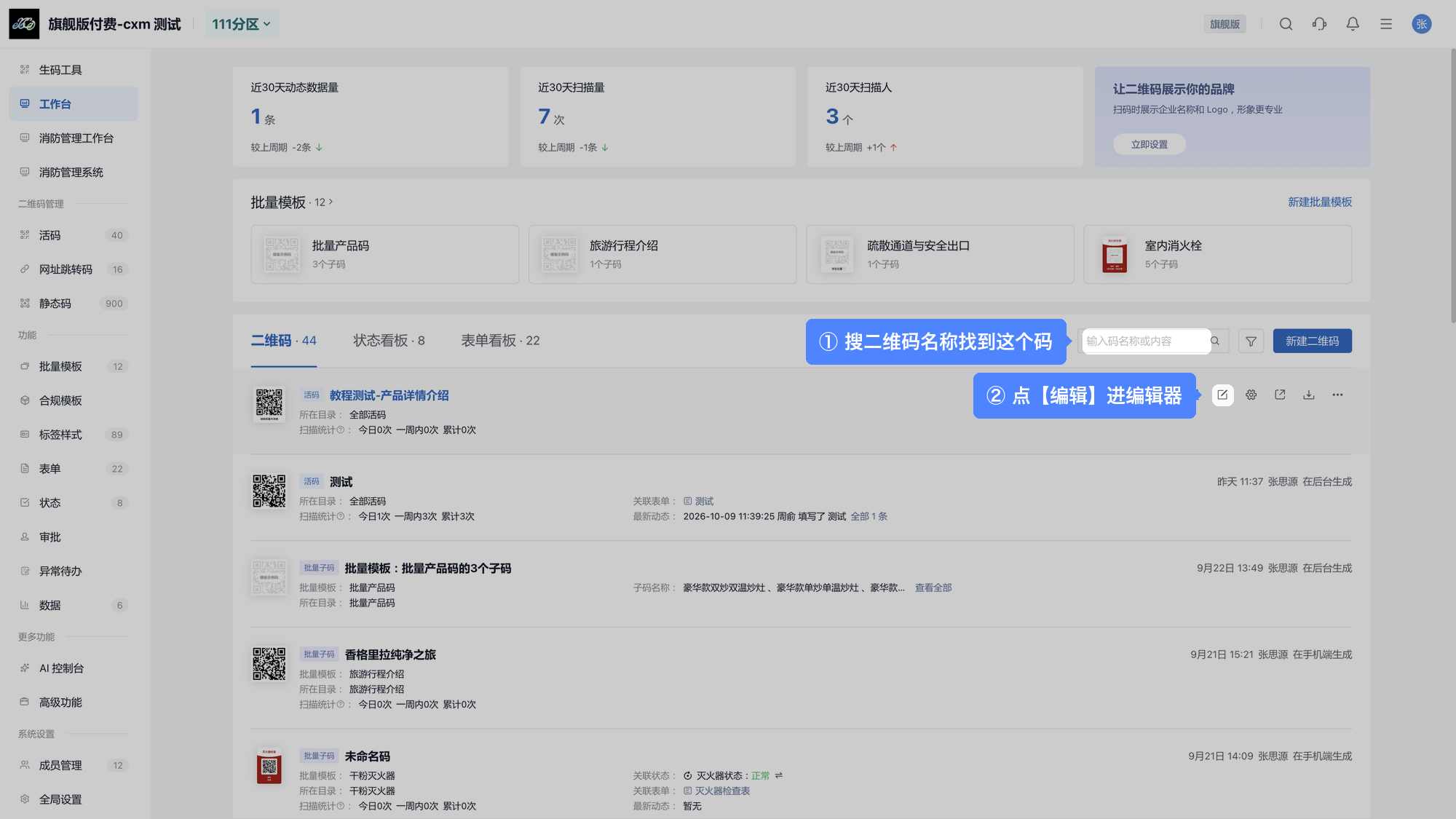
Search for the QR code name in the backend, click Edit, replace the file, and click Save Content. Scanning the original code then shows the new version. Use the same steps for policy revisions and document updates.
2. See How Many People Scanned and Who Read It
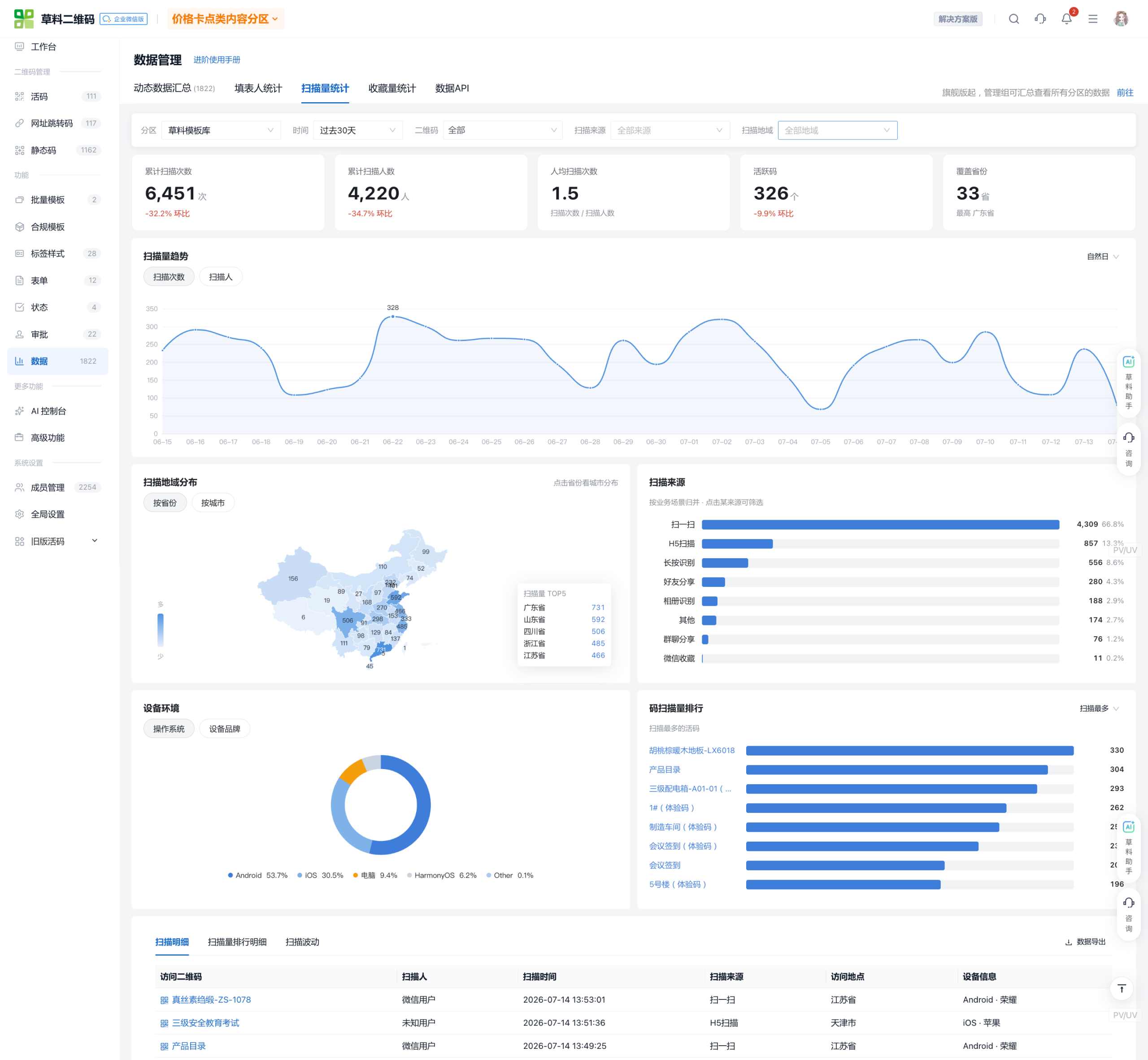
- In the backend, go to Data → Scan Statistics on the left to see scan counts, visitors, regions, and sources. You cannot see scanners' WeChat IDs or phone numbers.
- If read registration is on, go to Data → Dynamic Data Summary to see who has signed off, and export the records.
FAQ
1. What is the difference between the free version and the paid version?
You can build the whole thing on the free version, use it commercially, keep the code valid long-term, and get unlimited scans. The differences are in display quality and capacity:
| Free version | Paid version | |
|---|---|---|
| Make codes, edit content, scan to view | Available | Available |
| "CaoLiao QR Code" logo at the bottom of the page | Shown | Removed from the Basic edition |
| Images | CaoLiao watermark in the bottom right, compressed resolution | No watermark, original resolution; HD storage of 1G on Basic, 3G on Advanced, 30G on Flagship |
| Audio and video | Up to 1 minute per file, unlimited plays, long-term standard-definition playback | No duration limit, with HD playback traffic |
| Single file size | Up to 50MB | Up to 500MB |
| File preview page | Standard-definition preview | HD preview with an optional custom watermark |
| Opening in WeChat | "CaoLiao QR Code" mini program | "View QR Code" mini program, without the CaoLiao logo |
Codes you've already made don't need to be remade after you upgrade. For the full comparison, see the pricing page. If you're not sure which edition to choose, see Edition selection guide.
2. Can I still change a code after it's printed?
Yes. Replacing files or editing text doesn't change the QR code image. You only need to reprint if you change "WeChat opening method" in "Settings".
3. Do people who scan need to install an app or follow an official account?
No. Scanning with WeChat opens it directly, and Alipay, Douyin, and browsers can scan it too.
4. How do I make it visible only to internal staff or specific people?
Switch to "Settings" at the top of the editor. Under "Permission settings", choose "All members" so only people in your organization can view it, or choose "Anyone" and turn on "Password required to view". See QR code view permission settings.
5. How many files can one code hold?
There is no limit on the number, but more files load more slowly, so we recommend keeping it under 30. If you have many files that need categories, use the File Collection template, or make one code per category and then generate a directory summary QR code from the directory.
6. Will the code expire?
No, unless you set a validity period yourself. Images, files, and audio/video are all valid long-term (except free-version audio/video uploaded before the October 21, 2026 rule change).