Prevent Duplicate Content Submission
When enabled, submitters cannot submit the same content as what has already been submitted — either by themselves or by other submitters.
Use cases:
- Registration limits: Each phone number or name can only submit registration information once.
- Item requisition limits: Each phone number can only submit a requisition for a specific item once — preventing duplicate claims.
Note: In extreme edge cases, delays may cause this restriction to fail momentarily. Not recommended for time-limited flash sales or similar scenarios.
Applicable components: Name, phone number, ID number, employee ID, license plate, single-line text, number, unique ID.
1. Effect
When a submitter enters a value that already exists in the submitted data, a red "This value already exists" message appears to the right of the field label.
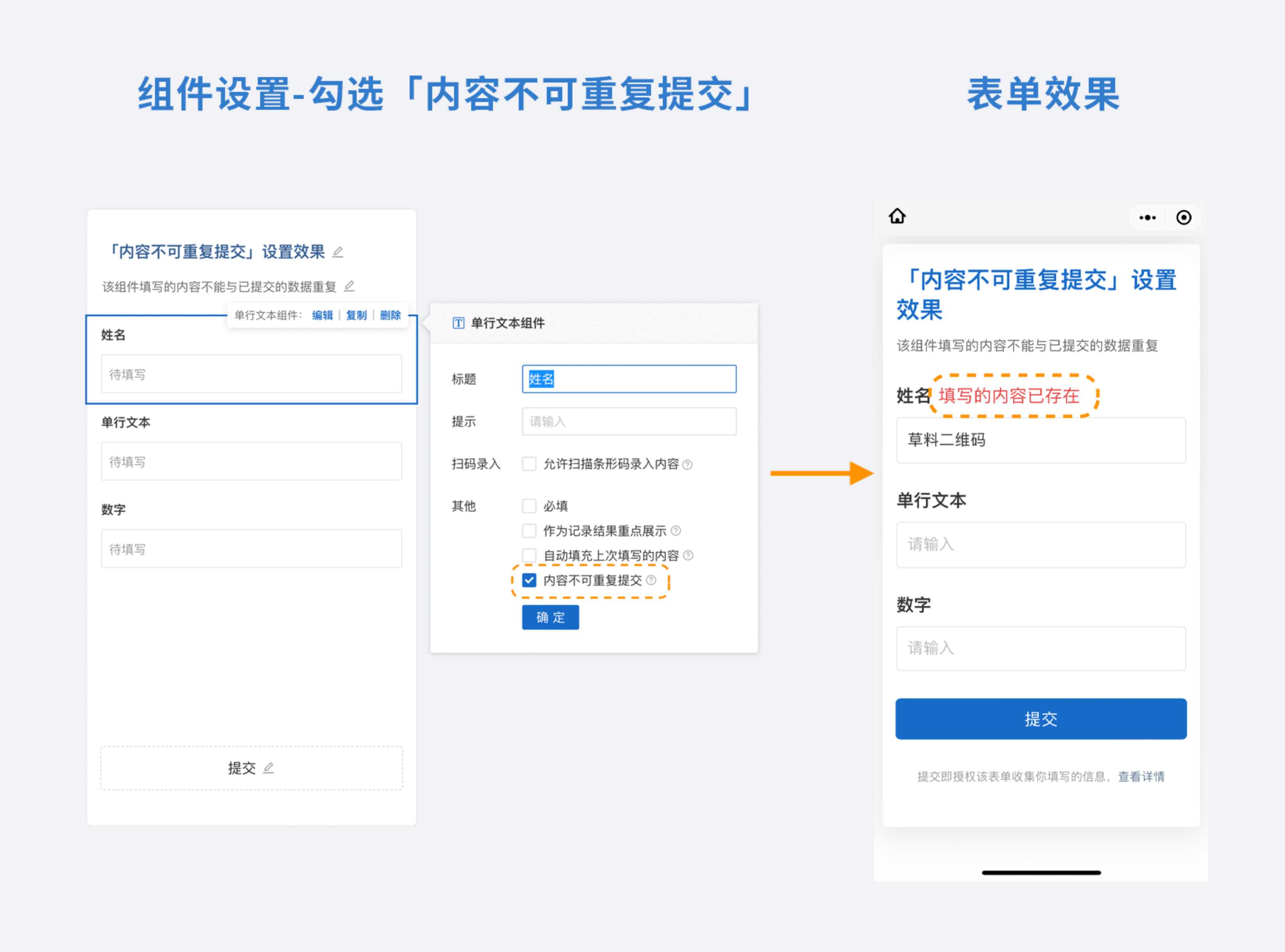
2. Setup Tutorial
2.1 Edit the Form
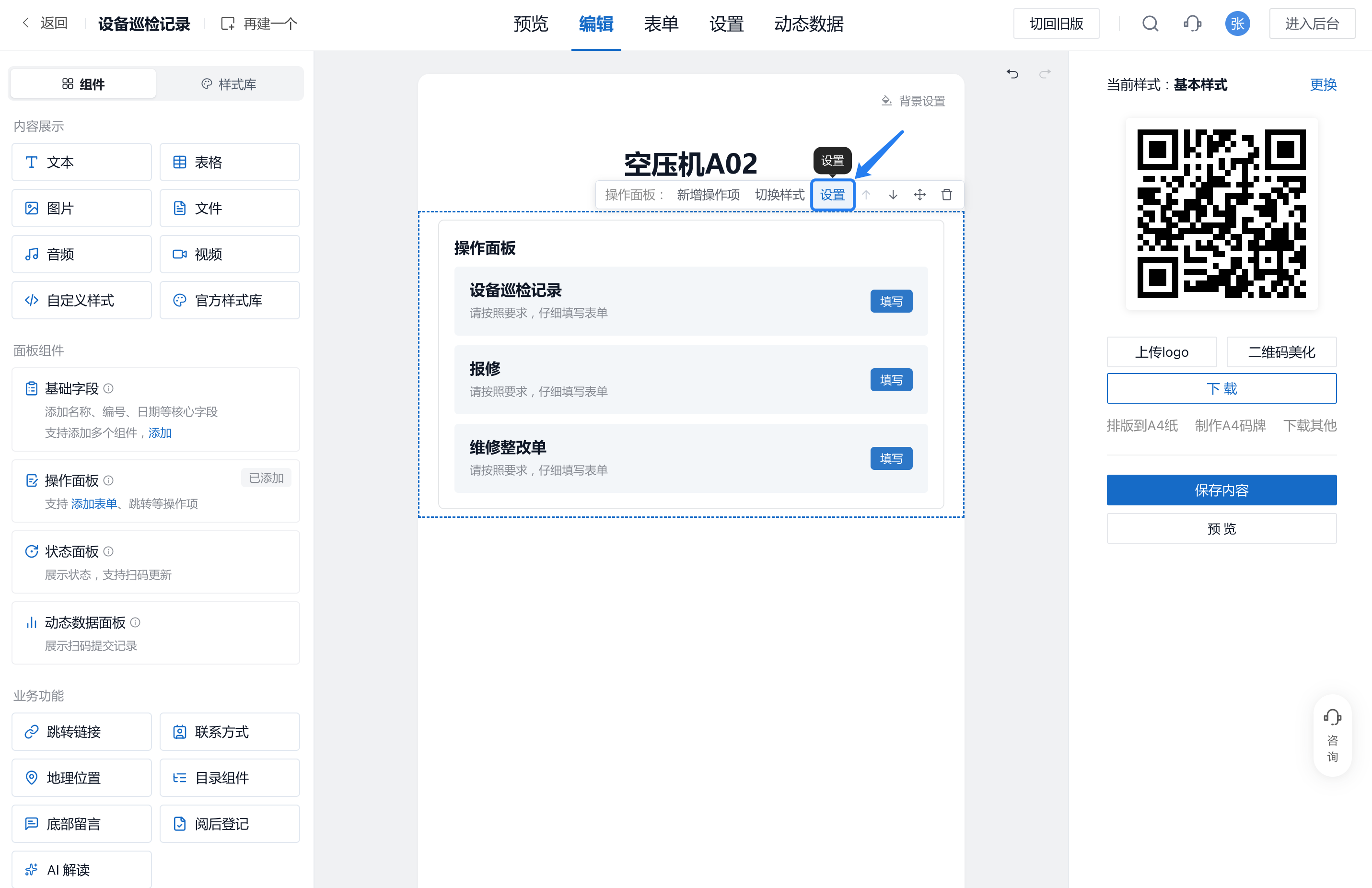
Edit the QR code, hover over the Control Panel area, and click Settings to enter the control panel settings page.
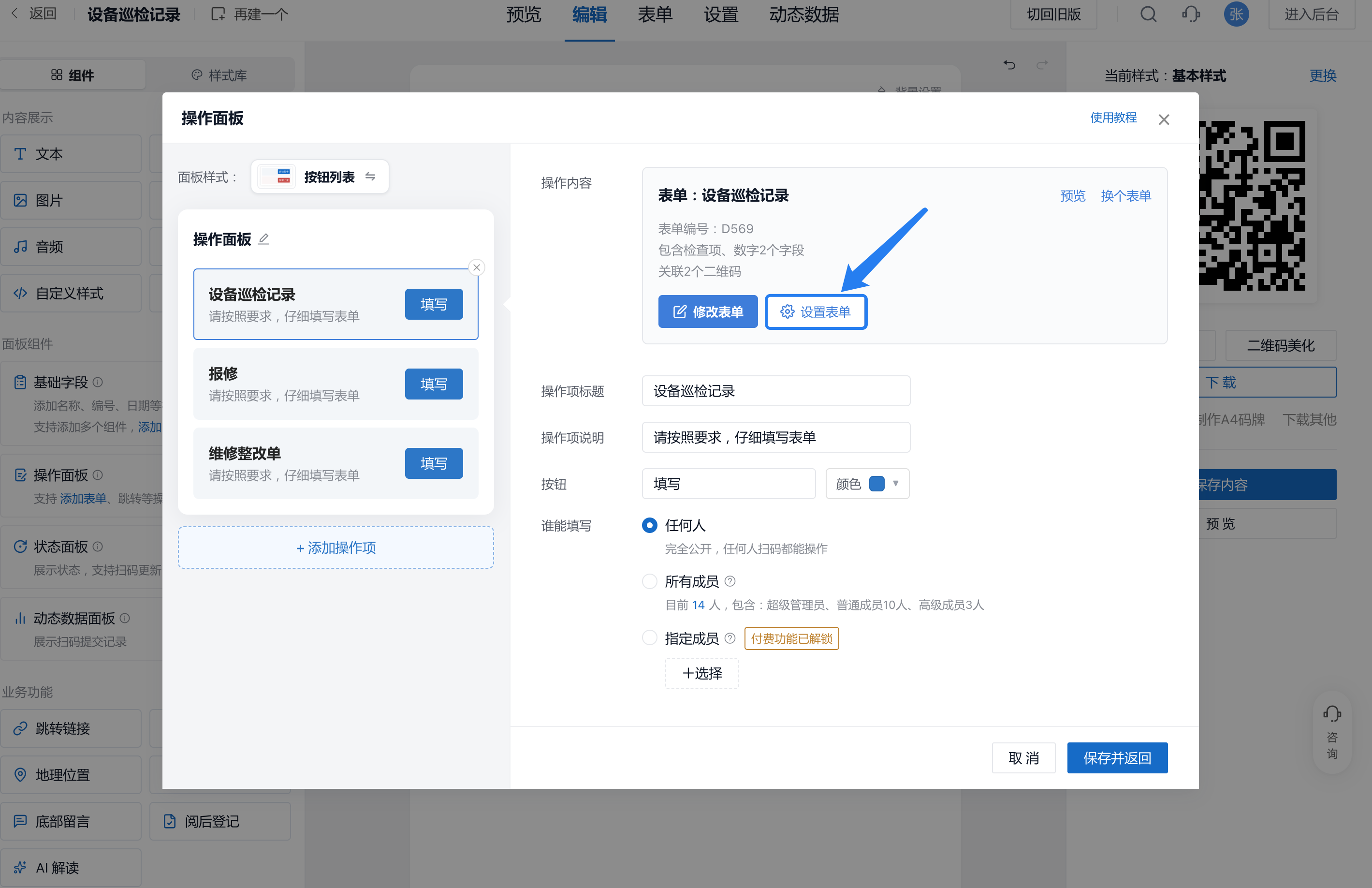
Select the form you want to configure and click Edit Form to open the forms editor.
2.2 Configure the Component
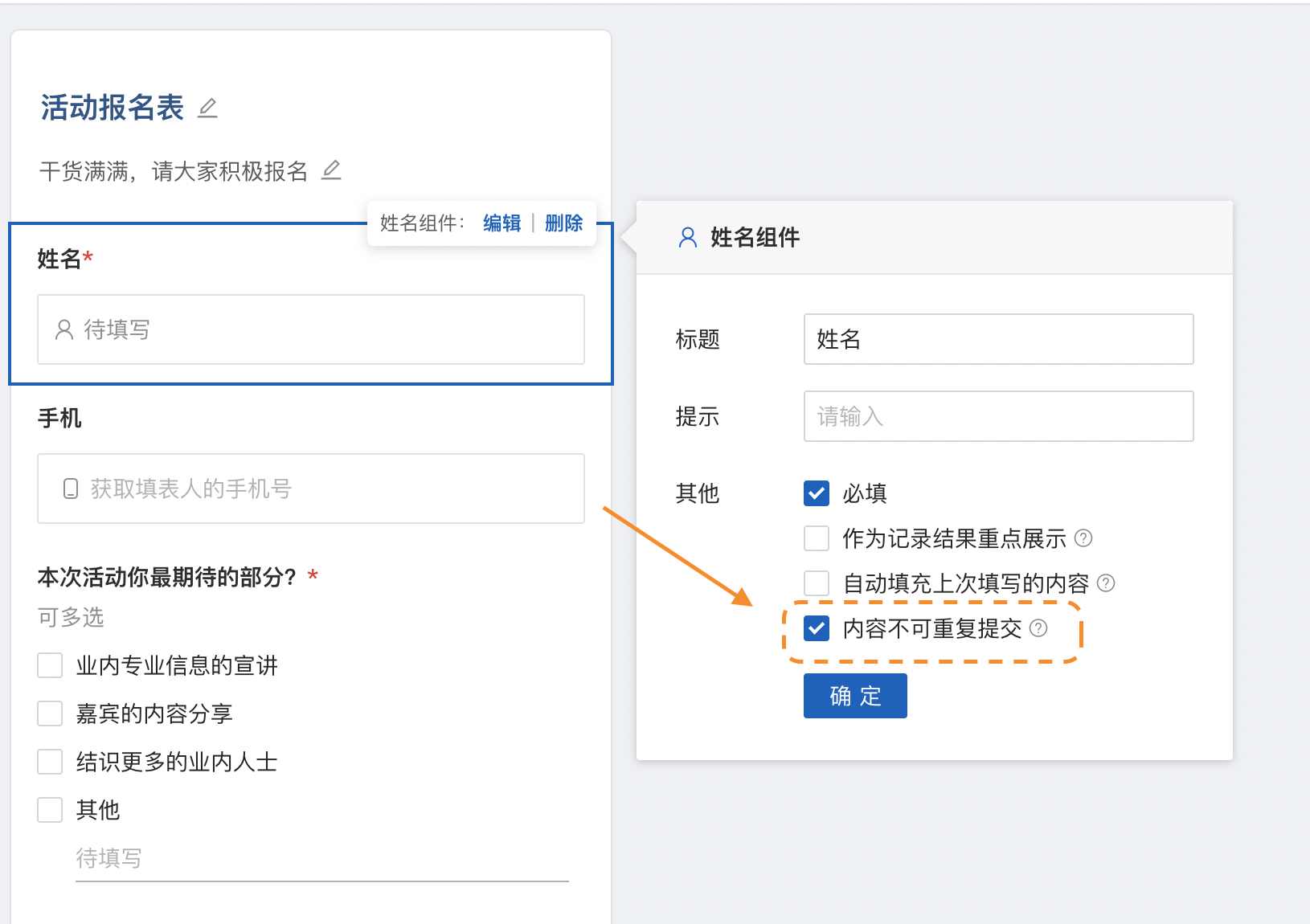
Click the component you want to configure, then check "Prevent duplicate content submission" in the right settings panel.
3. Notes
This setting limits duplicate values within a specific component in this form — it does not restrict the number of form submissions per person.
If you want to restrict each person to one submission per day, or limit the total daily submissions, use the form's Fill Restrictions settings instead. View the tutorial