Check Items
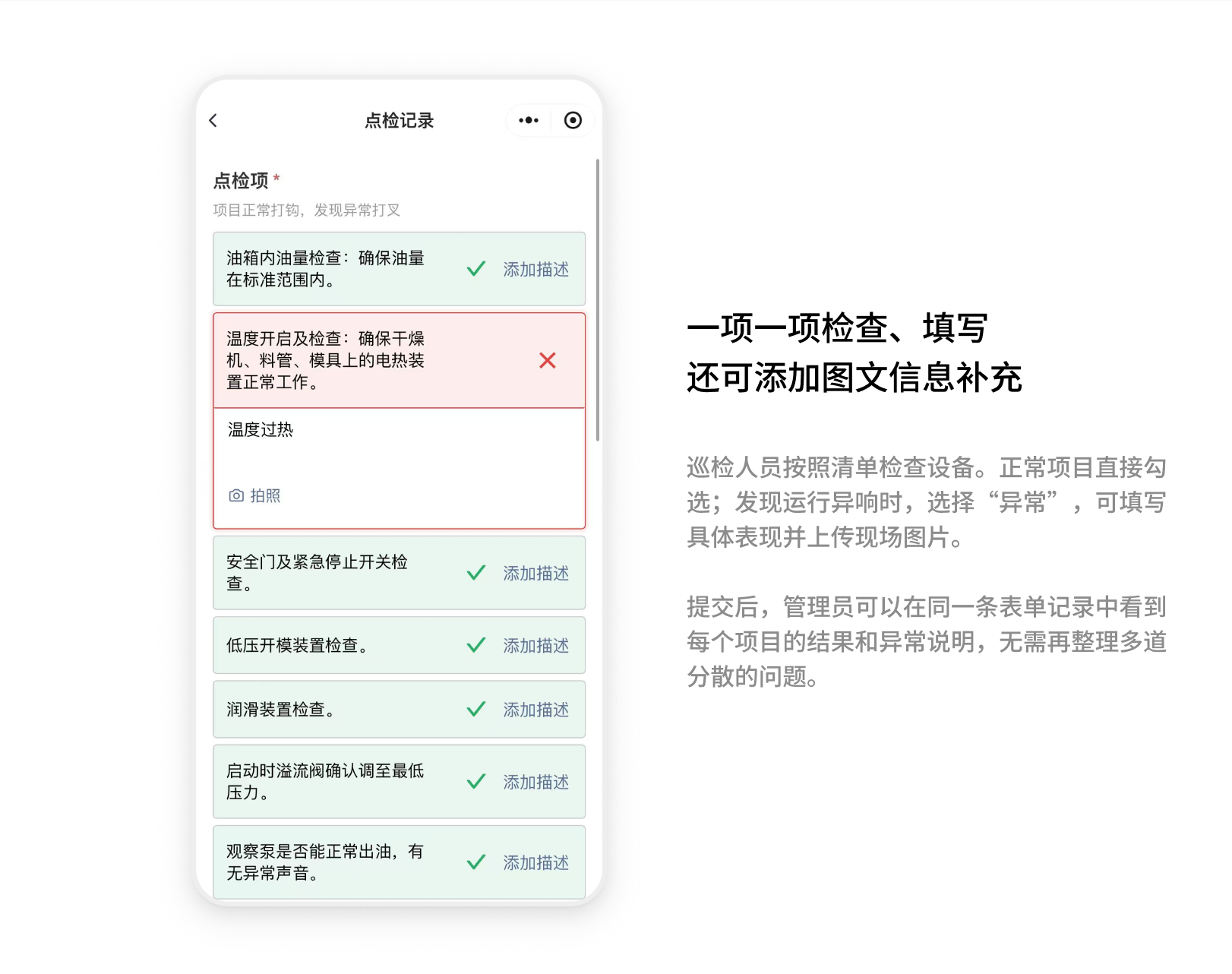
The Check Items component lists a fixed set of checks. Submitters select a result for each item and can add text and on-site photos when they find an exception. It is suitable for equipment inspection, safety checks, quality acceptance, and similar scenarios.
1. Setup Tutorial
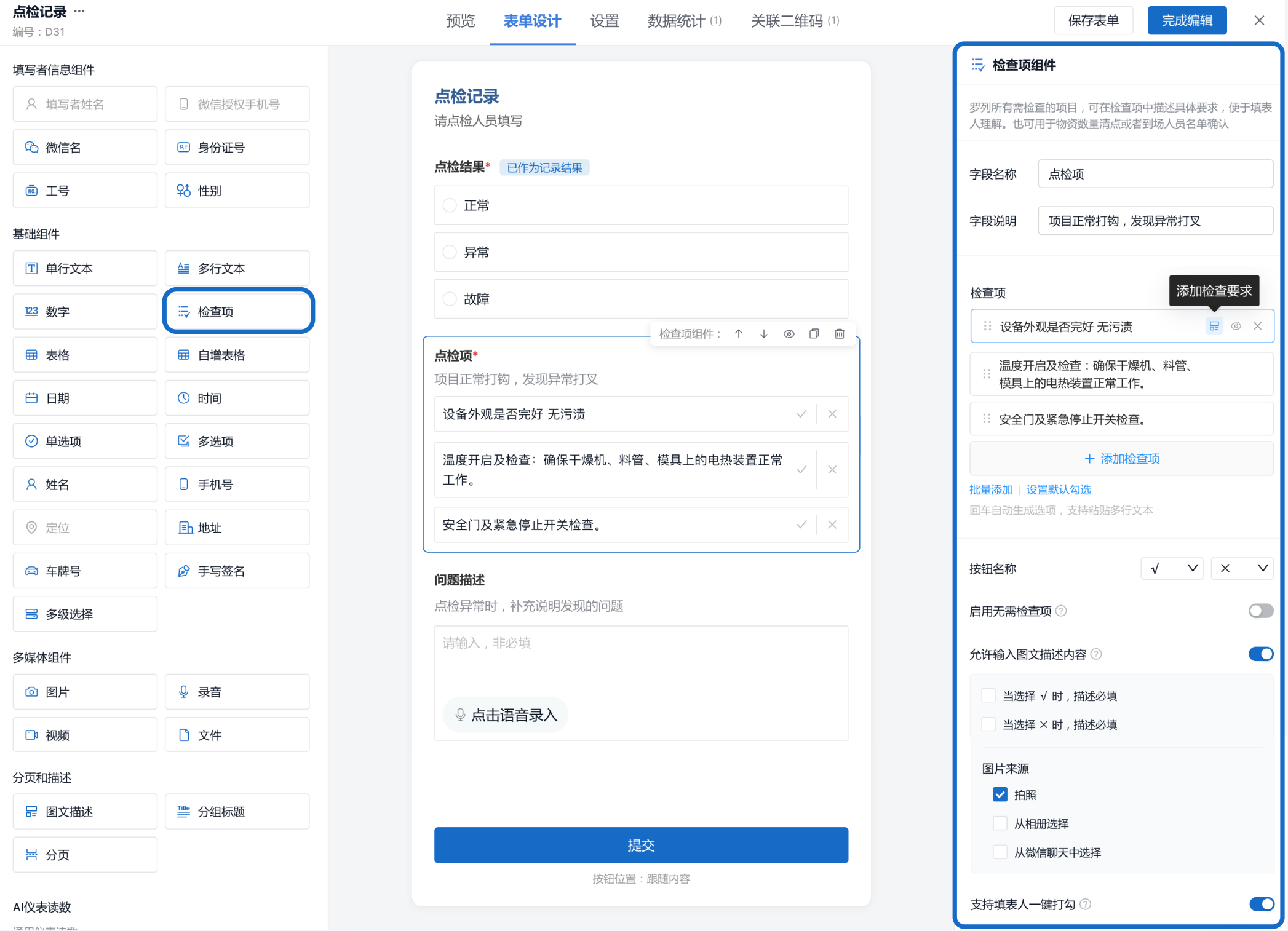
On the form editing page, add Check Items from Basic Components on the left. Select the component, then configure its field name, description, check contents, and filling rules on the right.
1. Add and Arrange Check Contents
Add Individually: Click Add Check Item and enter a new check.
Add in Bulk: Click Add in Bulk and enter one item per line to add an entire checklist at once.
Drag to Reorder: Drag the reorder icon on the left of a check item up or down. Arrange items in the order of the on-site route or actual operation.
Set Default Selections: Click Set Default Selections to preselect commonly used results for each check item. Submitters see these defaults when they open the form and can change them to match on-site conditions.
Hide or Delete: Hide check items that are temporarily unused. Deleting an item that has already collected data also affects its corresponding data, so export a copy for your records before deleting it.
2. Add Inspection Requirements
Hover over a check item and click Add Inspection Requirements to add when and how to check it, the assessment criteria, and how to handle exceptions.
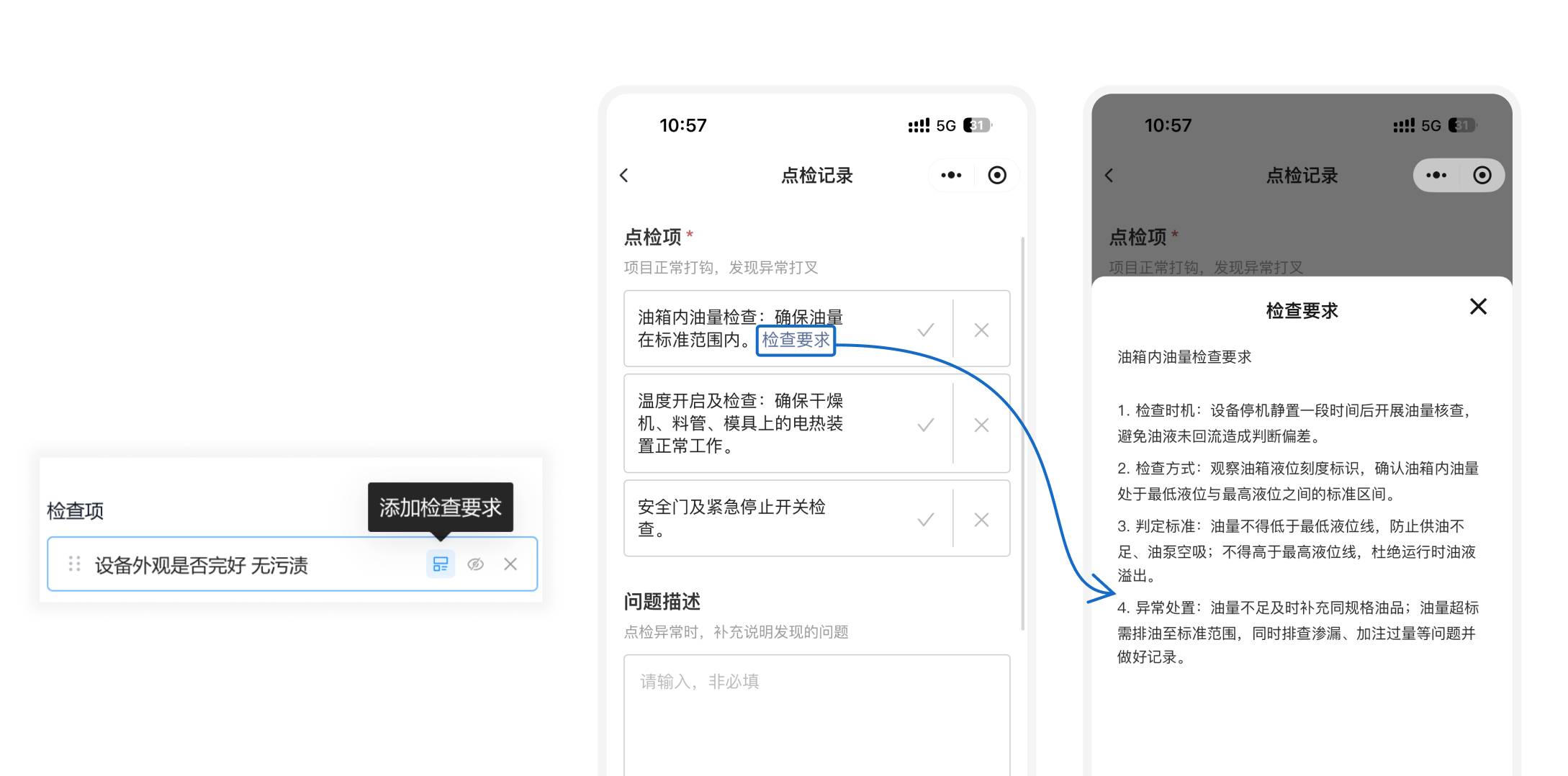
Inspection requirements appear within the corresponding item. Submitters can tap to view them without leaving the form to look up other procedures. Each item can have different requirements.
3. Edit Button Names
Set the two inspection results under Button Names. In addition to the default √ / ×, you can use Normal / Exception, Pass / Fail, or Complete / Incomplete.
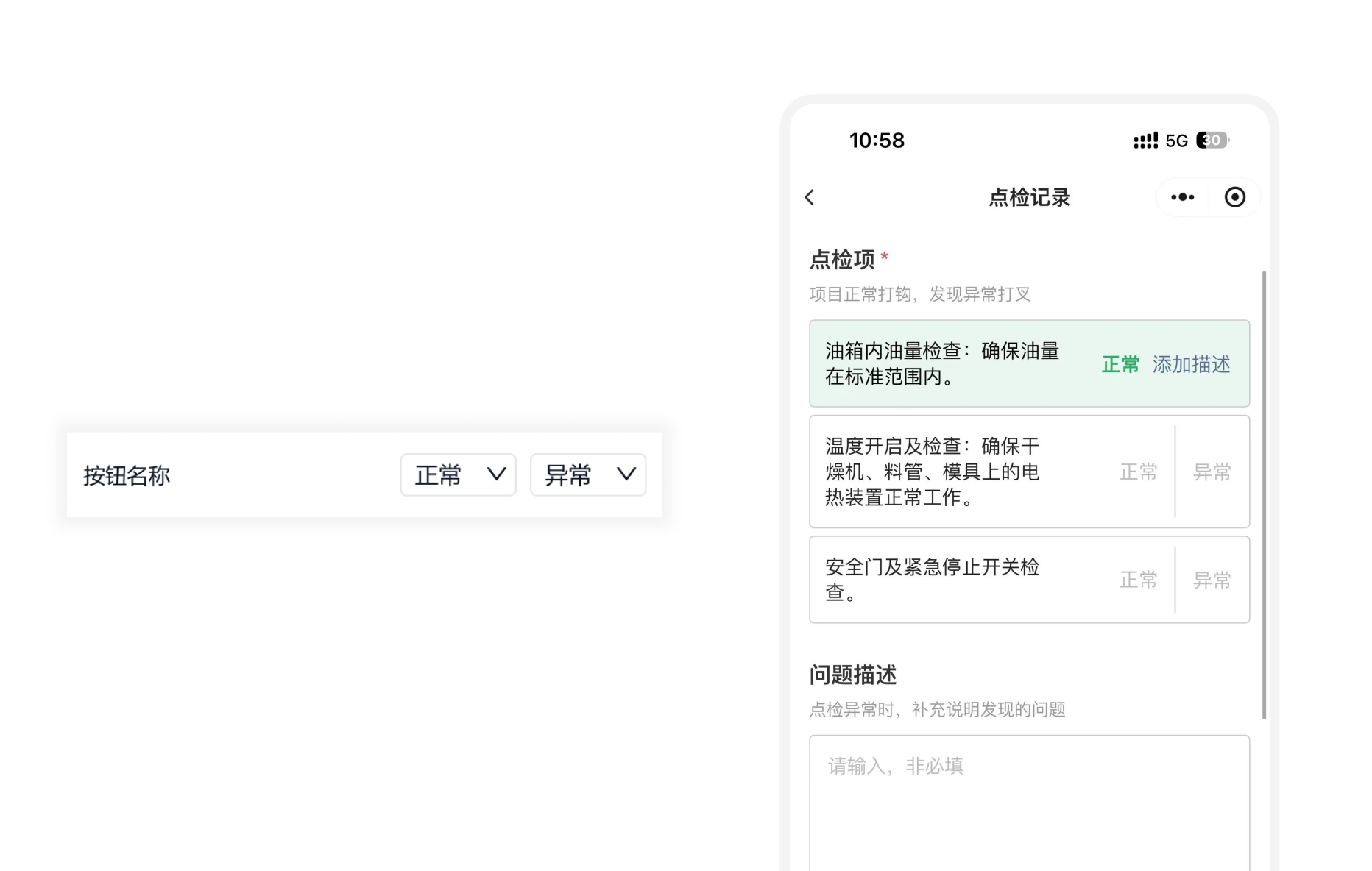
Button names should match the assessment criteria. After you set Normal / Exception, the form and its records use those names, making results easier to enter and read.
4. Enable Items That Need No Inspection
When some items do not apply every time, enable Items That Need No Inspection and set a name for the third button, such as /, Not Applicable, or No Inspection Required.
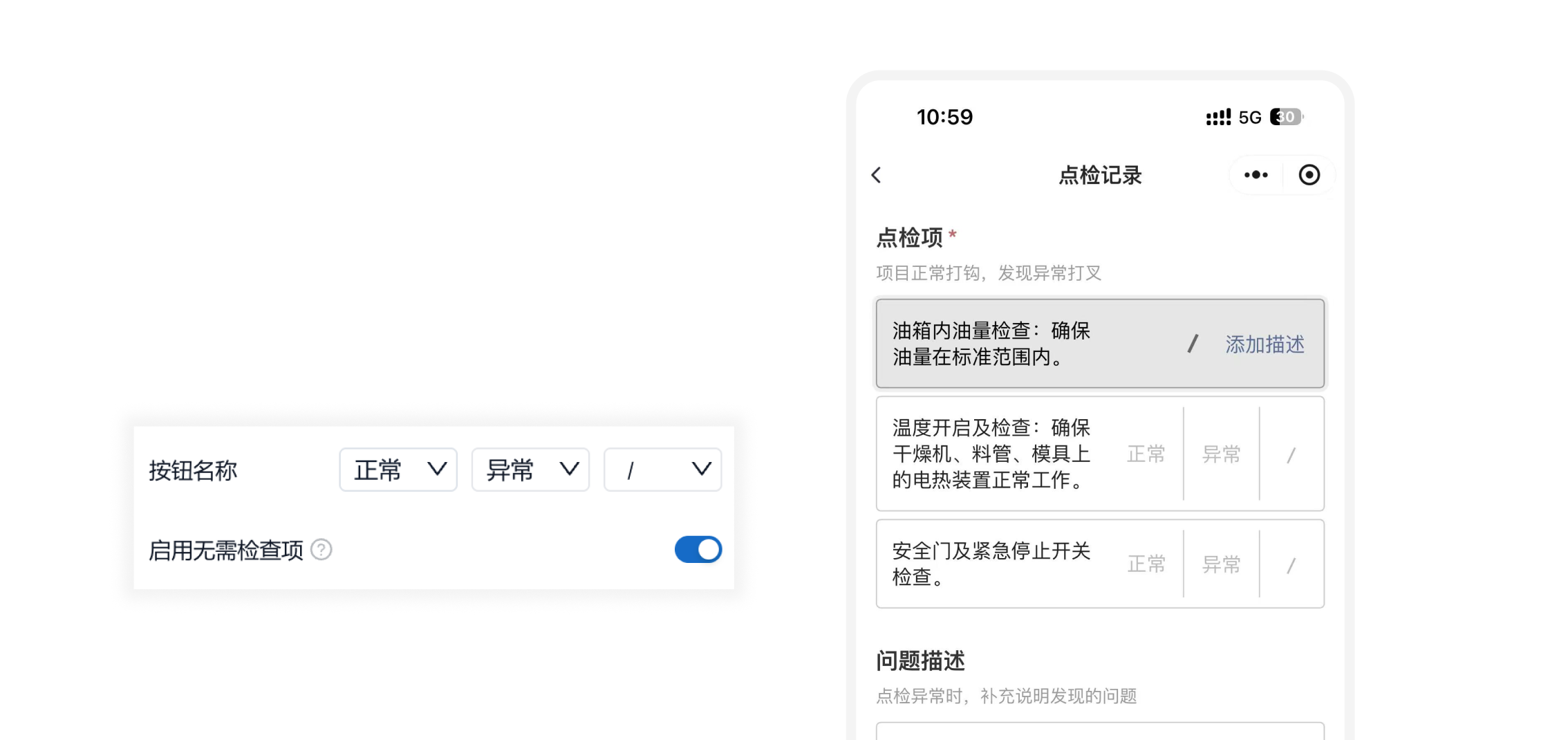
For an item that does not apply, submitters can select the third result instead of incorrectly selecting Normal or Exception. This result is saved with the record so admins can distinguish No Inspection Required from Not Filled Out.
5. One-Tap Check
Reduce repetitive taps when there are many check items and most results are normal.
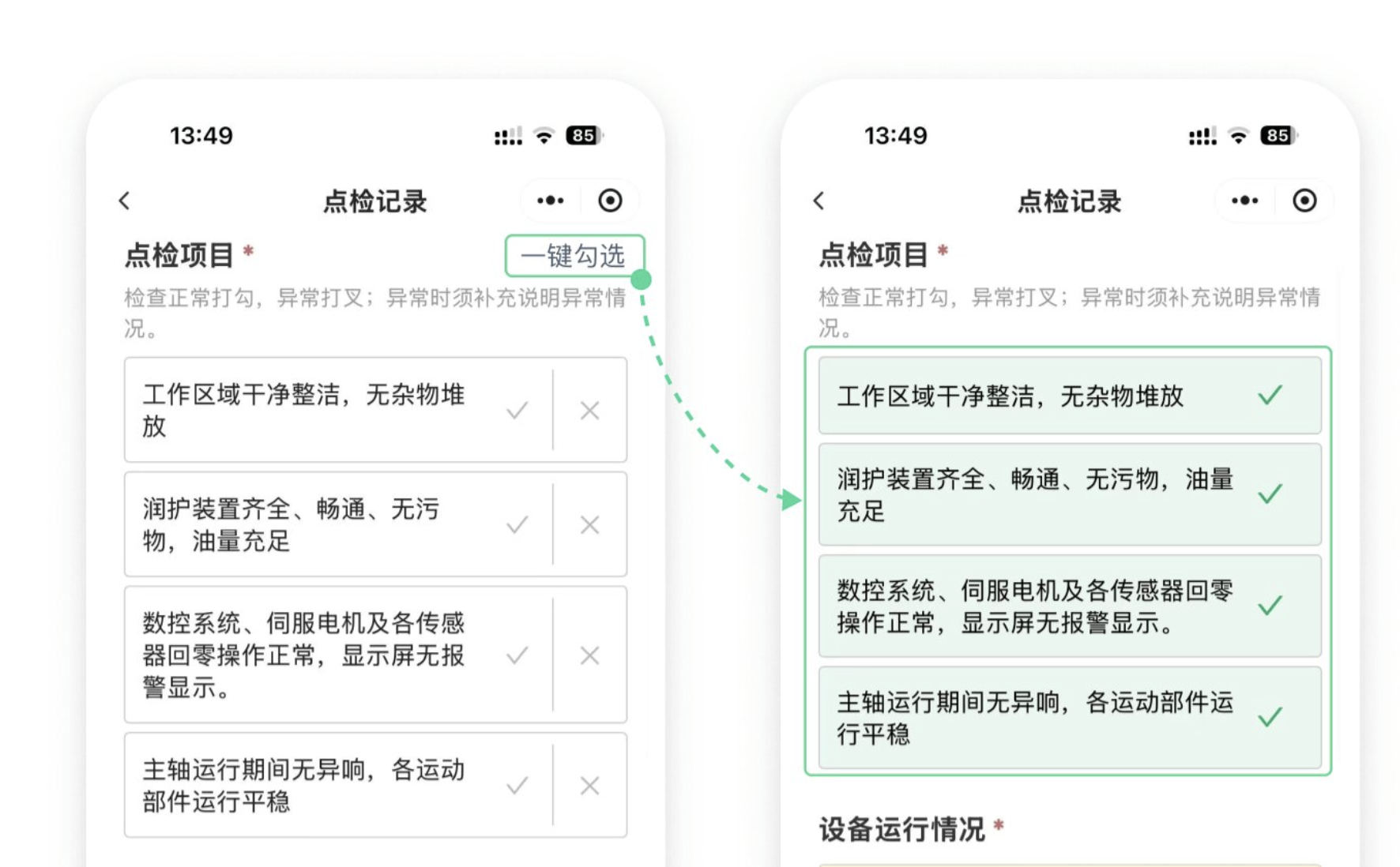
After you enable Allow Submitters to Check All with One Tap, the form displays One-Tap Check. Tapping it selects the commonly used result for every unanswered item, after which the submitter can edit exceptions individually.
One-Tap Check only reduces repetitive operations; it does not replace on-site inspection. Before submitting, verify every result, especially items that need to be marked as exceptions.
6. Add Image and Text Descriptions and Restrict Image Sources
After you enable Allow Image and Text Descriptions, submitters can enter text and upload images under each check item.
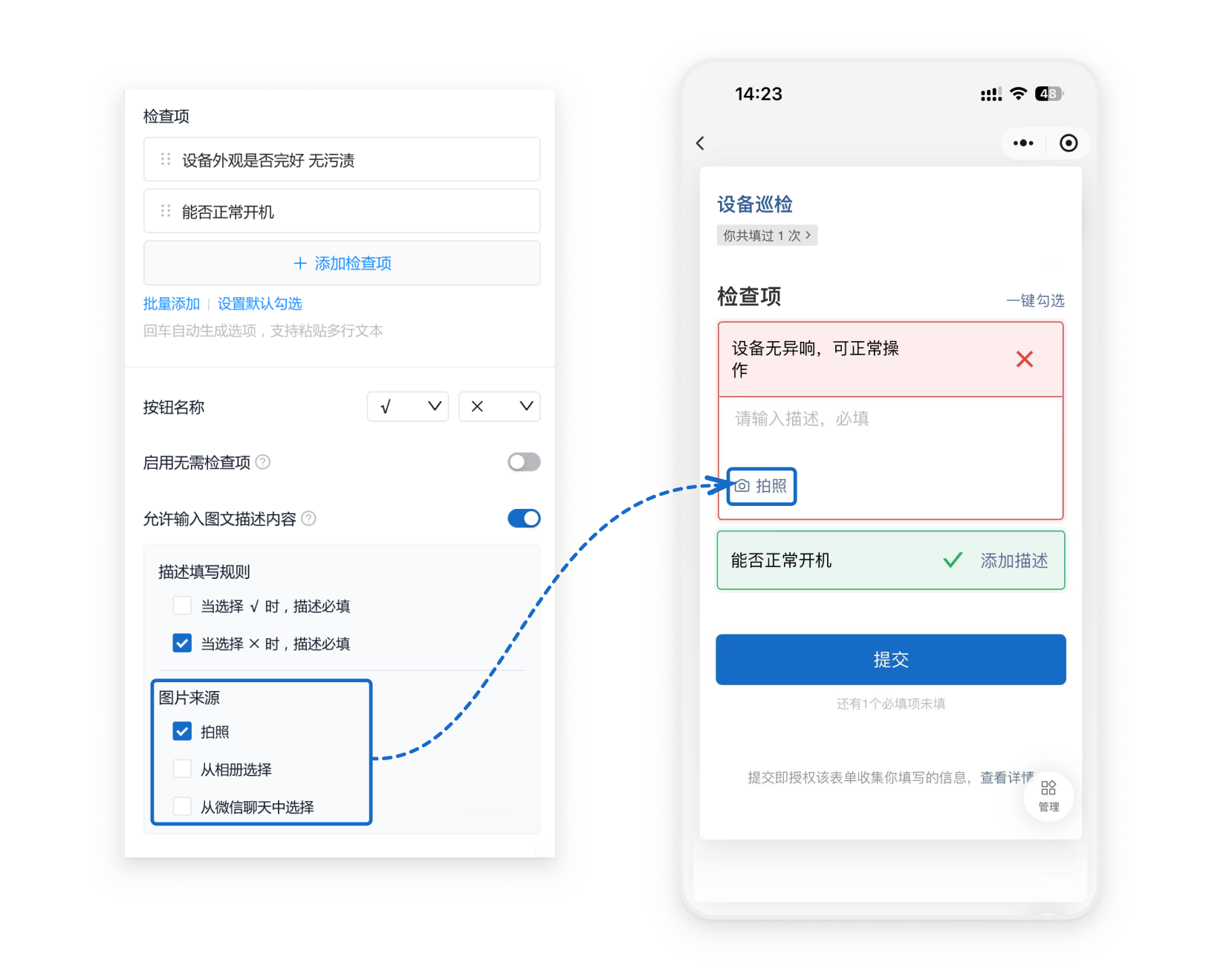
Require Descriptions: Set whether a description is required for each selected result. For example, require details of the problem and suggested action only when Exception is selected.
Set Image Sources: Choose one or more sources: Take Photo, Select from Album, or Select from WeChat Chats.
Require On-Site Photos: If only Take Photo is selected, the form shows only the camera entry. Submitters cannot choose existing images from an album or WeChat chat history.
For equipment inspection, you can require a description when Exception is selected and allow only on-site photos. Normal items need only a result selection, without extra form filling.
2. How Check Items Differ from Other Components
Check Items is suitable when every item in a fixed set needs an individual result.
Single Choice is suitable when a question allows only one answer.
Auto-Increment Table is suitable when the number of similar records varies each time, such as adding one row for each hazard found. Learn About Auto-Increment Tables