AI Feature Extensions
Scenario Overview
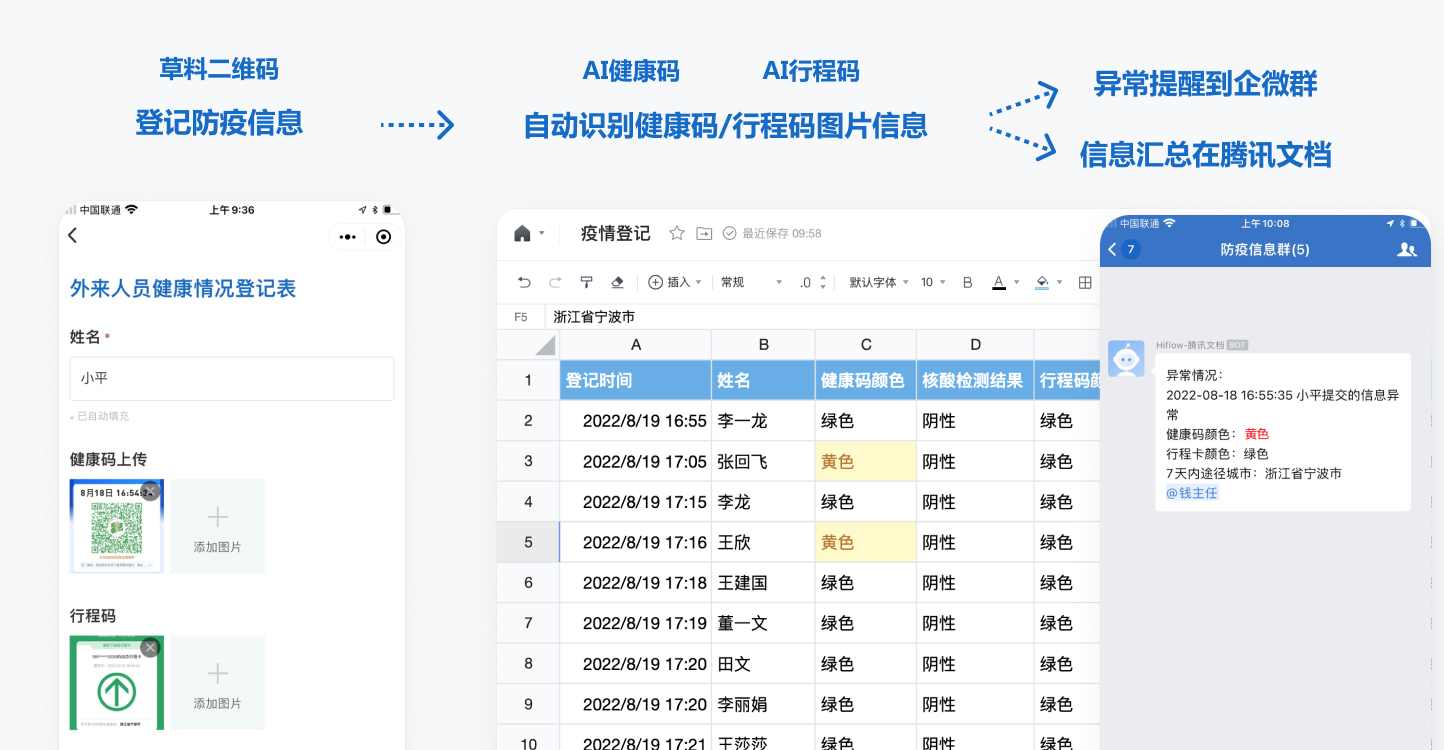
The Tencent HiFlow App Center includes a rich set of intelligent AI tools that can automatically recognize images, audio, and other data to further improve productivity.
Supported AI apps: ID card OCR, health code recognition, bank card recognition, invoice recognition, spreadsheet image parsing, speech-to-text, and more.
Use cases: Automatic health code recognition for check-ins, worker bank card submission, and more.
Try It Live
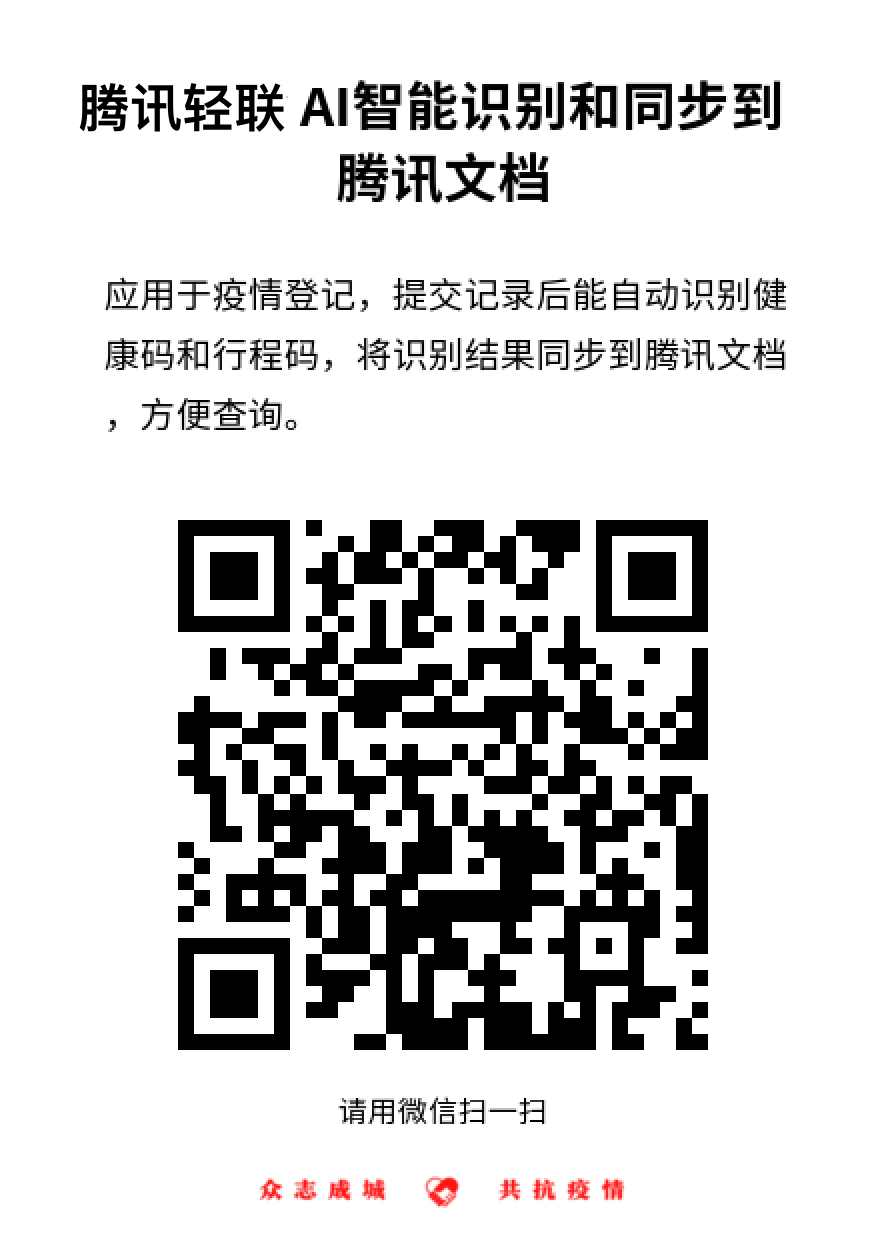
Scan the QR code below, fill in the registration form, then view the registration spreadsheet.
Note: Please delete your own submitted row when done — do not modify other rows.
Tutorial
Using a health code registration scenario as an example: automatically recognize health codes, sync the results to Tencent Docs, and push anomalies to a WeCom group.
Note: Some AI components in HiFlow may have two versions. Select the version with V2 in the name — the other version may not work.
Preparation
- Create a registration QR code or your own scenario QR code. Example template
- In your personal Tencent Docs, create a registration spreadsheet with column headers set up. Example spreadsheet
Step 1: Create a Workflow
Log in to the Tencent HiFlow console and click [New Workflow].
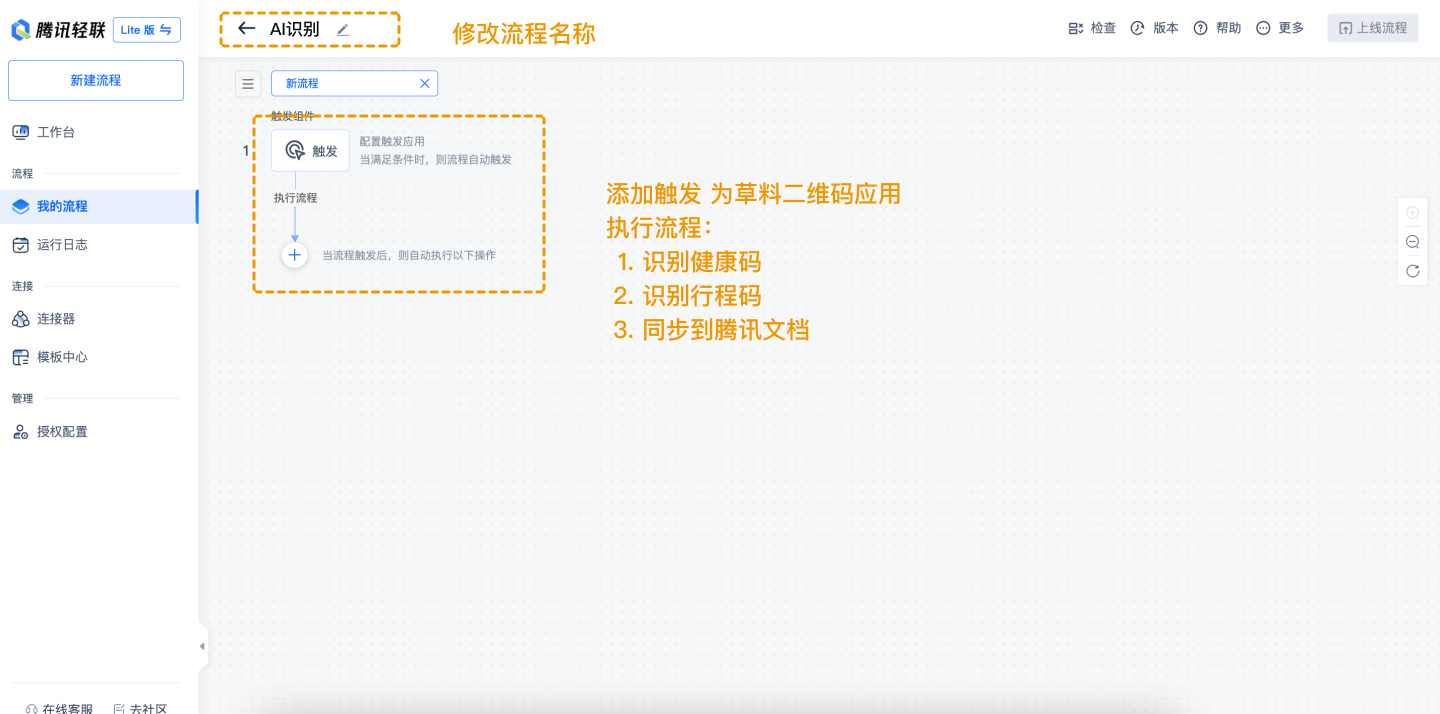
Step 2: Configure the CaoLiao App
- Add the CaoLiao QR Code app and set the trigger to: New form submission
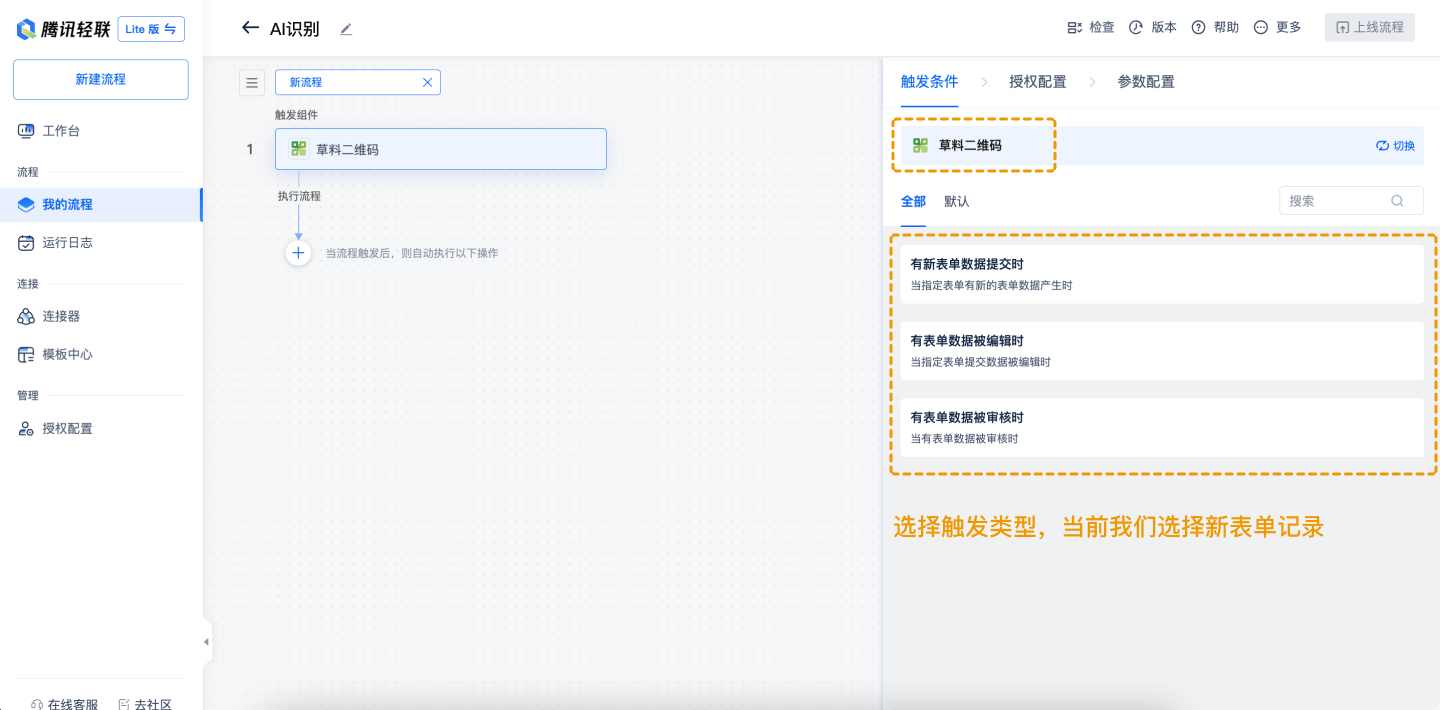
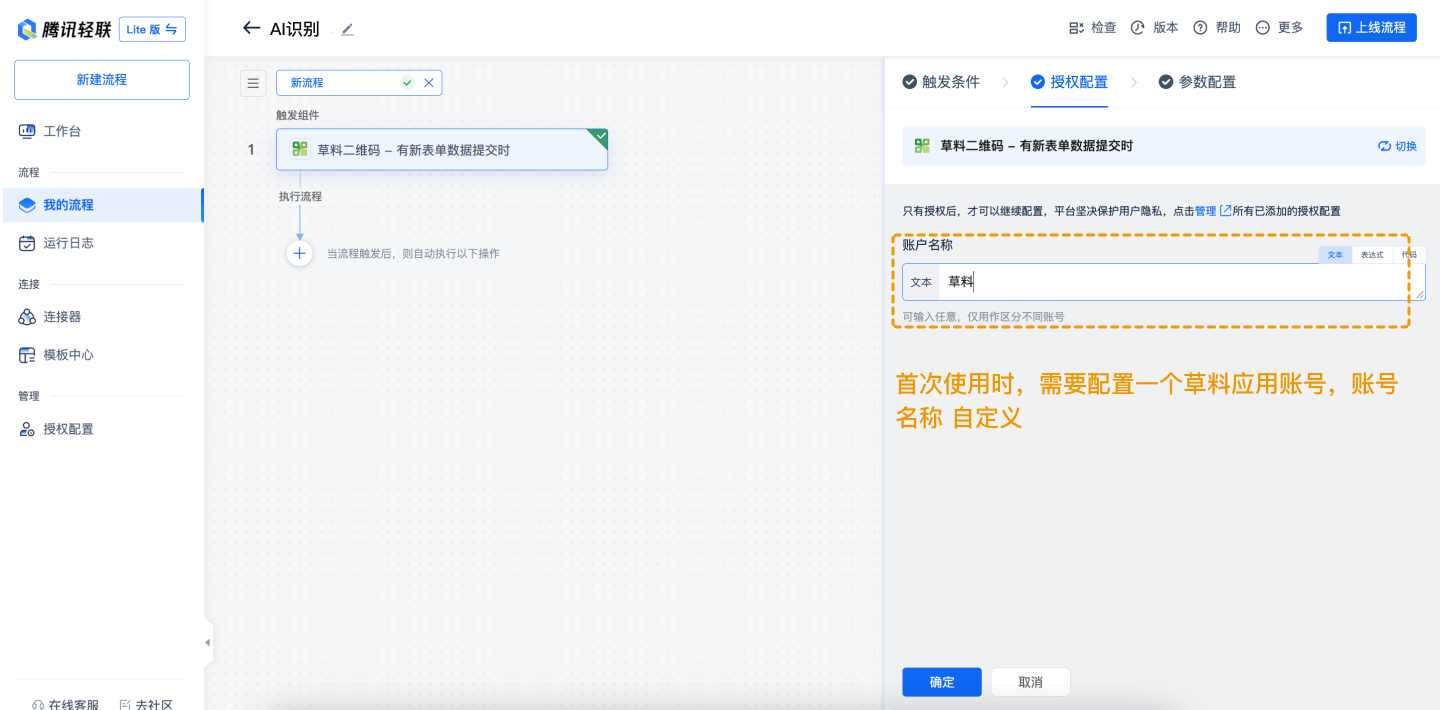
- Authorization
- Parameter configuration
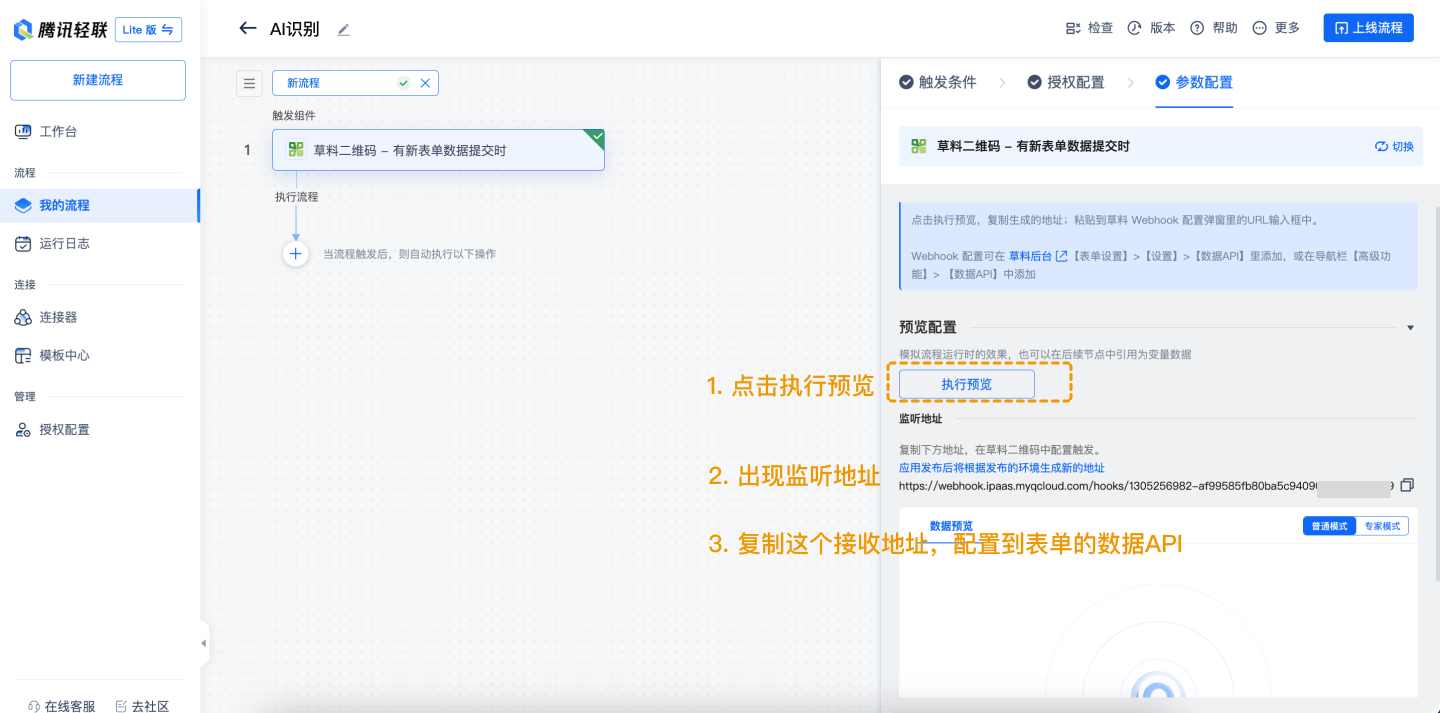
Click [Preview Execution]. A listening URL will appear below — copy it and configure it as the data API webhook URL in your form.
- Configure the Webhook URL
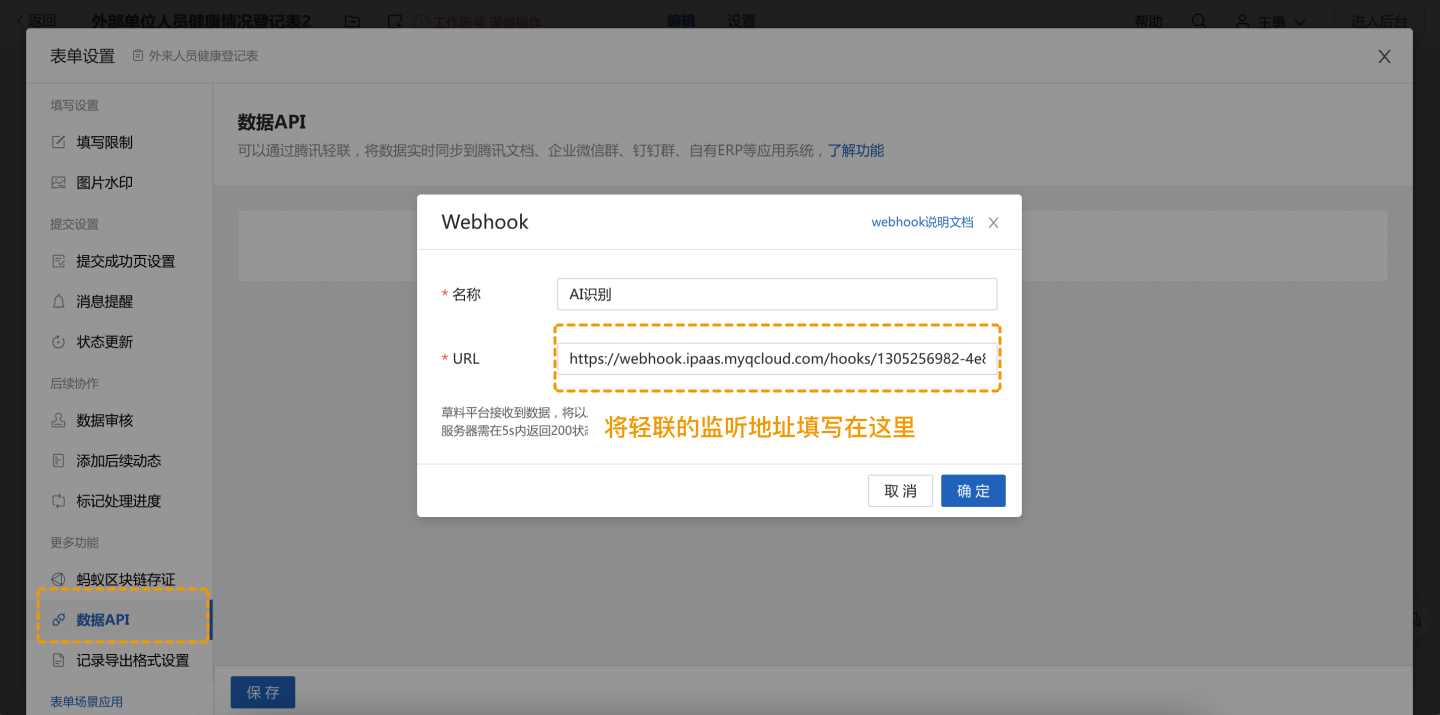
Copy the Tencent HiFlow push URL into the Webhook push URL field in the CaoLiao workbench. Add it in [Form Settings] → [Settings] → [Data API], or in [Advanced Features] → [Data API] in the navigation bar.
- Sample data
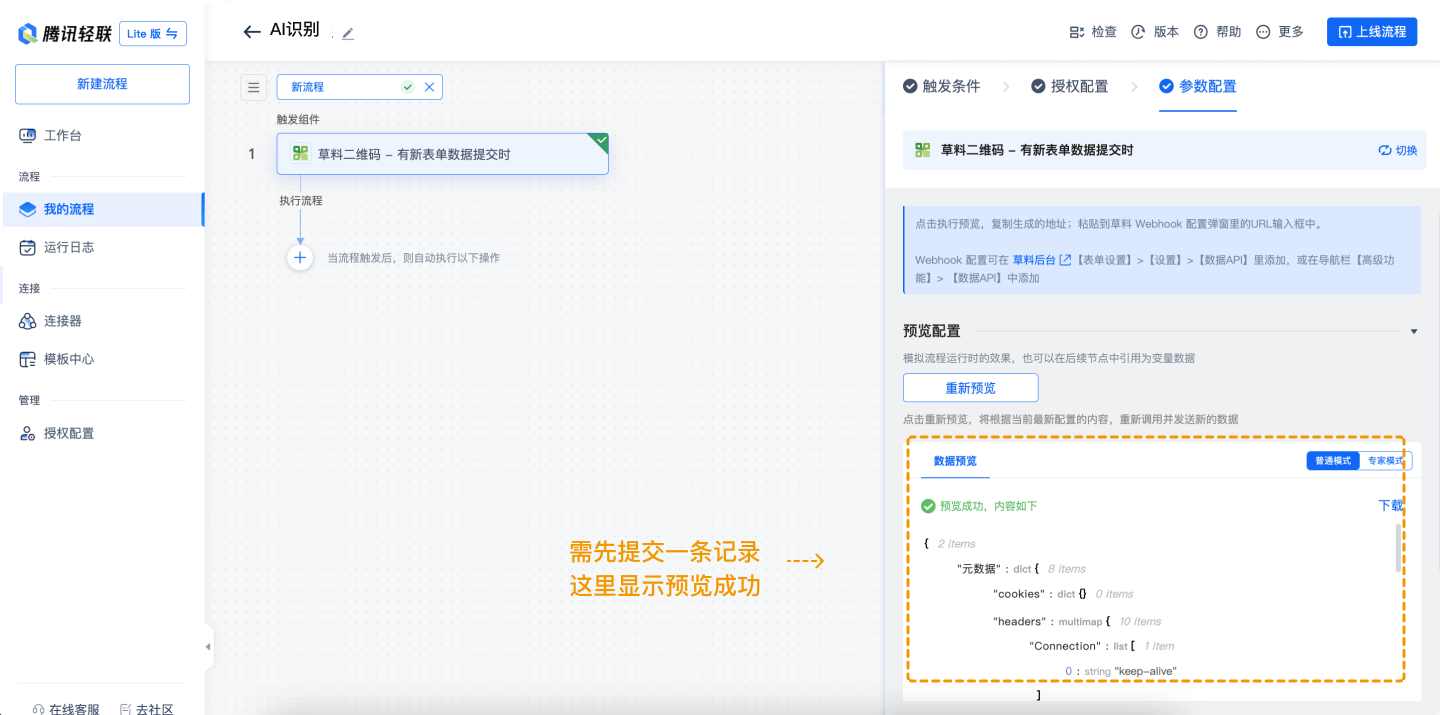
Scan the QR code to submit a test record. HiFlow will automatically detect the sample data.
Note: If the form is updated, submit a new record. In the sample data, select the latest record and click [Re-preview].
Step 3: Add AI Health Code Recognition
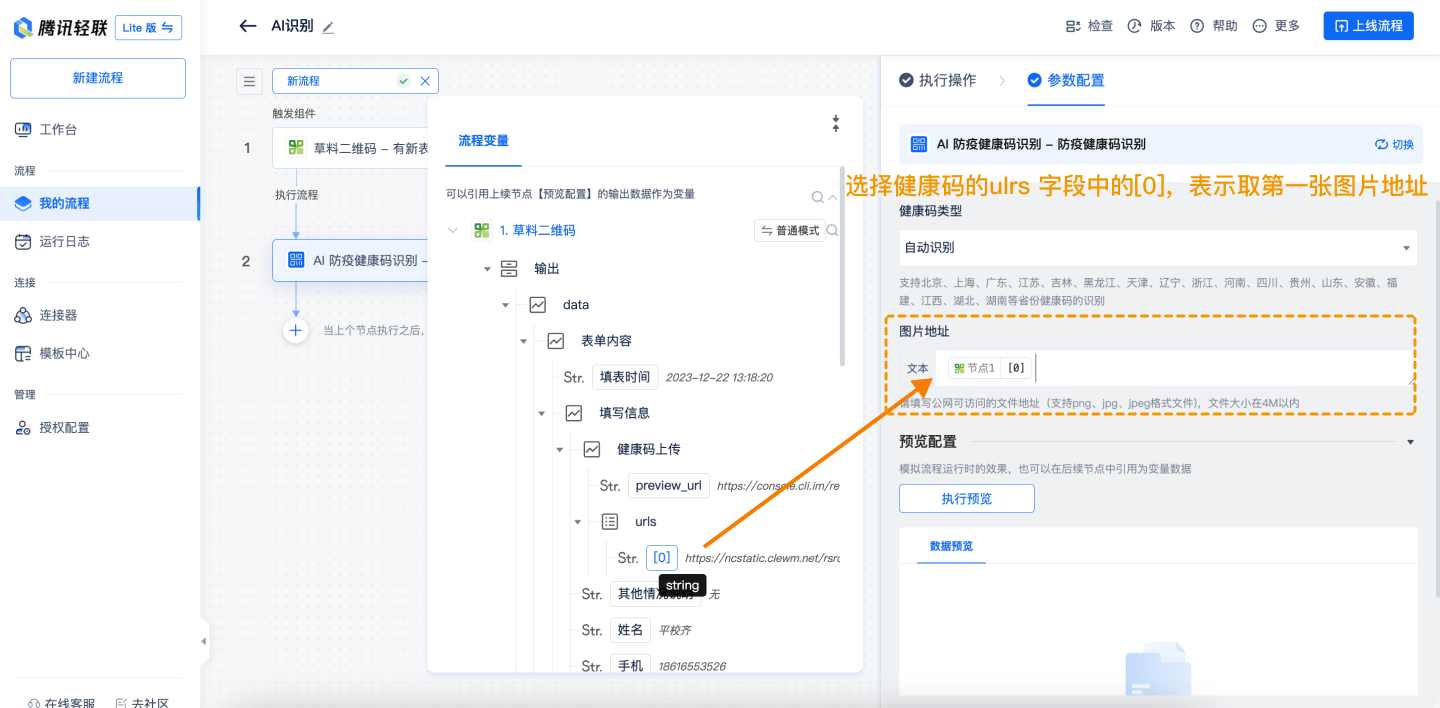
Add the AI Health Code Recognition – V2 step. In the parameter configuration, set the image URL to the urls[0] field from the health code component — this retrieves the first image uploaded by the health code component (the image component supports multiple uploads).
Step 4: Add AI Travel Card Recognition
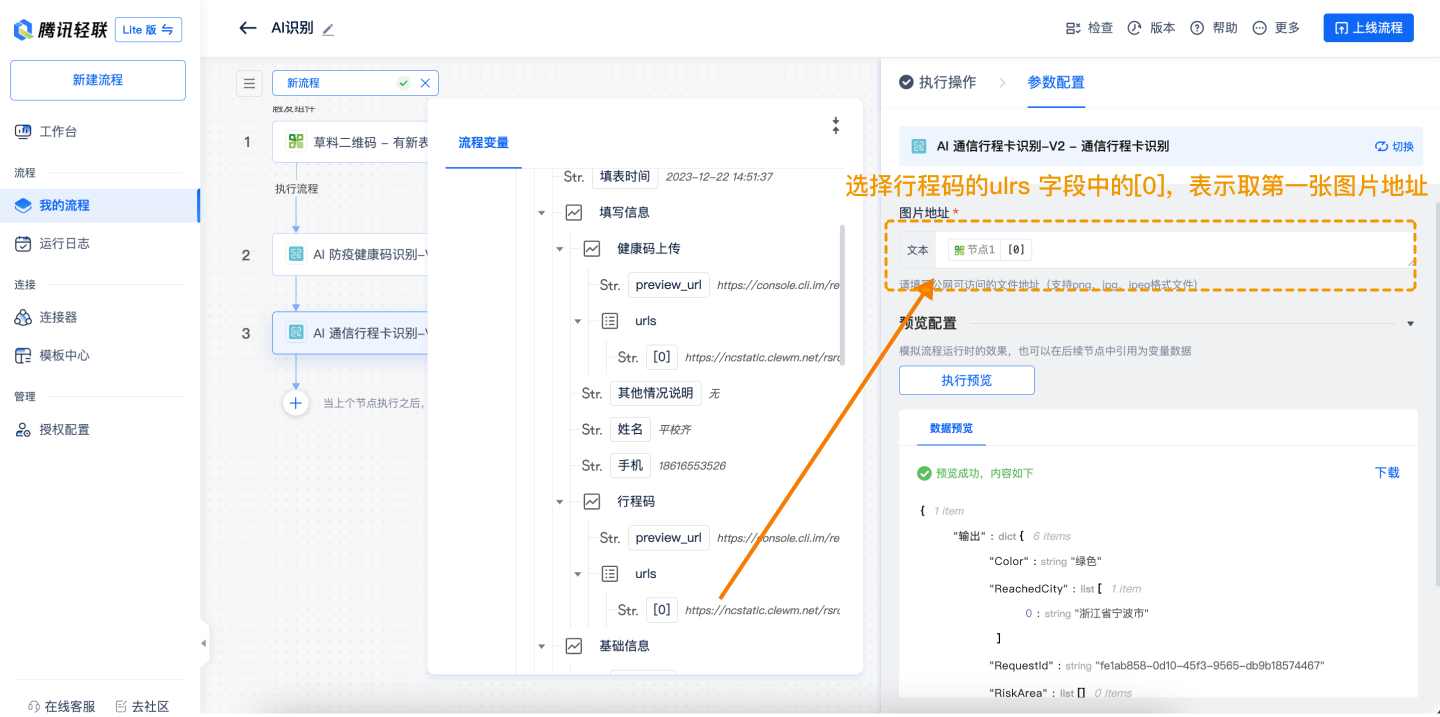
Add the AI Travel Card Recognition – V2 step. In the parameter configuration, set the image URL to the urls[0] field from the travel card component — this retrieves the first image from the travel card component.
Step 5: Add Tencent Docs
Add the Tencent Docs app — note that only personal Tencent Docs accounts are supported. Configure your account.
- Select the target spreadsheet: Create a spreadsheet in Tencent Docs first with the required column headers, then select the spreadsheet and worksheet here.
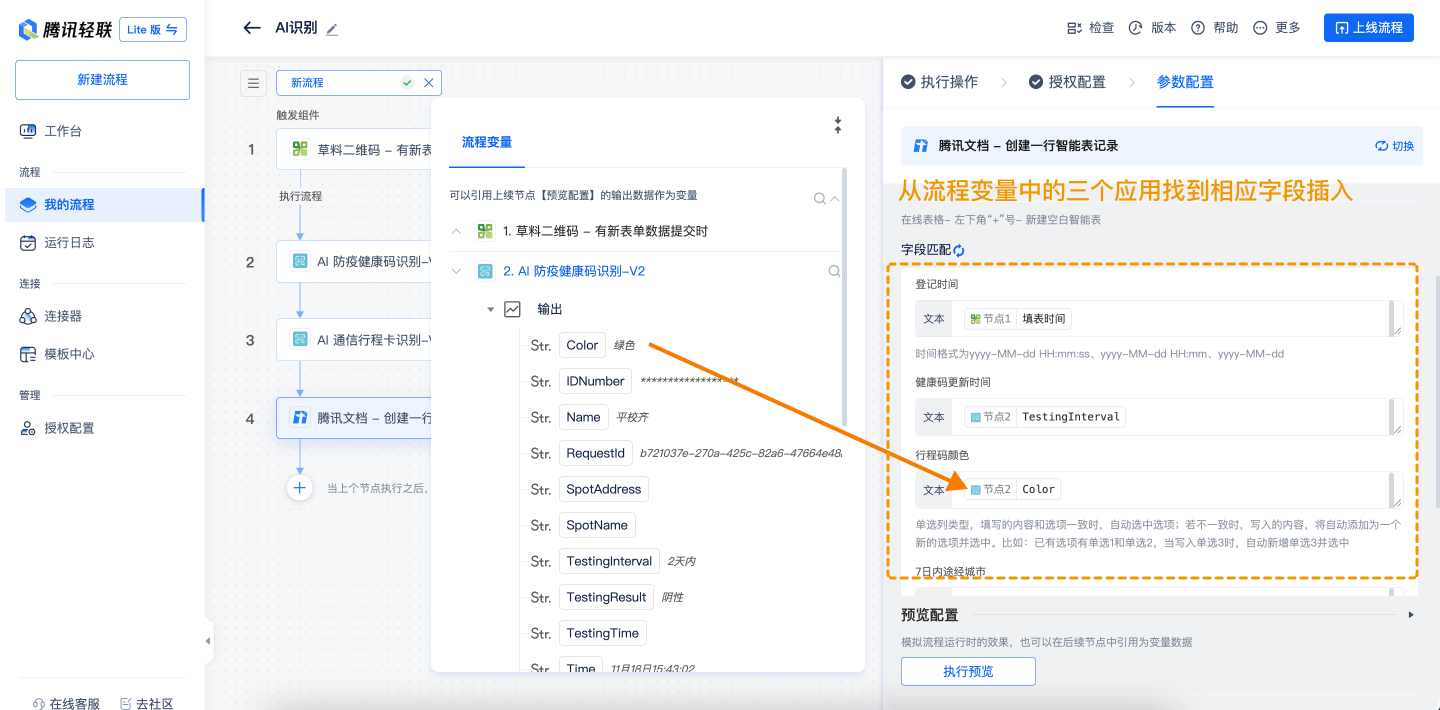
- Field mapping: Add form component data by matching column headers. Run a test preview and check Tencent Docs to confirm data is arriving correctly.
Step 6: Publish the Workflow
Click [Publish Workflow] in the top right corner to complete the workflow setup.
References
More Use Cases
CaoLiao Community
If you have questions about the data API feature or would like to share your experience, we warmly welcome you to post in the community. Product and technical staff participate regularly. Visit the community