Group Message Push
Scenario Overview
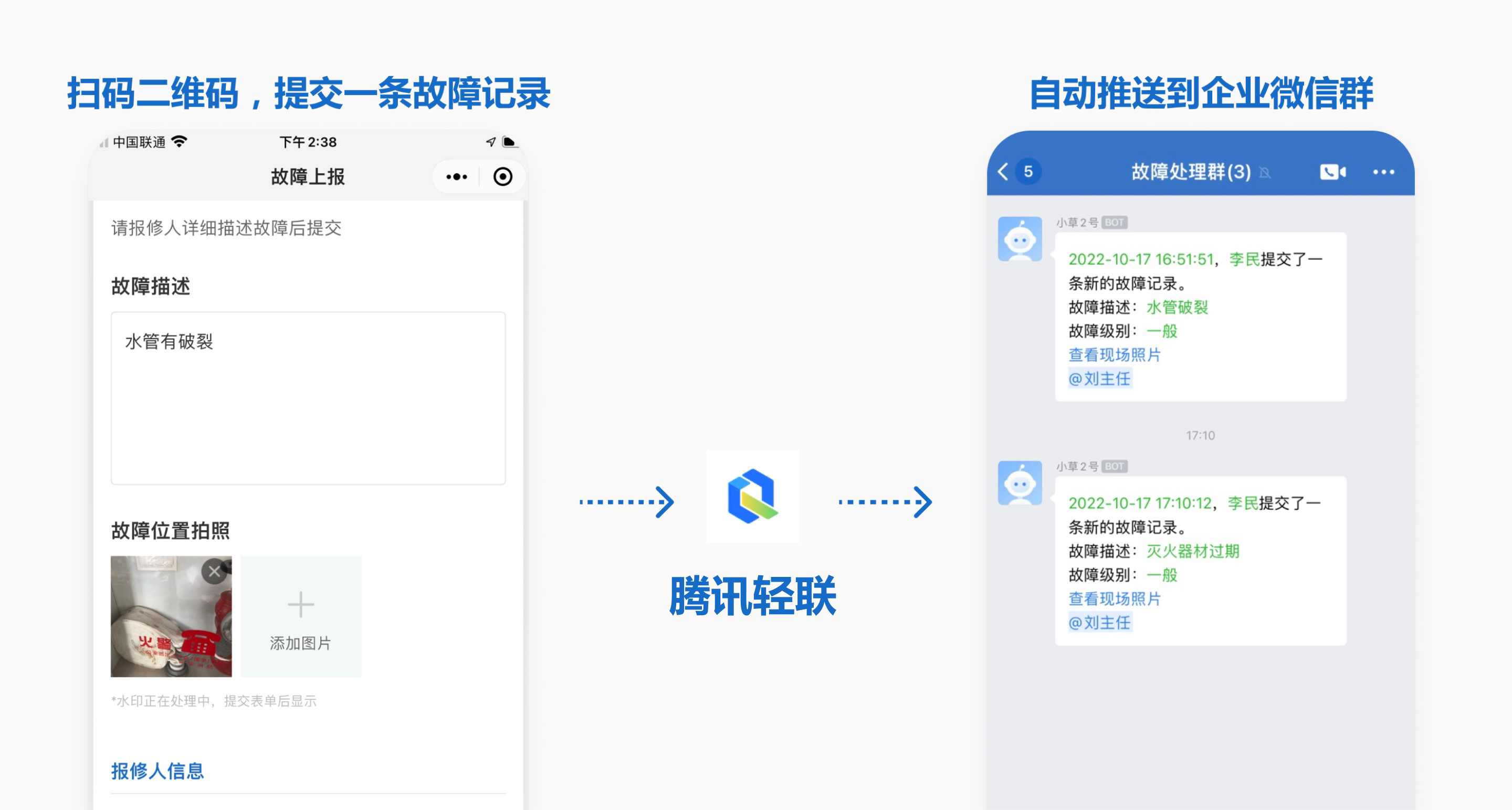
Using Tencent HiFlow, instantly push form submission records to your internal work groups — supports WeCom, Feishu, and DingTalk. Push via email and SMS is also available.
Use cases: Hazard identification reminders, fault repair notifications, appointment confirmations, inspection anomaly alerts, and more.
Step-by-Step Tutorial
Using a common fault reporting scenario as an example: push fault records to a WeCom group as they are submitted. The same approach applies to DingTalk and Feishu groups.
Overview
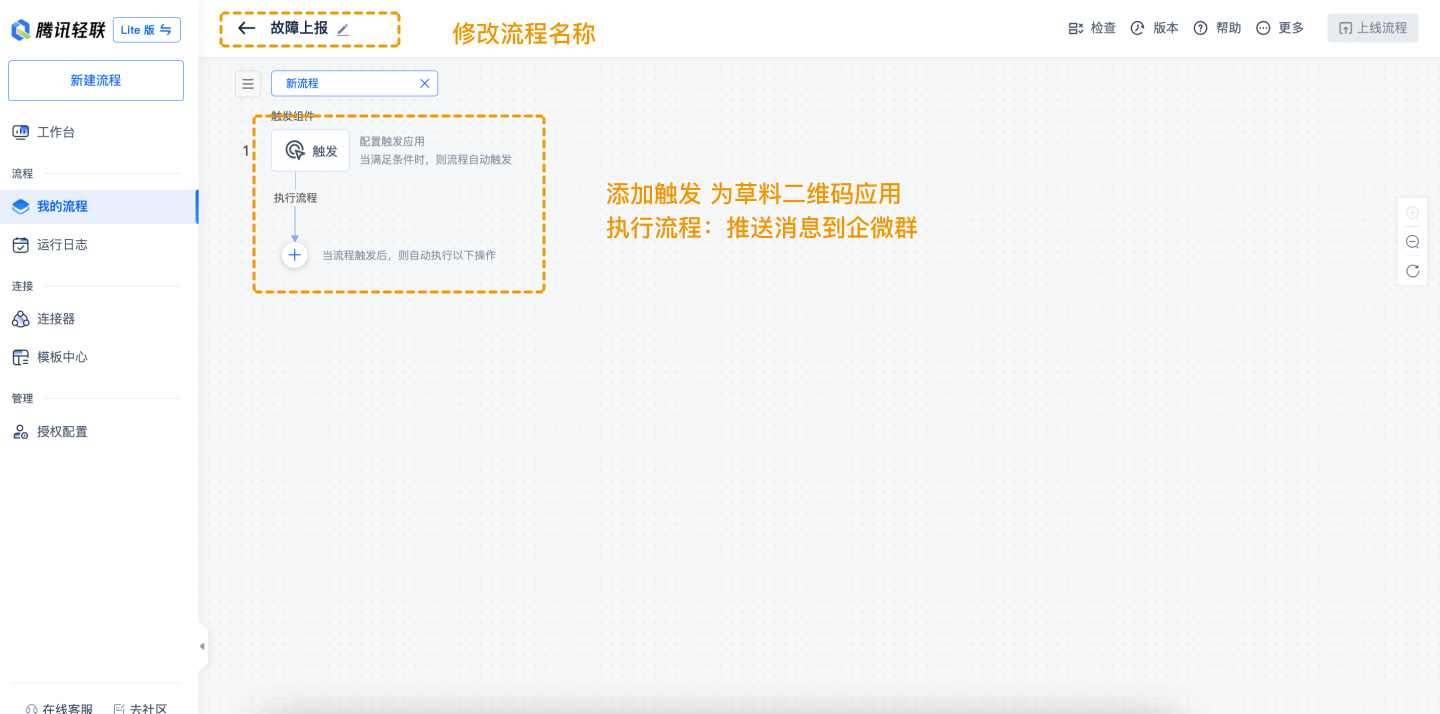
In Tencent HiFlow, create a new workflow with [CaoLiao QR Code] as the trigger app and [WeCom Group Robot] as the action app.
Preparation
- Create a fault reporting QR code or your own scenario QR code. Example template
- Add a group robot to your WeCom group. How to set up a WeCom group robot
Step 1: Create a Workflow
Log in to the Tencent HiFlow console and click [New Workflow].
Step 2: Configure the CaoLiao App
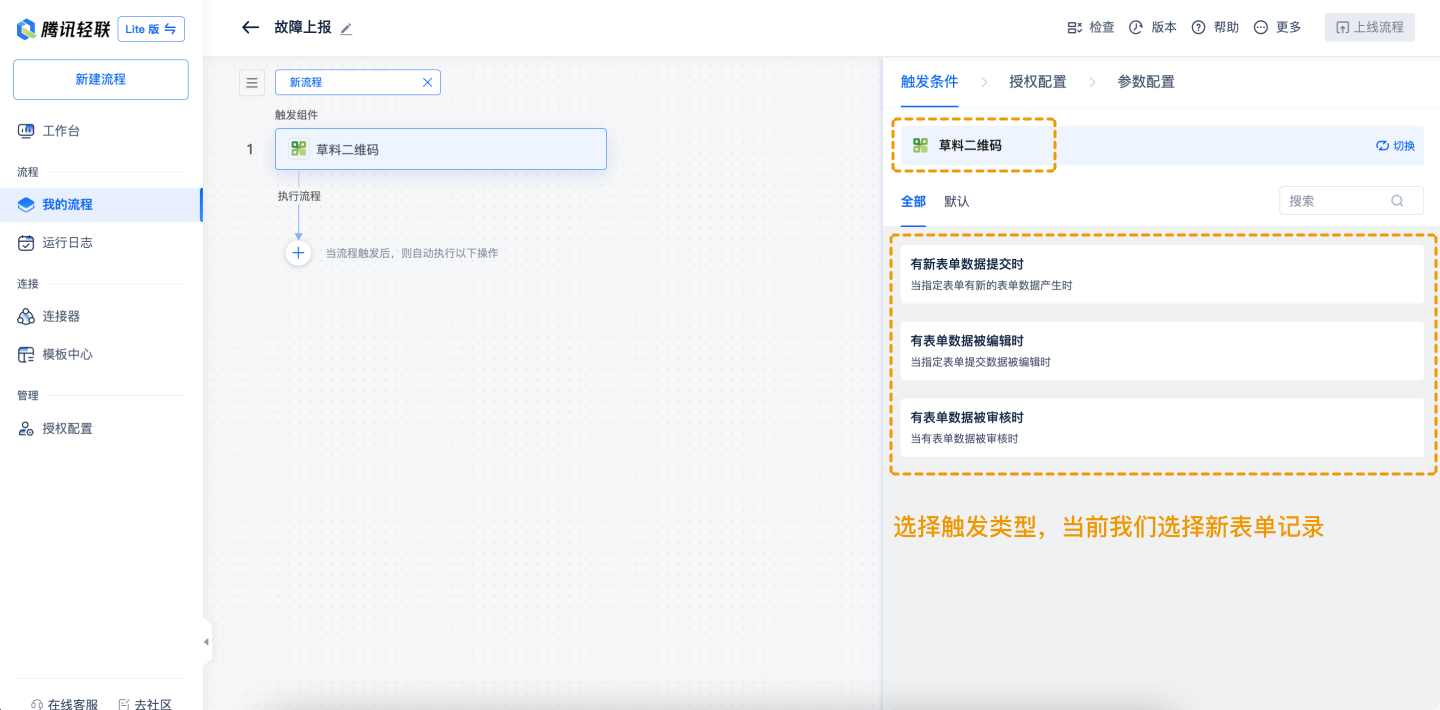
- Add the CaoLiao QR Code app and set the trigger to: New form submission
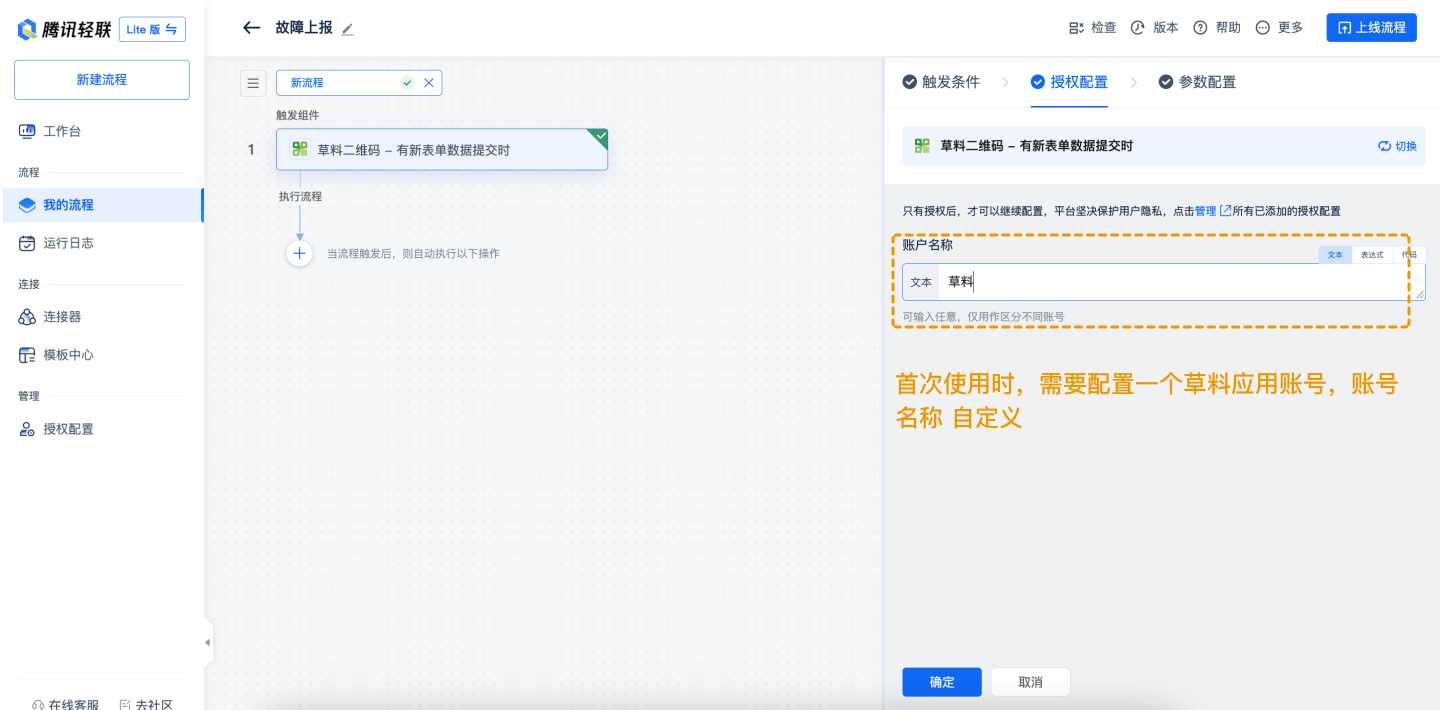
- Authorization
- Parameter configuration
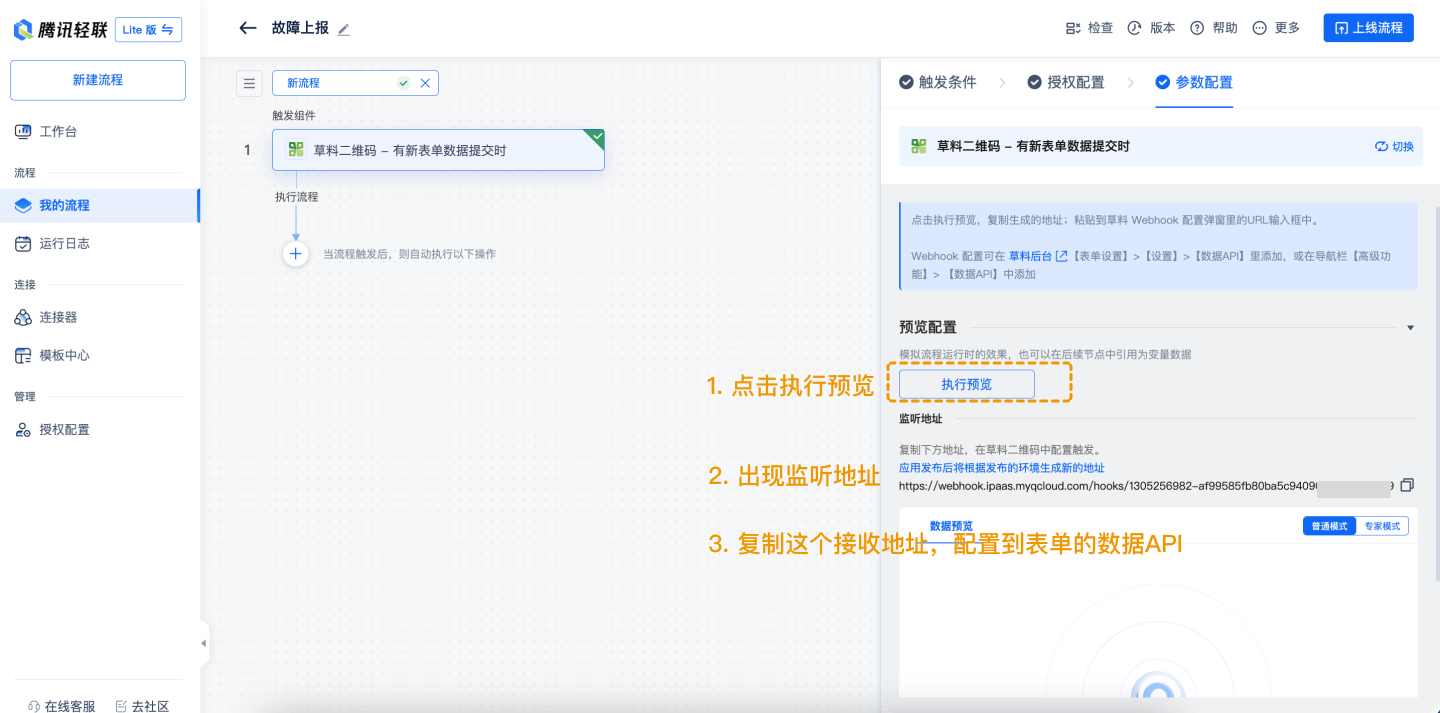
Click [Preview Execution]. A listening URL will appear below — copy it and configure it as the Data API webhook URL in your form.
- Configure the Webhook URL
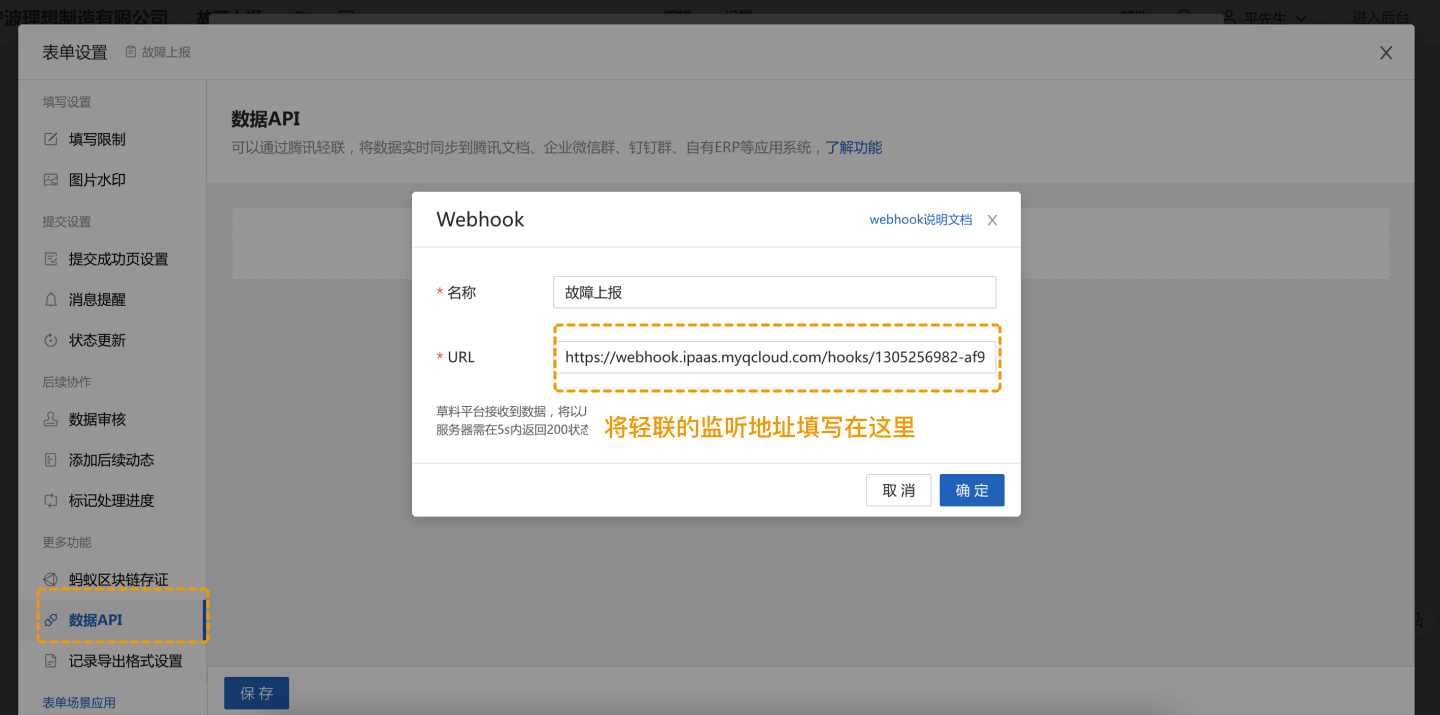
Copy the Tencent HiFlow push URL into the Webhook push URL field in the CaoLiao workbench. Add it in [Form Settings] → [Settings] → [Data API], or in [Advanced Features] → [Data API] in the navigation bar.
- Sample data
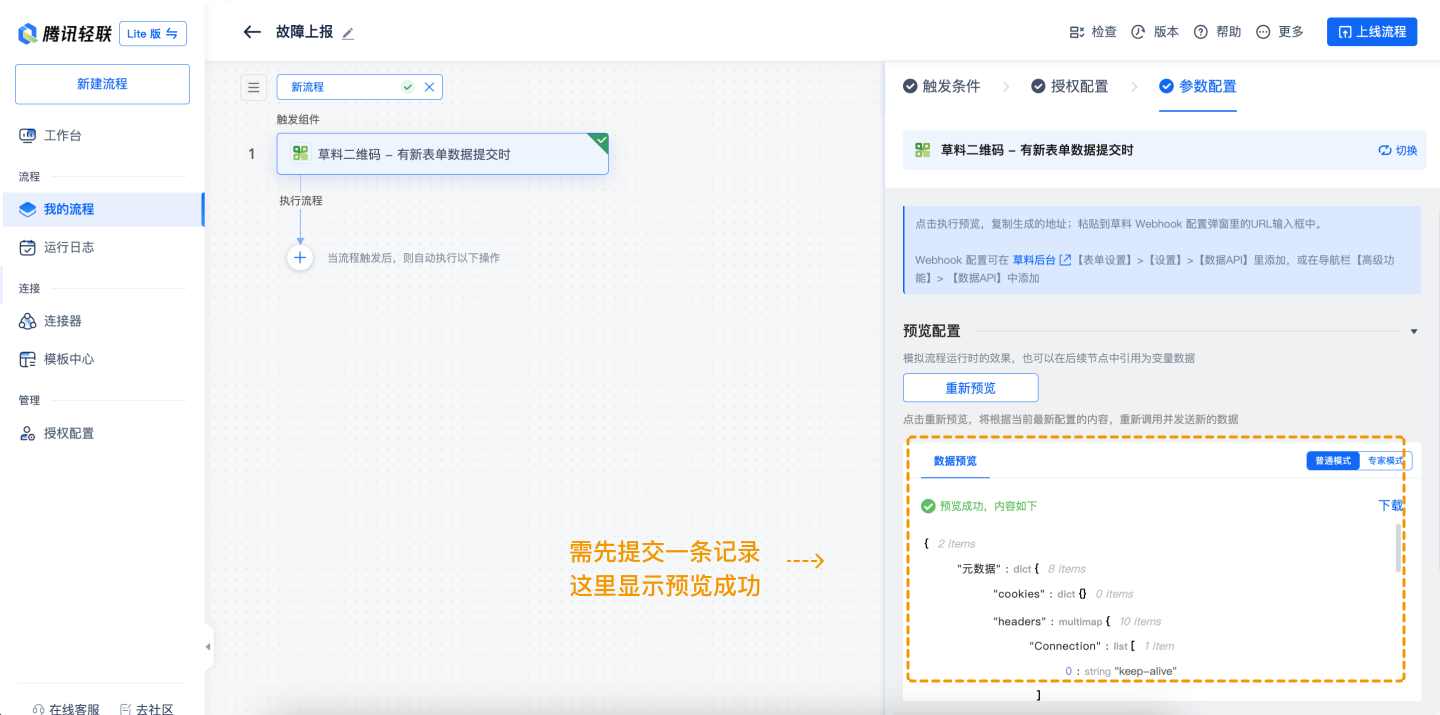
Scan the QR code to submit a test record. HiFlow will automatically detect the sample data.
Note: If the form is updated, submit a new record. In the sample data, select the latest record and click [Re-preview].
Step 3: Add the Action App — WeCom Group Robot
The same approach applies for adding a DingTalk or Feishu group robot.
-
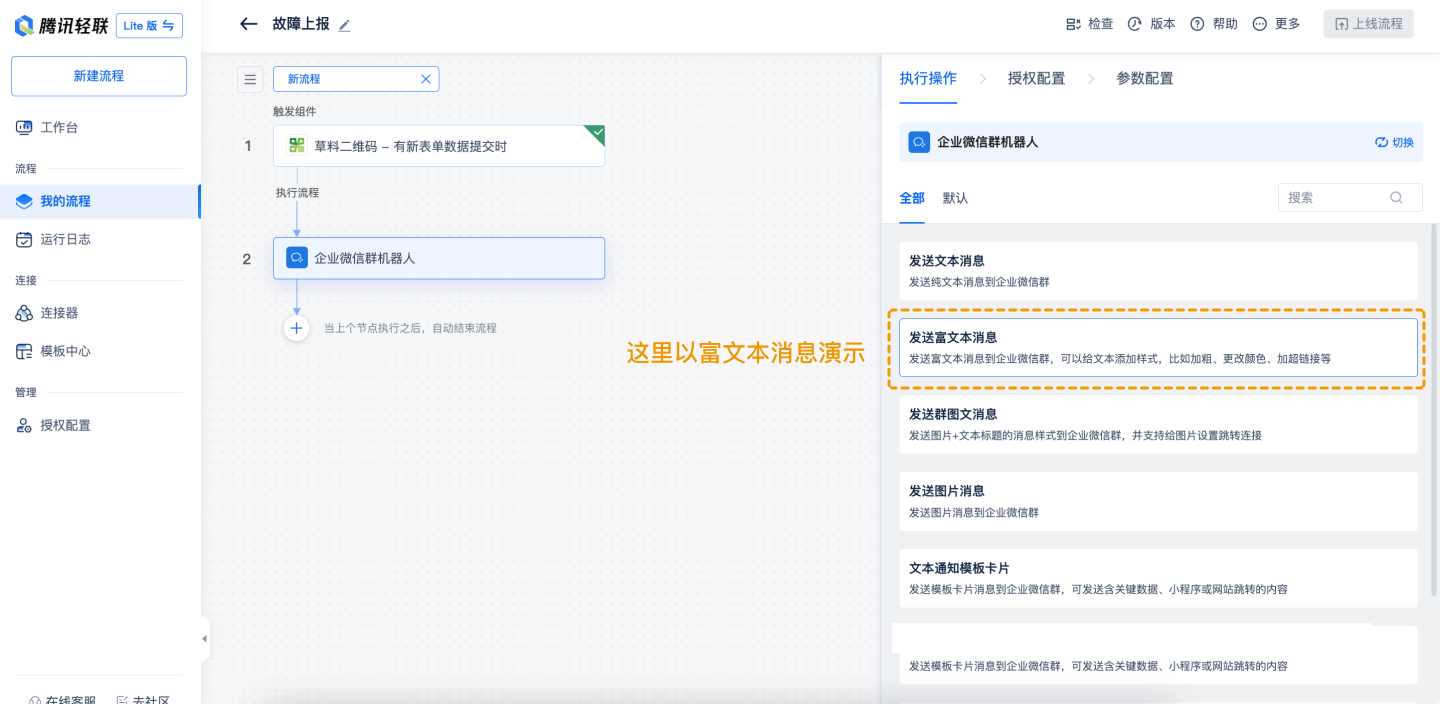
Add the WeCom group robot app and set the action to: Send rich text message
-
Authorization: Add your WeCom group robot URL
You'll need to add a group robot in your WeCom group first and obtain its URL. How to set up a WeCom group robot
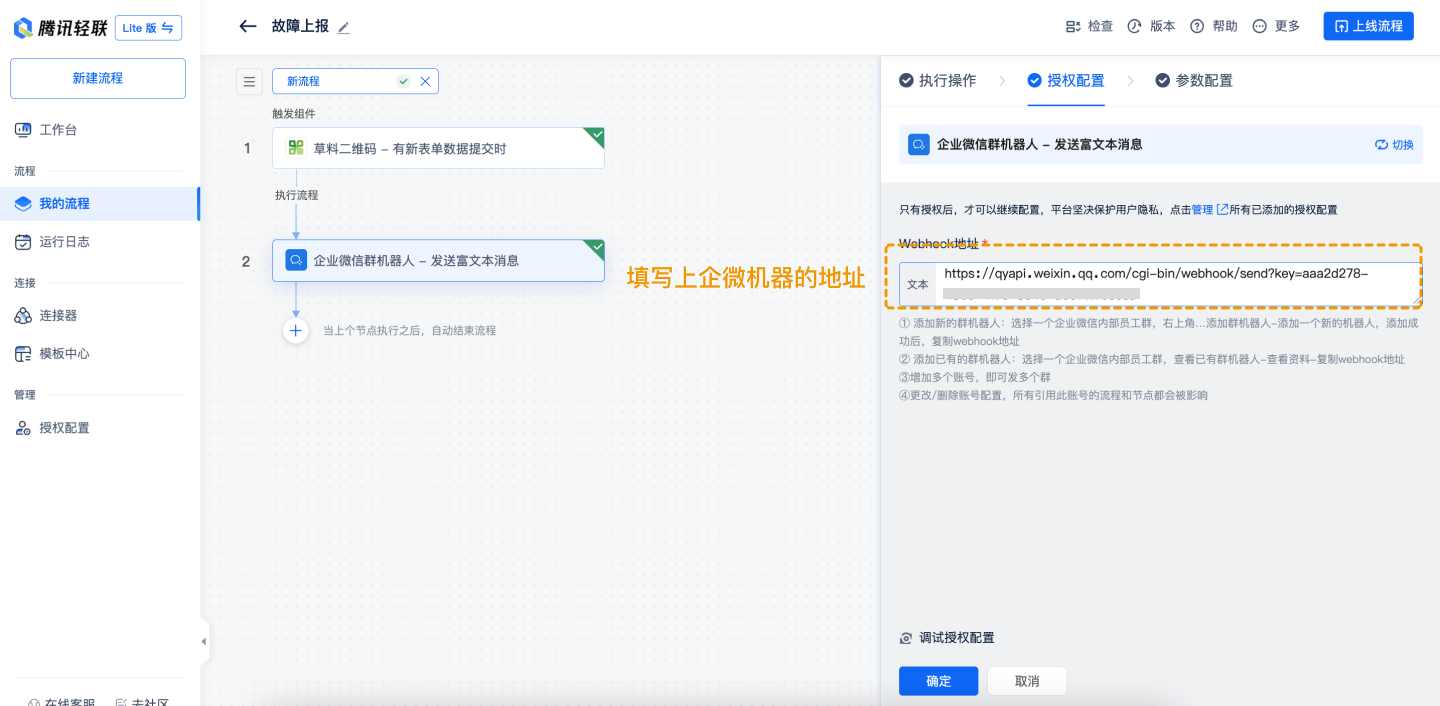
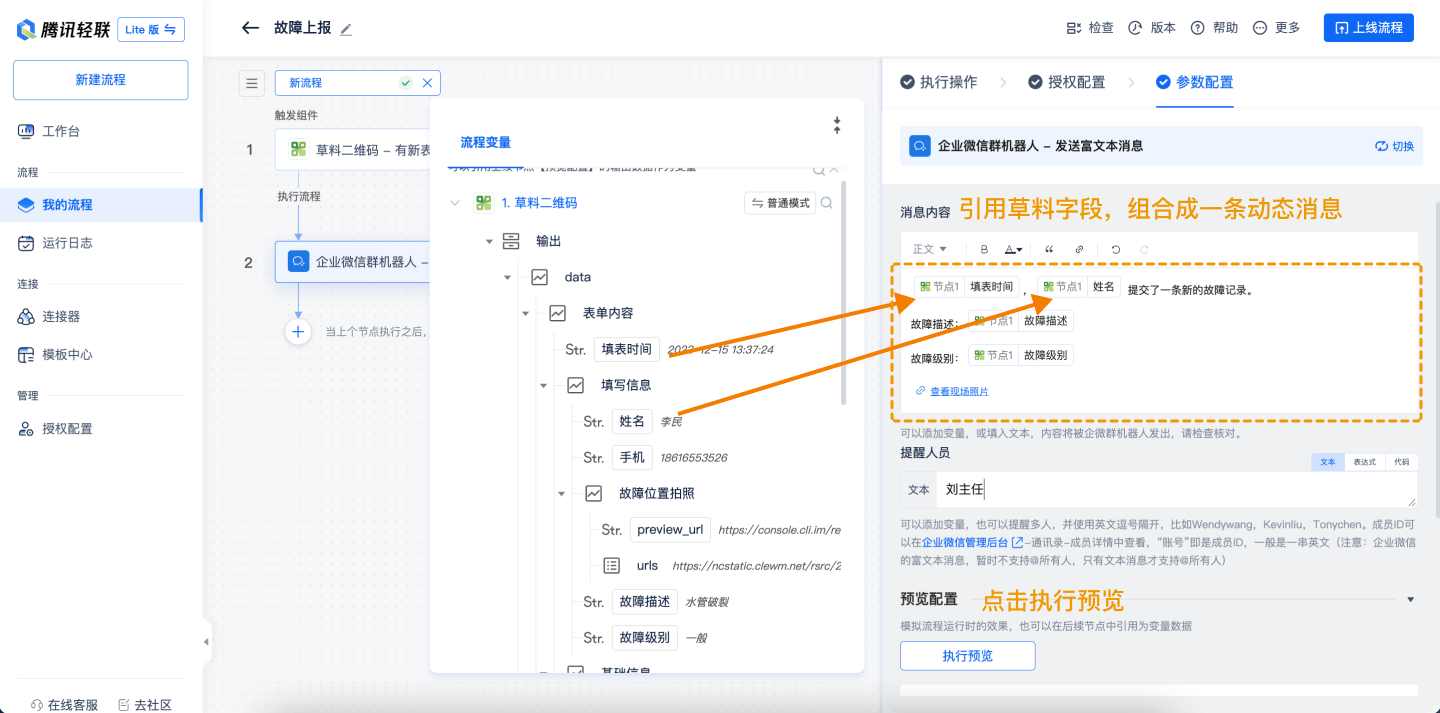
- Parameter configuration
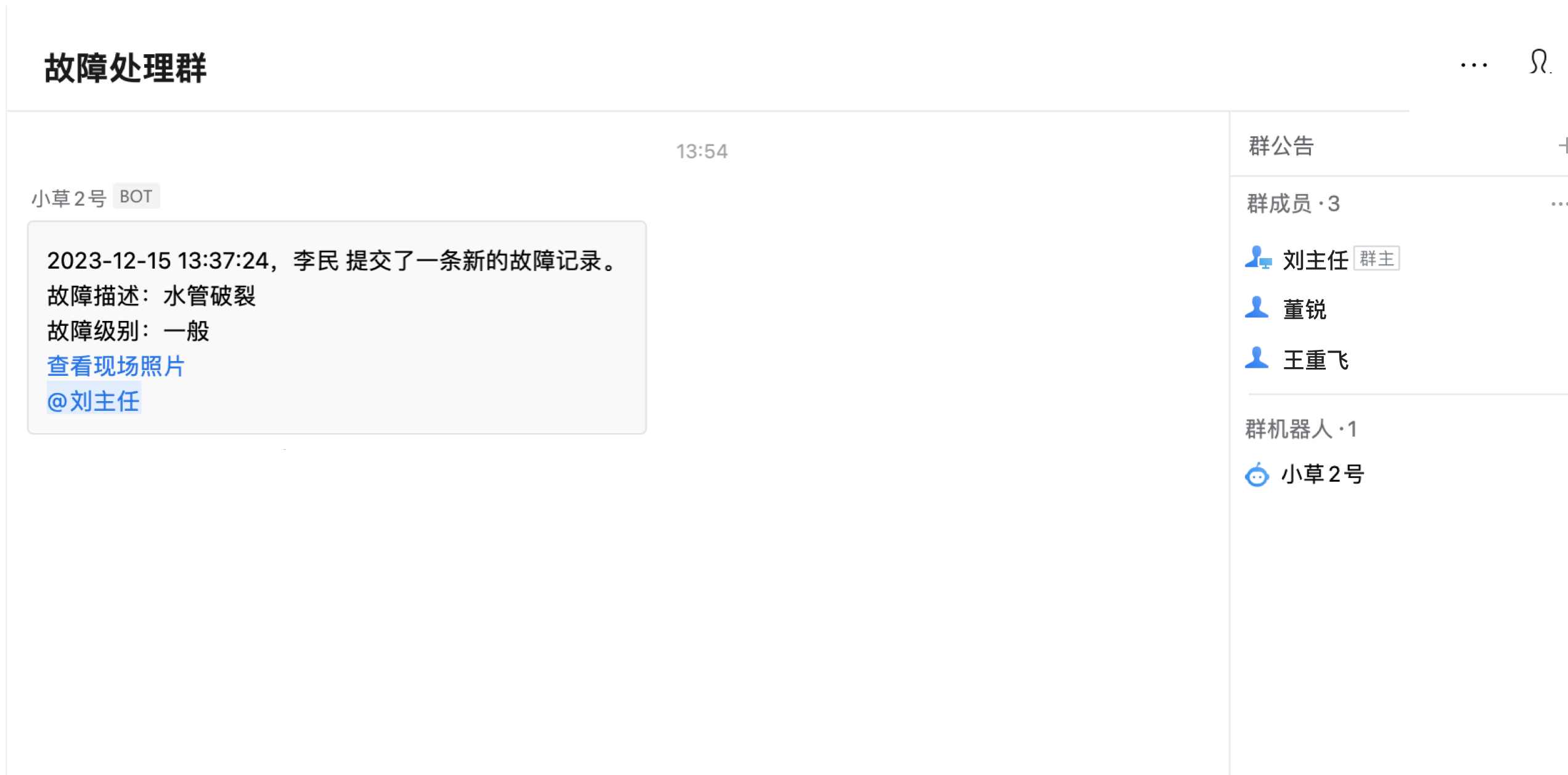
Rich text messages use a combination of variable references and static text to push dynamic content. See the example below. After configuration, click [Preview Execution] — you should receive the message in your WeCom group.
Step 4: Publish the Workflow
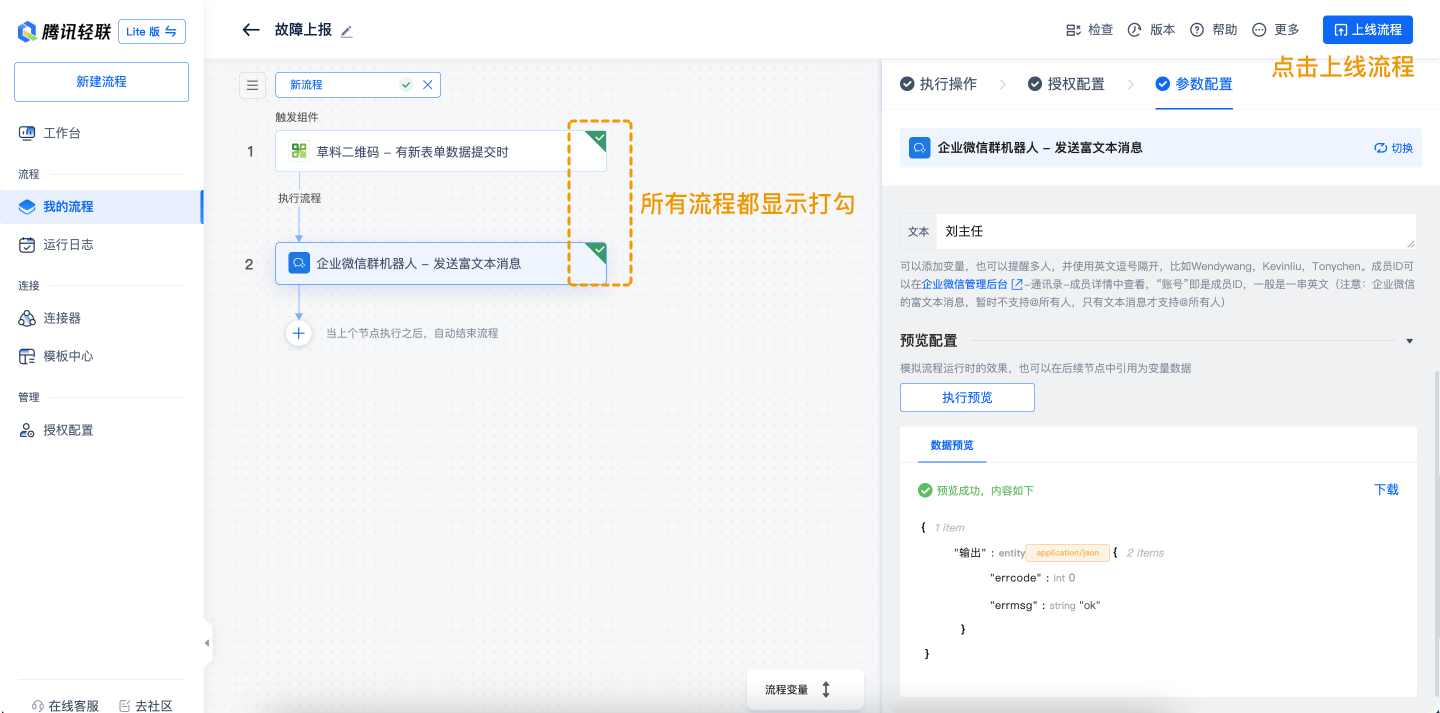
After saving, both apps should show a checkmark, indicating the workflow is configured correctly. Click [Publish]. If there are errors preventing publication, click [Check] to diagnose the issue.
References
More Use Cases
FAQ
1. Why Do My Variables Not Match the Form Content?
This happens when a new form is selected. You need to submit another record and then click [Test Sample] to select the new sample data.
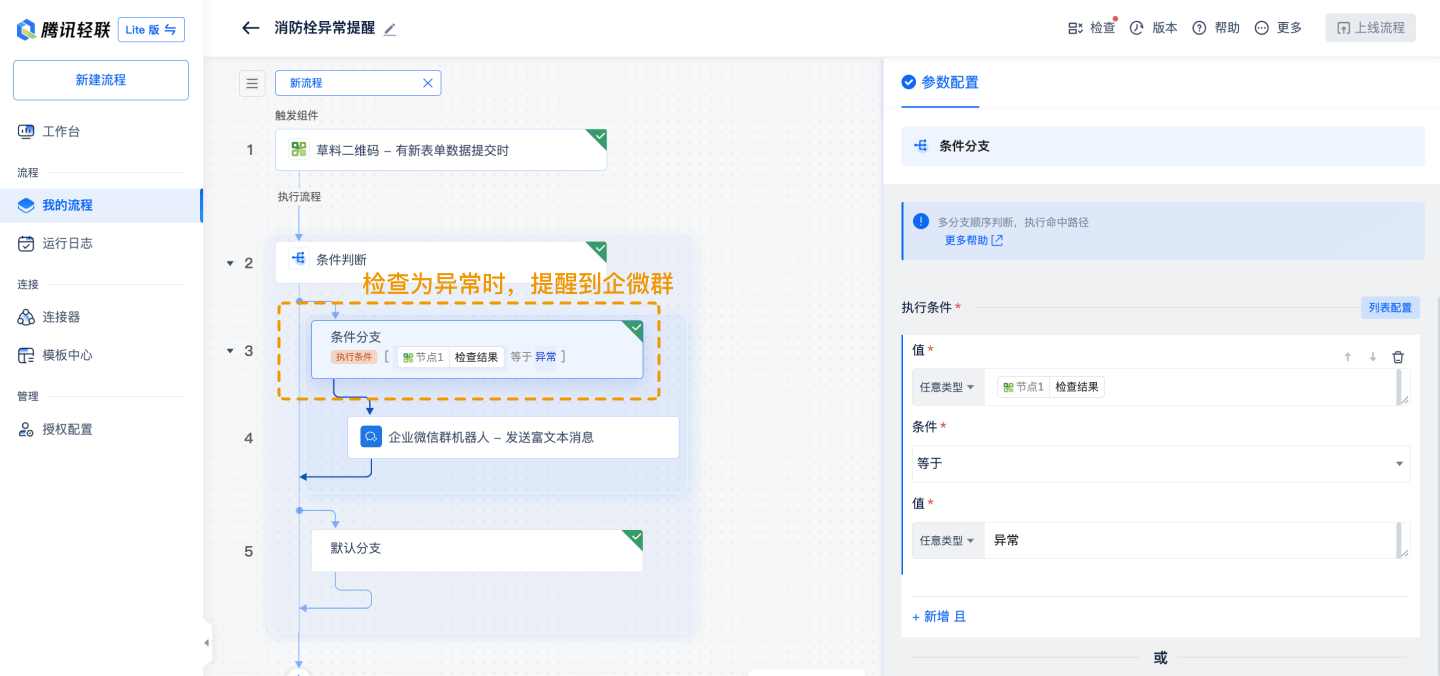
2. How Do I Set Up Conditional Alerts, Such as for Inspection Anomalies?
After the CaoLiao app step, add a built-in conditional branching step. Set the condition — if met, trigger the group message alert; if not, take no action. Combined conditions are supported.
3. Can I Push to Multiple Groups Simultaneously?
Yes. Add a new workflow and add a new group robot URL in it.
4. Can I Push to Different Groups Based on Conditions?
Yes. Use conditional branching with different conditions routing to different group robot apps, each configured with a different group robot URL.
CaoLiao Community
A dedicated community section is available for this feature — share your experience, post questions, and get answers from expert consultants. Visit the community