Auto-Push CaoLiao Trace Camera Photos to a WeCom Group
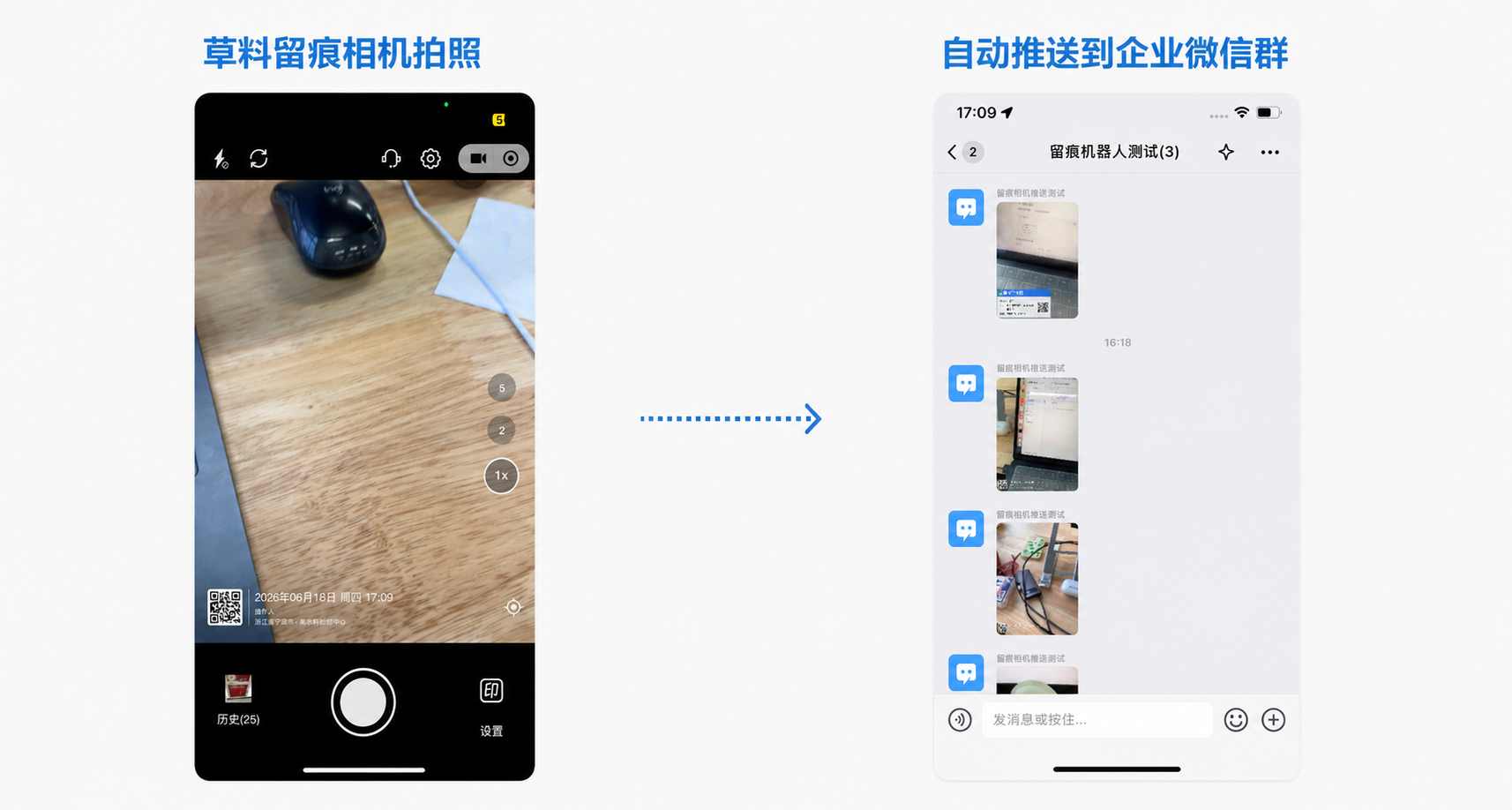
This guide explains how to use Tencent HiFlow to automatically push photos taken with the CaoLiao Trace Camera to a WeCom group. It suits inspection logging, on-site construction, safety checks, and other scenarios where field photos need to reach the team in real time. Configure it once, and every photo is pushed automatically — no manual forwarding required.
Before You Start
Make sure the following three items are ready:
- CaoLiao Trace Camera mini program: opened in WeChat and able to take photos normally (the Trace Camera automatically adds a watermark recording the capture time, location, and other details).
- WeCom Group Robot: a group robot has been added to the target group and you have its Webhook URL. For how to get it, see the official WeCom documentation How to set up a WeCom group robot.
- Tencent HiFlow account: registered and logged in to Tencent HiFlow.
The overall flow is: the Trace Camera takes a photo → the photo is pushed to Tencent HiFlow via Webhook → Tencent HiFlow calls the WeCom Group Robot to send the photo to the group.
Step 1: Create a Blank Workflow
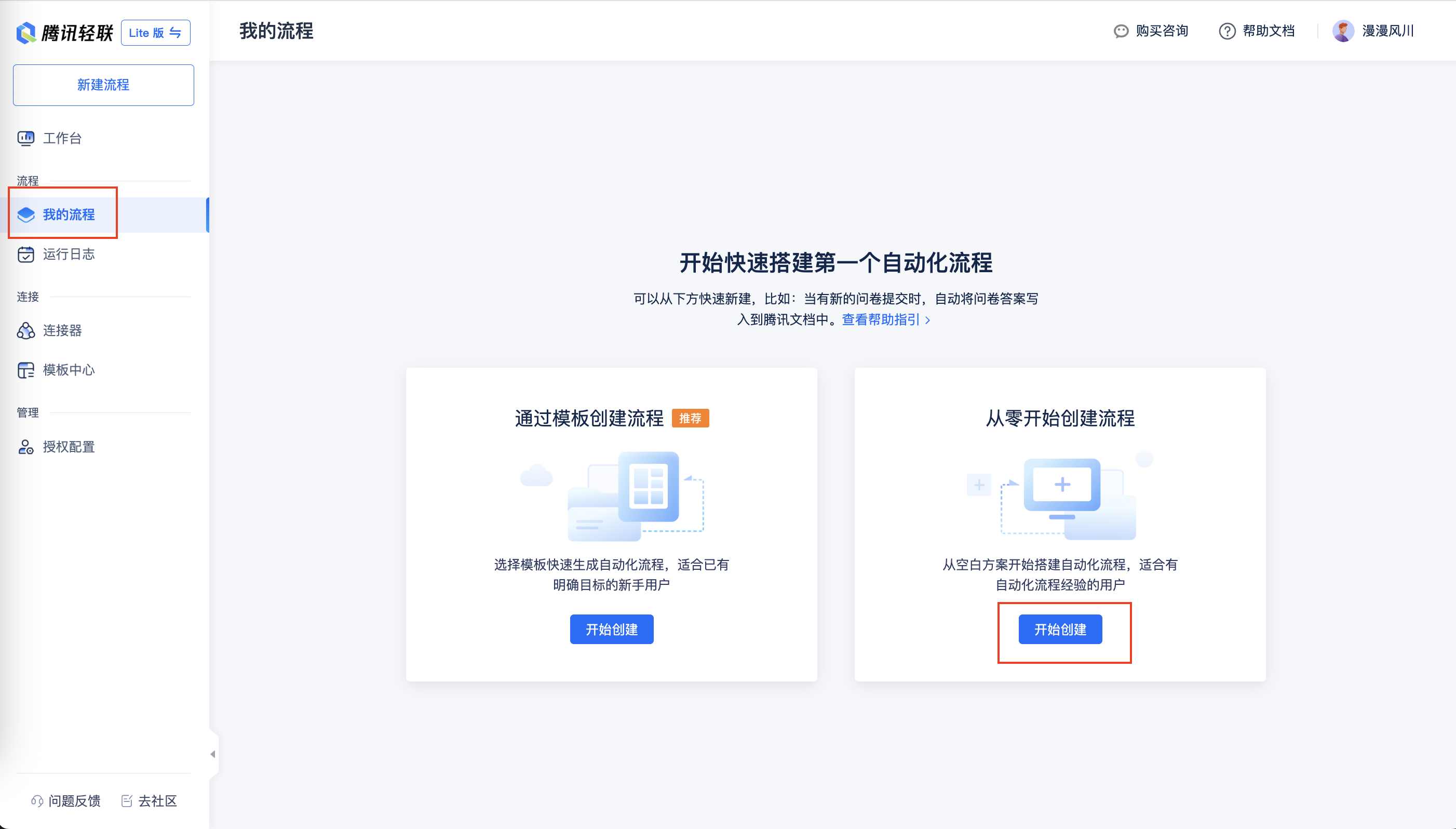
After logging in to Tencent HiFlow, click [New Workflow] under [My Workflows] on the left, then choose [Create from scratch → Start creating] on the right to create a blank workflow.
Step 2: Add the Webhook Trigger Component
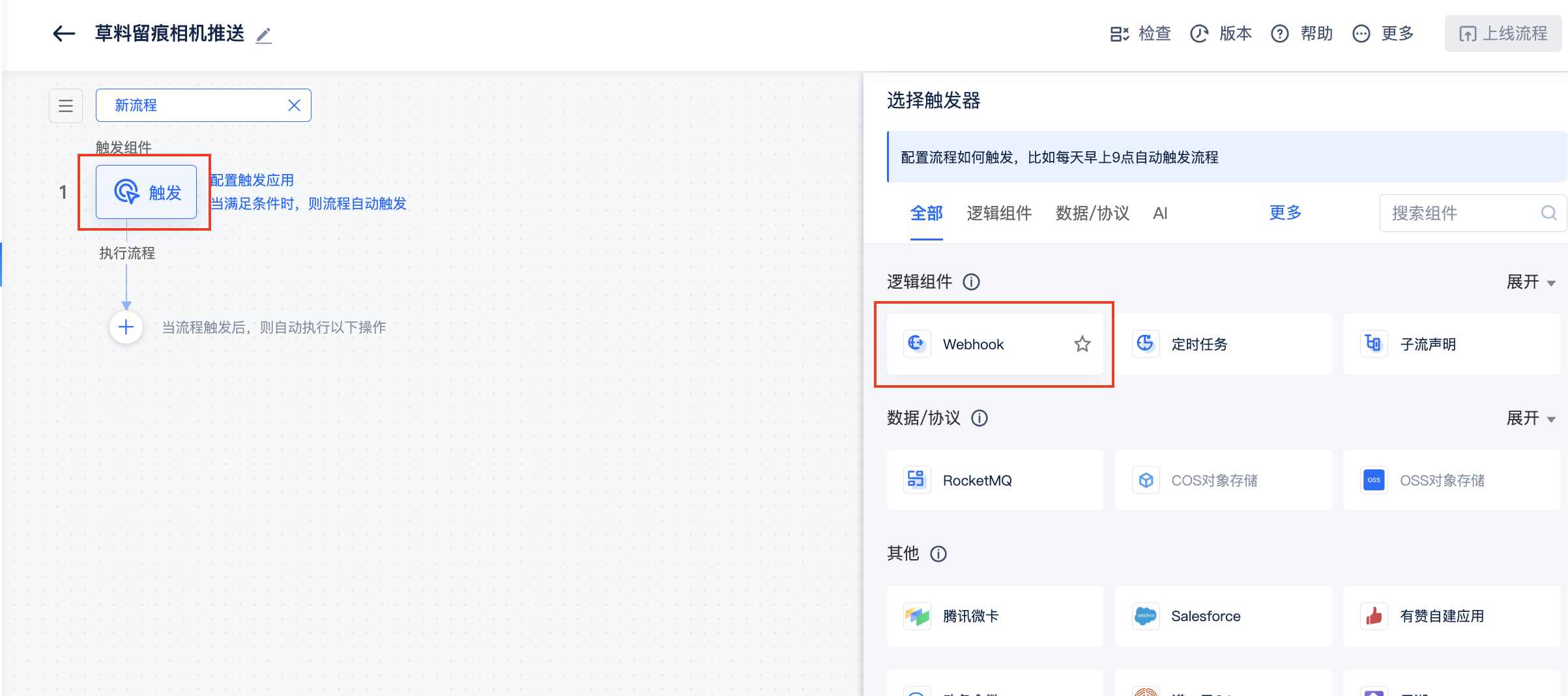
Name the workflow (for example, "CaoLiao Trace Camera Push"), then add a trigger component. In the [Logic Components] section of the component panel on the right, select Webhook.
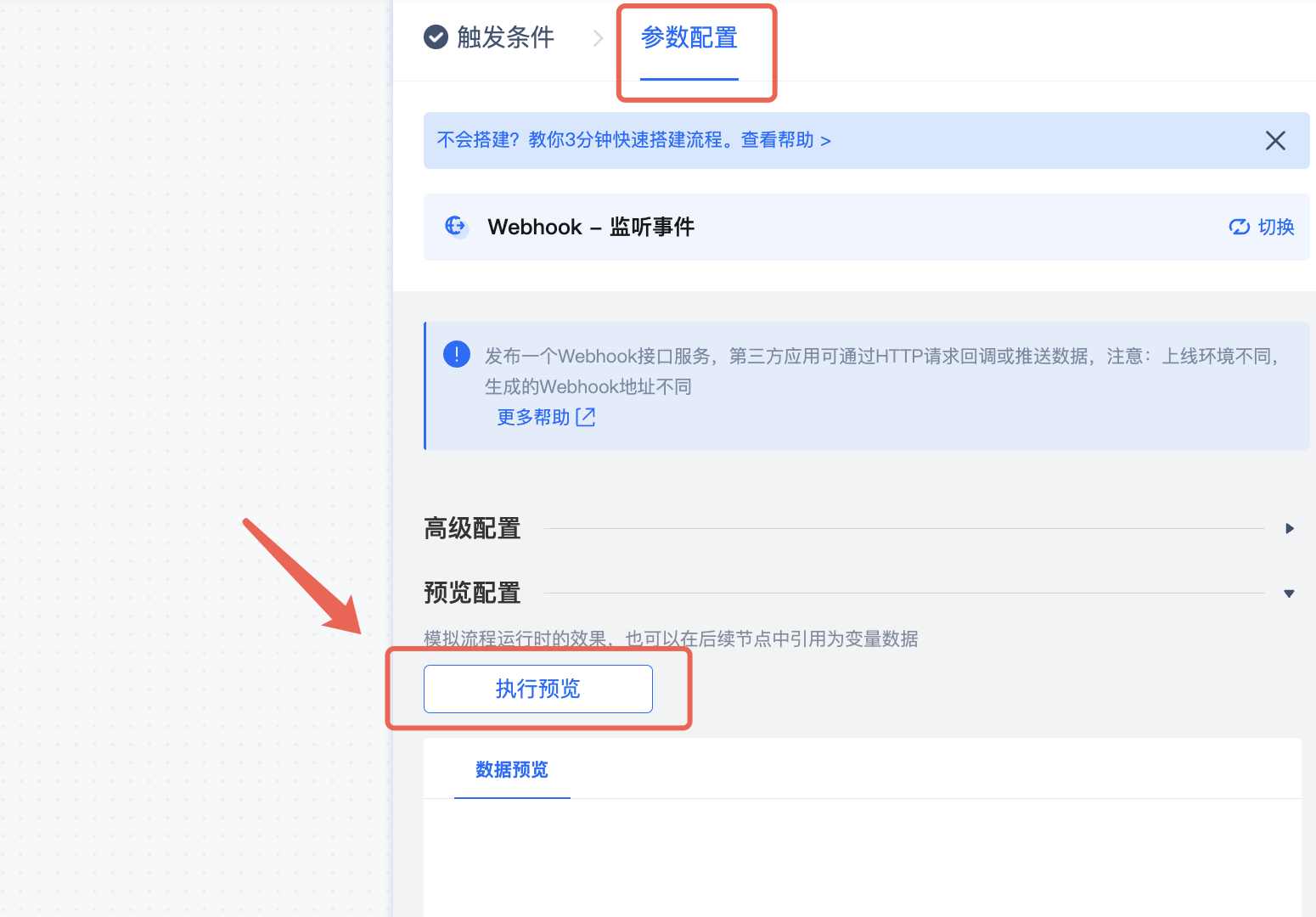
Go to the [Parameter Configuration] page, scroll down to [Preview Configuration], and click [Preview Execution].
After running the preview, an [API URL] appears on the page. Click the copy button on the right to copy this URL.
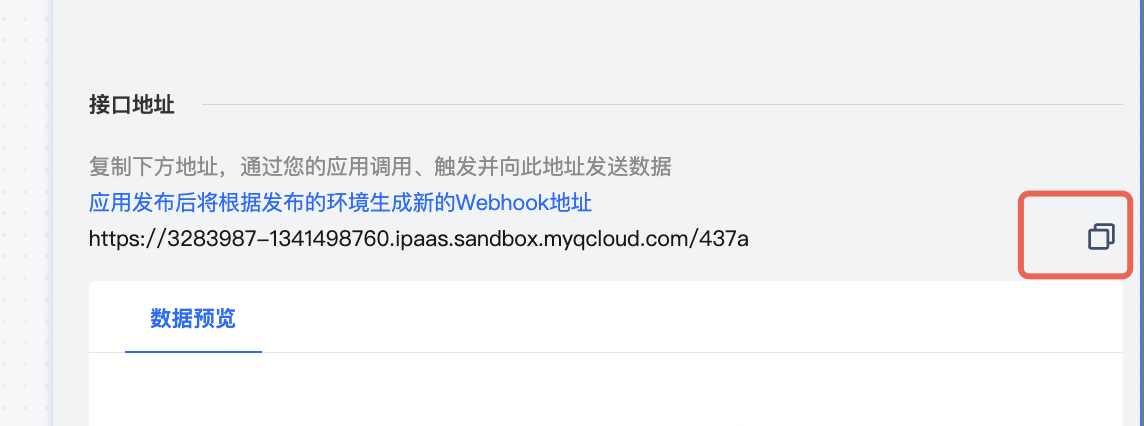
What you copy here is a sandbox test URL, used only for collecting sample data in the next step. The URL changes once the workflow is officially live, so it needs to be replaced later (see Step 5). Keep this in mind.
Step 3: Fill the URL into the Trace Camera and Collect a Sample Photo
Return to the CaoLiao Trace Camera mini program, tap [History] in the bottom-left corner → [Automation] → [Webhook] → [Add Webhook], and paste the URL you just copied into the [URL] field.
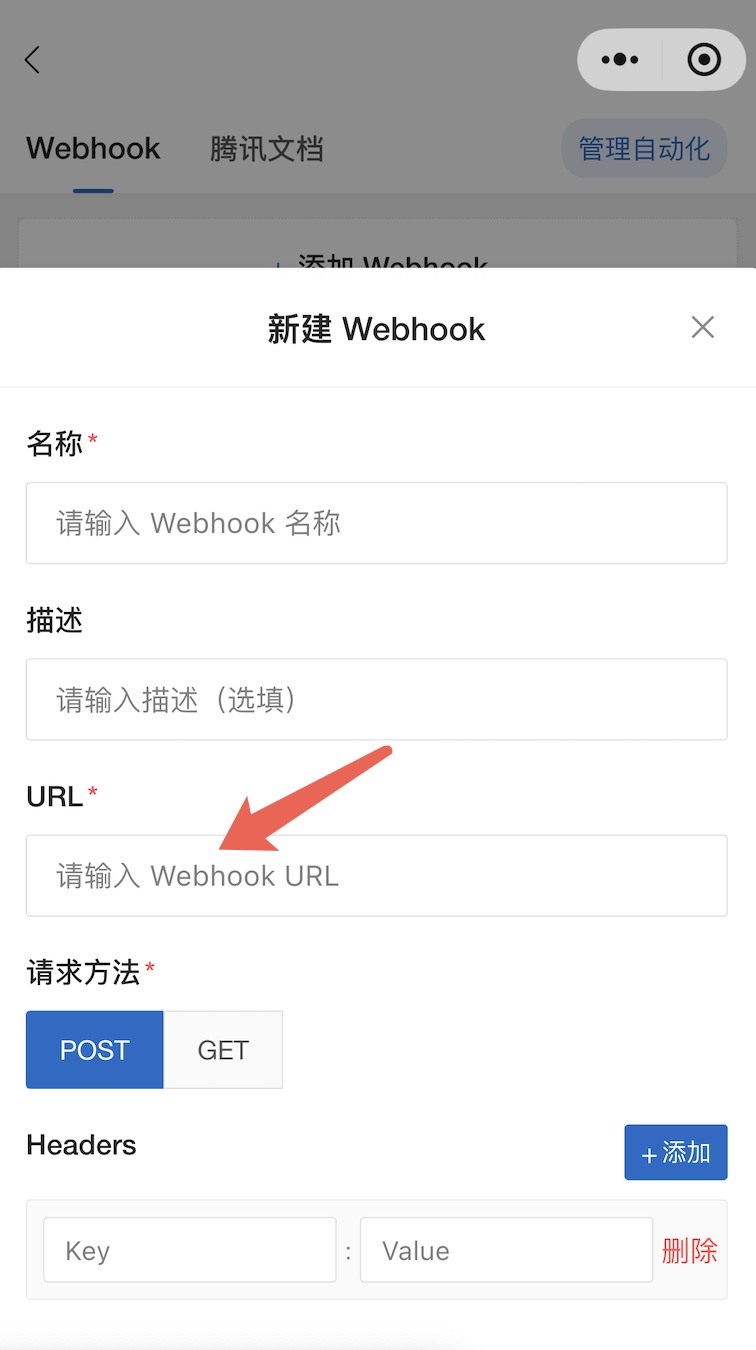
Once configured, take a photo with the Trace Camera. Back in Tencent HiFlow, the [Data Preview] area on the right will show the sample data pushed by this photo. You'll need this sample data when configuring the image variable later, so don't skip this step.
Step 4: Configure the WeCom Group Robot to Send Images
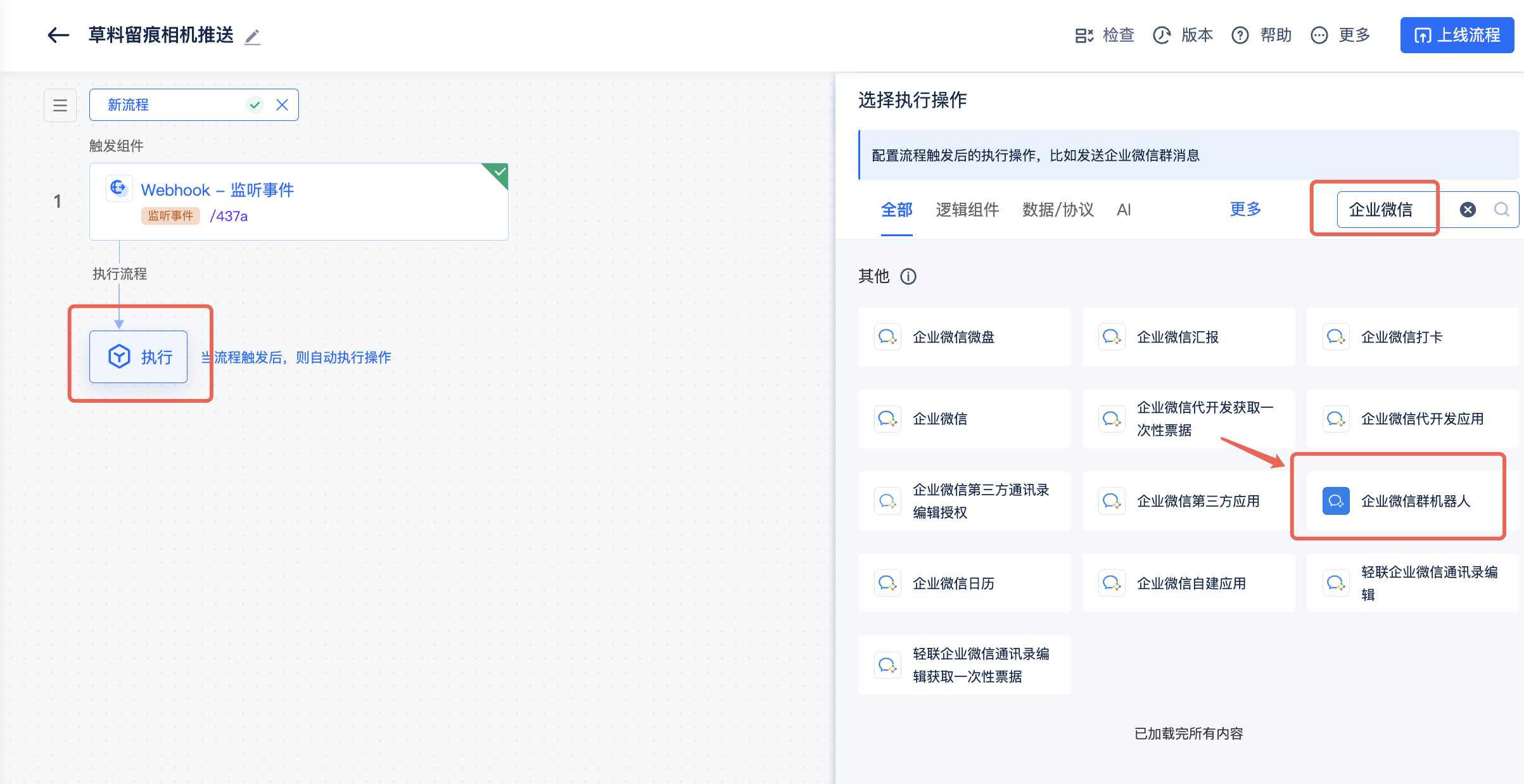
Click the [Action] node in the workflow, search for "WeCom" in the control panel on the right, and select WeCom Group Robot.
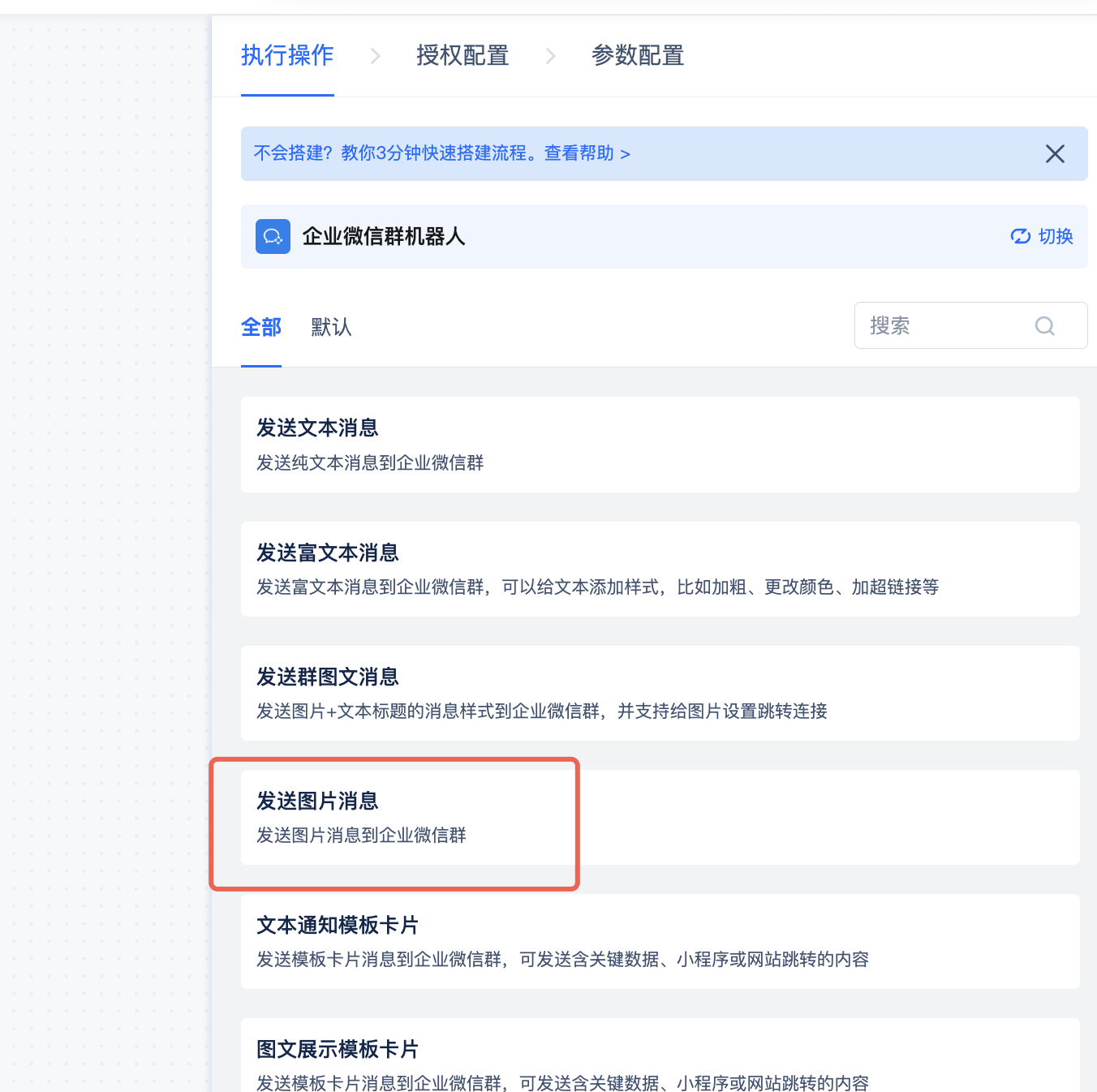
In the action list, select [Send Image Message].
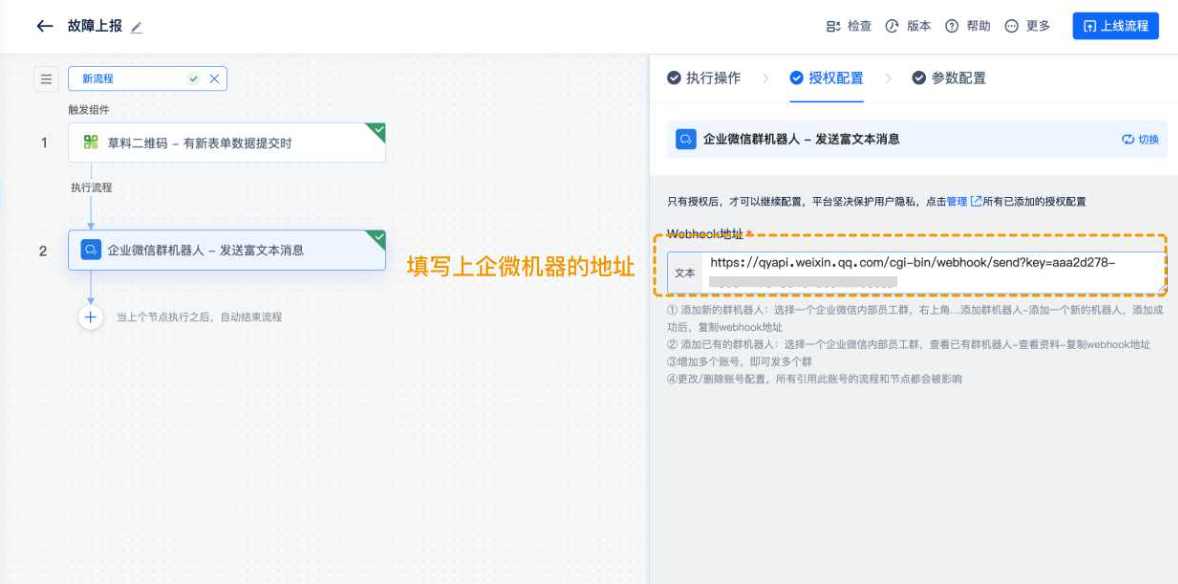
Go to [Authorization] and fill in the WeCom Group Robot Webhook URL you obtained in the preparation steps.
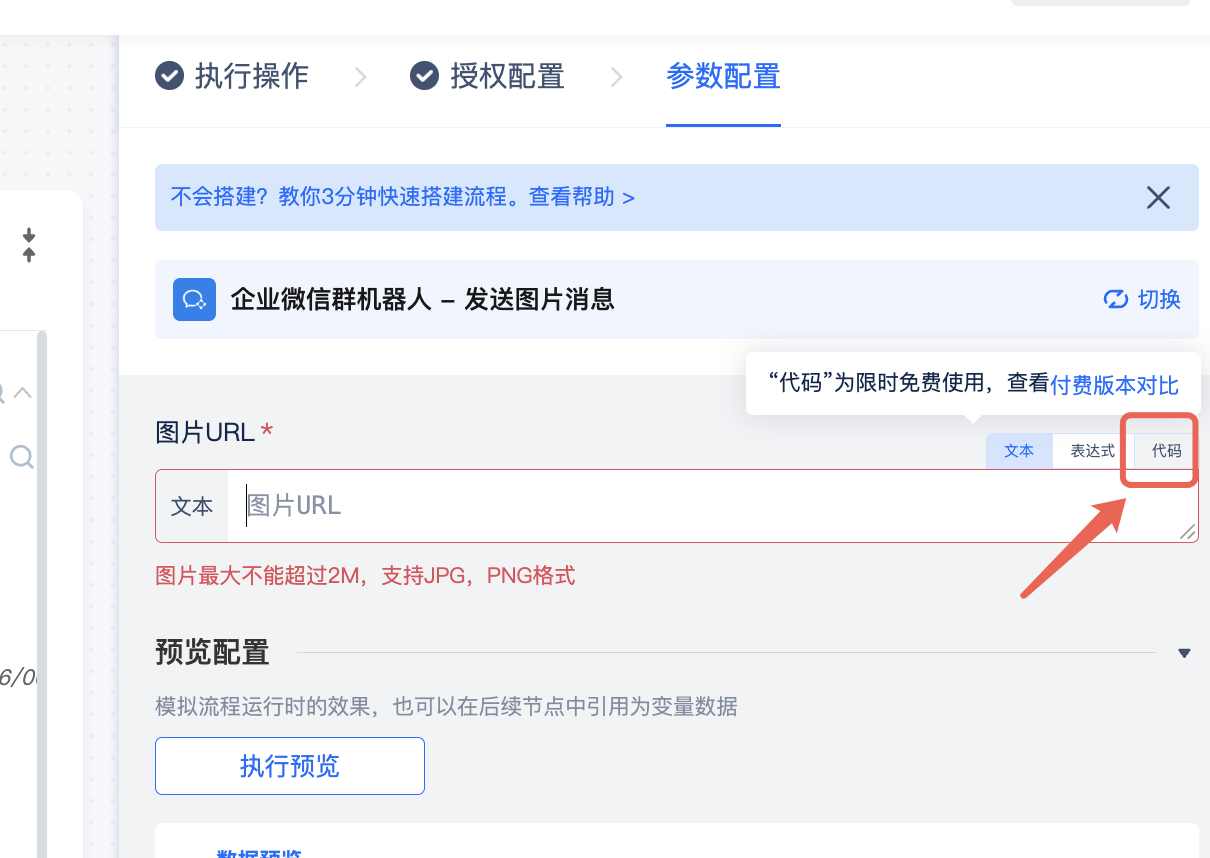
Next, go to [Parameter Configuration]. In the top-right corner of the [Image URL] field, switch the mode from [Text] to [Code].
After switching to Code mode, click images in the workflow variables on the left — it will be inserted after return on the right. Then manually append [0] at the end (note: use English square brackets), resulting in return Node1.images[0].
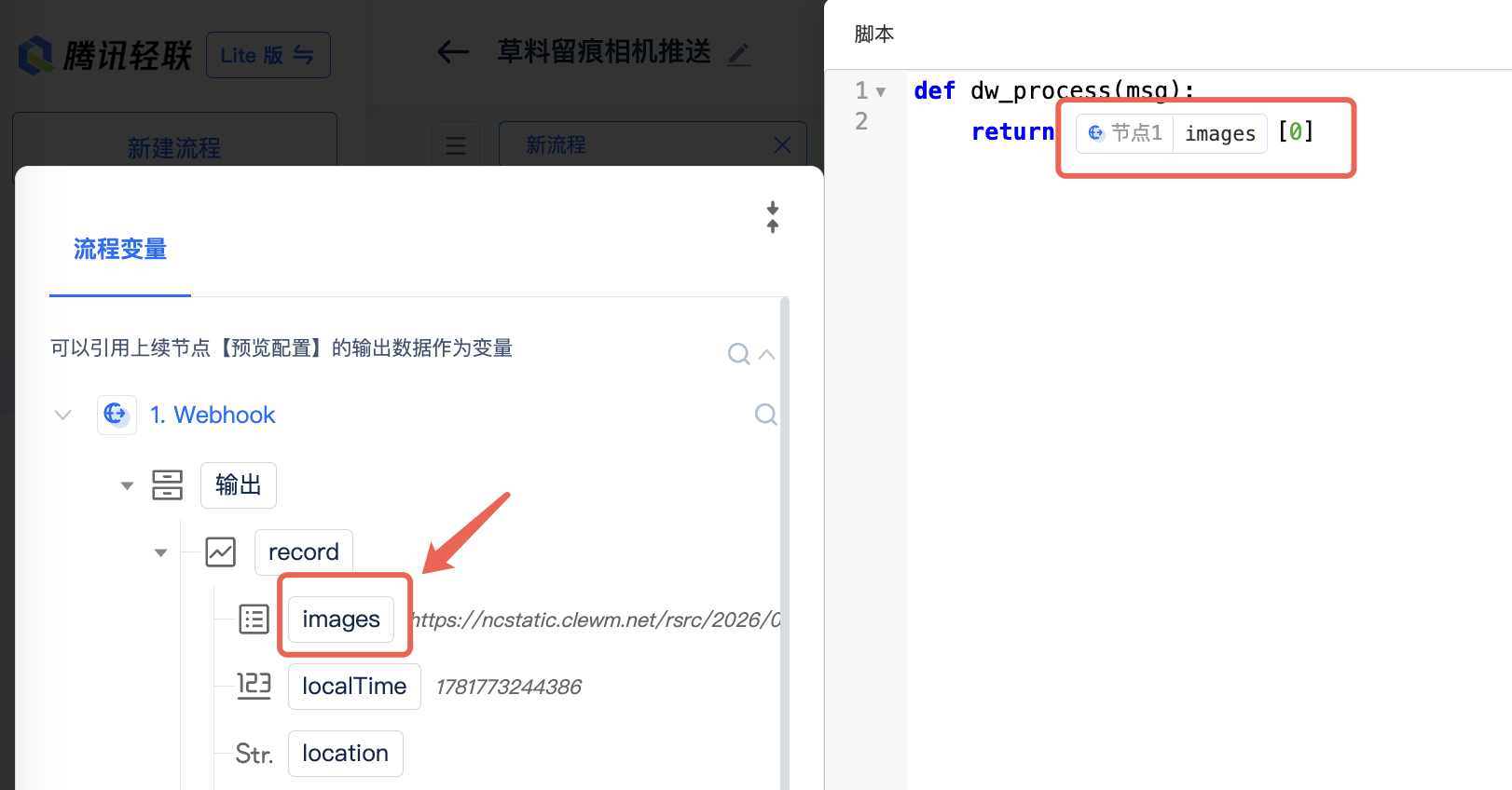
imagesis the array of photos pushed by the Trace Camera, and[0]takes the first photo. With this configuration, each photo you take is passed correctly to the WeCom Group Robot.
Step 5: Publish the Workflow and Replace It with the Live URL
After confirming that both nodes are configured correctly, click [Publish Workflow] in the top-right corner. If publishing fails, click [Check] to see the specific issue.
Once live, the workflow generates an official listening URL (different from the sandbox test URL in Step 2). Click [Copy Listening URL] on the Webhook trigger node to copy this new URL.
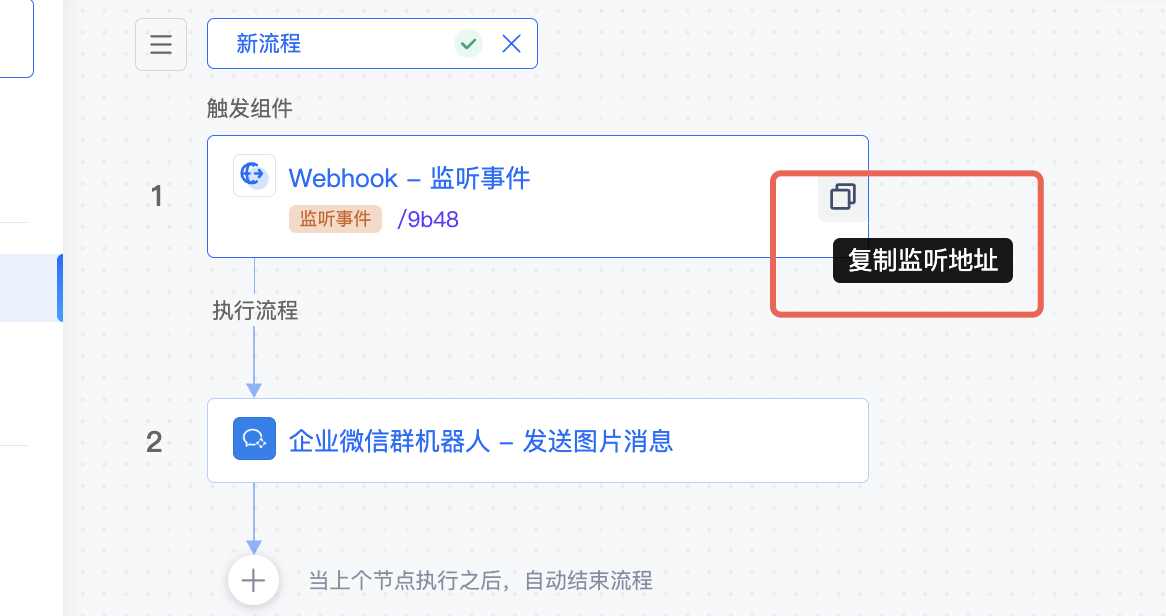
Return to the Webhook configuration in the Trace Camera mini program and replace the sandbox test URL you pasted earlier with this official listening URL.
This step is the easiest to overlook. If you don't replace the URL after going live, the Trace Camera still pushes to the test URL, and the group won't receive any photos.
Done
That's the full setup. From now on, every photo you take with the Trace Camera is automatically pushed to the corresponding WeCom group — no manual steps needed.
If the group isn't receiving photos, troubleshoot in this order:
- Whether you replaced the URL in the Trace Camera with the official listening URL after going live, as described in Step 5;
- Whether the WeCom Group Robot Webhook URL is entered correctly and the bot is still in the group;
- Whether the Image URL was switched to Code mode and correctly set to
Node1.images[0].
References
- Group Message Push: push CaoLiao form records to WeCom, DingTalk, and Feishu groups
- CaoLiao Webhook documentation
- Tencent HiFlow App Connector website