Can the Same Bulk Template Link to Different Forms?
Yes. Use the Variable Link feature in bulk templates to assign different forms to different sub-codes.
What Is a Variable Link?
A variable link is a link-type basic field in bulk templates. When generating sub-codes, you can use an Excel file to specify a different redirect target for each sub-code — including different forms, external links, other sub-codes, or dynamic QR codes. To link to a form, simply enter the form ID (e.g., D818).
Configuration Steps
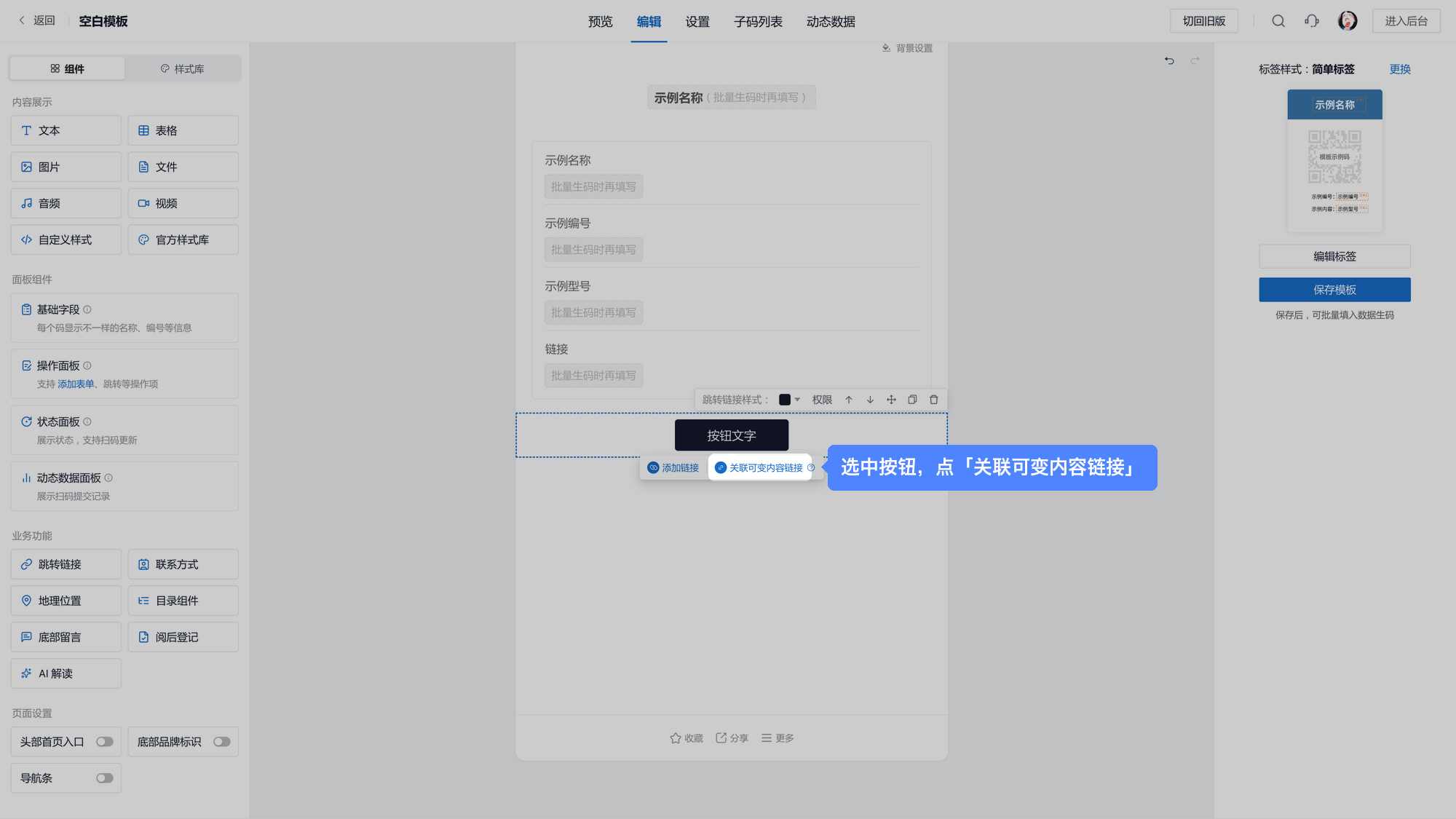
- Add a variable link: In the templates editor, add a link-type basic field, then select the redirect link on the page and click Link to Variable Content to choose that field. View detailed steps
- Prepare Excel data: In the Excel file for bulk QR code generation, enter the corresponding form ID for each sub-code.
- Generate sub-codes: After uploading the Excel file, the system automatically links each sub-code to its designated form.
Use Cases
- Equipment inspection: Different equipment uses different inspection forms — one form per device
- Product introduction: Different product sub-codes redirect to their respective detail pages
- Area management: Different areas use different registration or inspection forms
Note: For equipment with different inspection frequencies, we recommend creating separate bulk templates each linked to a different form, for easier management.