How Do I Set Permissions for Viewing Dynamic Data?
Set the viewing permissions in the dynamic data panel settings. Four modes are available.
Steps
- Open the dynamic QR code editor: Find the QR code you want to configure and click Edit.
- Open dynamic data panel settings: Locate the Dynamic Data Panel and click the settings icon.
- Select viewing permissions: Choose the appropriate permission mode based on your needs.
- Save: Click Save after completing the settings.
Permission Modes
| Permission mode | Description | Version required |
|---|---|---|
| Anyone (can be password-protected) | All scanners can view; optional password protection | Free Version and Above |
| Admins only | Only admins can view | Free Version and Above |
| All members | All organization members can view | Free Version and Above |
| Designated advanced members | Only specified advanced members can view | Advanced Edition and Above |
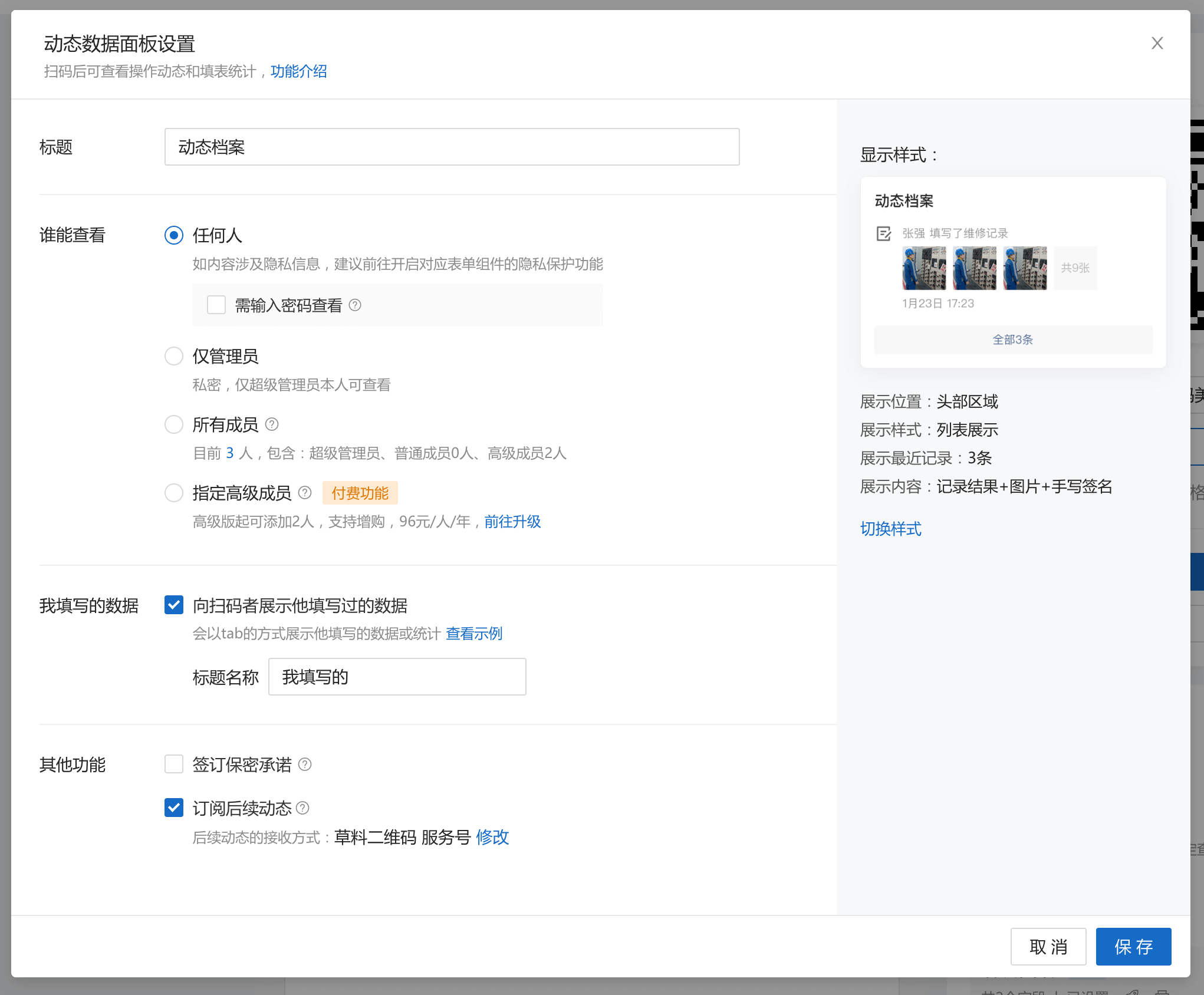
Note: You must complete your organization profile and enable the member feature before you can set All Members or Designated Advanced Members permissions. Regardless of the permission settings, submitters can always view their own submitted data. We recommend enabling Show Scanners Their Own Submitted Data.