How to Add Columns to the Table Component in Forms?
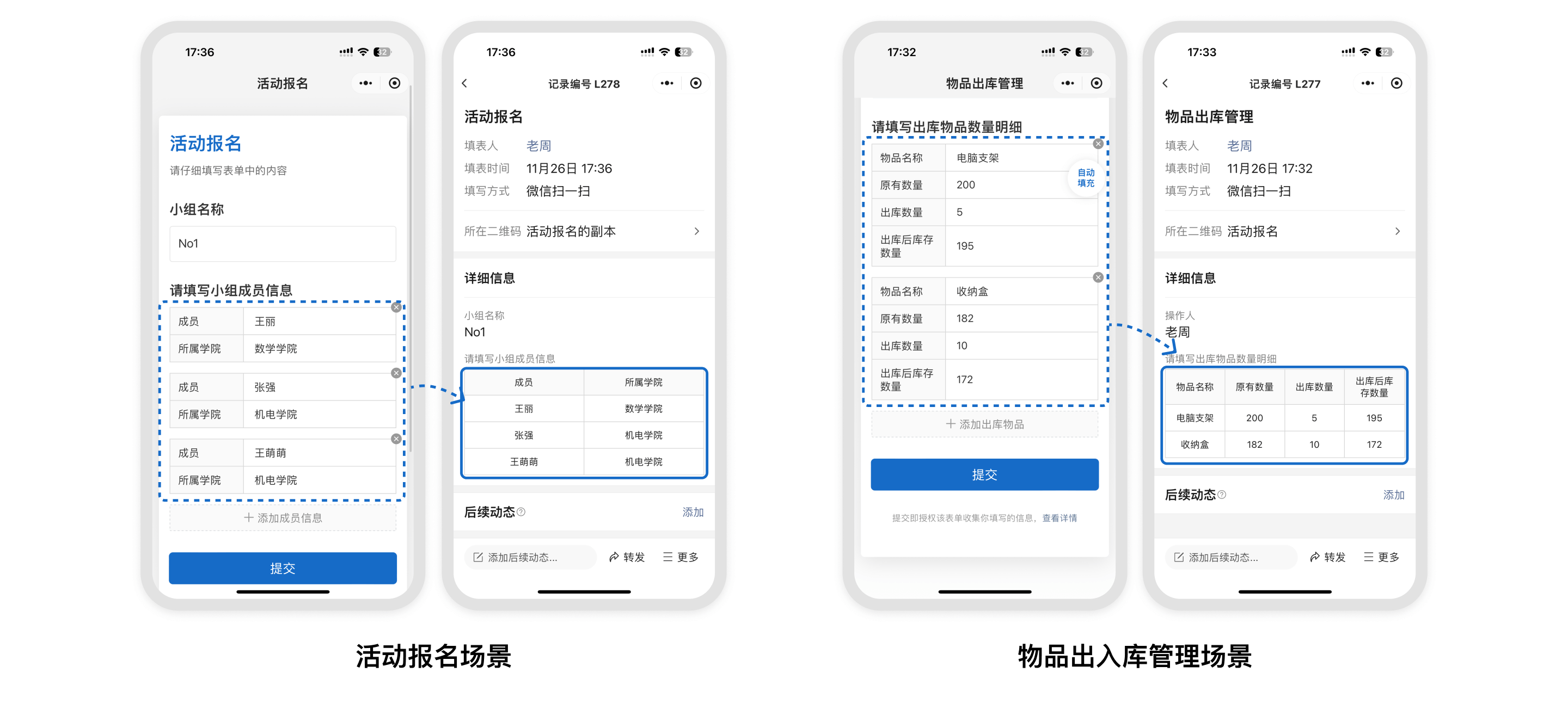
Adding columns is not supported. The standard table component is fixed at 2 columns (title column + input column), with only 1 column available for input. If you need to dynamically add or remove rows while filling out the form, use the Auto-Increment Table component — but it also only has 1 editable column.
Standard Table vs. Auto-Increment Table
| Dimension | Standard table | Auto-increment table |
|---|---|---|
| Columns | Fixed 2 columns (title + input) | Fixed columns (title + input) |
| Editable columns | 1 | 1 |
| Rows | Defined at design time; cannot be added or removed when filling | Can be dynamically added or removed when filling |
| Use case | Fixed check items (e.g., inspection checklist) | Variable-quantity records of the same type (e.g., materials list) |
What If You Need to Collect Multi-Dimensional Data?
If a single table component does not have enough columns, consider the following alternatives:
- Use multiple independent components: Split different data dimensions into separate form components. For example, to record both "inspection items" and "handling results," use two independent selection components.
- Use the auto-increment table for row expansion: If the data structure is consistent but the quantity is variable, use the auto-increment table to let submitters add rows as needed.
- Combine multiple table components: Add multiple table components within the same form, with each responsible for one data dimension.
Note: Whether standard table or auto-increment table, only 1 column is available for input. This is a design limitation of the component.