Who Can Fill Out a Form, and Where Do I Set It?
Who Can Fill Out is not in the forms editor. It is in the QR code's control panel.
1. Where Is "Who Can Fill Out" Set?
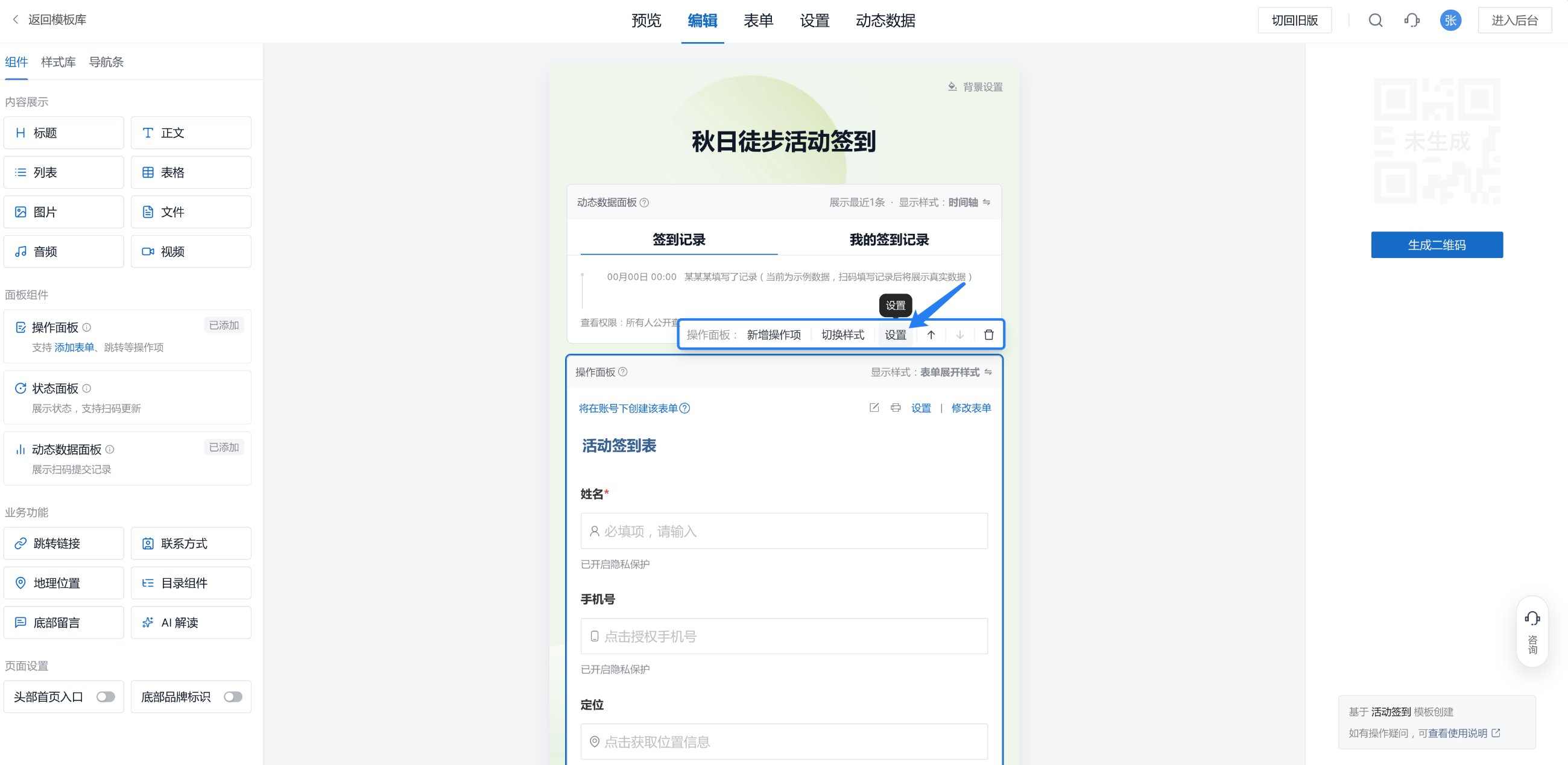
In the QR code editor, find the form actions in the control panel. They may appear expanded, collapsed, or as a list of buttons.
-
If a toolbar appears when you hover over the form, click Settings.
-
If you see a list of buttons, click Form Editing & Settings.
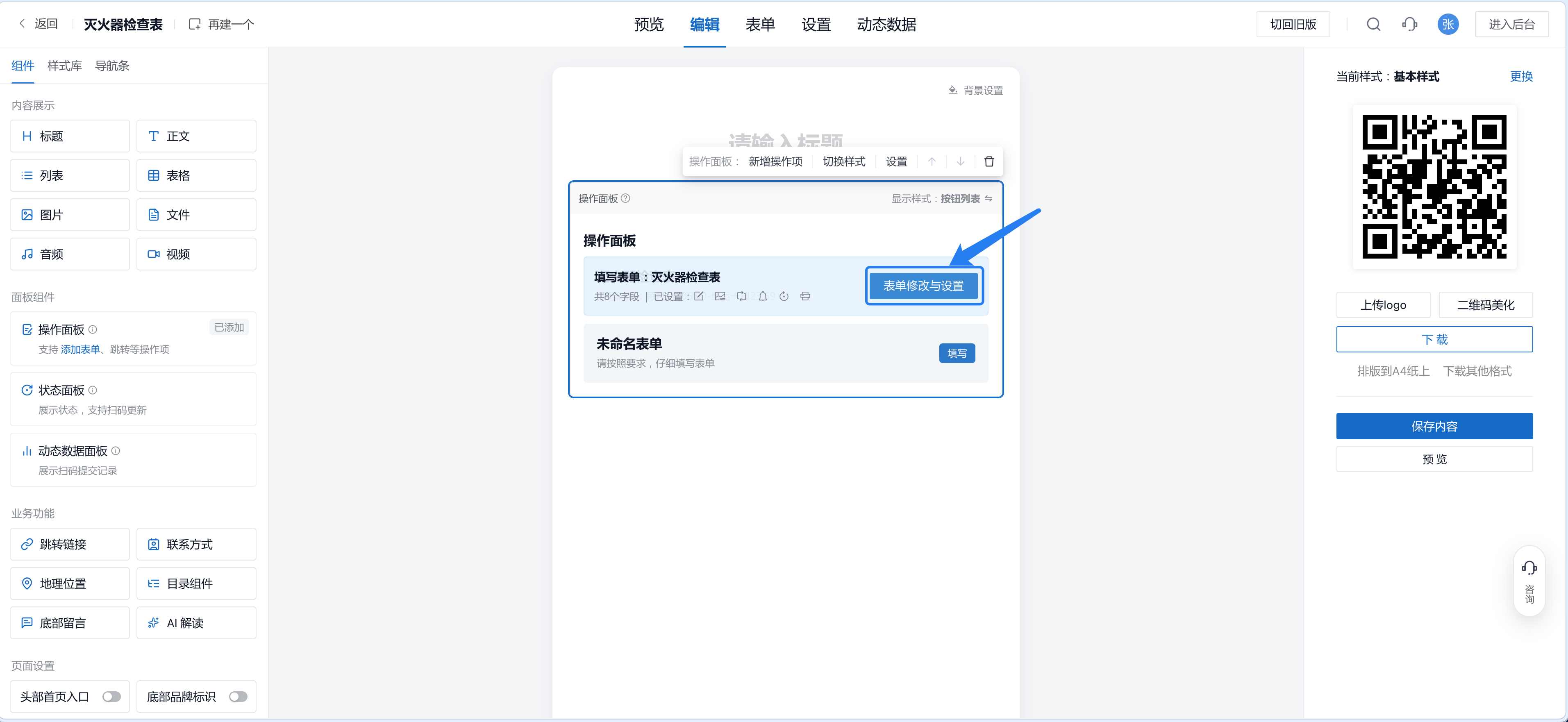
Note: The controls may look different from the screenshots. The form settings are in the same area.
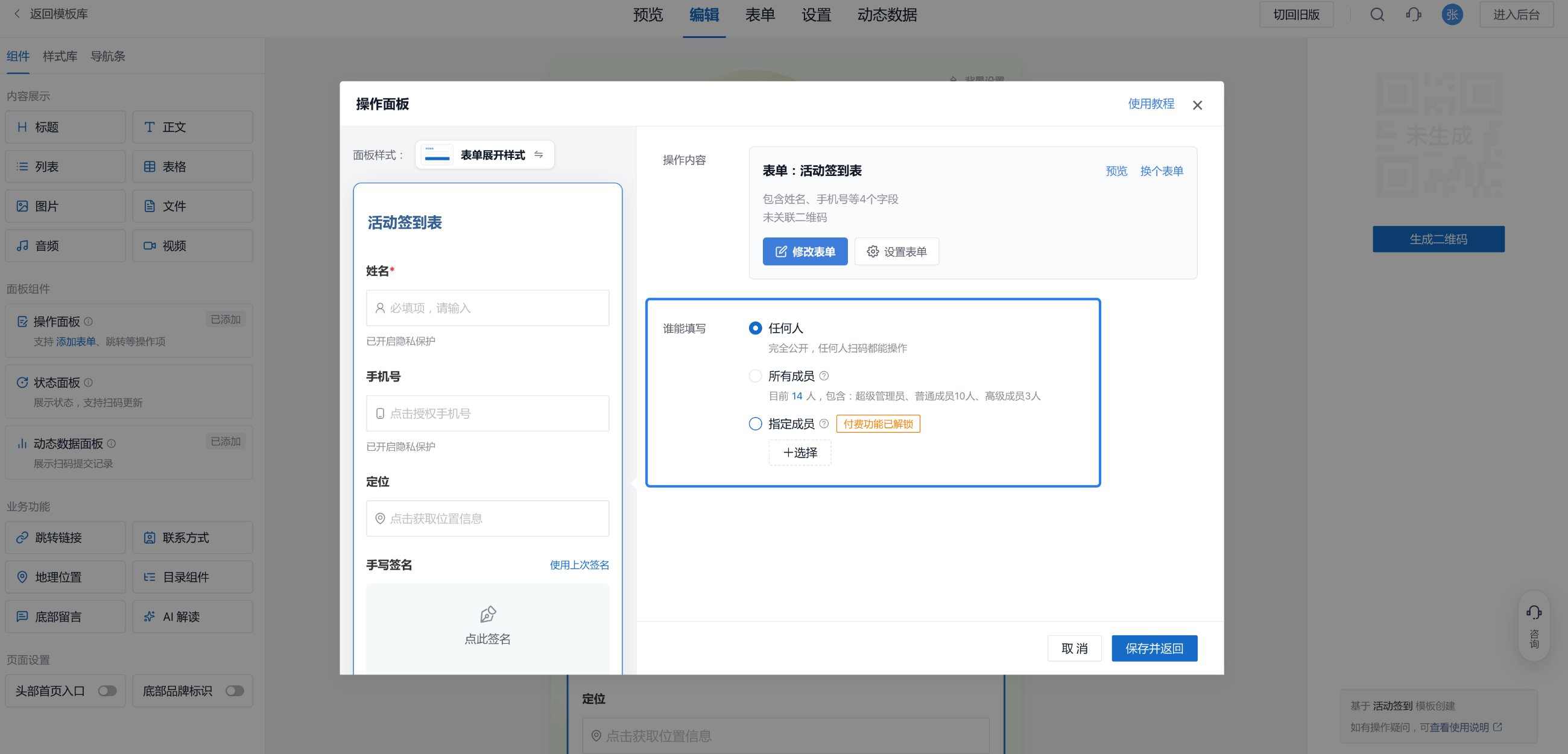
Find Who Can Fill Out on the right side of the settings dialog. Choose a permission, click Save and Return, then save the QR code.
2. Where Do I Set It If the Form Is Not Linked to a QR Code Yet?
A form does not have its own standalone fill entry. People need to scan a QR code before they can open the form. So a form has to sit on a QR code before Who Can Fill Out means anything.
Add the form to a QR code you already have:
- Open the editor of an existing QR code.
- Add a Control Panel and pick this form from your account.
- Then set it as described in section 1.
If you just saved a new form:
-
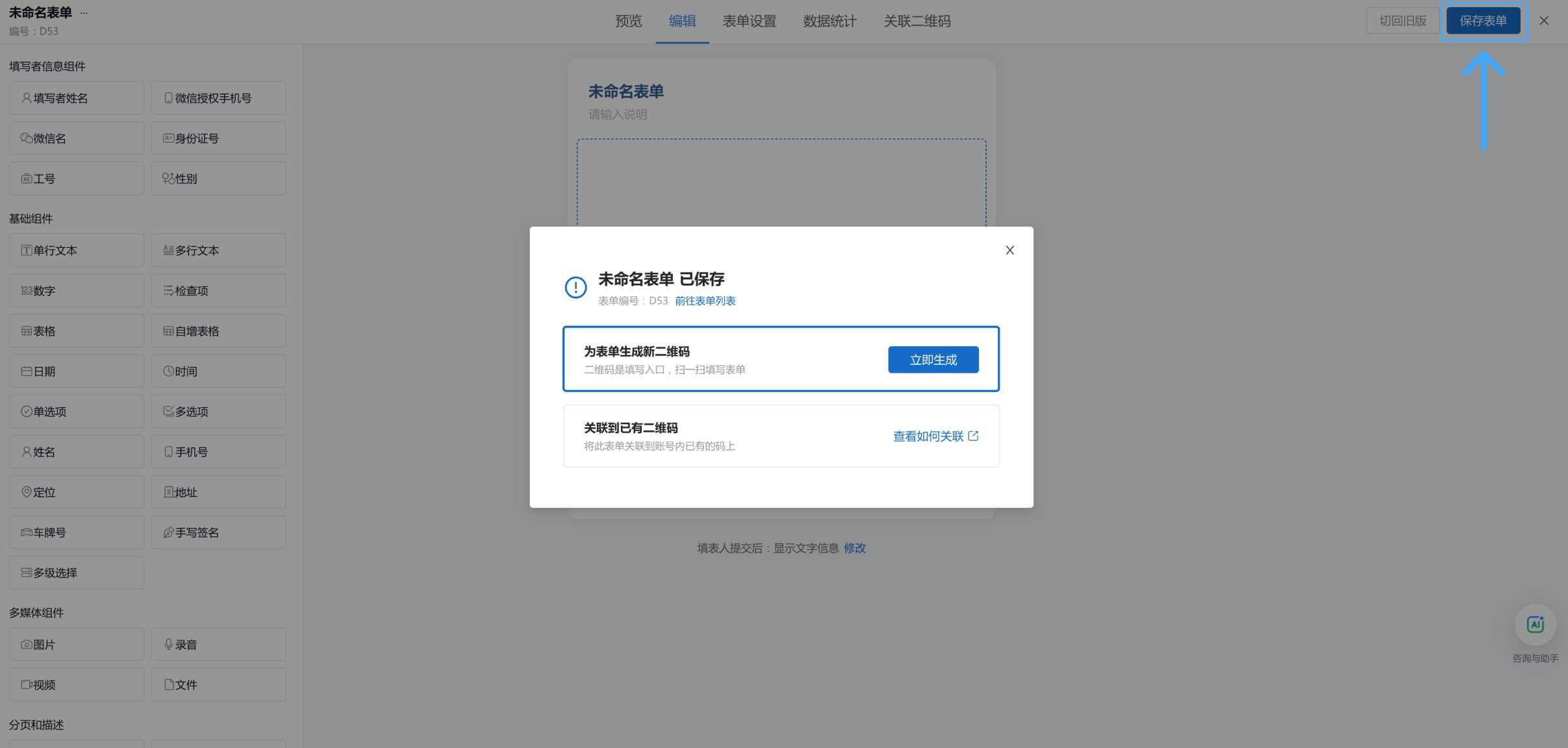
The first time you click Save Form in the upper-right corner, the Generate a New QR Code for the Form prompt appears.
-
Click Generate Now.
-
The system enters the QR code editor and automatically adds the form to the control panel. Then set it as described in section 1.
If the form was created a while ago:
-
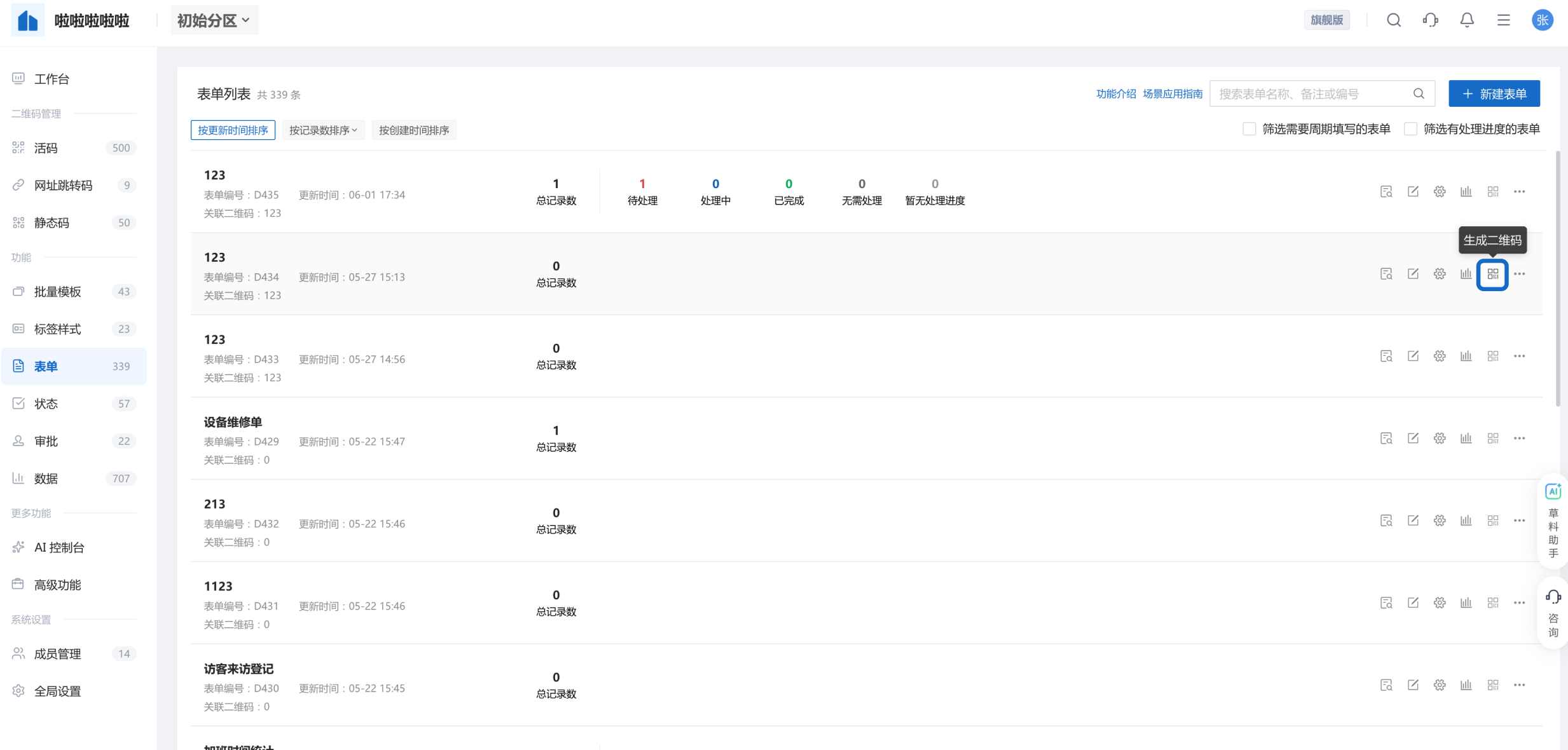
Go to Form List in the workbench and find the target form.
-
Click the Generate QR Code / Link QR Code icon on the right.
-
After entering the QR code editor, set it as described in section 1.
Tip: One form can be linked to multiple QR codes, and Who Can Fill Out is set separately on each one. For example, the same inspection form can be set to All Members on the workshop code and Anyone on the public-facing code.
3. Where Do I Set It for a Form in a Bulk Template?
A bulk template works the same way as a QR code. The entry is just in the templates editor:
-
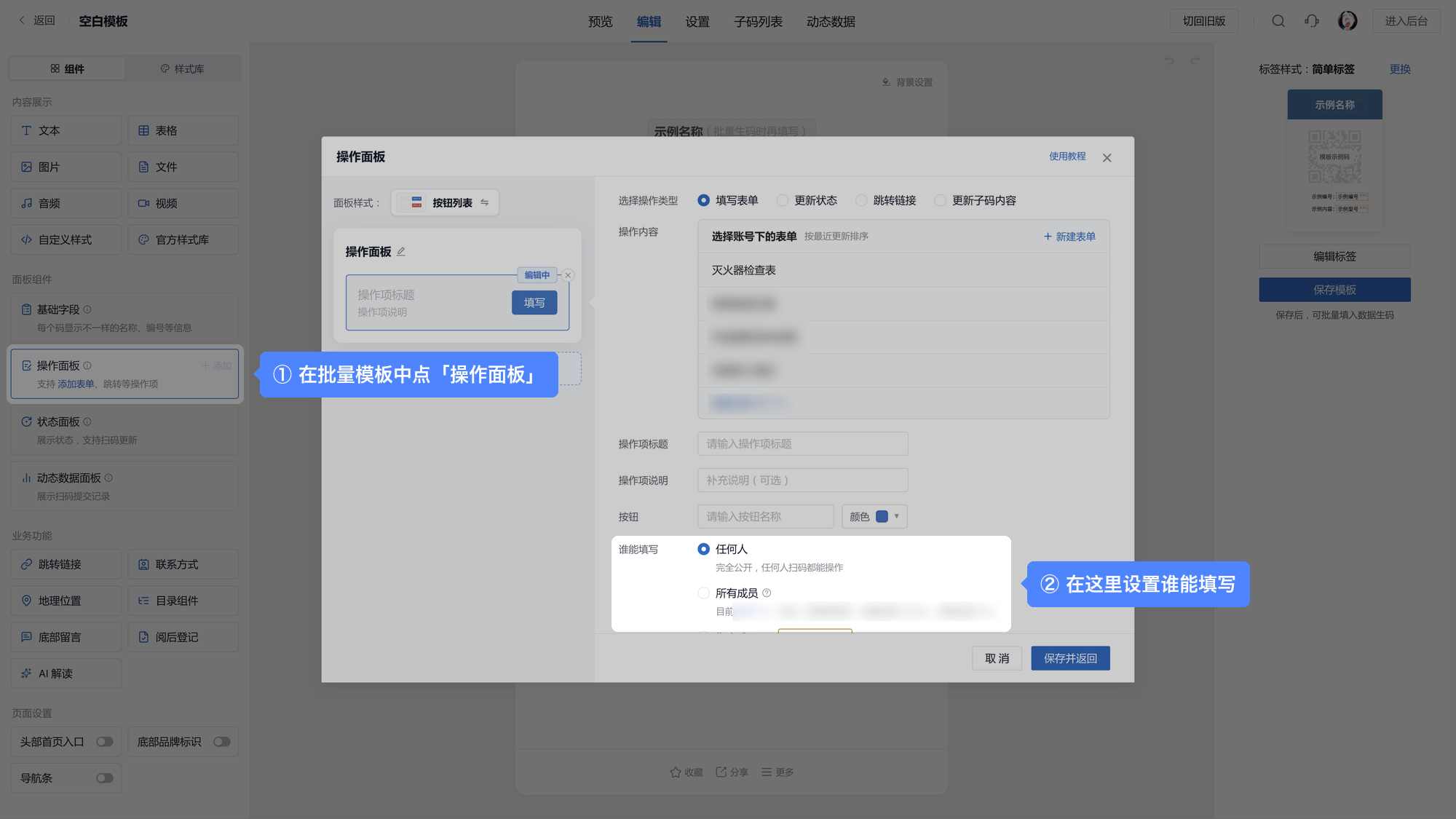
Open the bulk template editor and add a form in the control panel, or choose an existing form.
-
In the lower part of the same control panel dialog, choose a permission under Who Can Fill Out, then click Save and Return.
-
Save the template, then generate the sub-codes from it.
Every sub-code generated this way carries the same fill permission.
4. What Options Are Available Under "Who Can Fill Out"?
- Anyone: fully public, anyone who scans can fill it out.
- All Members: only members of your organization can fill it out.
- Specified Members: only the members you select can fill it out. Requires the Advanced Edition or above.
The last two both require the member feature to be enabled. With either one, people who are not logged in are asked to log in first, and non-members will not see the fill button.
5. Why Isn't This Setting in the Forms Editor?
Because a form is reusable content, while the QR code is the entry people actually scan. The same form on different codes can face completely different audiences, so the permission follows the code, not the form.
For the same reason: if a form is already linked to a QR code, the fill permission always follows the setting in that QR code's control panel.