How to Update QR Code Content on Mobile
Original: https://cli.im/article/detail/2159
In daily work, the QR codes we create via CaoLiao often need content updates based on actual situations, such as: user information for asset inventory, actual stock levels after inbound/outbound registration, equipment annual inspection records, etc.
If the super administrator must update the QR code content via the PC backend every time new content is available, the process becomes cumbersome and increases their workload.
So, how can you update QR code content directly from a mobile device?
After generating codes using a bulk template, the super administrator can set the content requiring updates as "variable content" and wrap it into an action item—"Fill Sub-code Content"—within the control panel. They can also designate specific personnel who are authorized to directly update the content via mobile after scanning the code, with the updated content displayed on the QR code itself.
I. Application Scenarios
1. Updating Asset Inventory Information
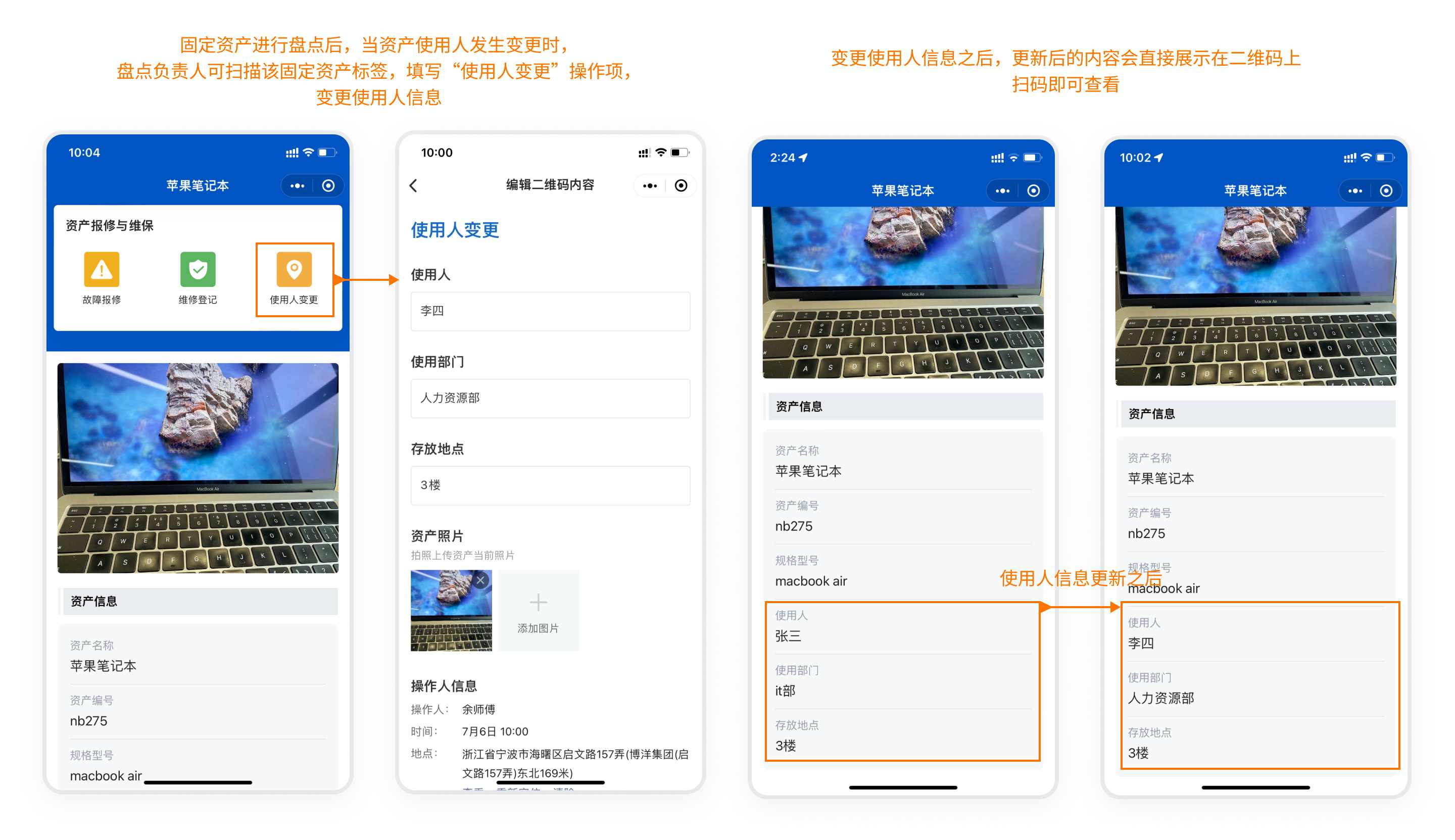
During fixed asset inventory checks, when asset user information changes, there's no need for the super administrator to modify the QR code content via the PC backend. Updates can be made directly on the mobile device and displayed on the QR code, viewable immediately upon scanning.
Operational Process:
- After the company purchases and receives fixed assets, the super administrator generates a batch of fixed asset label QR codes in bulk based on the purchase information and prints/affixes them to the corresponding assets.
- The variable user information fields—User Name, User Department, Storage Location—are wrapped into an action item named "User Change" (Fill Sub-code Content) within the control panel.
- After an asset inventory check, if the asset user changes, the inventory manager can scan the asset's QR code and fill out the "User Change" action item to update the sub-code content.
- The user information is updated directly on the mobile device, and the new content is displayed on the QR code, viewable immediately upon scanning.
2. Updating Actual Stock After Inbound/Outbound Operations
In the manufacturing industry, it's necessary to record material inbound and outbound transactions, and ideally display the latest actual stock quantity directly on the QR code for immediate viewing upon scanning. If stock falls below a warning level, replenishment can occur promptly. Applicable in scenarios like inbound/outbound registration and stocktaking.
Operational Process:
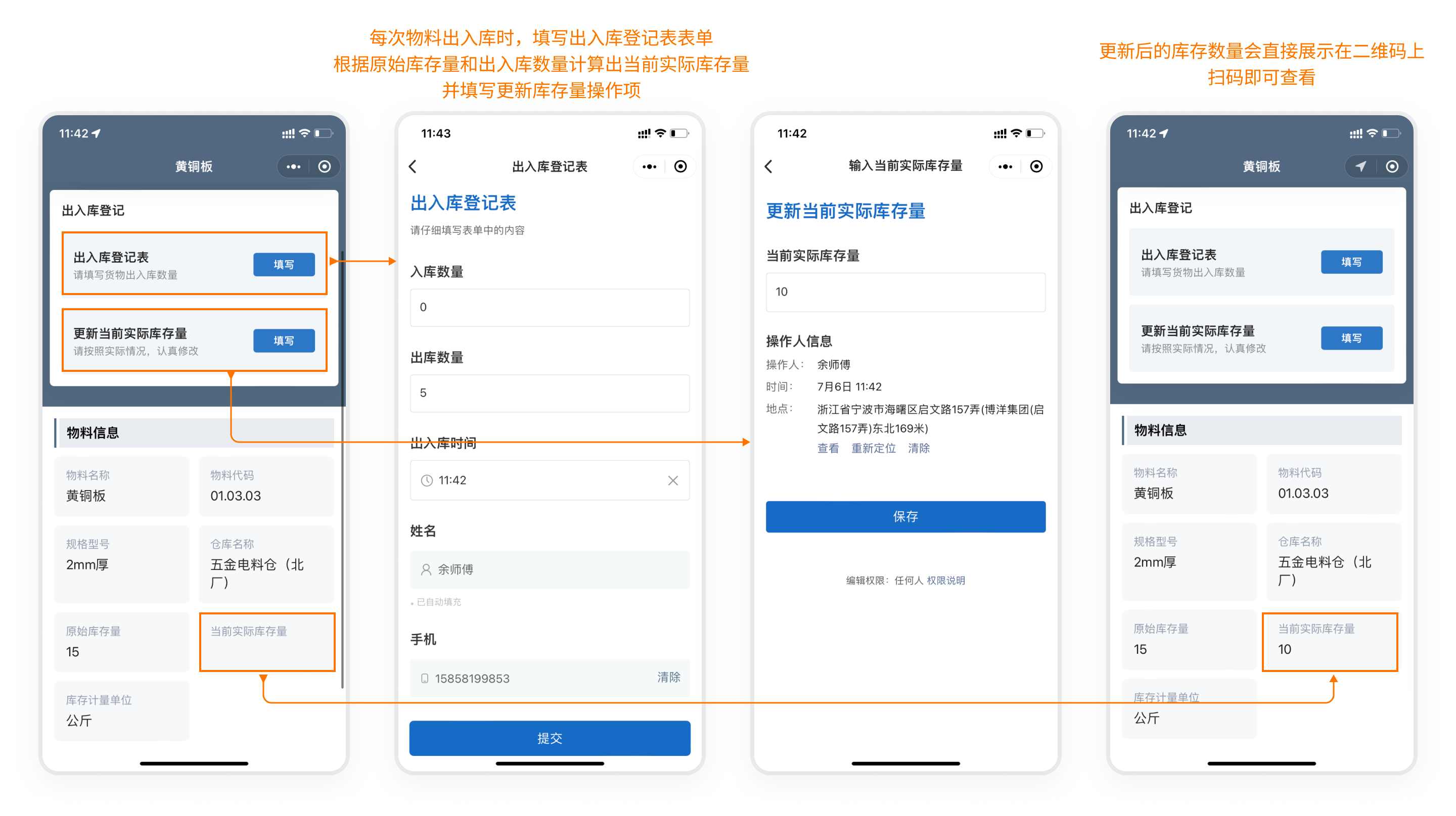
- The super administrator uploads material information via a bulk template to generate material QR codes (one code per category).
- The "Actual Stock Quantity" variable content is wrapped into an action item named "Update Actual Stock" (Fill Sub-code Content) within the control panel.
- After each material inbound/outbound registration, the actual stock quantity is calculated based on the original stock and the inbound/outbound quantities.
- The warehouse manager scans the code and fills out the "Update Actual Stock" action item. The updated actual stock quantity is then displayed directly on the QR code, viewable immediately upon scanning.
The CaoLiao platform does not support automatic calculation features. You can use external data analysis tools like Baidu Sugar, connected to the official CaoLiao database, to freely implement various calculations, including displaying real-time inventory on data dashboards. Learn More
3. Updating Equipment Annual Inspection Records
Many special equipment types require annual safety inspections per industry safety regulations. It's beneficial to display the inspection date and result directly, indicating the equipment has passed inspection and is safe (e.g., elevators, tower cranes).
Operational Process:
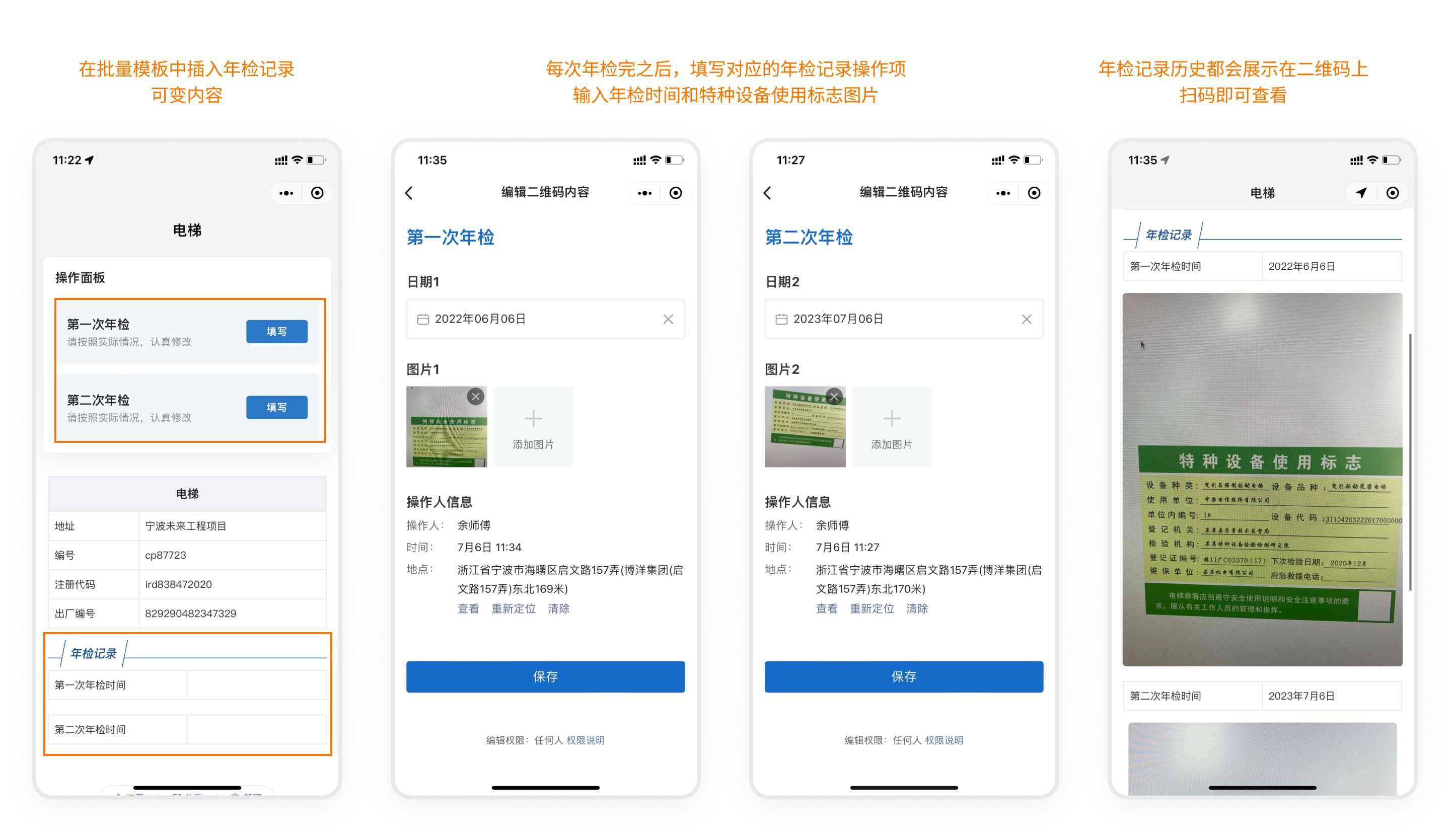
- The super administrator uploads equipment information via a bulk template to generate equipment QR codes (one code per item). The QR code displays the equipment's annual inspection records, serving as a certificate.
- Add variable content annually: Inspection Date and Special Equipment Usage Mark Image. Wrap these into multiple "Update Equipment Annual Inspection Record" action items (Fill Sub-code Content) within the control panel.
- After each annual inspection, the super administrator scans the code and fills out the "Update Equipment Annual Inspection Record" action item.
- All annual inspection records are displayed directly on the QR code, viewable immediately upon scanning.
How to Input QR Code Content on Mobile
During QR code creation, often content needs to be displayed on the scan page, such as: real-time records of order process completion progress, fixed asset custodian information, photos of various certificates for construction site personnel, project actual measurement data, product traceability information, etc.
However, this content can be difficult or inconvenient to collect entirely before generating the QR code for the super administrator to upload via PC. If collected via forms linked to the QR code, viewers must enter the dynamic record interface to see the information; it cannot be displayed directly on the main QR code page.
II. How to Set Up
Inputting QR code content on mobile primarily involves wrapping the variable content from a bulk template into a "Fill Sub-code Content" action item within the control panel. You can set it so that only designated personnel can perform this action. The filled content will then be displayed on the QR code itself, viewable upon scanning. If filled again subsequently, it will overwrite the previously entered content.
1. Add Variable Content
A bulk template acts like a mold for codes, consisting of fixed content and variable content. "Variable Content" can display different information in each sub-code; simply input data to generate numerous sub-codes. Sub-code data, forms, and statuses within the template can be freely modified.
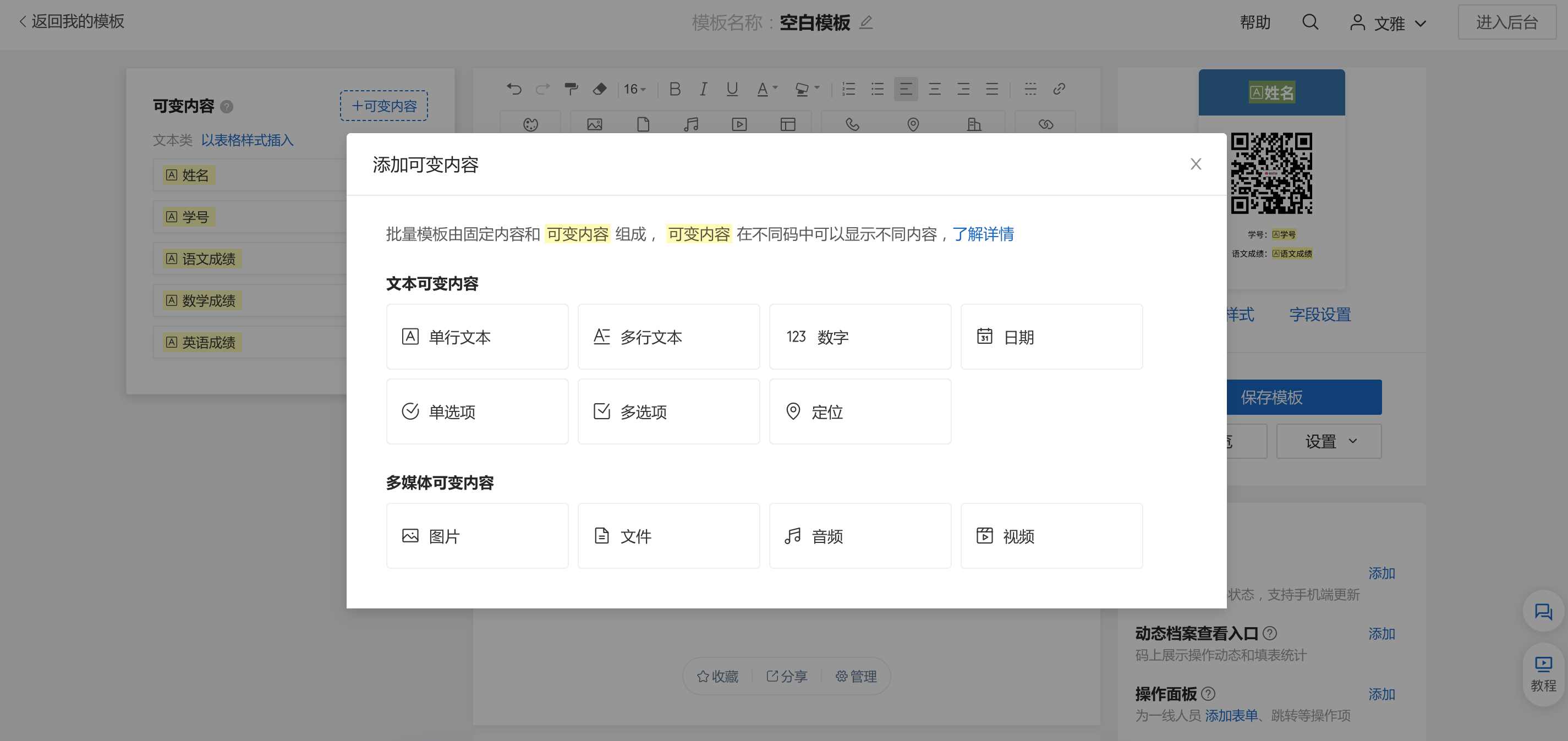
Within the bulk template, set the information that needs to be input via mobile and displayed on the QR code as "Variable Content". Supports adding variable content of types like text, date, number, image, file, audio/video, etc.
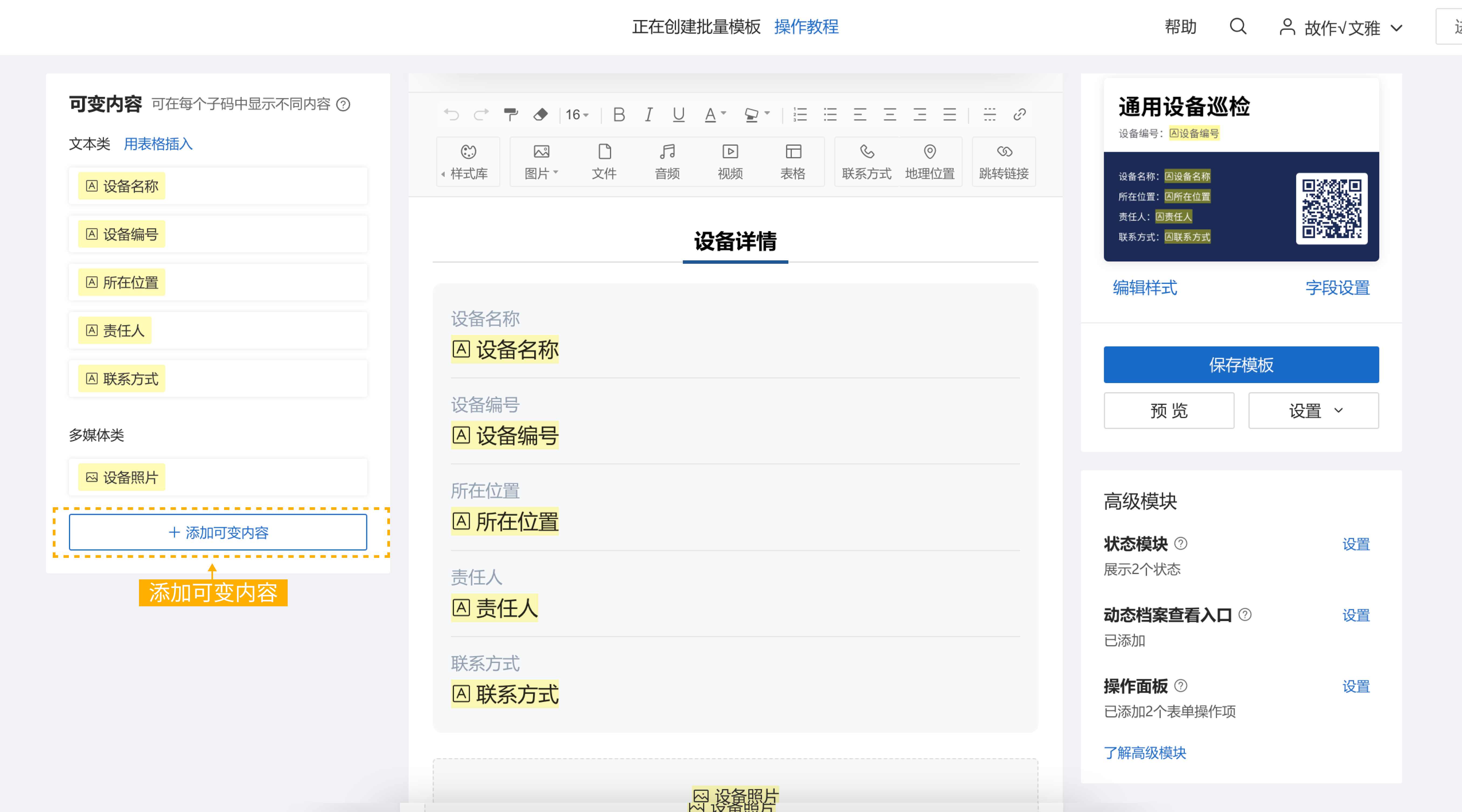
Variable content not inserted into the template will be marked as 【Not Inserted】 and will not display when the code is scanned. To display this content upon scanning, you must insert the variable content into the template.
2. Insert Variable Content into the Template
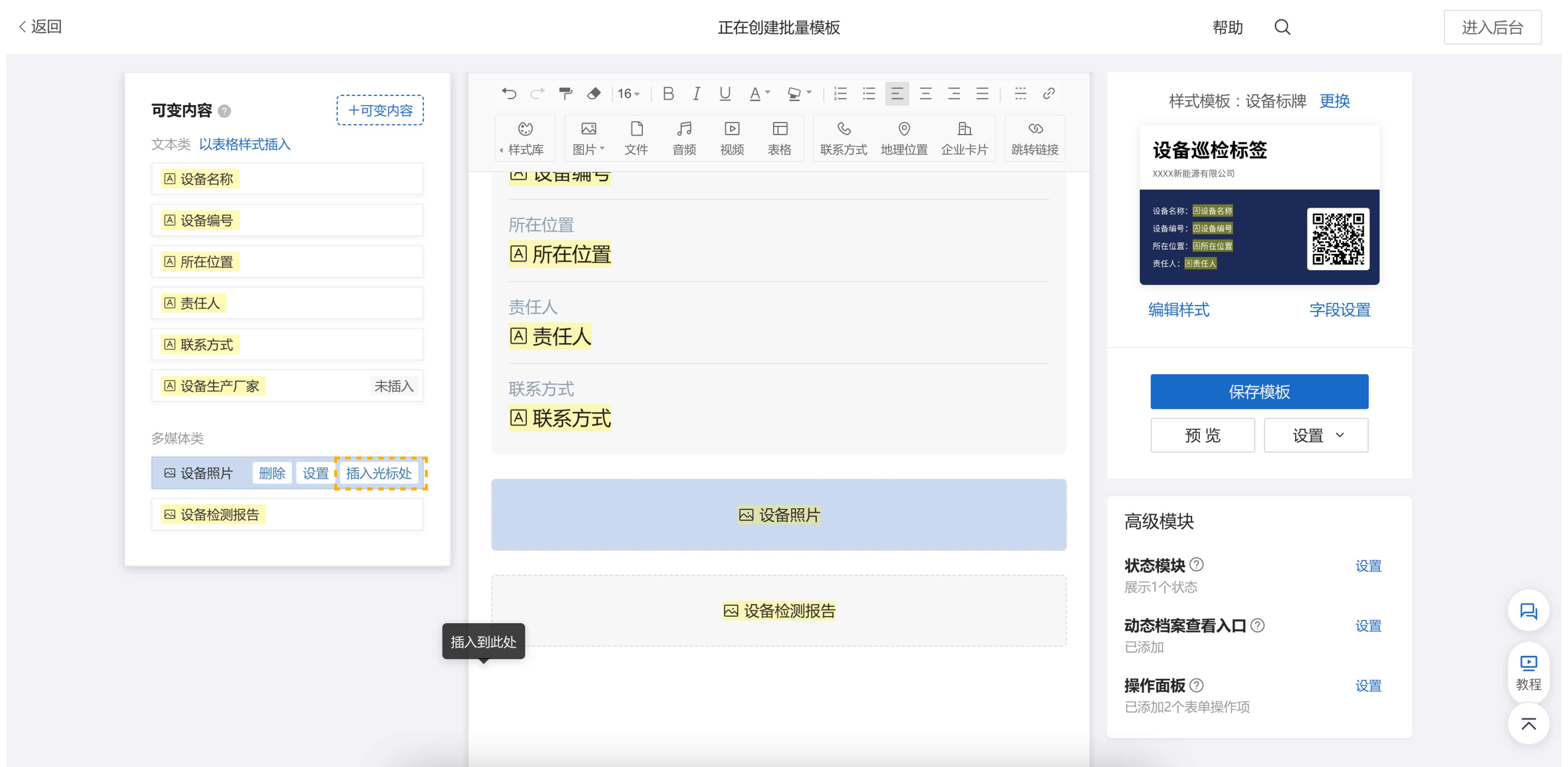
Place the cursor at the position in the template where you want to insert the variable content. Then, select the desired variable content from the sidebar and click 【Insert at Cursor】 to place it into the template.
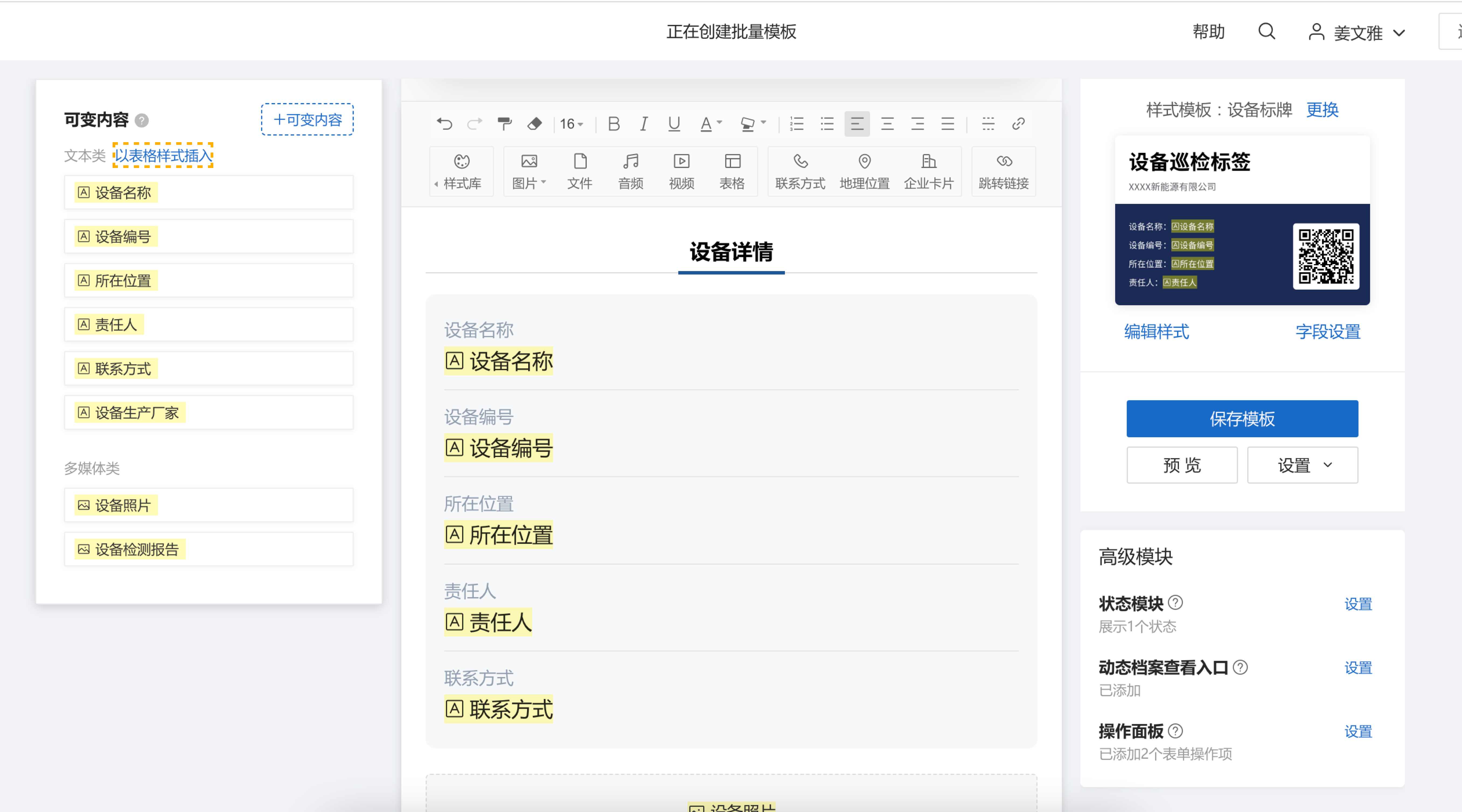
You can also click 【Insert as Table Style】 to batch insert text-based variable content into the template in a table format.
3. Add the "Fill Sub-code Content" Action Item
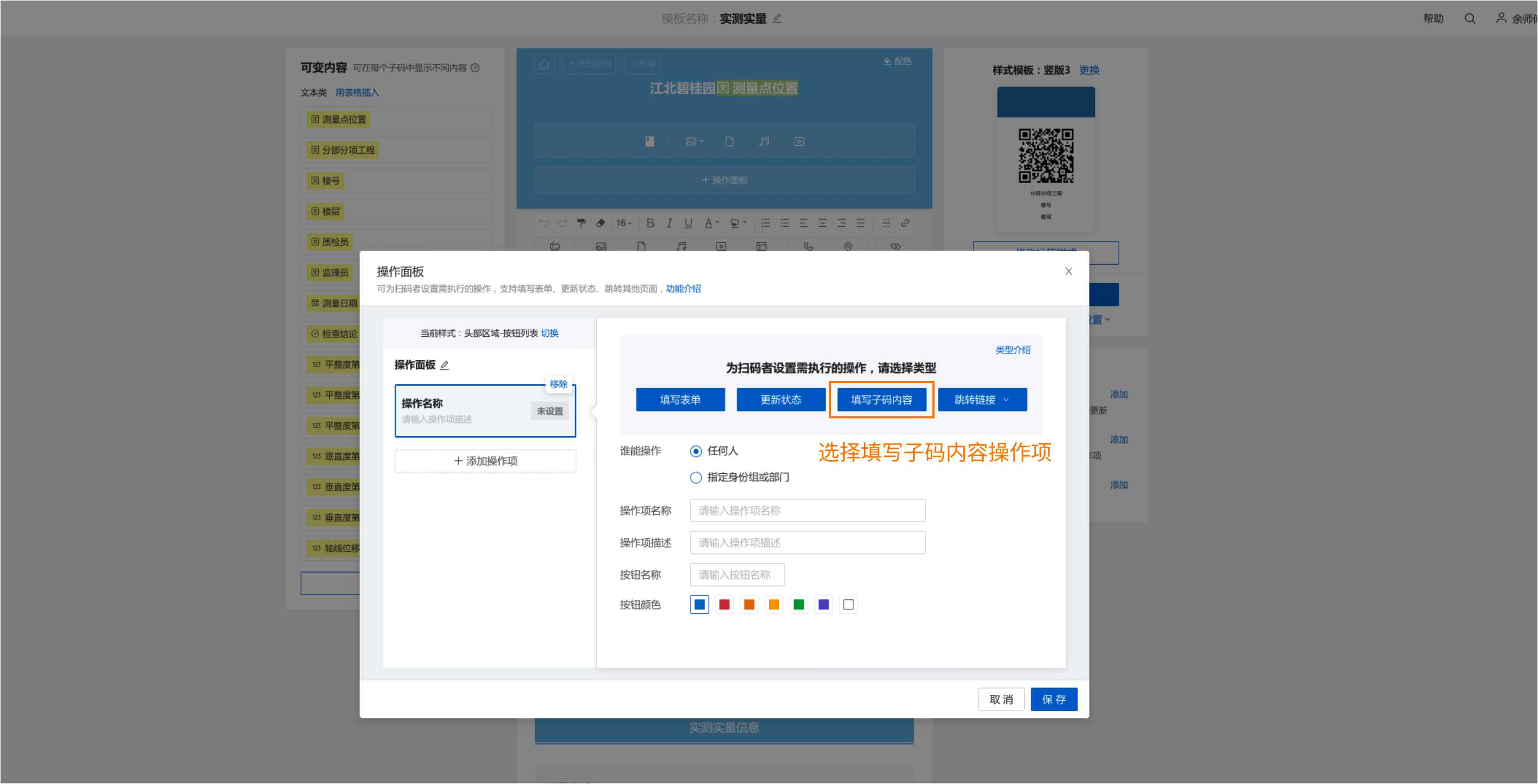
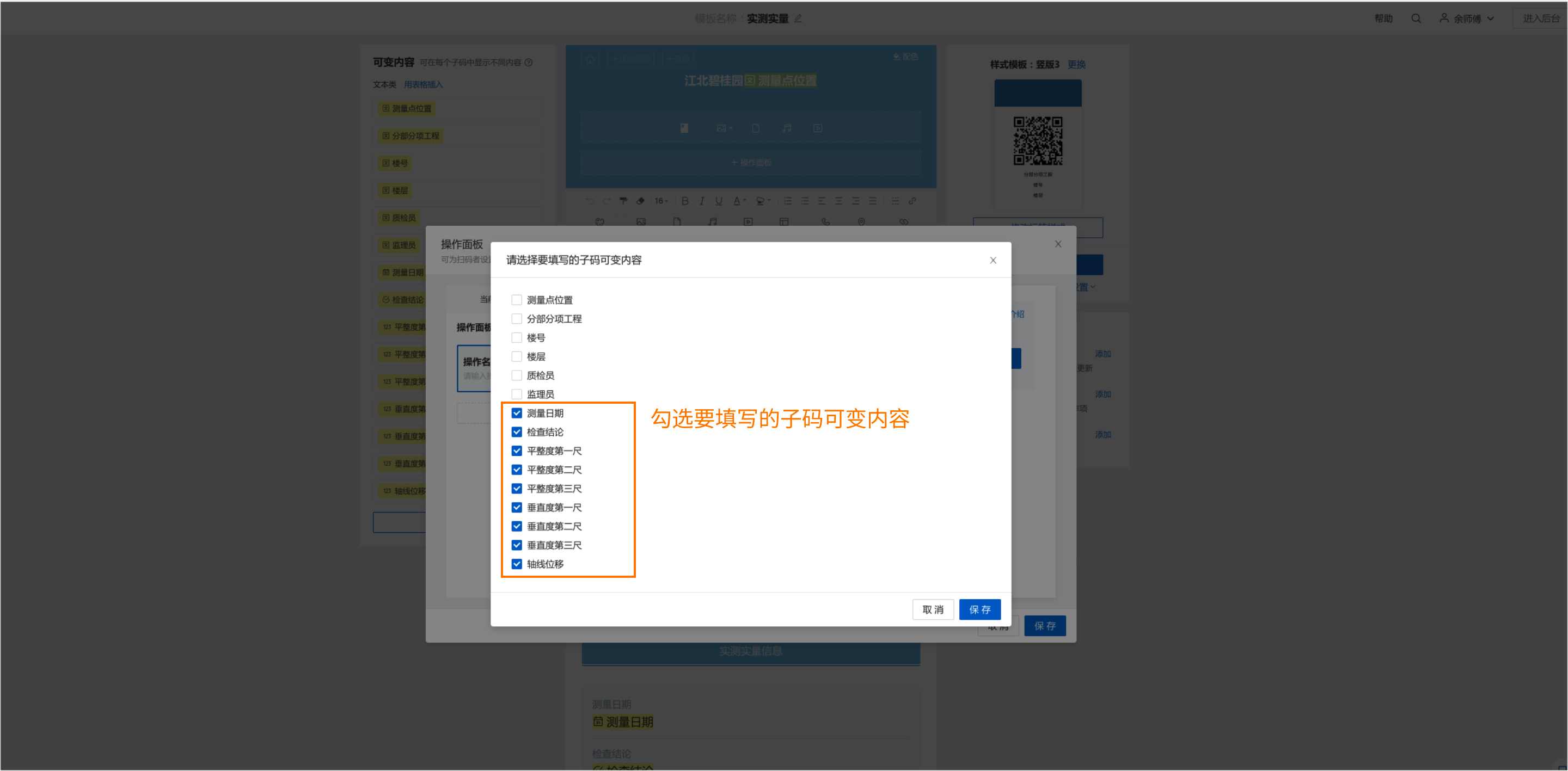
After adding a control panel, select to add an action item -> Fill Sub-code Content. Choose the sub-code variable content that needs to be filled.
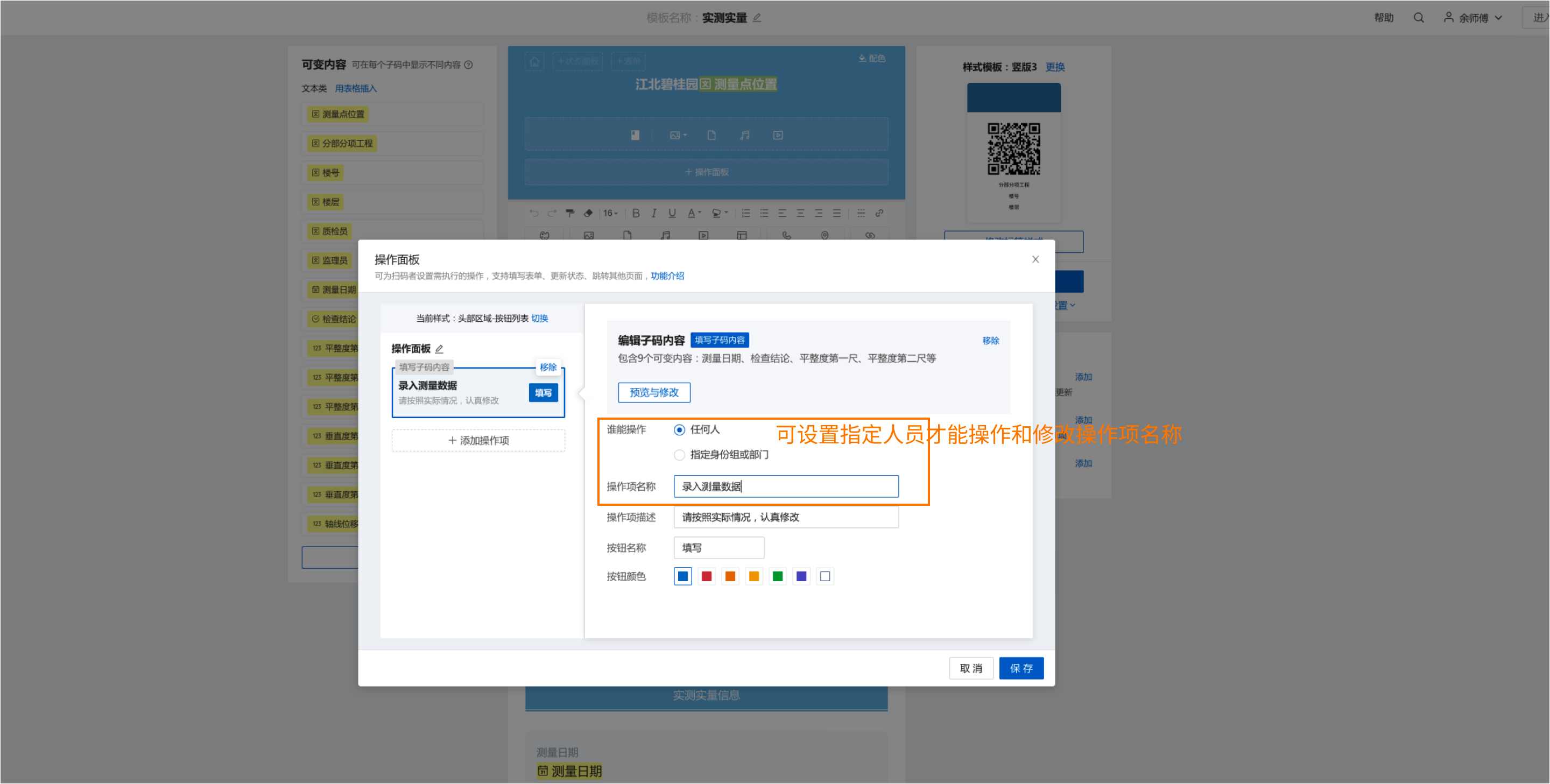
You can modify the action item name and set it so that only designated personnel can perform this action.
After setting designated personnel, you can check the option to hide this action item from users without the required permissions.