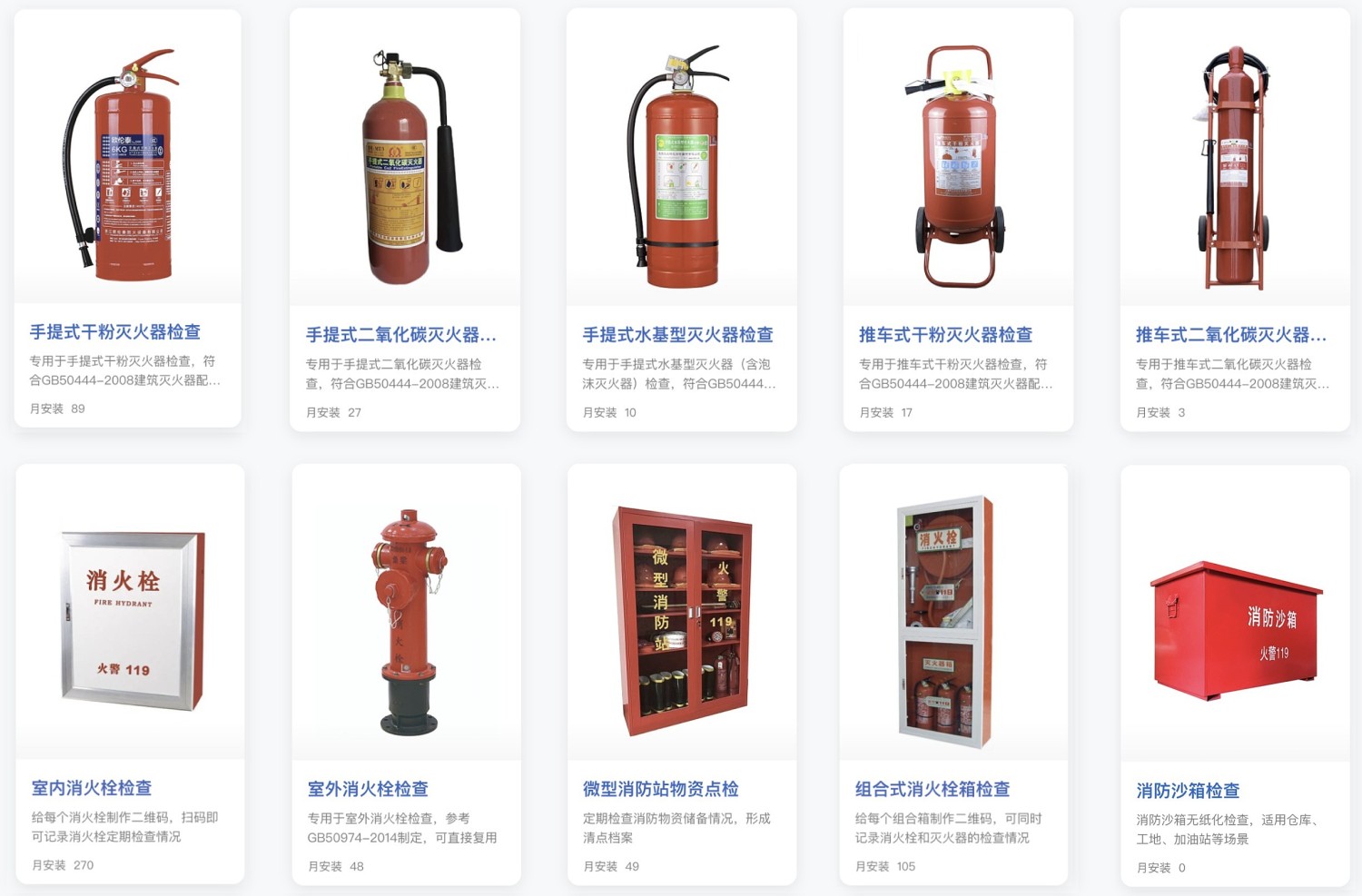
Modular Fire Hydrant Box Inspection
Inspection personnel scan QR codes to record inspection status. Managers can preset inspection items to standardize procedures; data is centrally viewed in the backend, enabling easy management of multiple fire safety equipment. Set up notifications leveraging WeChat push messages, allowing managers to promptly receive alerts about abnormal situations.
Basic Information
- Monthly Installations: 3781
- Monthly Visits: 9890
- Original Text: https://cli.im/template/detail/121463286
Case Label Images

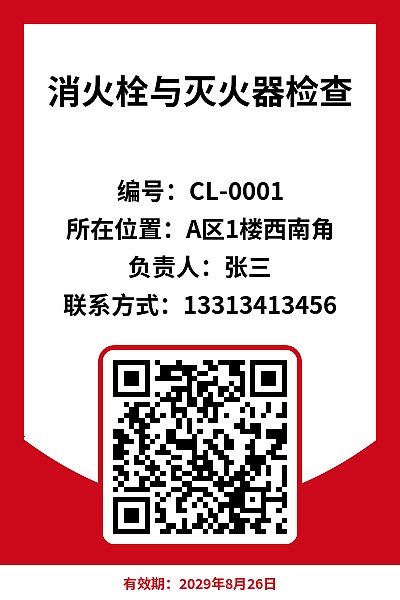
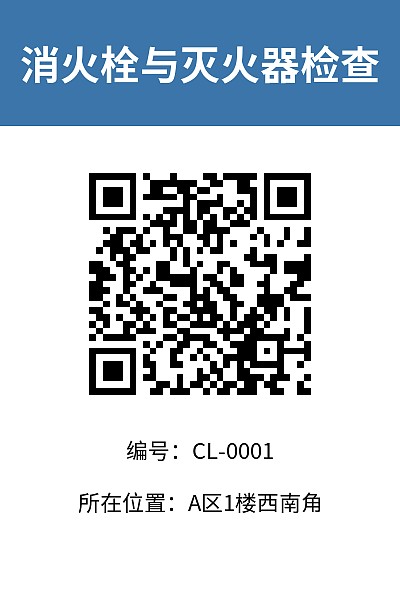
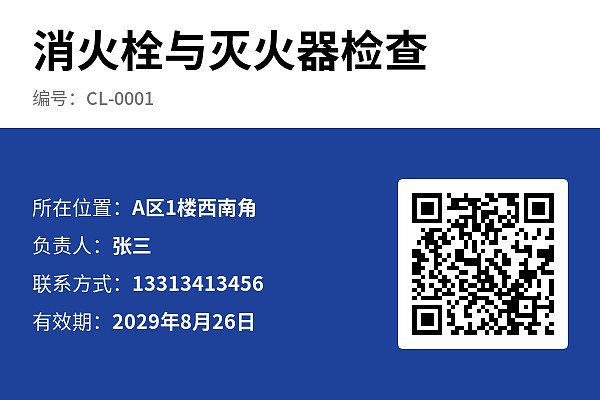
Usage Instructions
Recommendations for Generating QR Codes for Modular Fire Hydrant Boxes
- If you have a large number of devices, it is recommended to use the [Bulk QR Codes Generation] option in the upper right corner. This facilitates unified management of all devices. After generation, settings and adjustments can be centrally managed under the template. If each device's QR code is generated individually using [Single QR Code Generation], adjustments later would require handling them one by one, which is inefficient for maintenance.
- If the devices you manage include different types, it is recommended to create a separate template for each type and manage them accordingly. This allows for personalized settings based on the characteristics and inspection requirements of each type, thereby improving management efficiency.
I. Problems Solved
Traditional inspection methods suffer from the following issues:
- Negligent Inspections: Inspection personnel might perform tasks perfunctorily, failing to adhere to the required frequency and standards.
- Missed Inspections: Certain areas or equipment might be overlooked, preventing comprehensive coverage.
- Delayed Feedback: Lack of effective communication channels between frontline staff and administrators leads to untimely problem reporting.
- Inconvenient Data Management: Inspection records for equipment cannot be queried in real-time, and paper records are easily lost.
This template enables:
- Standardized Inspection Methods: Scan QR codes posted on-site, check items step-by-step, and upload photos from the scene to prevent perfunctory work.
- Rapid Response to Abnormalities: Automatic notifications are sent to managers when inspection results are abnormal, facilitating timely follow-up and resolution.
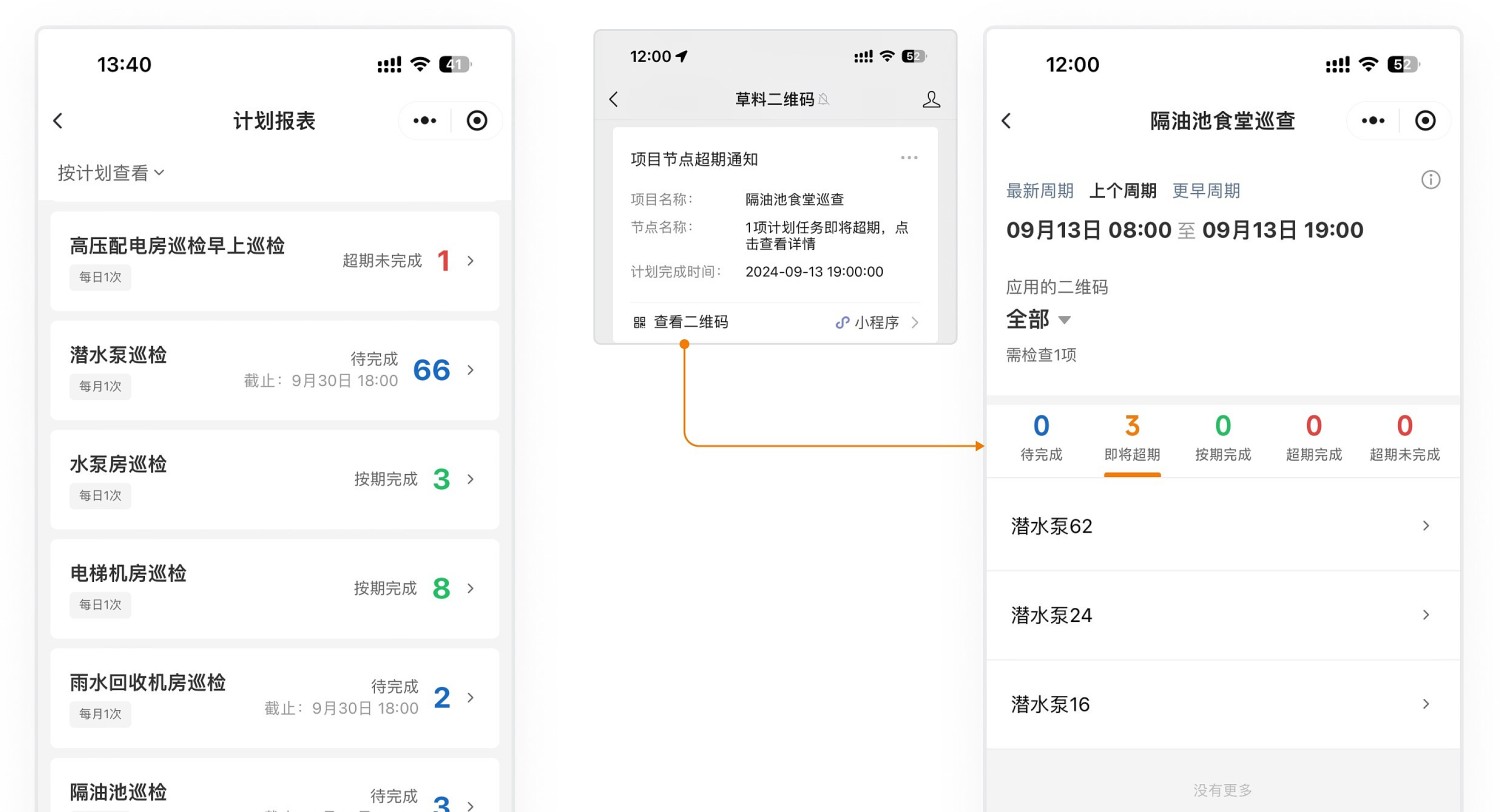
- Create Inspection Plans with Alert Reminders: Managers can monitor the completion status of inspection tasks and receive alerts before deadlines are exceeded.
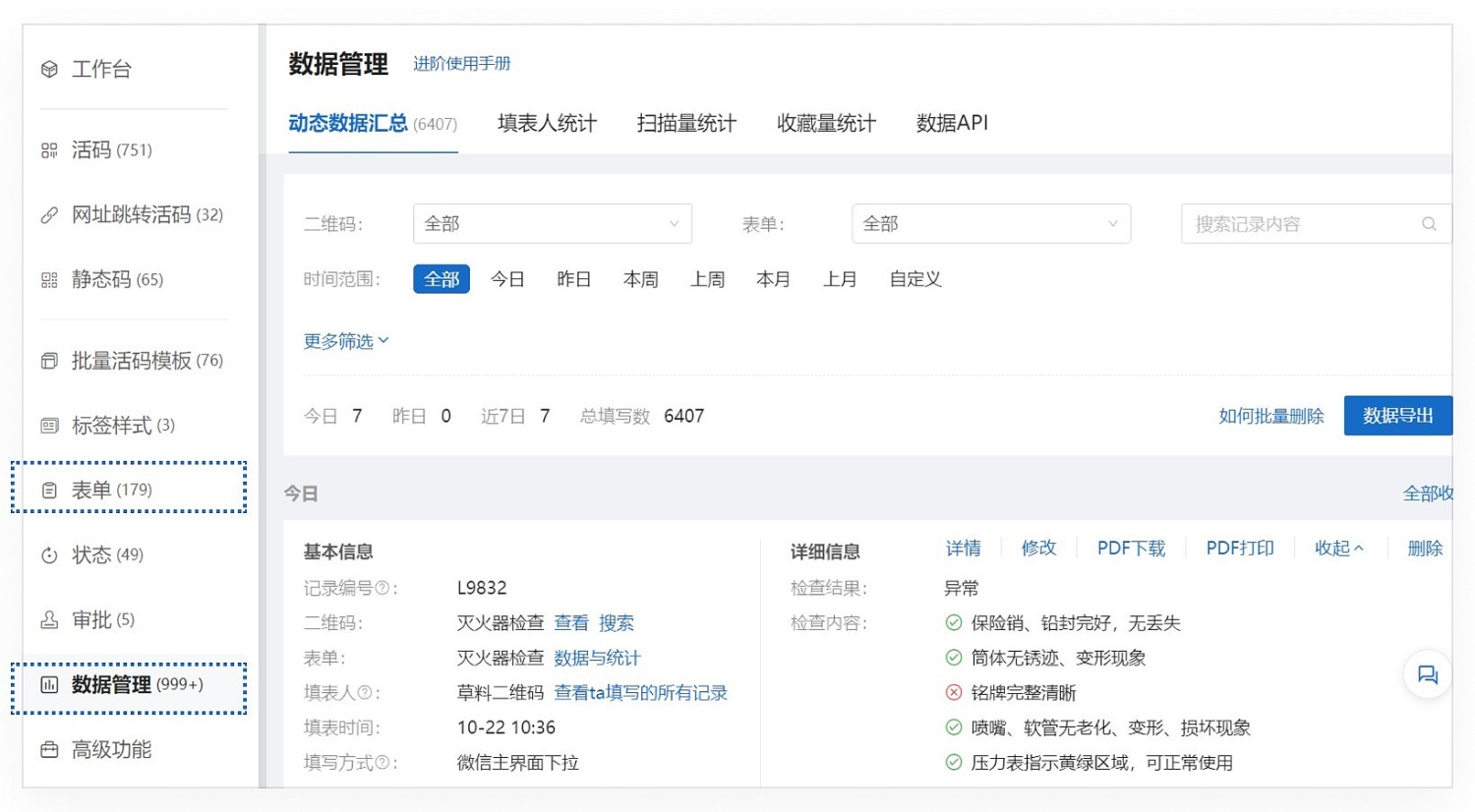
- Unified Data Management: Inspection records are saved within the QR codes and account backend. Managers can view and trace records at any time, with support for data export.
II. Template Function Description
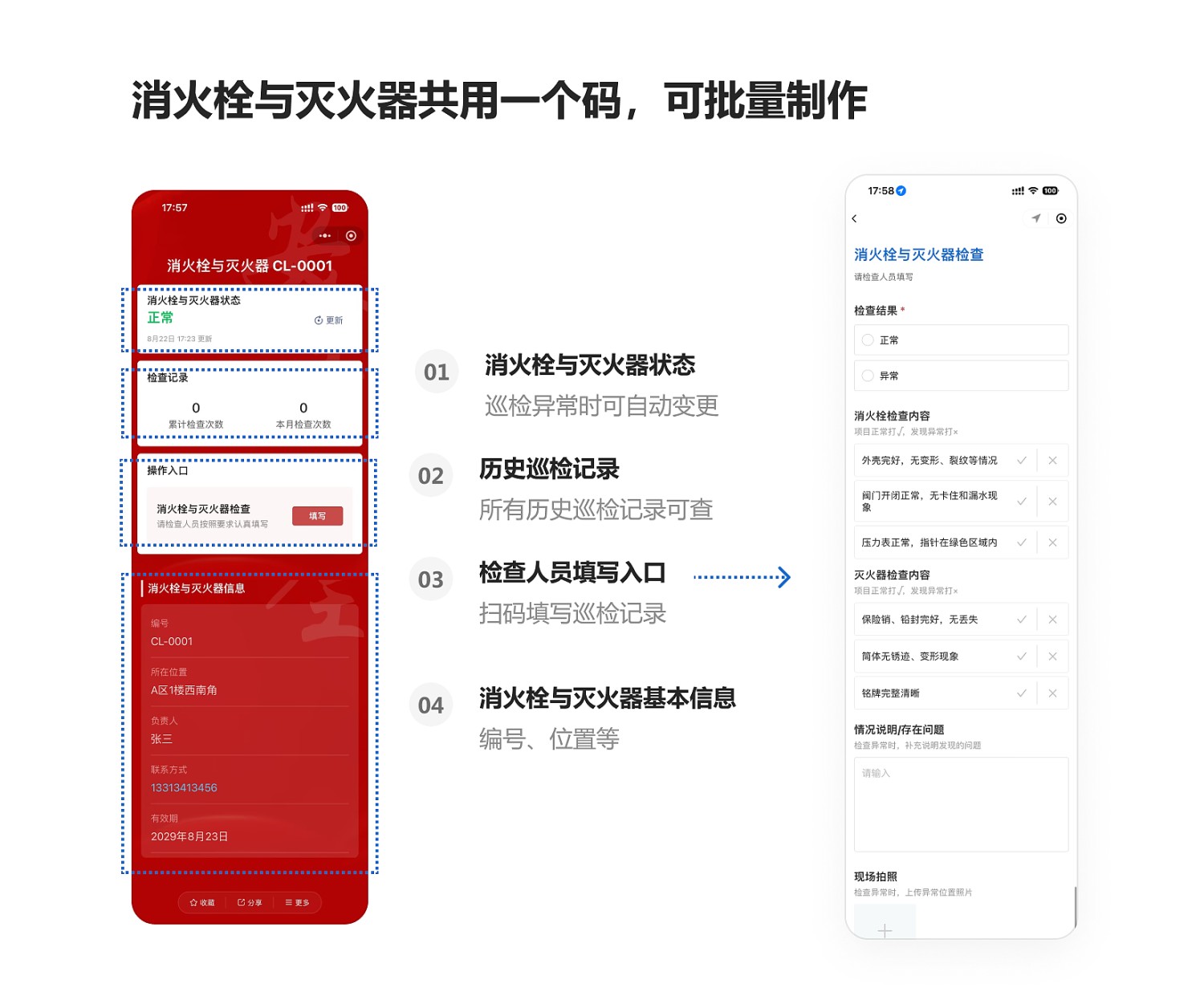
1. One Code per Device, Scan to Operate
- View Information: Scan the code to view basic device information and its location.
- Online Operations: Directly change device status, fill out inspection forms, and view historical inspection data on a mobile phone.
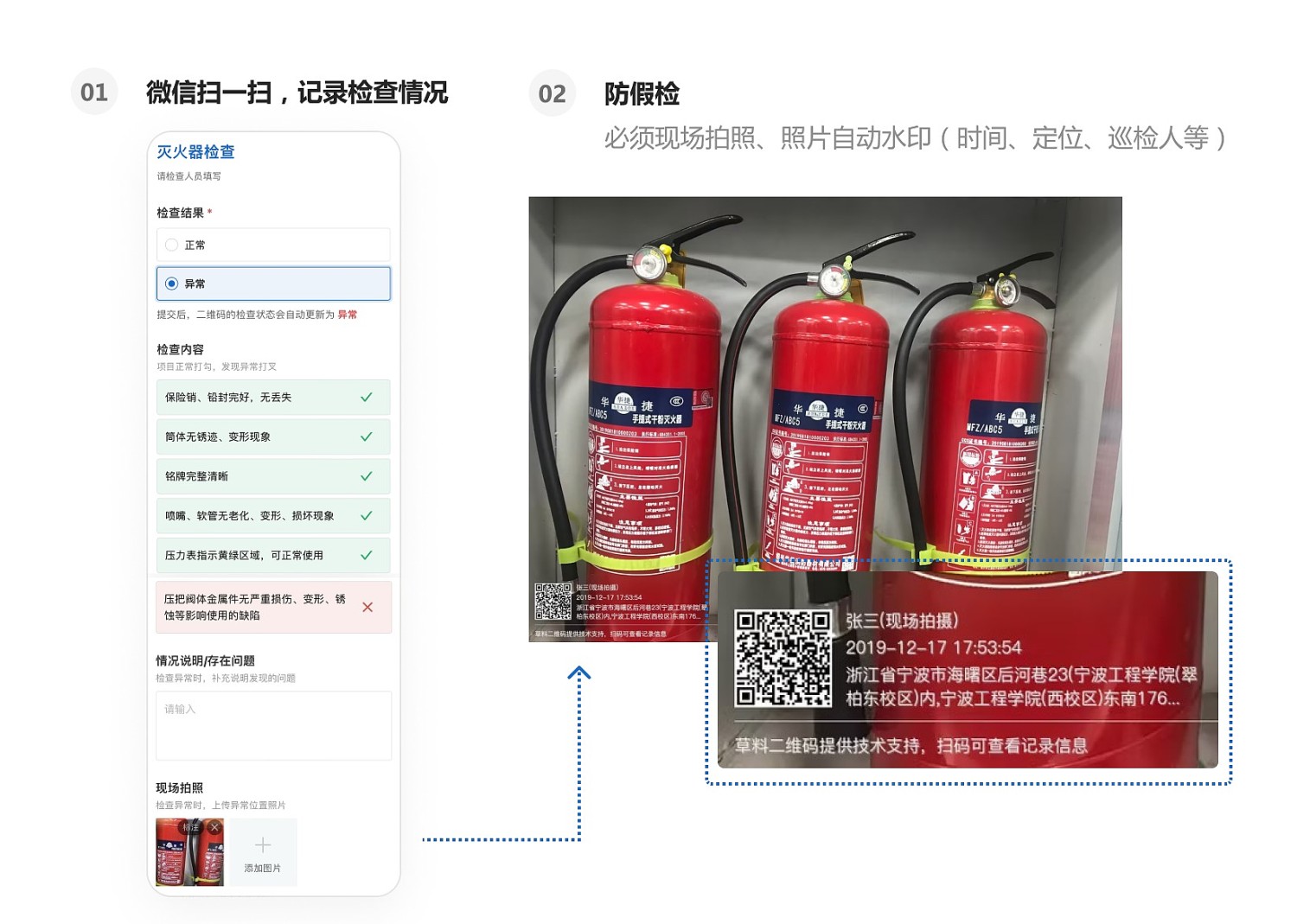
2. Scan with WeChat to Fill Forms, Standardizing Inspection Records
- Standardized Inspections: Inspection personnel use WeChat to scan the code and perform checks item by item according to the predefined inspection form.
- Anti-Fraud Mechanisms: The system supports features like on-site photo capture, photo watermarking, location tagging, and blockchain notarization to prevent false inspections.
- Data Display: Collected inspection data is displayed in real-time on the dynamic data panel for easy viewing, with configurable viewing permissions.
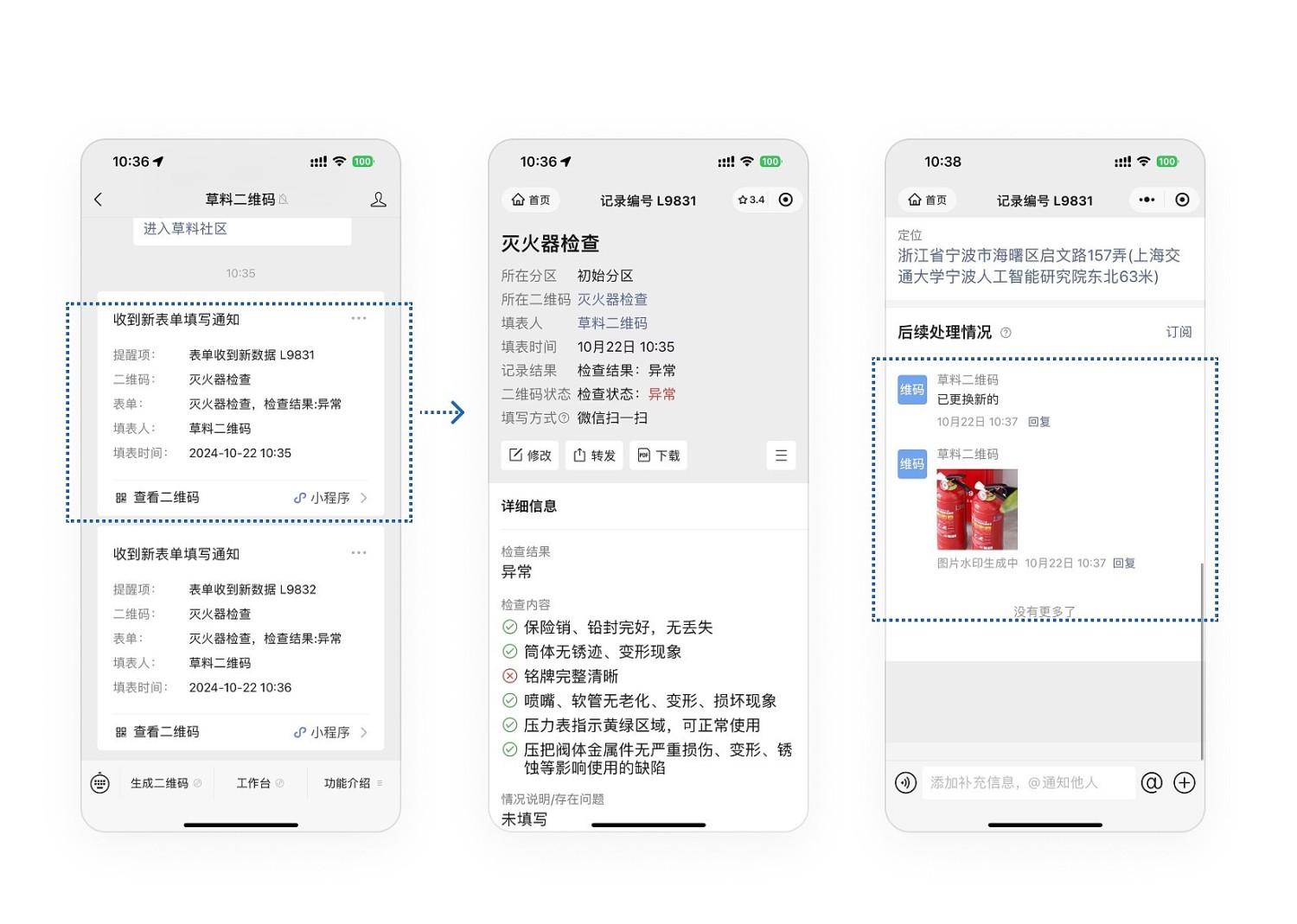
3. Automatic Notifications to Managers for Abnormal Situations
- Abnormality Notifications: When an inspection reveals an abnormality, the system automatically notifies the manager via WeChat.
- Timely Handling: Managers can promptly follow up and handle issues based on the abnormality records.
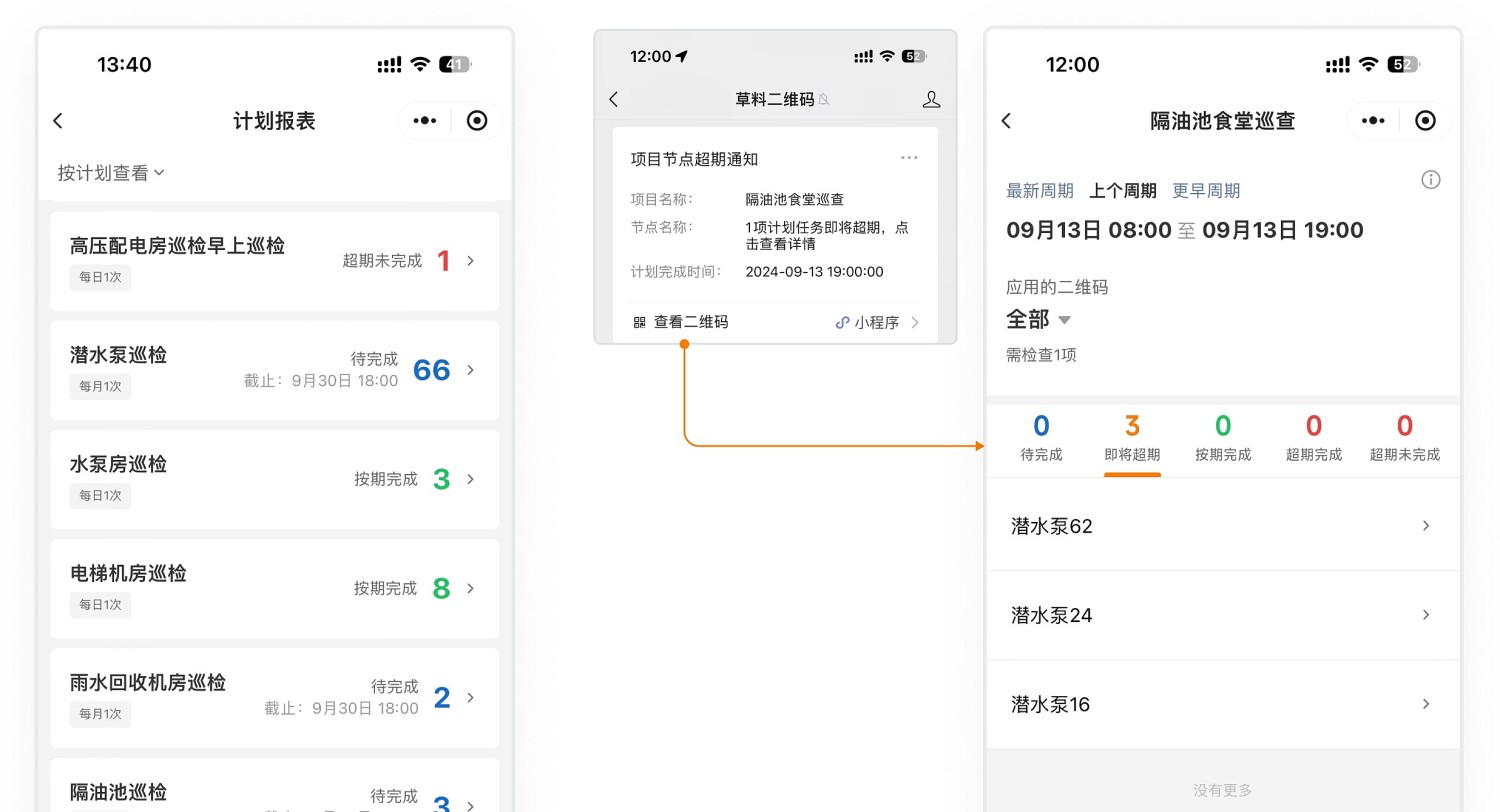
4. Create Inspection Plans with Pre-Deadline Reminders
- Cyclical Plans: Establish inspection plans based on cycles (e.g., monthly).
- Progress Tracking: Managers can view plan reports on their mobile devices to understand inspection completion status.
- Alert Functionality: WeChat reminders are sent indicating which devices haven't been inspected as the deadline approaches, facilitating staff scheduling.
5. Data Management
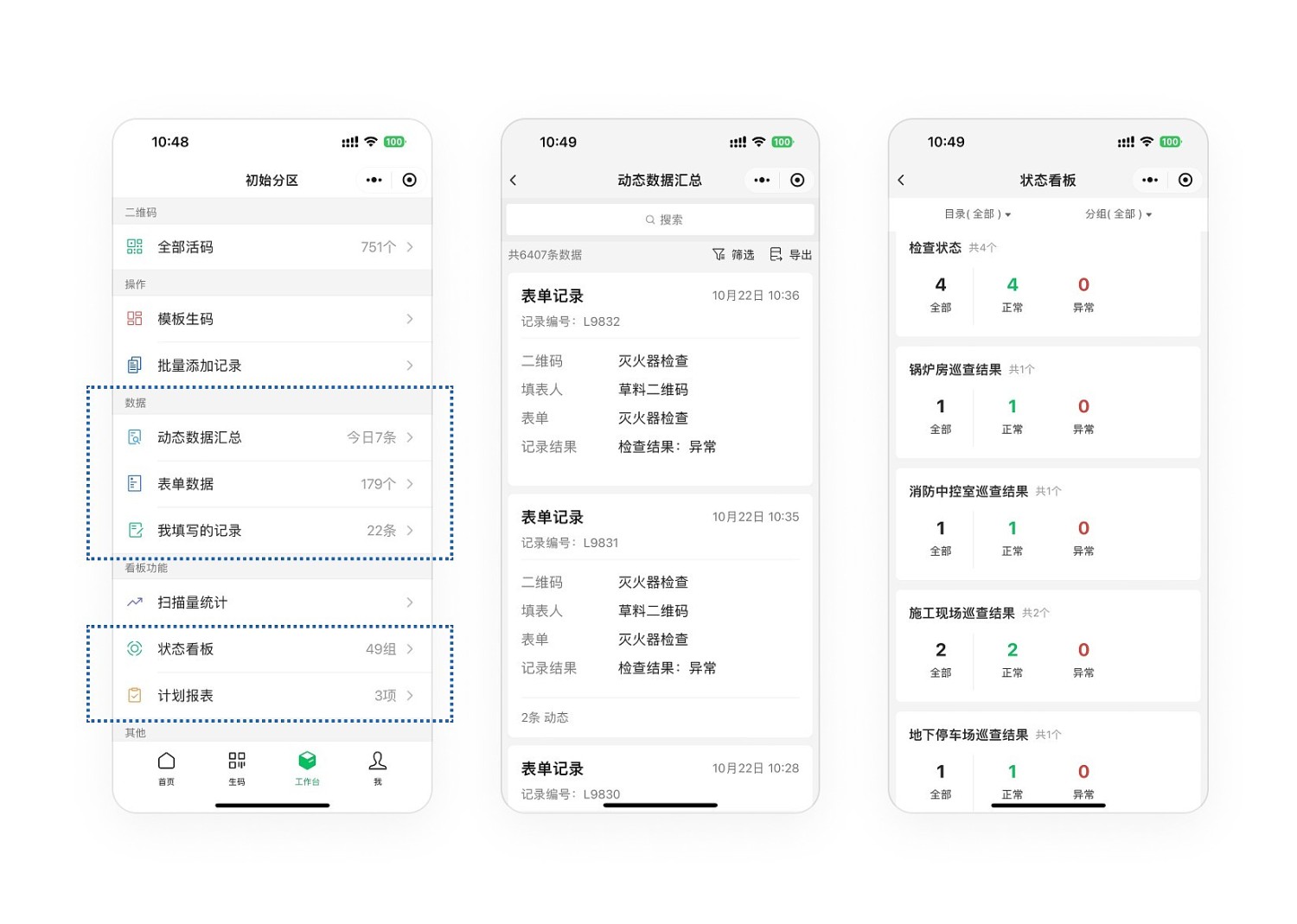
- Data Viewing: All submitted form data is saved within the account. Managers can track inspection status at any time via the mobile Mini Program or the desktop workbench. View Details
Desktop Workbench
Mobile Workbench
- Data Statistics and Export: View all detailed data collected by the forms, with statistics available by QR code, submitter, field, etc. Supports exporting data to Excel files for secondary analysis and reporting. View Details
III. Template Usage Tutorial
1. Adjust the Modular Fire Hydrant Box Template Content: All templates can be modified. Adjust based on actual device information and inspection requirements.
2. Generate QR Codes from the Template: Once the template is finalized, compile the device list. Generate a batch of QR codes in bulk based on the list information.
3. Print and Post the QR Codes: After generating the QR codes, select the desired label style. Labels can be downloaded and printed. Labels can be printed using adhesive stickers or hard cards. Once deployed, on-site personnel can scan the codes to complete inspections.
4. Frontline Personnel Scan for Inspection: Frontline personnel perform on-site inspections, using WeChat to scan codes and record device inspection status.
5. Manager Backend Data Management: View inspection data via the desktop workbench and Mini Program. All inspection records can be exported.
View the complete usage tutorial here:
How to Use the Modular Fire Hydrant Box Template
For more types of fire safety equipment, visit the Fire Safety category in the template library.