Monthly Fire Safety Inspection
Referencing documents such as the Ministry of Public Security Order No. 61 and the standard GB/T40248-2021 "Fire Safety Management in Occupant-Dense Locations," inspectors can scan the code to fill out inspection records, replacing paper checklists. All records are saved in the account backend, viewable at any time and exportable.
Basic Information
- Monthly Installations: 270
- Monthly Visits: 33
- Original Text: https://cli.im/template/detail/121463630
Case Label Image

Instructions
1. Inspection Frequency
- Ministry of Public Security Order No. 61, Article 26: Government agencies, organizations, and public institutions should conduct fire safety inspections at least once per quarter; other units should conduct inspections at least once per month.
- GB/T40248-2021 "Fire Safety Management in Occupant-Dense Locations" 7.3 Fire Patrols and Inspections stipulates: Occupant-dense places should conduct fire safety inspections at least once per month.
2. Template Feature Description
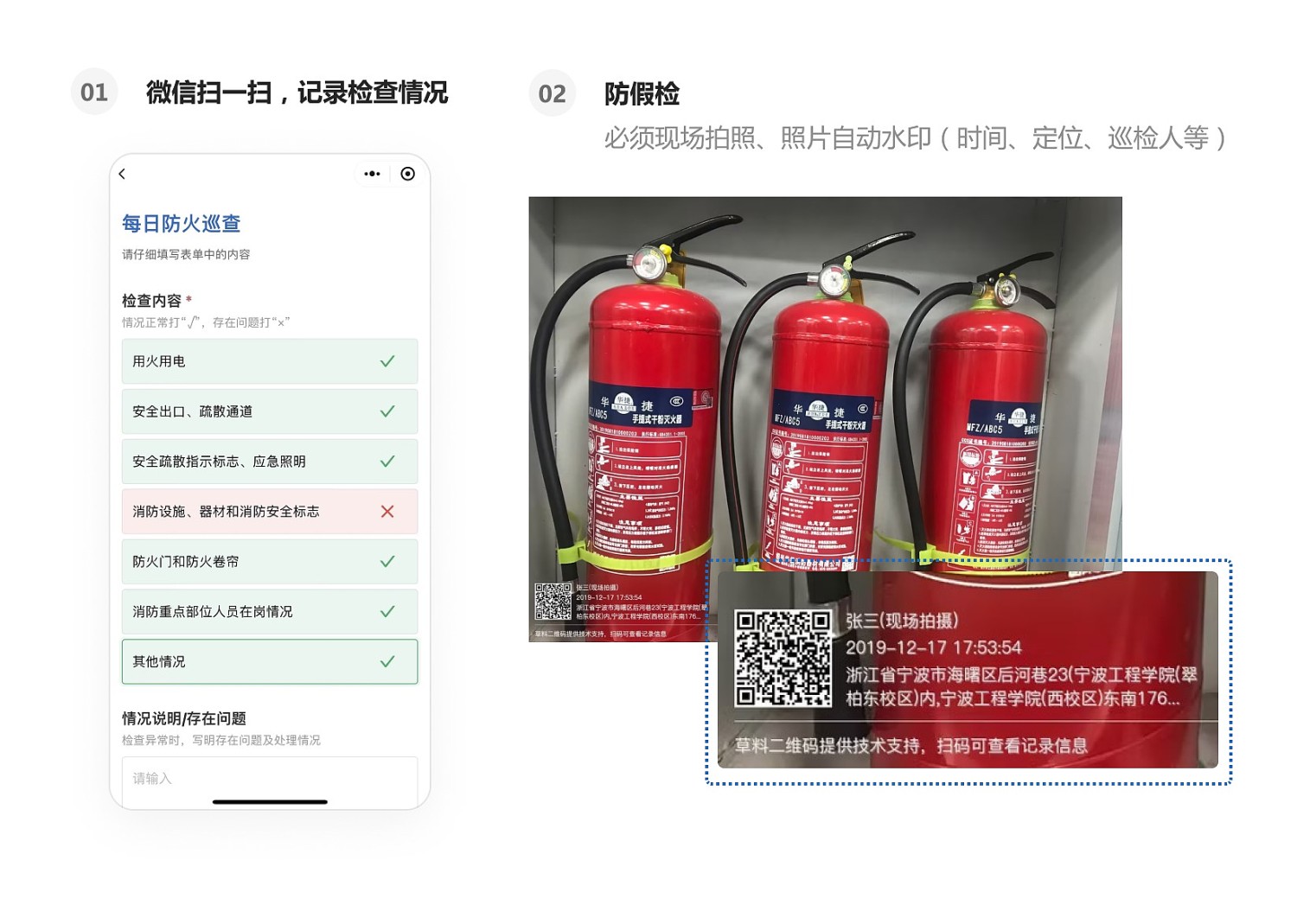
1. WeChat Scan to Fill Out, Standardized Record Keeping
- Standardized Inspection: Inspectors use WeChat to scan the code and perform checks item by item according to the set form.
- Anti-Fraud Mechanism: The system supports features like on-site photo capture, photo watermarking, location tagging, and blockchain notarization to prevent false inspections.
- Data Display: Collected inspection data is displayed in real-time on the dynamic data panel for easy viewing, with configurable viewing permissions.
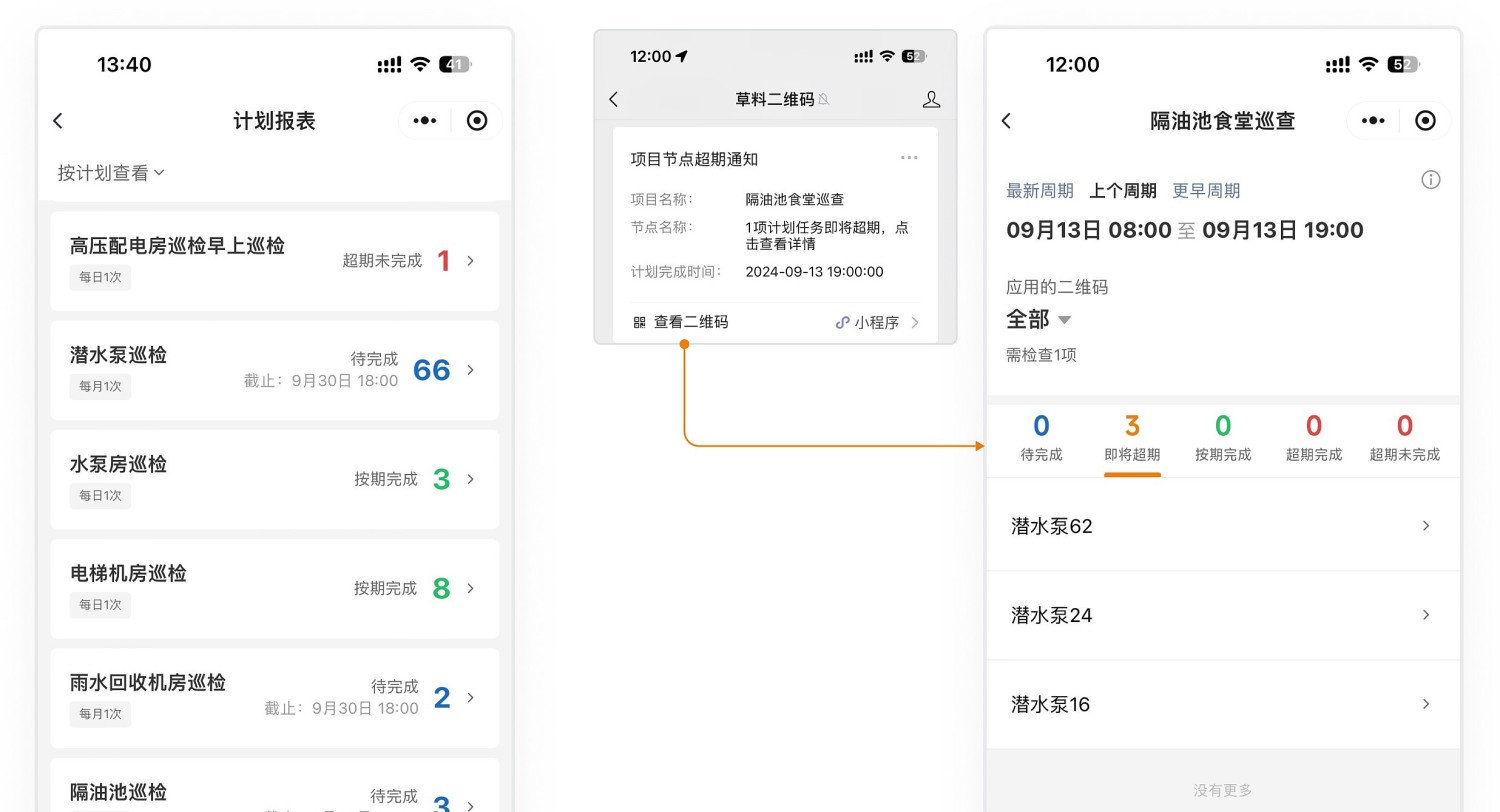
2. Create Inspection Plans, Reminders Before Deadlines
- Recurring Plans: Create inspection plans based on cycles (e.g., monthly inspections).
- Track Progress: Administrators can view plan reports on their mobile devices to understand inspection completion status.
- Early Warning: WeChat reminders are sent when inspections are nearing their due date, facilitating personnel scheduling.
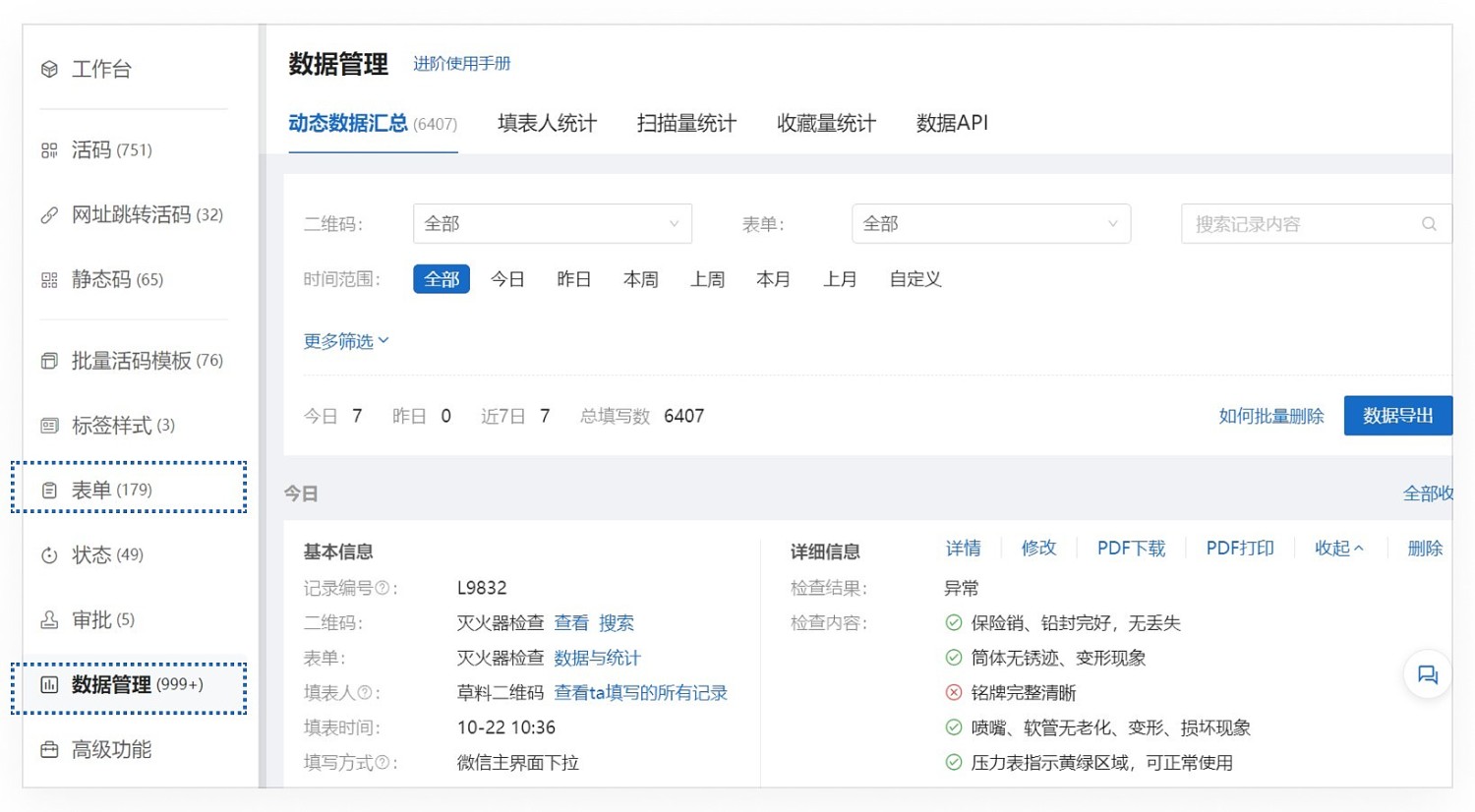
3. Data Management
- Data Viewing: All submitted data is saved within the account. Administrators can follow up on inspection status anytime via the mobile Mini Program or the desktop workbench. View Details
Desktop Workbench
Mobile Workbench
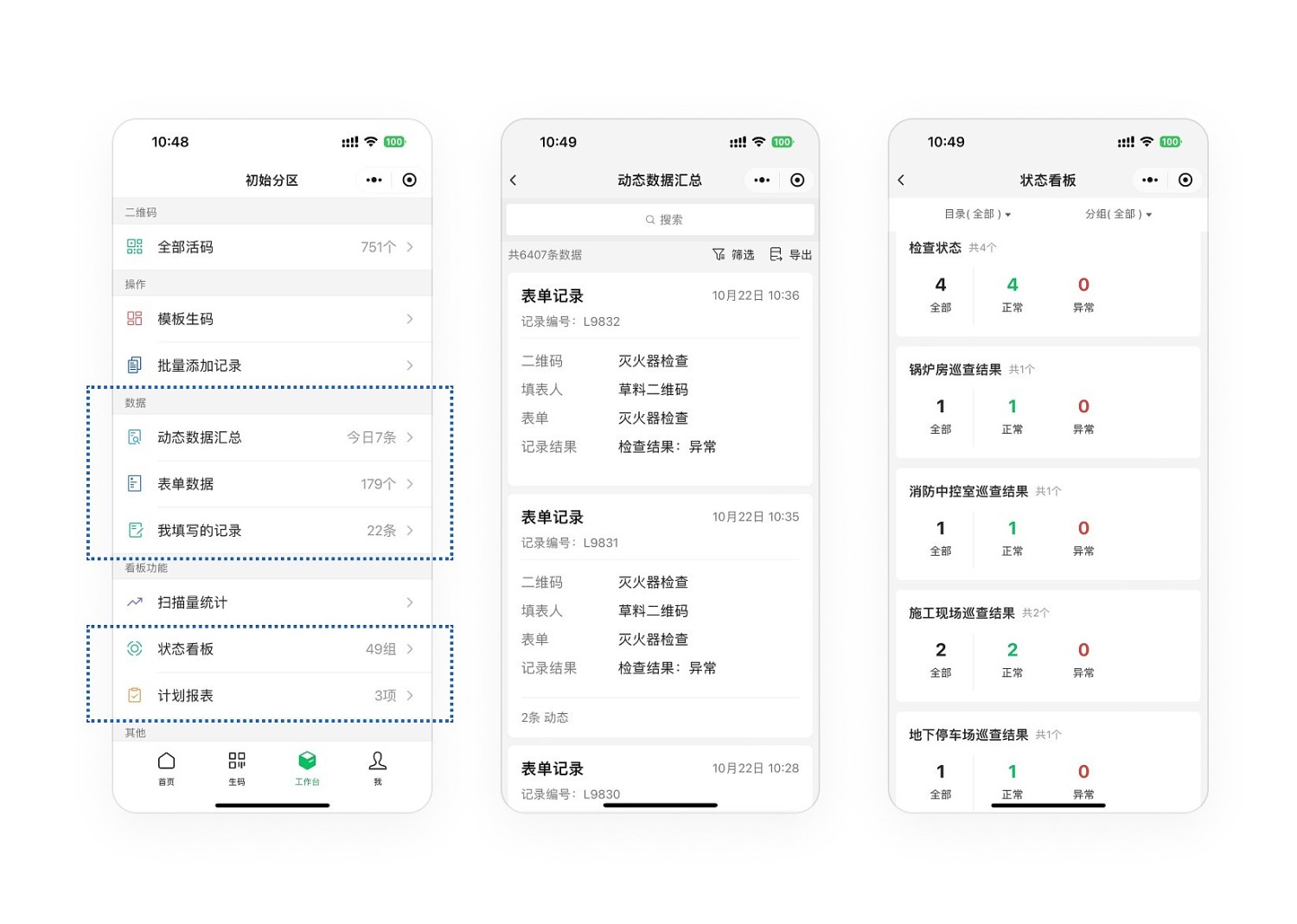
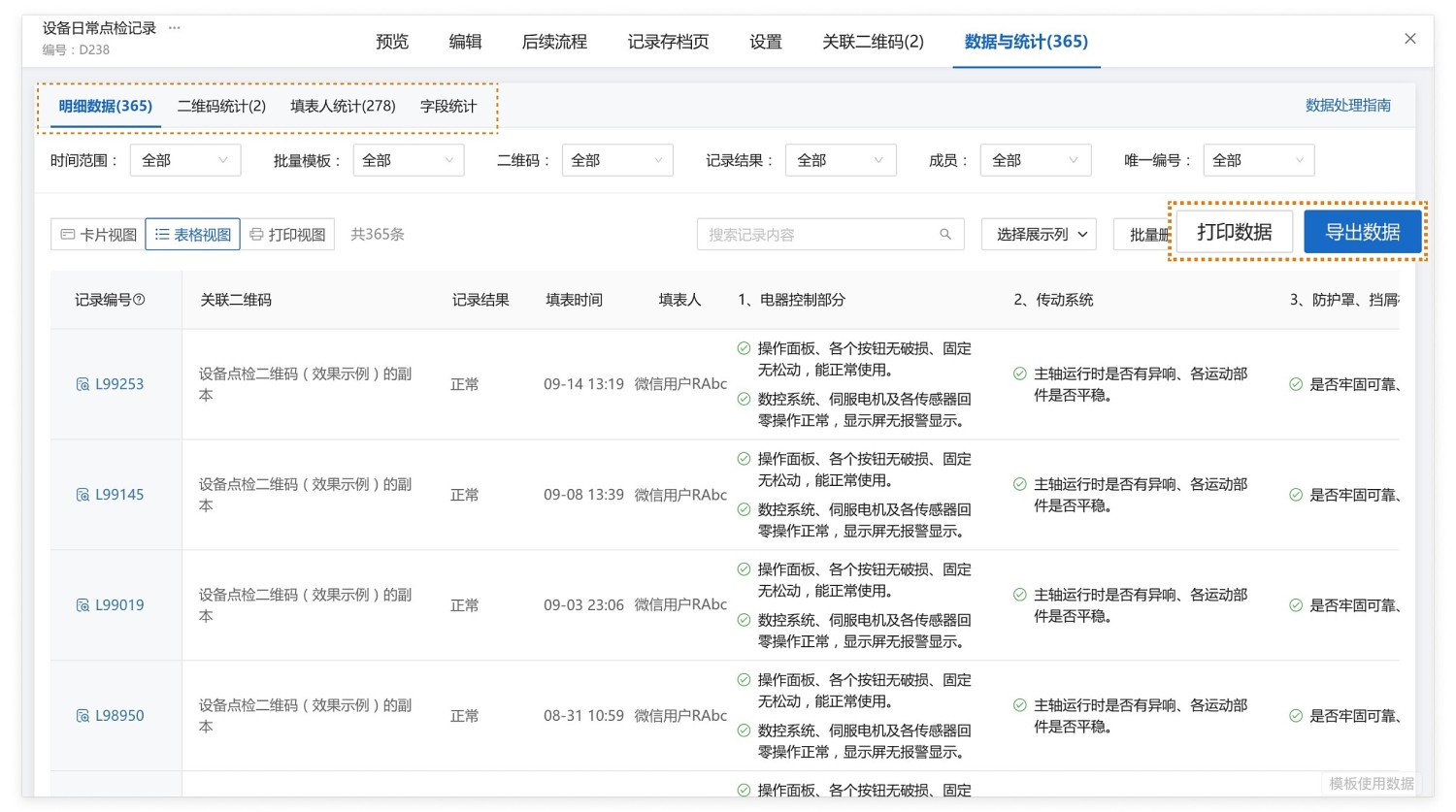
- Data Statistics & Export: View all detailed data collected by the form, with statistics available by QR code, submitter, field, etc. Supports exporting data to Excel files for secondary analysis and reporting. View Details
3. Template Setup Tutorial
1. Confirm Template Content: Before use, confirm the information in the template. Check if the inspection content meets your organization's needs. If it differs from the actual inspection requirements, you can select "Modify Bulk Template" to adjust the template content yourself.
2. Generate QR Code from Template
3. Download and Print QR Code: After generating the QR code, select the desired label style, download it, and post it on-site. Scanning the code completes the inspection.
4. Administrator Backend Data Management: Inspection data can be viewed both on the desktop and via the Mini Program. All records can be exported.
4. Frequently Asked Questions
1. After the inspection, does it require supervisor review? Is there an audit function?
The forms data review feature can be enabled. After the inspector fills out the form, it will notify the supervisor for review. View Setup Tutorial
2. Can one QR code manage all areas, with different inspection content for each area?
Multiple forms can be linked to a single QR code. Simply add multiple forms in the control panel. View Instructions