How to Make Sub-codes Redirect to Different Forms, External Links, or Dynamic QR Codes?
Original: https://cli.im/article/detail/2185
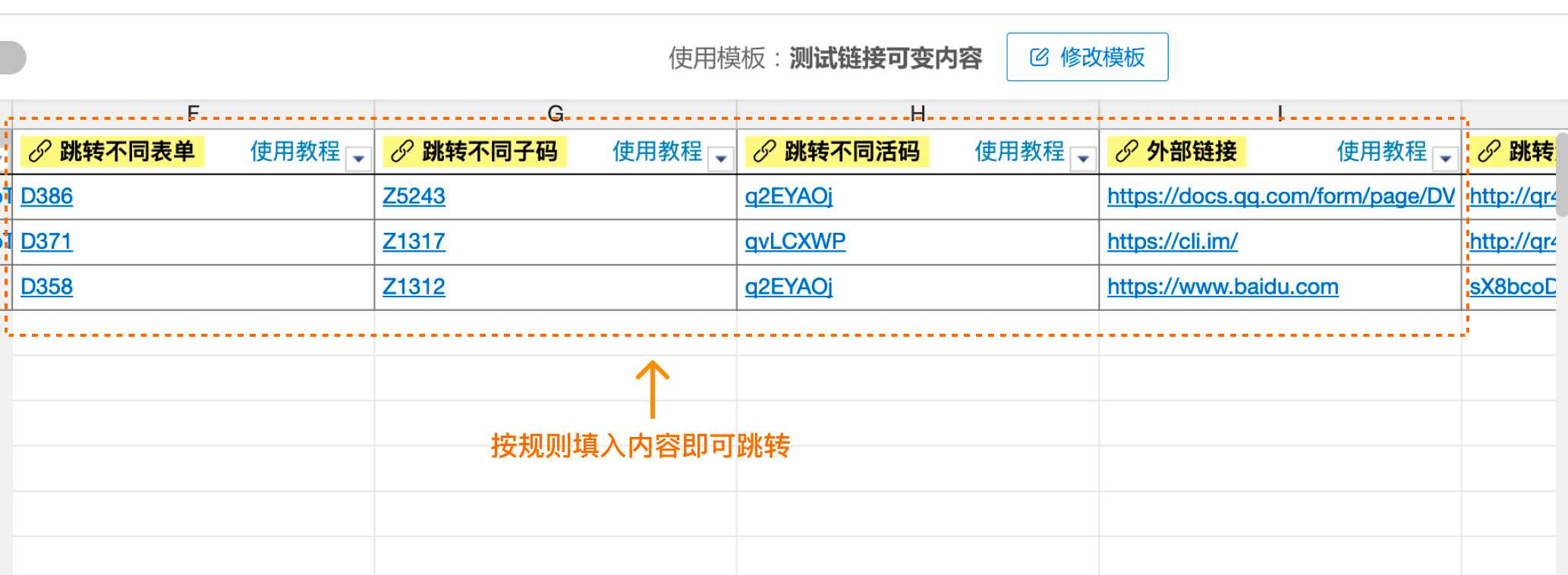
Bulk templates allow you to add variable content as links, enabling sub-codes to redirect to different forms, external links, other sub-codes, dynamic QR codes, or directory summary codes. When generating sub-codes, simply input the content according to the rules to redirect to the corresponding address.
This meets the needs of various scenarios such as product promotion, equipment inspection, and plant/tree tags. For example, in equipment inspection scenarios, different equipment sub-codes can be set to redirect to different forms; in product introduction scenarios, different product sub-codes can redirect to external addresses leading to their respective product detail pages.
1. Application Scenarios
1.1 Sub-codes Redirecting to Different Forms
After adding variable link content in a bulk template, each sub-code can be filled with a different form number as needed, allowing sub-codes to redirect to different forms. This ensures a consistent code content structure while enabling access to different forms for information collection.
Suitable for scenarios such as:
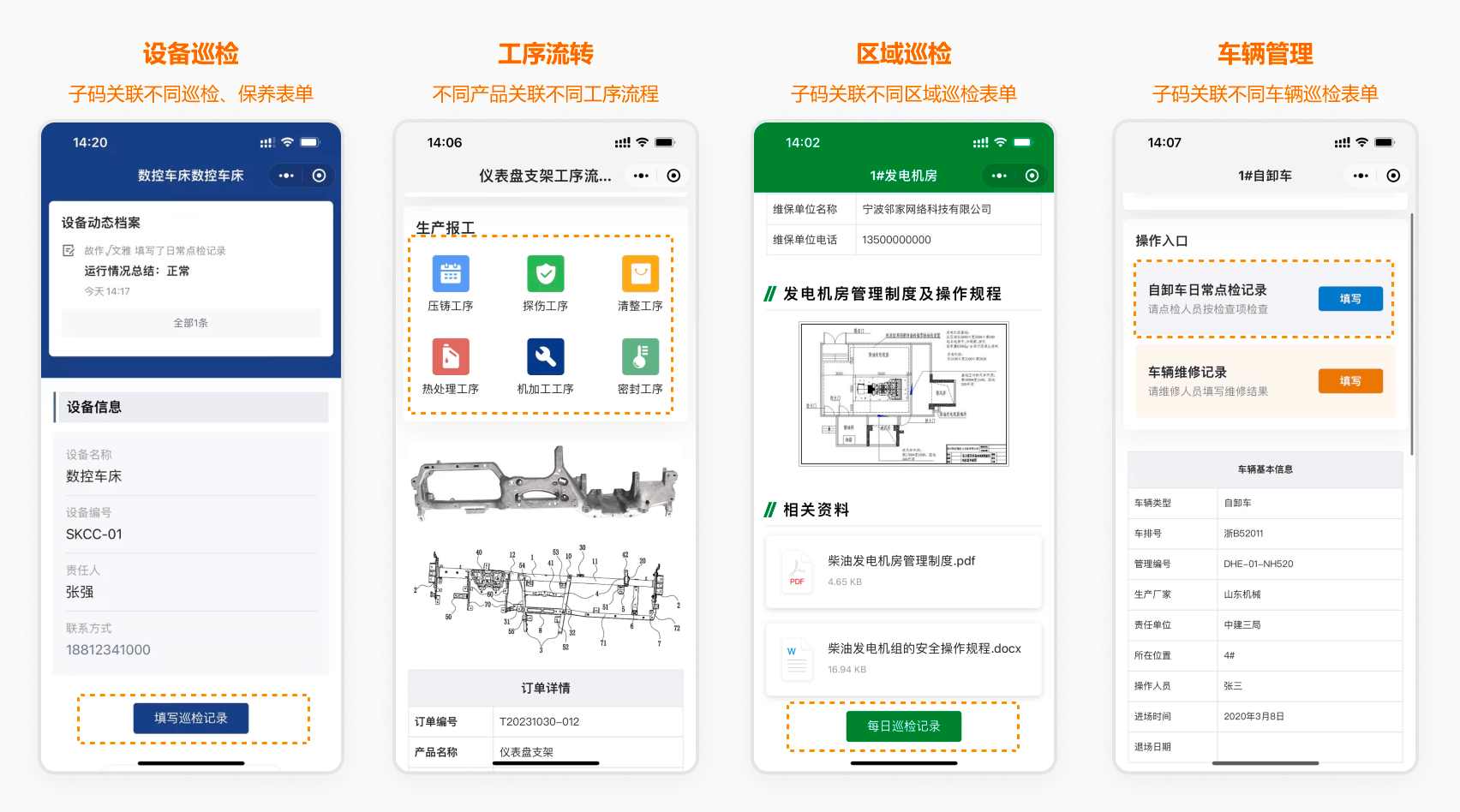
- Equipment inspection, where important or special equipment requires redirection to different inspection or maintenance forms.
- Area inspection, where the code content format is consistent, but different areas (e.g., pump room, control room) have different inspection requirements and need to redirect to different forms.
- Vehicle inspection, where different vehicle models have different inspection contents, requiring redirection to different inspection/maintenance forms.
- Process workflow, where product information format is consistent, but different products have different process flow records and need to be associated with different forms.
1.2 Sub-codes Redirecting to Different External Links
Sub-codes can be set to redirect to different external links, used for jumping to external sites to view detailed product/activity information or supplementary instructions.
Suitable for scenarios such as:
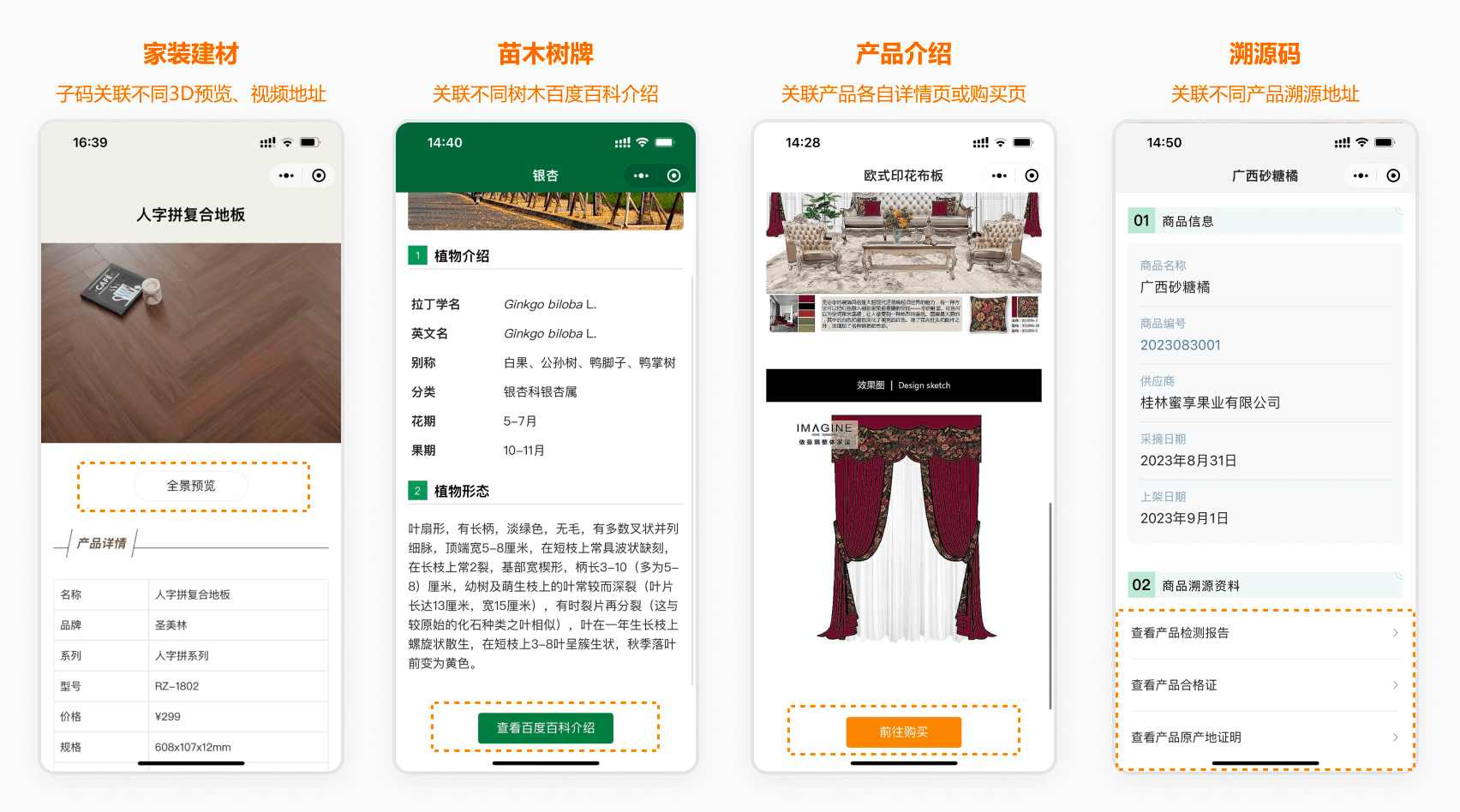
- Plant/Tree tags, redirecting to specific Baidu Encyclopedia introductions for different types of trees.
- Home decoration and building material QR codes, redirecting to their respective 3D previews or video effects to enhance customer perception of product value.
- Product traceability codes, redirecting to specific traceability query websites to complete the traceability process.
- Common product introductions, where sub-codes redirect to different detail pages or purchase pages for detailed information.
- Travel itineraries, redirecting to detailed introduction pages on other platforms or corresponding itinerary order purchase pages.
1.3 Redirecting to Different Dynamic QR Codes
Can redirect to different single codes, directory summary codes, or sub-codes under other bulk templates. If you need to redirect to sub-codes from another bulk template, you can export the sub-code data from the other template and import it into the new template to quickly fill in the data.
Suitable for scenarios such as:
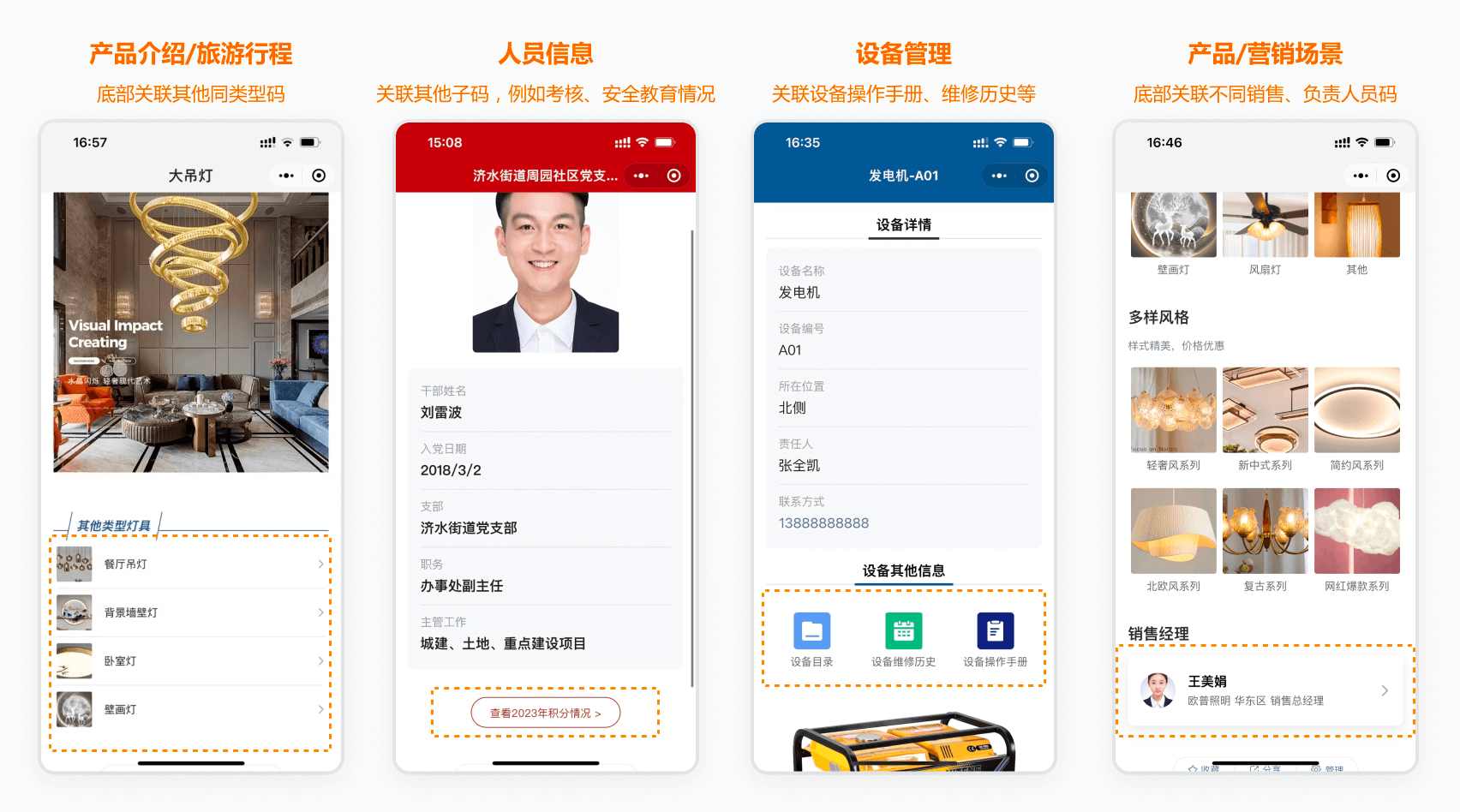
- Equipment management, where sub-codes can redirect to dynamic QR codes for manuals, authorization documents, etc., of similar equipment types.
- Product introduction, with a link at the bottom redirecting to a summary page of similar products, allowing users to quickly view other products of the same type.
- Personnel information QR codes, where you can add redirection to sub-codes from other bulk templates to view safety education training, assessment status, etc.
- Component management, where sub-codes can redirect to other summary codes of the same type.
- Marketing promotion codes, with a link at the bottom redirecting to different sales personnel QR codes.
- Travel itineraries, with a link at the bottom redirecting to other dynamic QR codes for similar itineraries.
2. How to Set Up
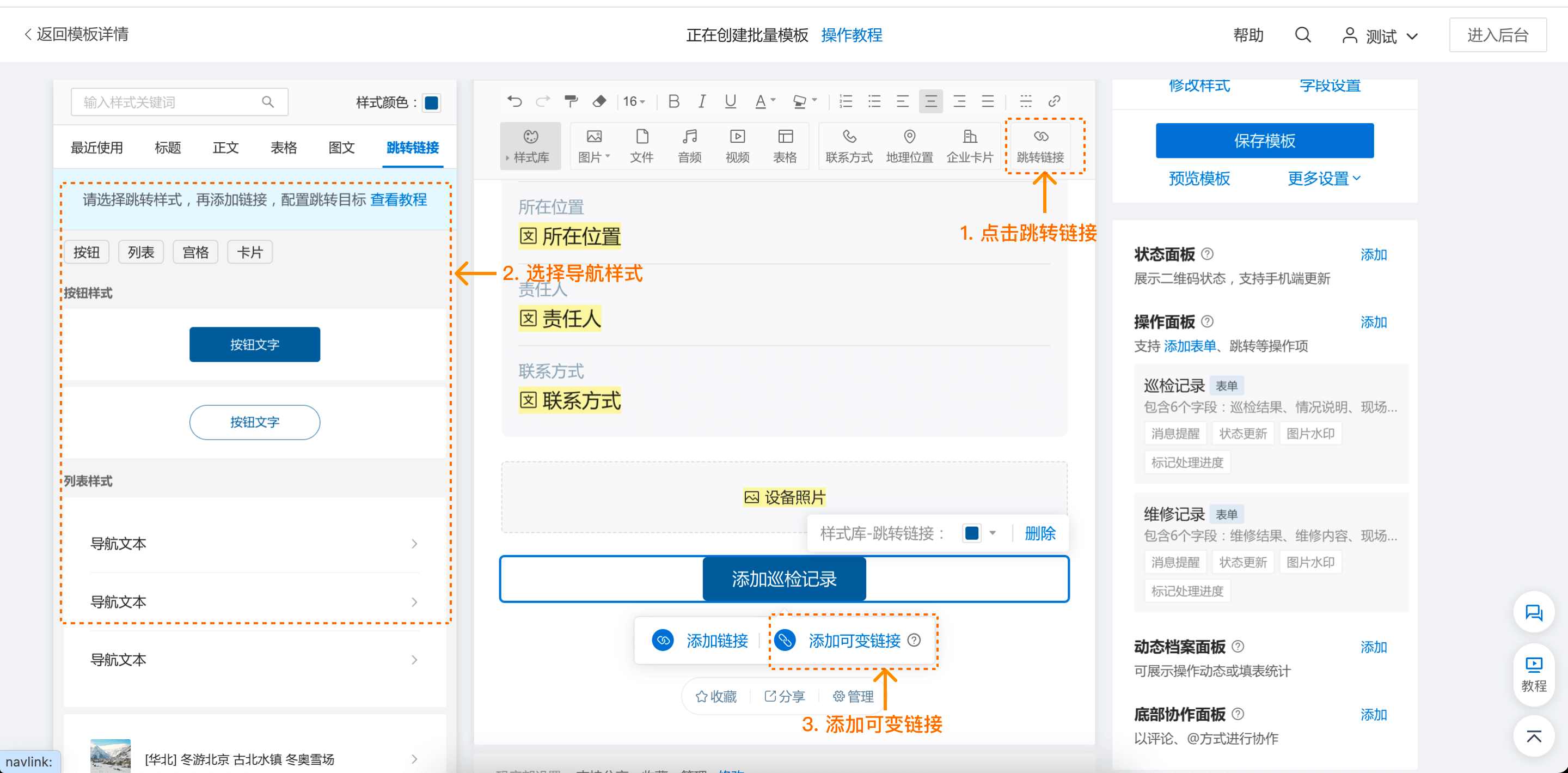
2.1 Add Variable Link Content in Bulk QR Code Creation
In the bulk template editor, first add the redirect link style, then add the variable link. Support for adding variable link content via the control panel will be available later. View the setup tutorial
2.2 Input Content According to Rules During Code Generation to Achieve Different Redirects
After adding variable link content, during code generation, simply input an external link starting with "http", or input a sub-code or form number, and the link will redirect to the corresponding content when clicked.