Pump Inspection
One QR code per pump. The form includes pre-configured (modifiable) inspection items, temperature and pressure readings recording, photo evidence collection, and supports automatic fault notifications. Export data to Excel or print for archiving weekly or monthly. Prepare your equipment list and inspection forms, and generate QR codes for trial in 1–3 minutes.
Basic Information
- Monthly Installations: 253
- Monthly Visits: 561
- Original Text: https://cli.im/template/detail/121463686
Case Label Images



Usage Instructions
1. Scope of Application
Scope of Application: One code per device for daily inspection + fault closed-loop + regular maintenance of water supply and drainage, process water, fire/circulation/HVAC chilled water pumps, sewage lift pumps, etc.
Operation Tip: All content in the template can be freely added, modified, or deleted (including QR code content, form content, etc.).
Related Template: If inspections need to be conducted per pump room, you can use the related template: Pump Room Inspection
2. Preparation Before Use
- Equipment List and Numbering: Includes equipment name, number, location, responsible person/department, etc. If not available immediately, you can start by recording a few devices and add others later.
- Existing Inspection and Maintenance Forms: Used to modify the template form according to your organization's existing form requirements to comply with current company standards. If no existing forms are available, you can use the pre-configured form in the template.
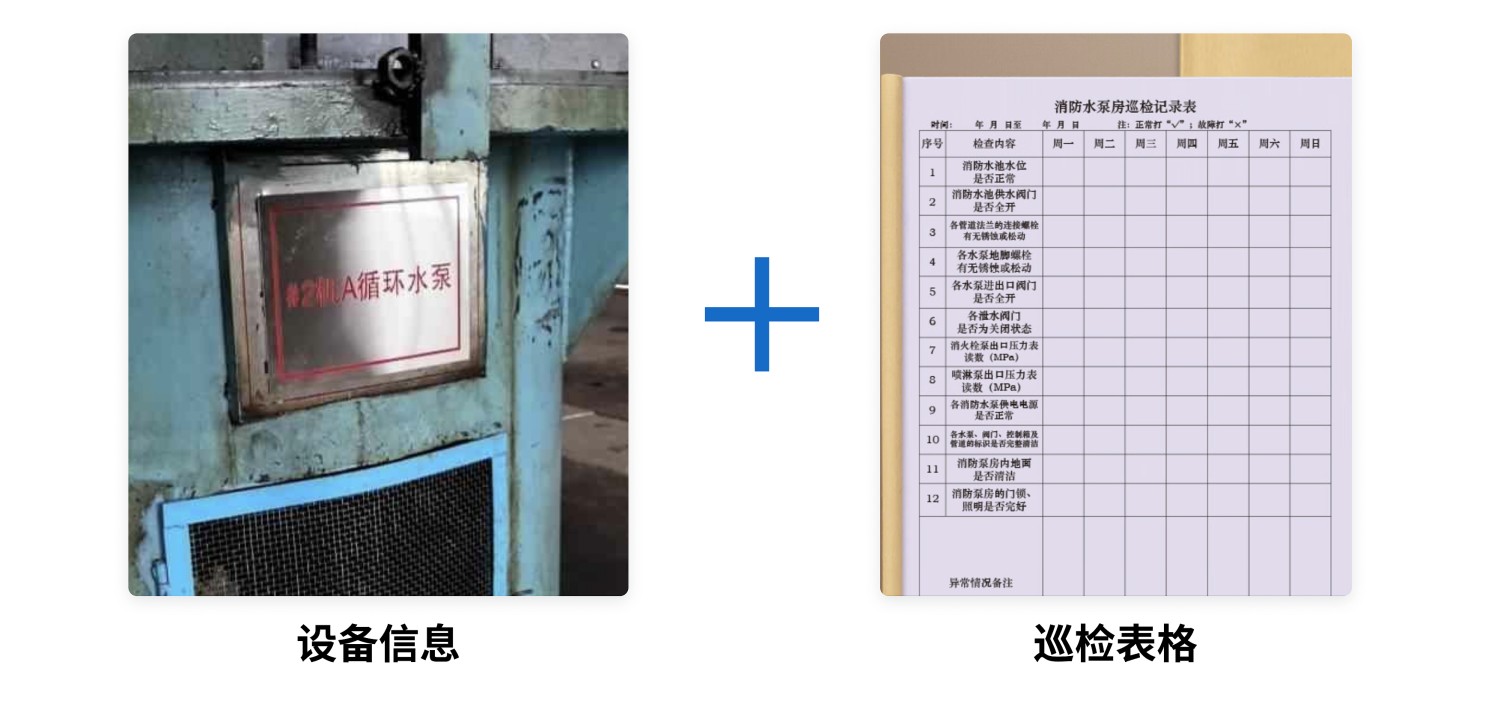
3. Getting Started in Three Steps
1. Generate Equipment QR Codes
- Recommended Bulk QR Codes Generation: Bulk generation is suitable for a large number of similar devices with identical inspection requirements. If your company uses the same form for inspecting all pumps, using bulk generation is recommended to improve efficiency and enable unified management. Click to view the generation tutorial
- Single QR Code Generation: Suitable for distinguishing between various types of equipment with different inspection requirements. If the inspection requirements differ for each pump, you need to generate a single code for each device. Click to view the generation tutorial
2. Label Download and Posting
After generating the codes, download the QR codes and post or hang them in non-high temperature, non-splash areas near the nameplate or valve group, making them easy to scan without hindering operation.
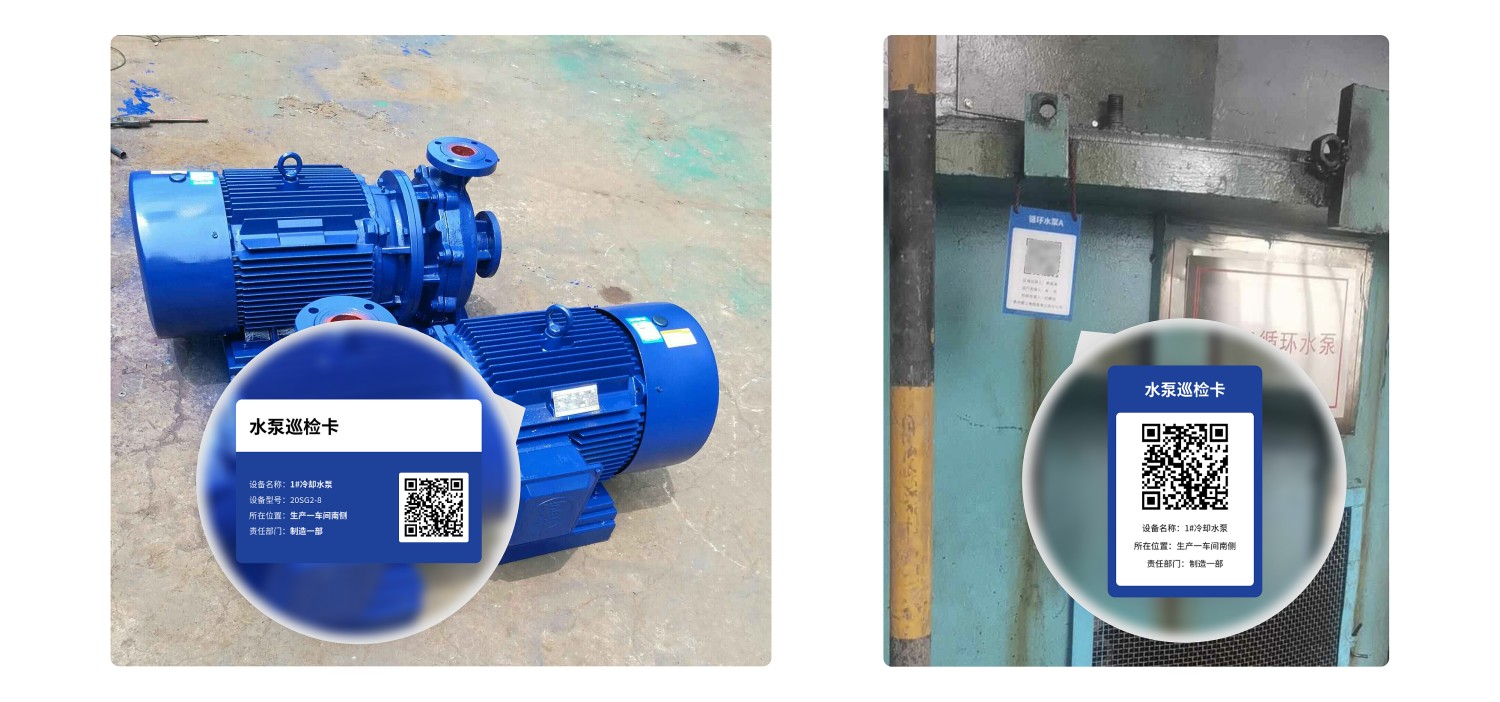
Before formal use, you can view more detailed label material recommendations: Recommended QR Code Label Materials by Environment, Recommended QR Code Label Materials for Equipment Inspection
3. Scan QR Code for Inspection
Operator Training Materials: Field Inspection Operation Manual
4. Frequently Asked Questions
1. How can I modify the content/inspection form of a QR code that has already been generated?
Answer: You can find the QR code you generated in your workbench and modify it. For details, see: Edit and Modify QR Code
2. How can I export the inspection records of the equipment for paper archiving?
Answer: In the workbench, click [Forms], find the corresponding equipment inspection record form, and click [Export Data] in the Data & Statistics section to export. For details, see: Form Data and Statistics
3. What is the difference between the Free Version and the Paid Version?
Free Version: Allows you to complete the basic process of using QR codes for equipment inspection, with no limits on the number of devices, inspection records, or number of people scanning the codes.
Paid Version: If you want to implement this within an enterprise, the paid version can help you achieve better implementation results, including but not limited to:
- Assign different responsible persons to manage each device.
- Real-time notifications of equipment abnormalities sent to the maintenance team; administrators can view as needed without excessive disturbance.
- View unlimited original photos of inspected equipment.
For a detailed version comparison and purchasing advice, see: Version Selection Advice
4. Is there a complete system setup tutorial?
Answer: For a complete tutorial on setting up an equipment inspection system, see: Equipment Inspection System Setup Tutorial