Lost and Found
Used for registering information about lost or found items, supports categorized management of claim status. Suitable for lost and found and item search needs in places like schools, shopping malls, transportation hubs, etc.
Basic Information
- Monthly Installations: 74
- Monthly Visits: 13
- Original Text: https://cli.im/template/detail/121463640
Case Tag Image
Usage Instructions
Applicable Scenarios & Industries
- Suitable for lost and found management in public places such as schools, communities, and transportation hubs.
- Supports registration of lost personal items and publishing information for found items.
Core Features
1. Multi-Channel Information Registration
- Owners can submit "Lost Item Registration" to describe the characteristics of the lost item.
- Finders can submit "Found Item Registration," upload photos of the item, and specify the location where it was found.
- Solves issues of information asymmetry and untimely updates common with traditional paper-based registration.
2. Multi-Status Tracking Management
- Provides various item status labels for more convenient item management.
- The data panel automatically counts the number of items in each status. Users can check the item processing progress anytime via the dynamic data panel.
Usage Process
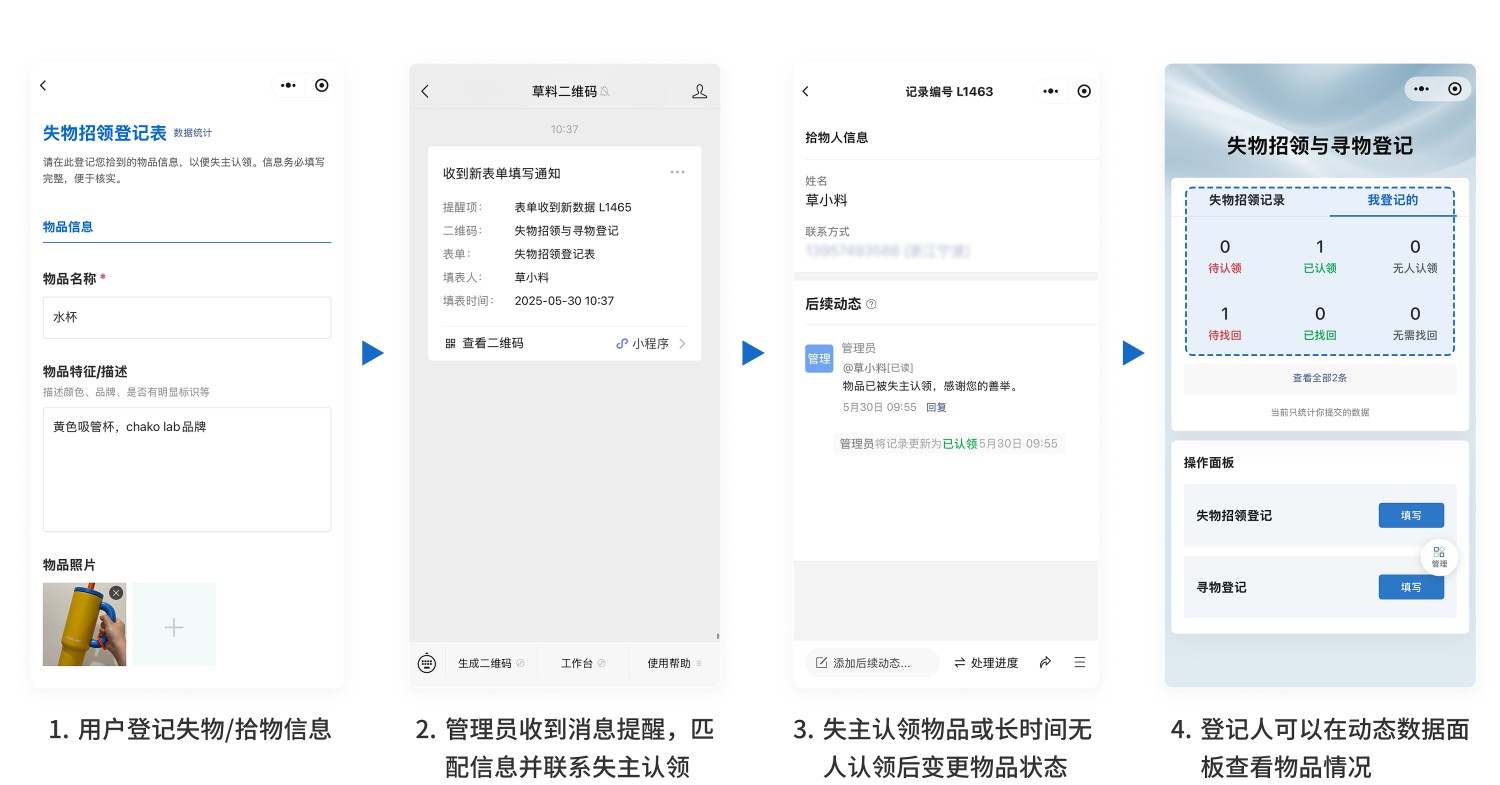
① Generate a QR code and post it in prominent locations such as service desks and bulletin boards.
② Users scan the code to register lost or found item information.
③ Administrators view registration records in the workbench, compare and match item information, and contact the owner for claiming.
④ After an item is claimed, its status is marked as "Claimed." Items unclaimed for an extended period are marked as "Unclaimed."
⑤ The dynamic data panel automatically tracks item processing progress, viewable at any time.
Frequently Asked Questions
1. How long are historical records saved?
A: Data is stored long-term. Starting from the Flagship edition, there are no limits on the number of original image stores, and data can be exported at any time.
2. How are permissions allocated for multi-user management?
A: Use "Member Management" to set view/edit permissions for different personnel (requires Advanced edition or higher). For multi-campus/multi-site management, the "Partition Management" feature is recommended.