How to Create a Resume QR Code to Make Your Resume Stand Out
Original: https://cli.im/article/detail/2308
It's the golden March and silver April job-hunting season again. How can you make your resume stand out? Paper resumes are often limited by space and format, making it difficult to fully showcase your capabilities. By adding a QR code to your resume, HR can scan it with a mobile phone to access more content that cannot be directly presented on paper—including your personal portfolio, video introduction, design drafts, detailed project experiences, and even dynamic career growth records. This allows recruiters to get a more comprehensive understanding of you.
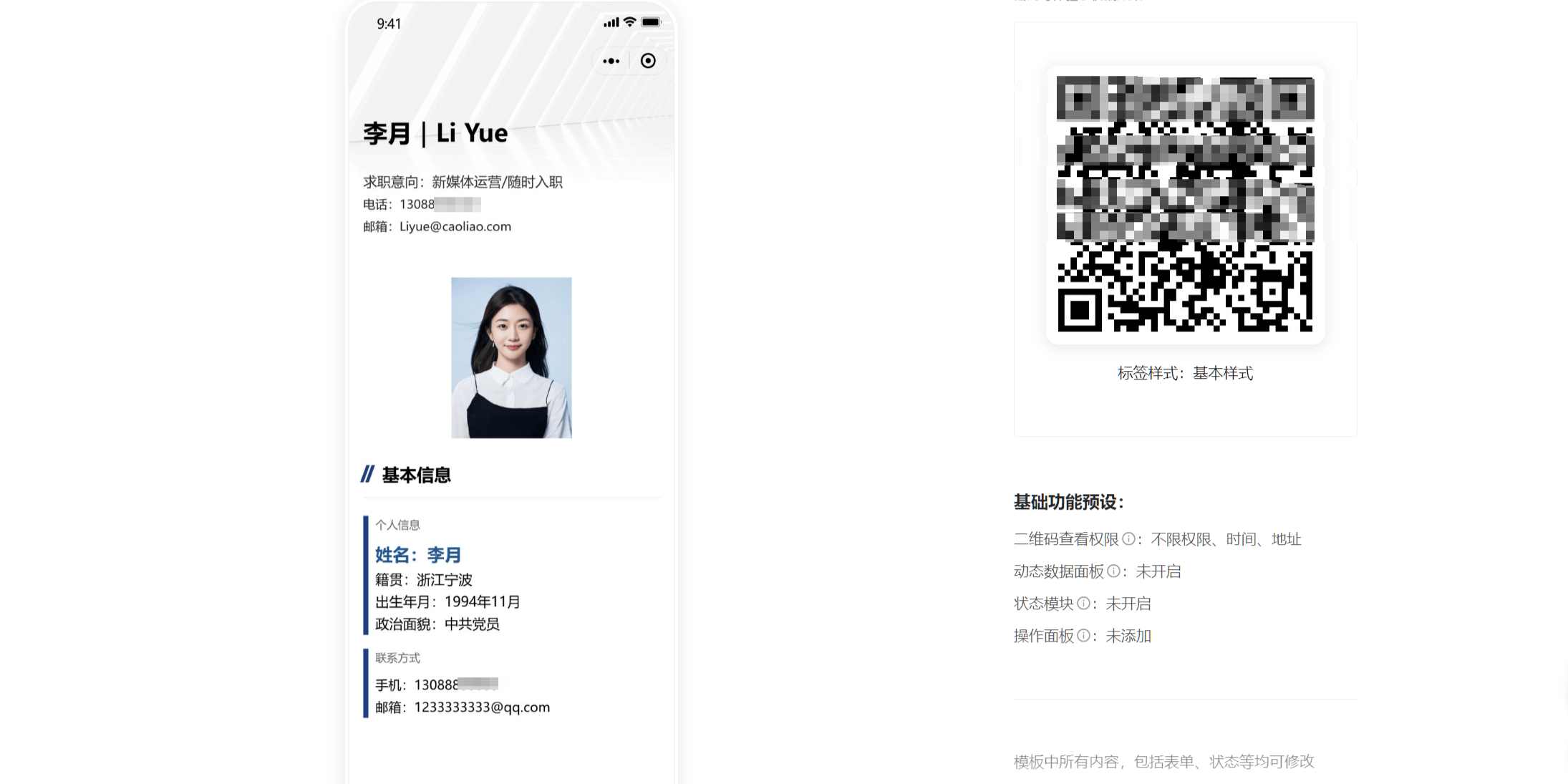
1. Introduction to Resume QR Code Templates
CaoLiao QR Code provides a "Personal Resume" QR code template to help users get started quickly. The template is pre-configured with a basic resume content framework, including basic information, educational background, self-evaluation, and work experience. Users only need to make simple adjustments based on the template, such as modifying personal information or replacing portfolio images, to quickly generate a professional resume QR code. Additionally, the template supports adding more content like text, images, videos, forms, and contact information.
Moreover, this template is completely free to use, with no limits on the number of scans or users. The QR code remains valid long-term, and the content can be updated at any time without needing to regenerate the QR code, ensuring the information is always up-to-date.
View the Personal Resume QR Code Template
2. Tutorial
CaoLiao QR Code is available on both mobile and desktop platforms. The mobile platform is the "CaoLiao QR Code Mini Program," which allows for simple QR code creation. However, full features such as template content modification, QR code pattern beautification, and data management require the desktop platform.
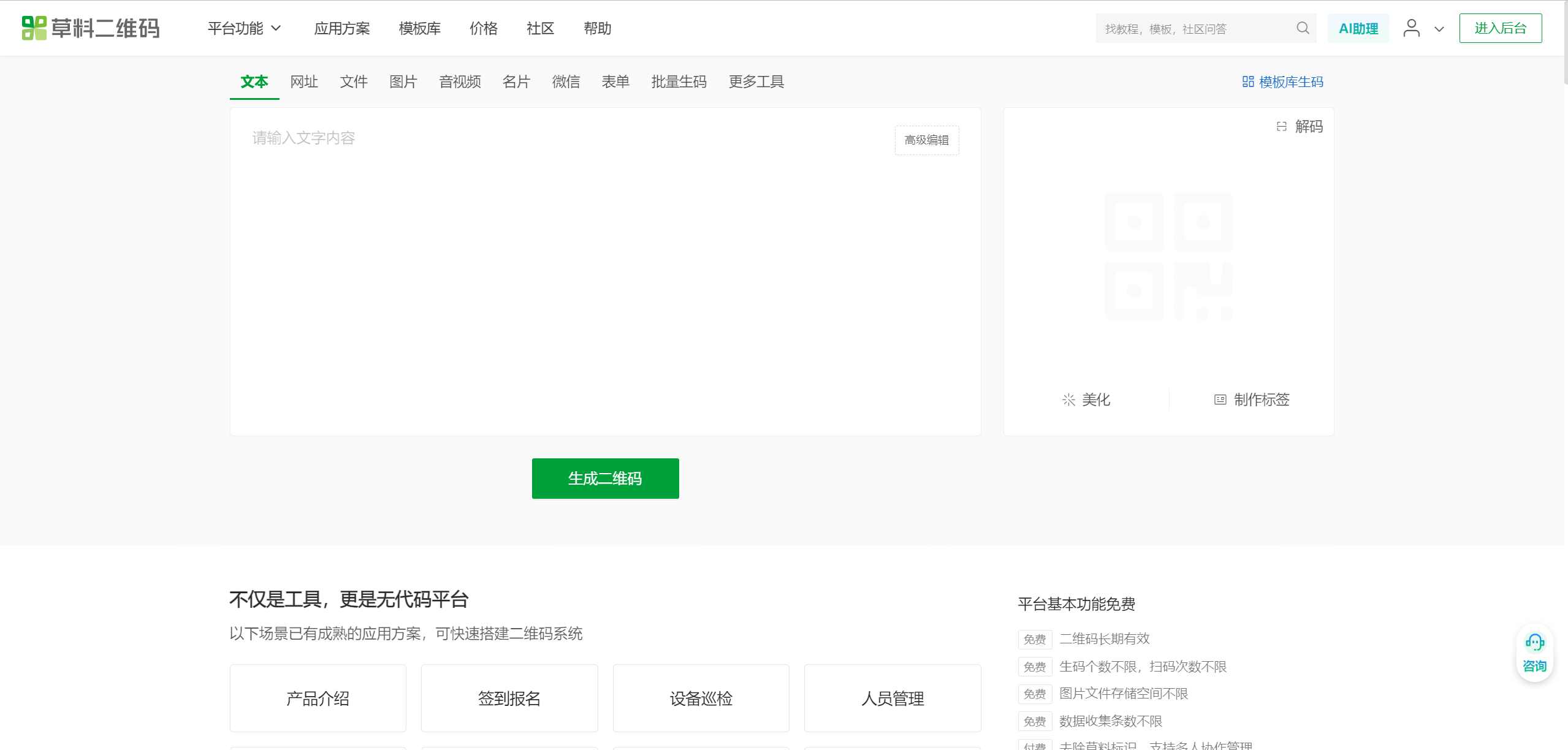
Step 1: Visit the CaoLiao QR Code Official Website
Access the CaoLiao QR Code official website on your desktop, then click to register or log in to your account.
Step 2: Select a Template and Make Modifications
Enter the "Template Library," where you can see a wide range of reference templates. Choose a suitable resume template based on your preferences. Click "Use Template to Generate Code" to enter the editor, where you can replace the text, images, files, and other content in the template according to your actual situation. For example, modify the default contact information to your personal email and mobile number, update the work experience section with your own content, and upload your design portfolio or project case URLs. If you have a related video introduction, you can directly upload the video so that HR can watch it by scanning the code.
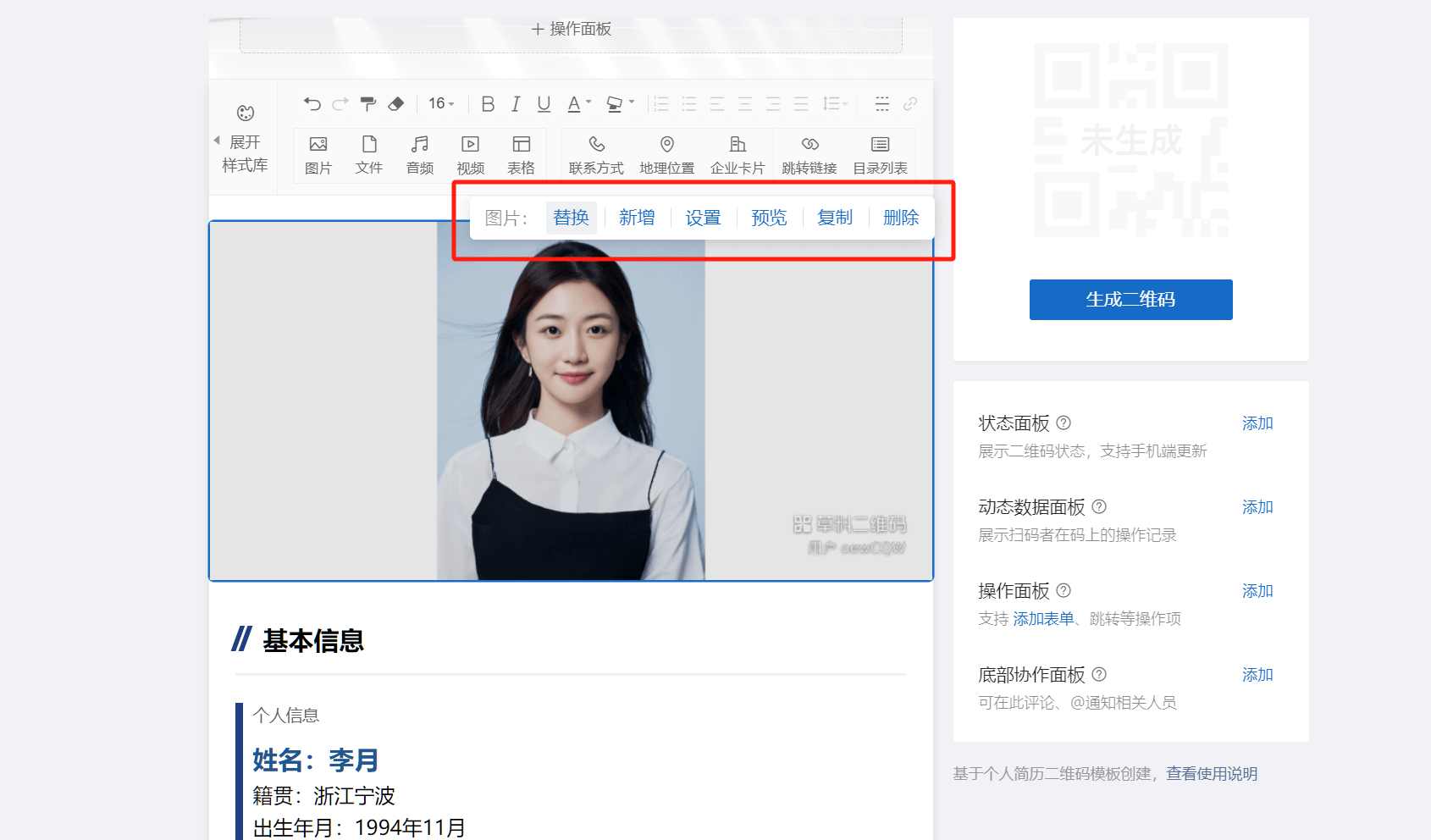
Step 3: Generate the QR Code
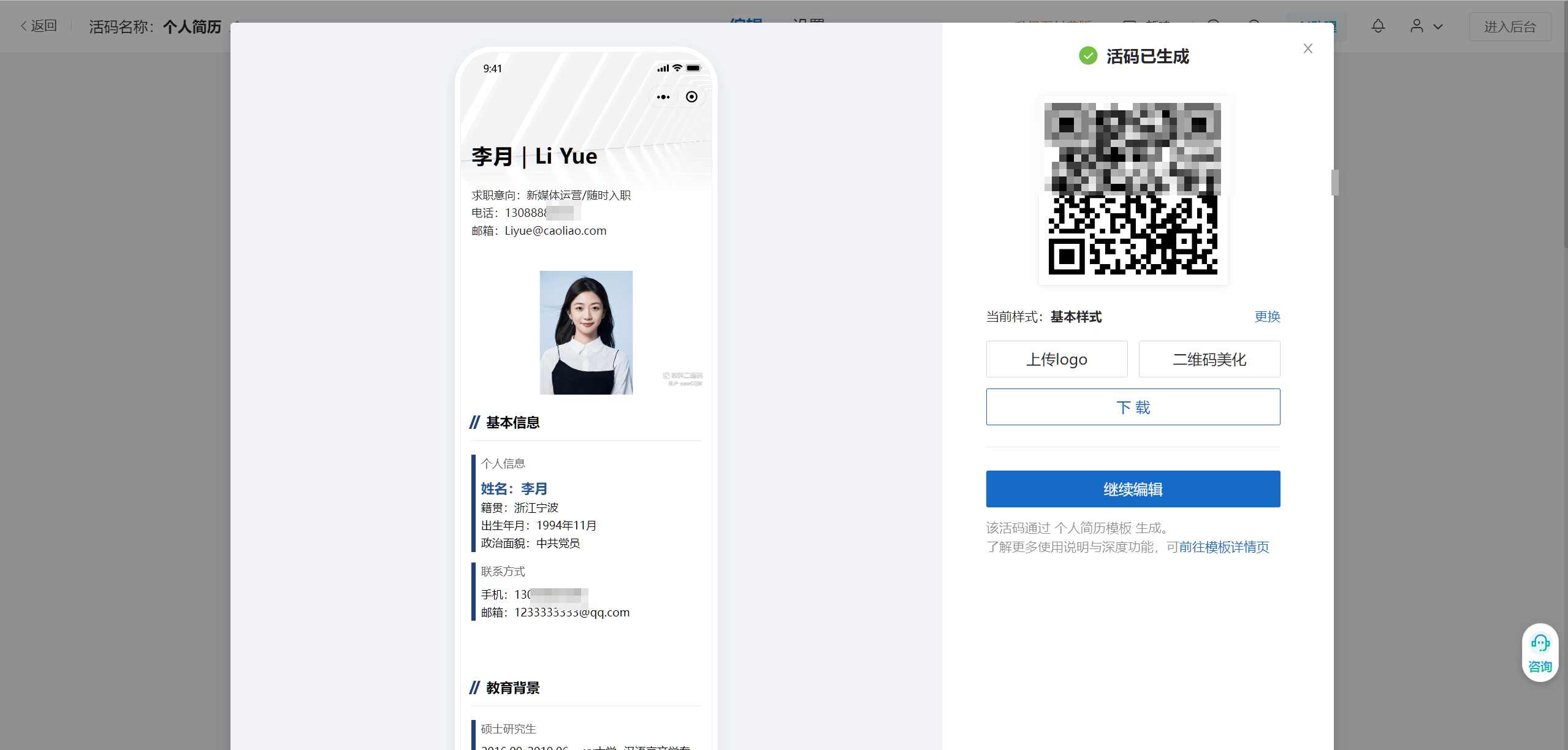
After modifying the content, click the "Generate QR Code" button to create a resume QR code. You can preview the effect by clicking on it.
Step 4: Beautify the QR Code
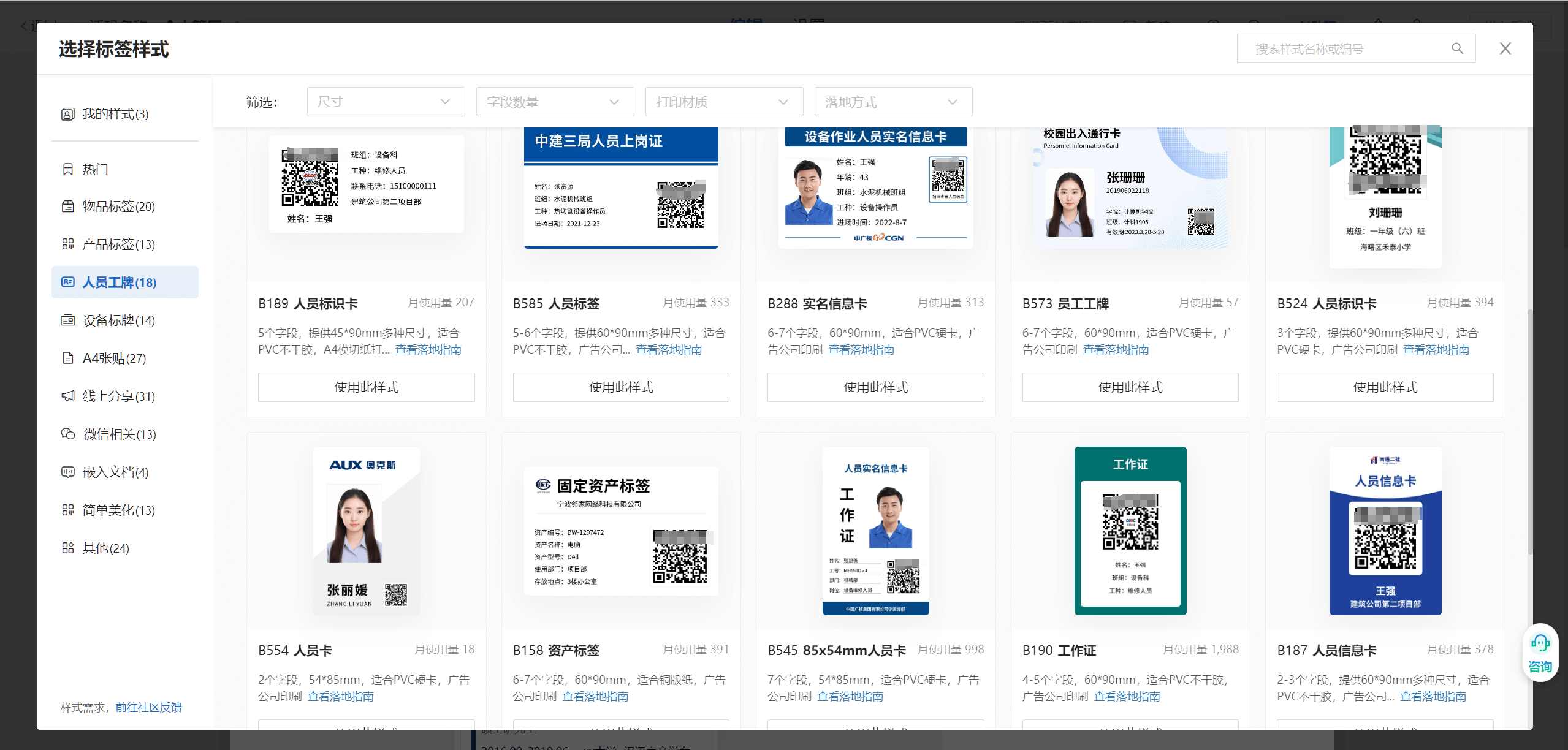
You can also beautify the QR code image to make your resume more visually appealing. CaoLiao QR Code offers various beautification features and label styles, including adjusting the QR code's color, setting a gradient background, and adding a logo. A beautified QR code not only makes your resume look more professional but also attracts HR's attention, making them more willing to scan the code and learn more about you.
Step 5: Download the QR Code
After completing the beautification, click to download the QR code image. Choose an appropriate size for the QR code image, such as 4cm × 4cm or larger, to ensure scanning clarity. Select PNG or SVG file formats for easy printing and embedding into your resume. After downloading, insert the QR code into a prominent position on your paper resume, leaving white space around it to improve its recognizability. It is recommended to perform multiple tests to ensure it can be recognized by various QR code scanning software.
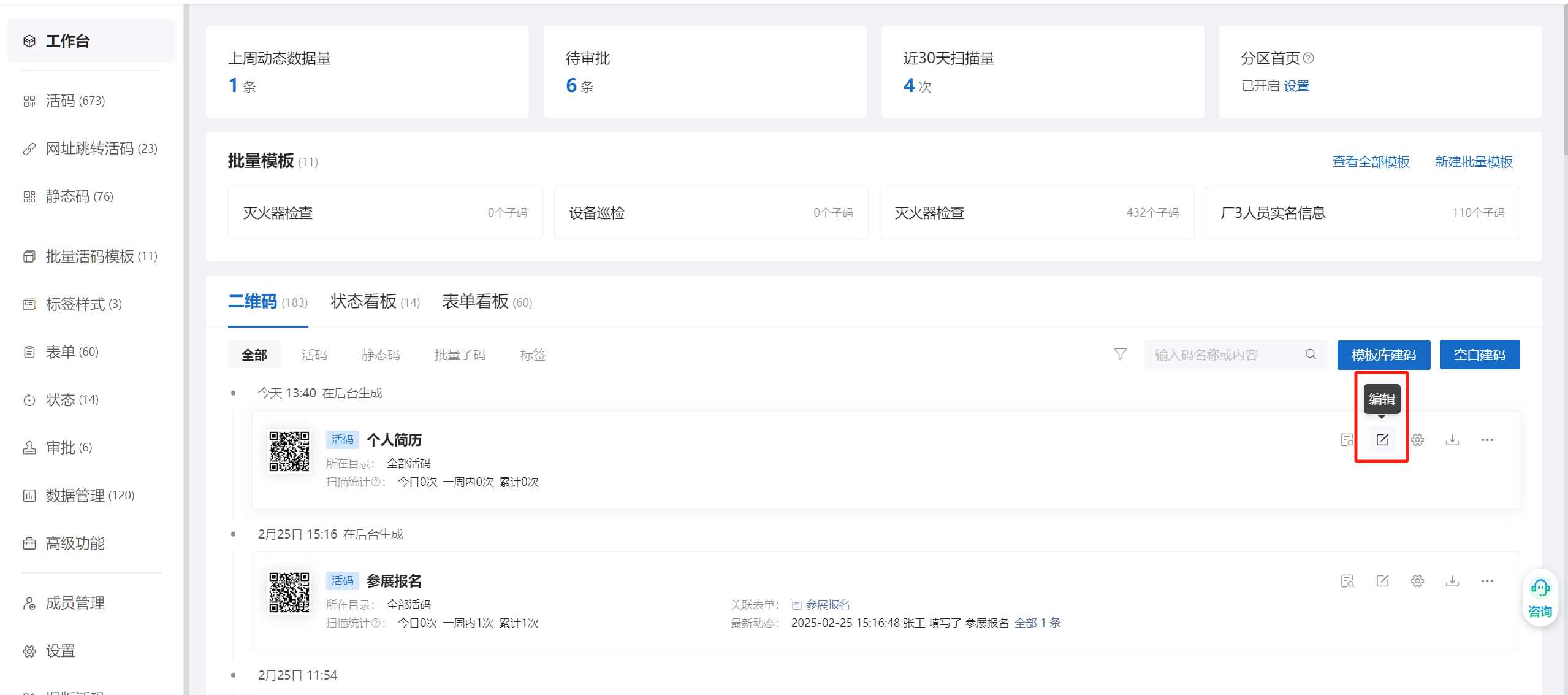
Post-Creation Management: Updating Your Resume QR Code
When you participate in new projects or achieve new honors, you can return to the CaoLiao QR Code platform at any time, log into your account, find this resume QR code, and update its content. After updating, there is no need to regenerate a new QR code; simply save the changes again, and the resume content will be automatically updated. Whenever HR scans the QR code, they will see your latest career information and work achievements.