Medical Equipment Daily Management
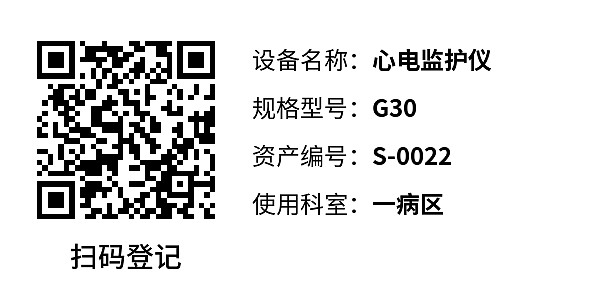
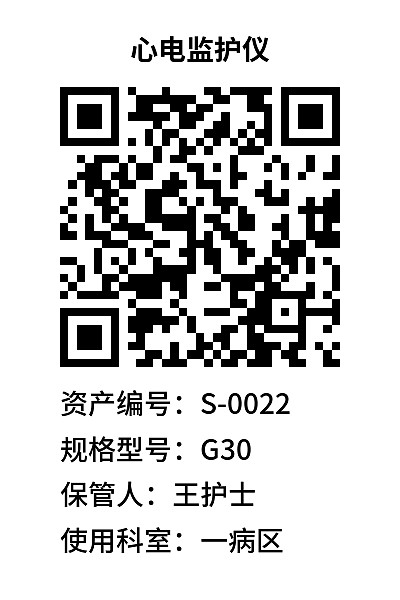
Create one QR code per item for medical instruments and equipment. Scanning the code allows viewing usage instructions. It can also link to multiple record forms, aggregating registration data from usage, cleaning/disinfection, maintenance, calibration, and other processes, establishing a dynamic equipment history.
Basic Information
- Monthly Installations: 82,575
- Monthly Visits: 122,532
- Original Text: https://cli.im/template/detail/30174665
Case Label Images
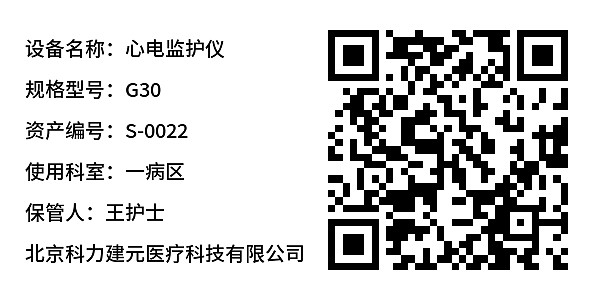
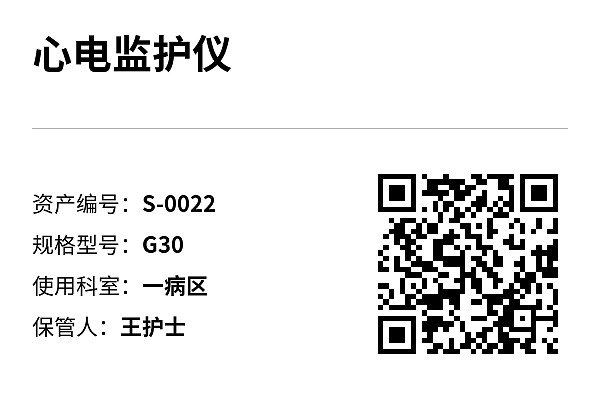
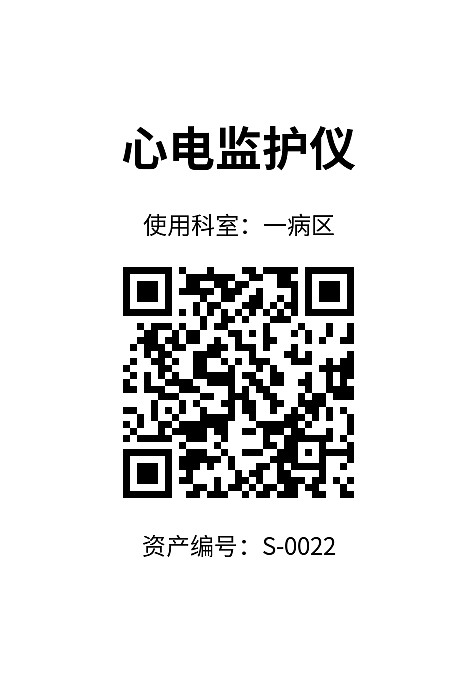
Usage Instructions
1. Problems Addressed
Traditional medical equipment management methods face the following issues:
- Manual Recording is Error-Prone: Manual recording of equipment usage, disinfection, and maintenance is prone to errors and omissions.
- Information Updates are Not Timely: Information such as equipment location and operational status cannot be updated in real-time, making unified management of equipment assets difficult.
- Operating Methods Cannot Be Viewed in Real-Time: Medical staff may not be familiar enough with the operating methods of complex equipment, increasing the risk of misuse.
- Lack of Maintenance Plans: There is no effective plan for scheduling regular inspections and maintenance of equipment.
Solution:
- One Code per Device: Generate a unique QR code for each piece of medical equipment. Medical staff can scan the code via WeChat to view equipment information.
- Instant Information Access: Scan the code to view basic equipment information, operation manuals, equipment operational status, etc.
- Recording and Reporting: Fill out usage records, disinfection records, and quickly report faults for timely repairs.
- Regular Maintenance: Create maintenance schedules for regular equipment upkeep.
- Unified Management: Administrators can uniformly manage all equipment in the workbench and update information in real-time.
Note: If there is a large number of devices, you can use the bulk QR codes generation function for easier unified management and updating of equipment information later. Learn More
2. Scan to View Equipment Information
One QR code per device. Scan with WeChat to view equipment information.
- View Equipment Operation Manuals: Scan the code to view equipment parameters, operation manuals, and other information.
- View Equipment Operational Status: Scan the code to view the operational status, which can be updated based on the actual situation.
- Convenient Operations: Fill out usage and maintenance forms, view all data related to the device.
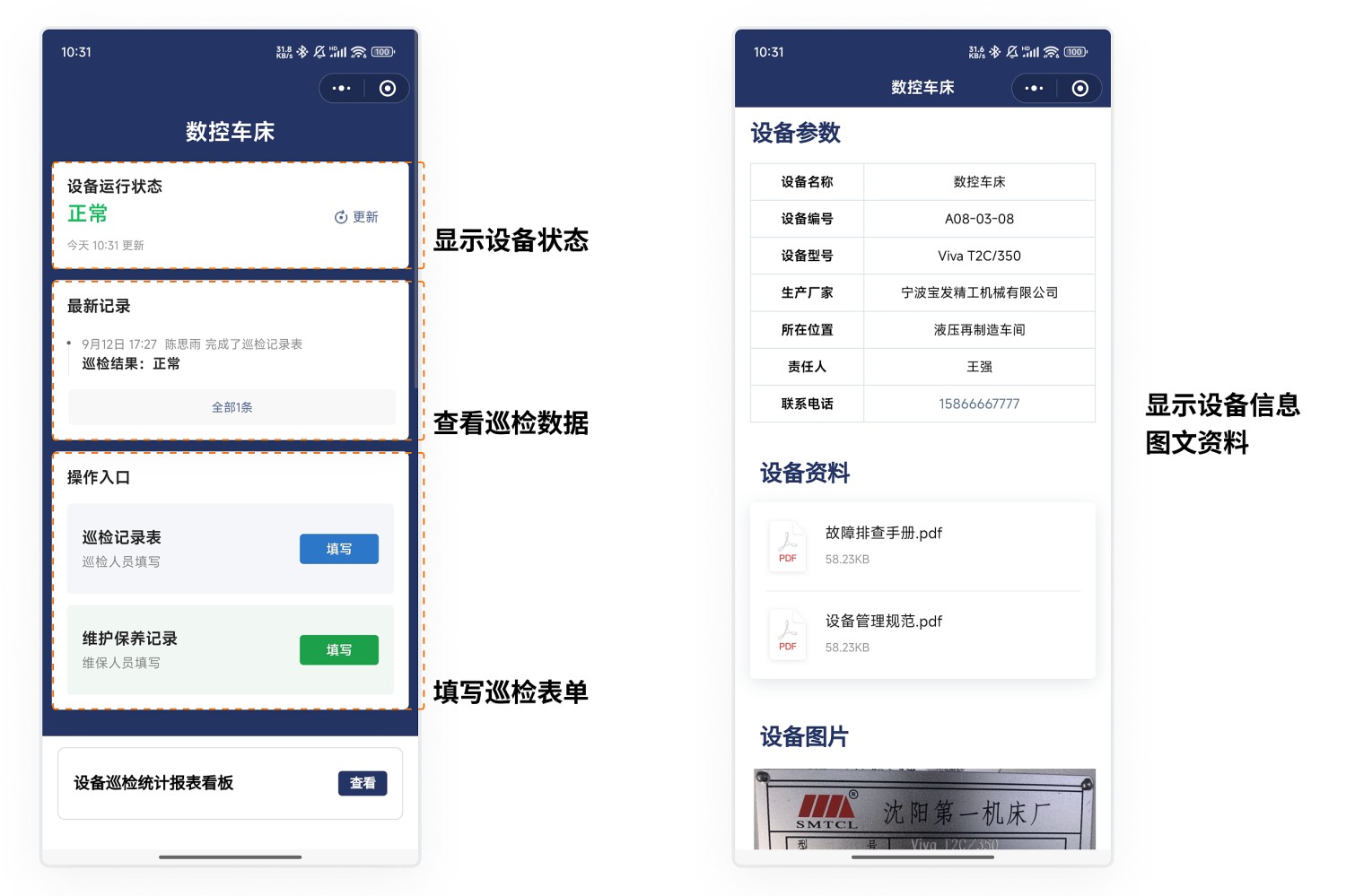
3. Record Usage and Maintenance Status
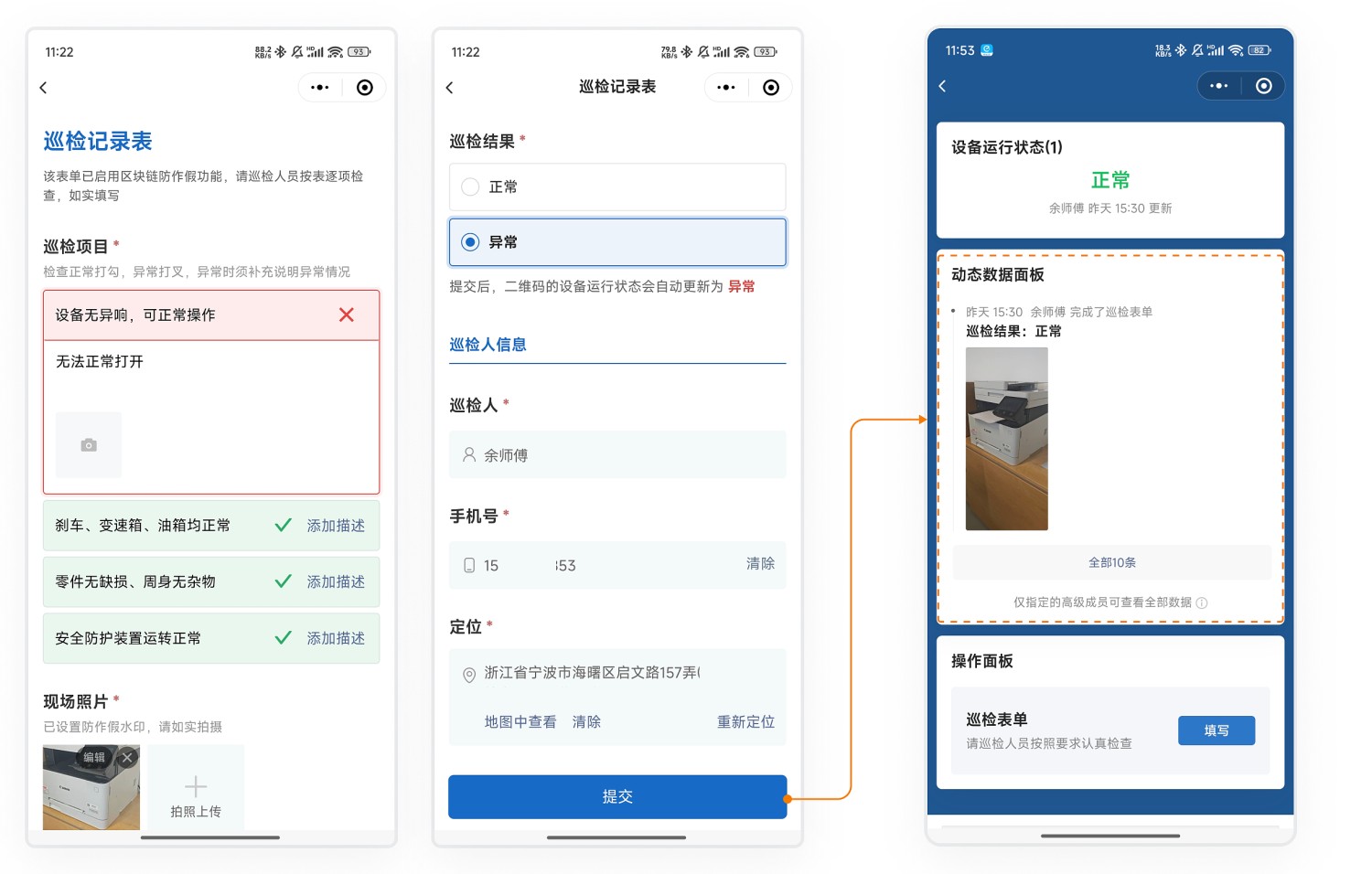
- Fill Out Forms by Scanning with WeChat: Medical staff scan the code to fill out associated forms, registering equipment usage, disinfection, fault reporting, repairs, maintenance, etc.
- Real-time Data Updates: Registered data is displayed on the dynamic data panel and can be viewed by scanning the code.
4. Fault Reporting and Repair
- Quick Reporting: When equipment fails, scan the code to fill out the fault reporting form.
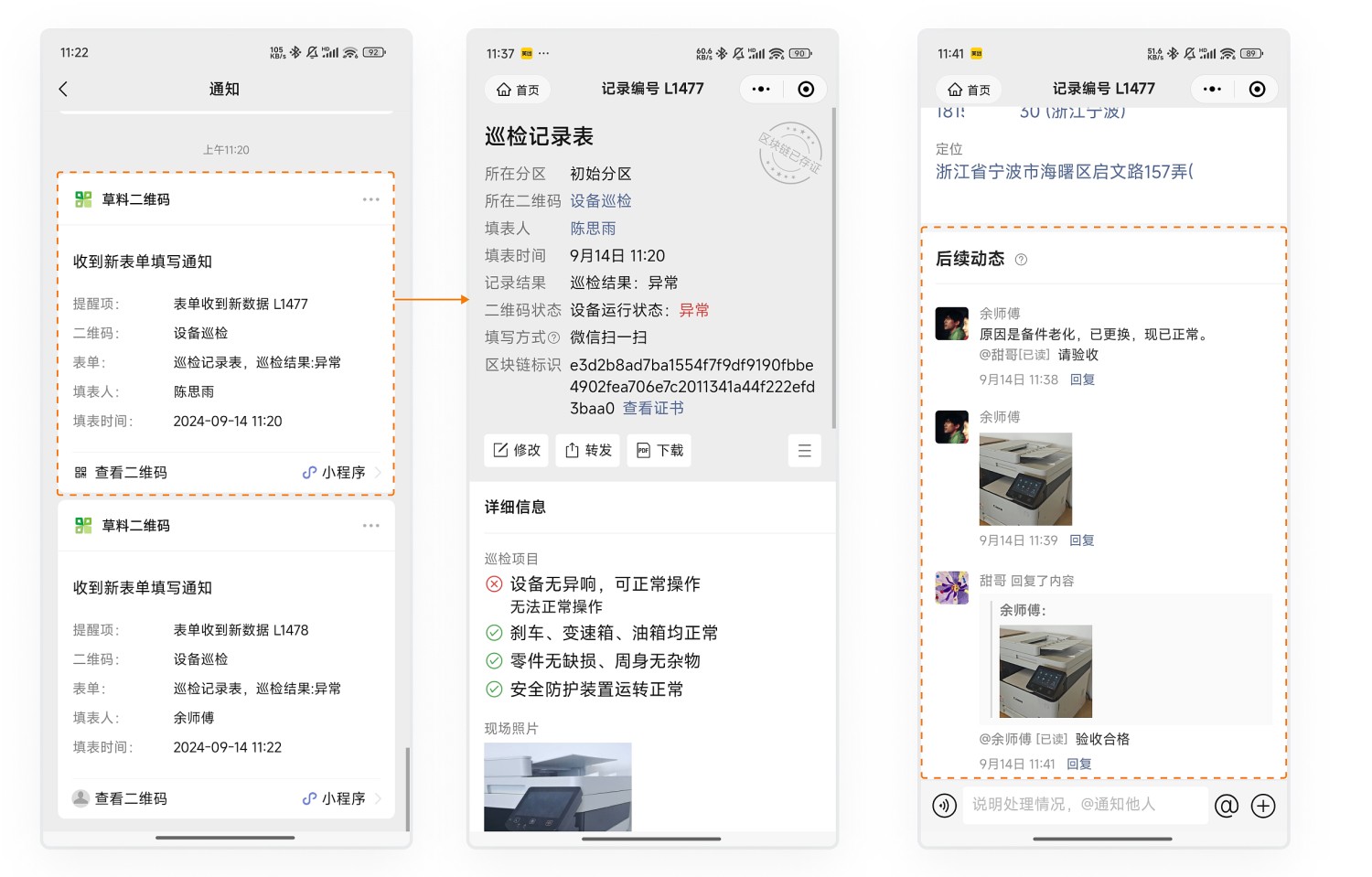
- Automatic Notifications: Fault details are automatically sent via WeChat to notify maintenance personnel.
- Repair Follow-up: Maintenance personnel follow up promptly based on the fault records and document the entire repair process.
5. Create Regular Maintenance Plans
Create maintenance plans as needed, such as monthly maintenance.
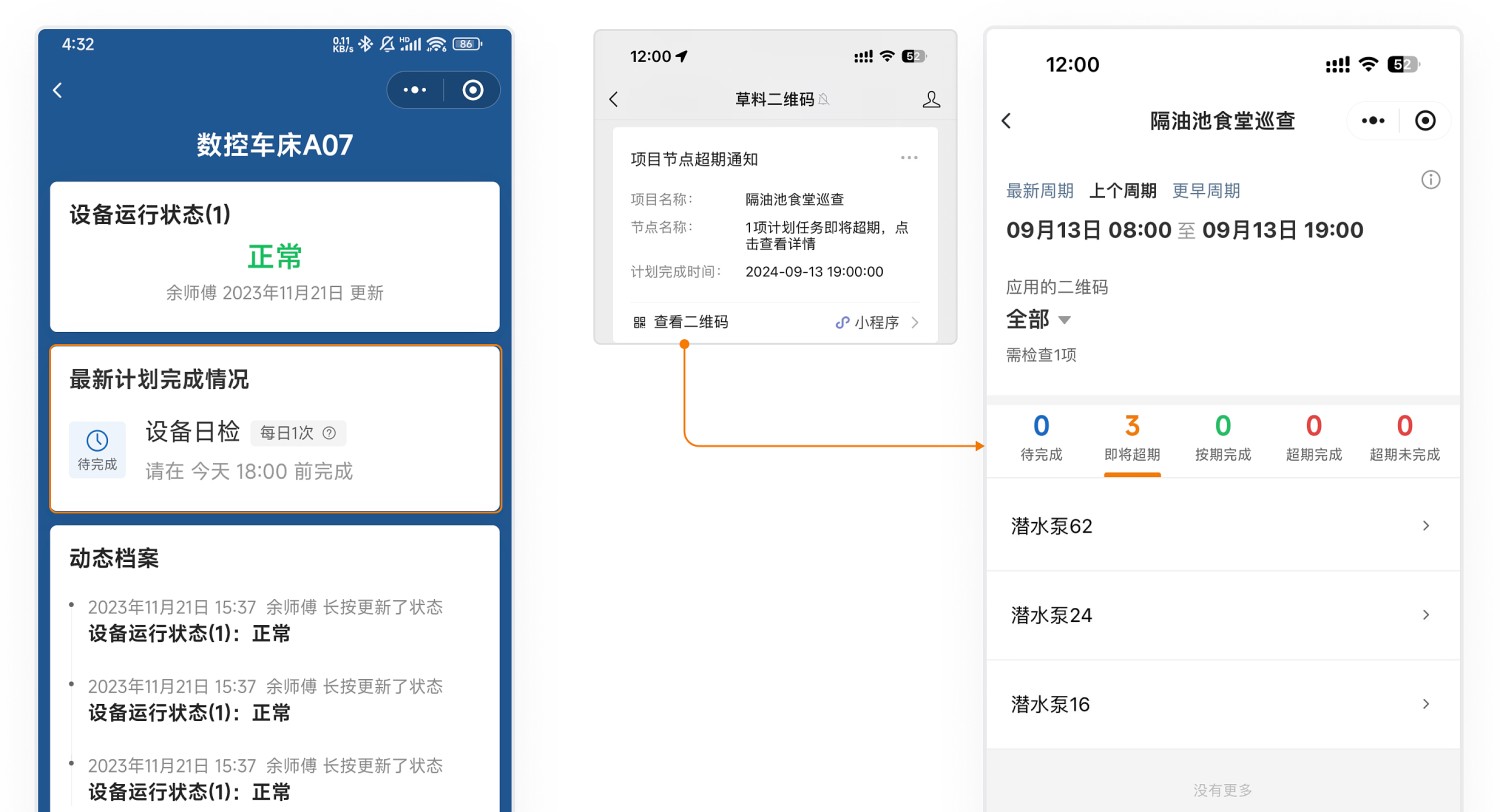
- Maintenance personnel can scan the code to view maintenance history and the next scheduled maintenance date.
- Administrators can view plan reports on their mobile devices to understand completion status.
- Overdue Reminders: The system sends WeChat reminders to administrators before maintenance is due, listing equipment nearing their due date for easy scheduling of timely maintenance.
6. Data Management
6.1 Data Viewing
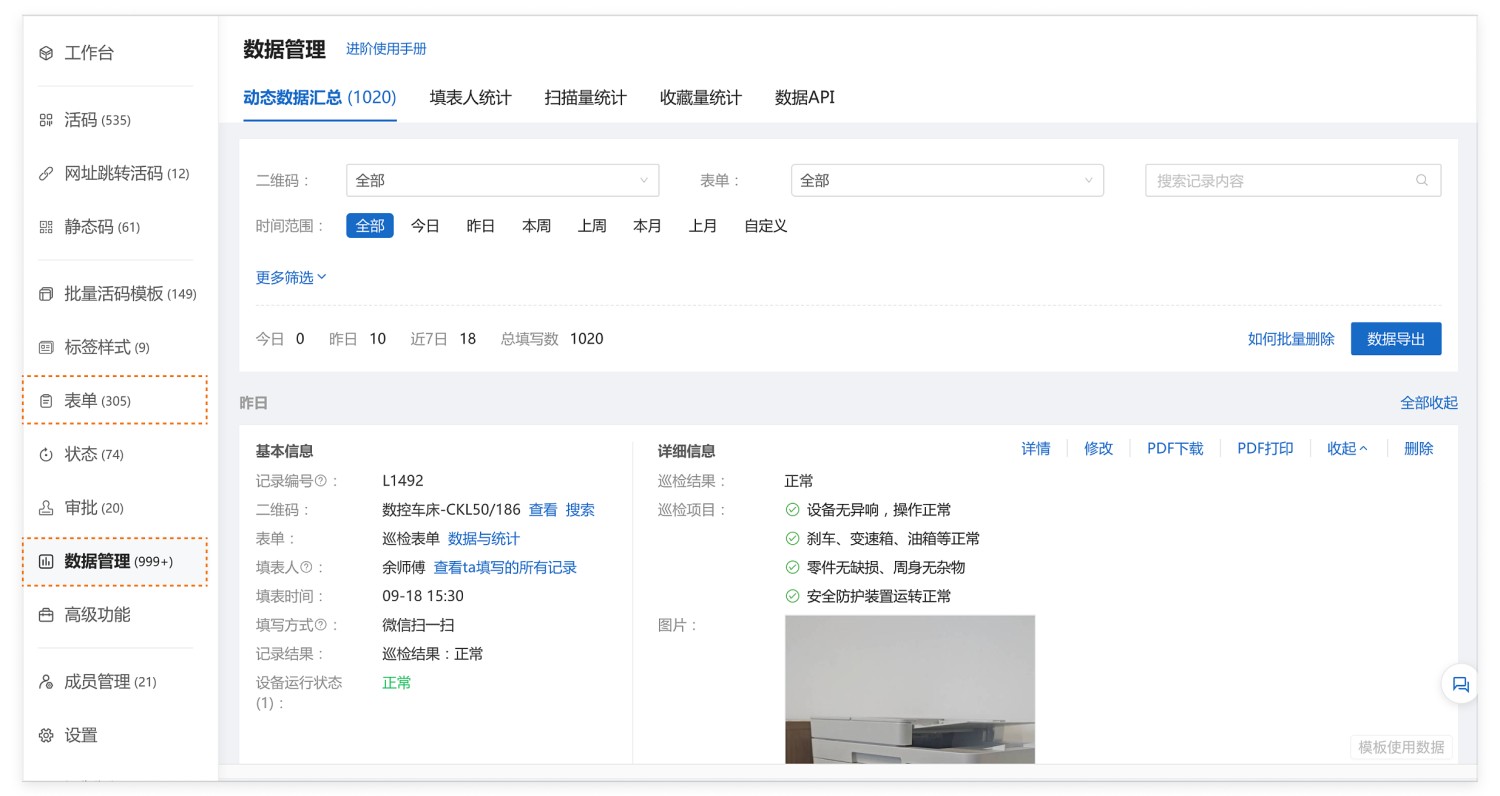
All submitted form data is saved under your account. Administrators can view the status at any time through the following methods:
Desktop Workbench
Mobile WeChat Mini Program Workbench
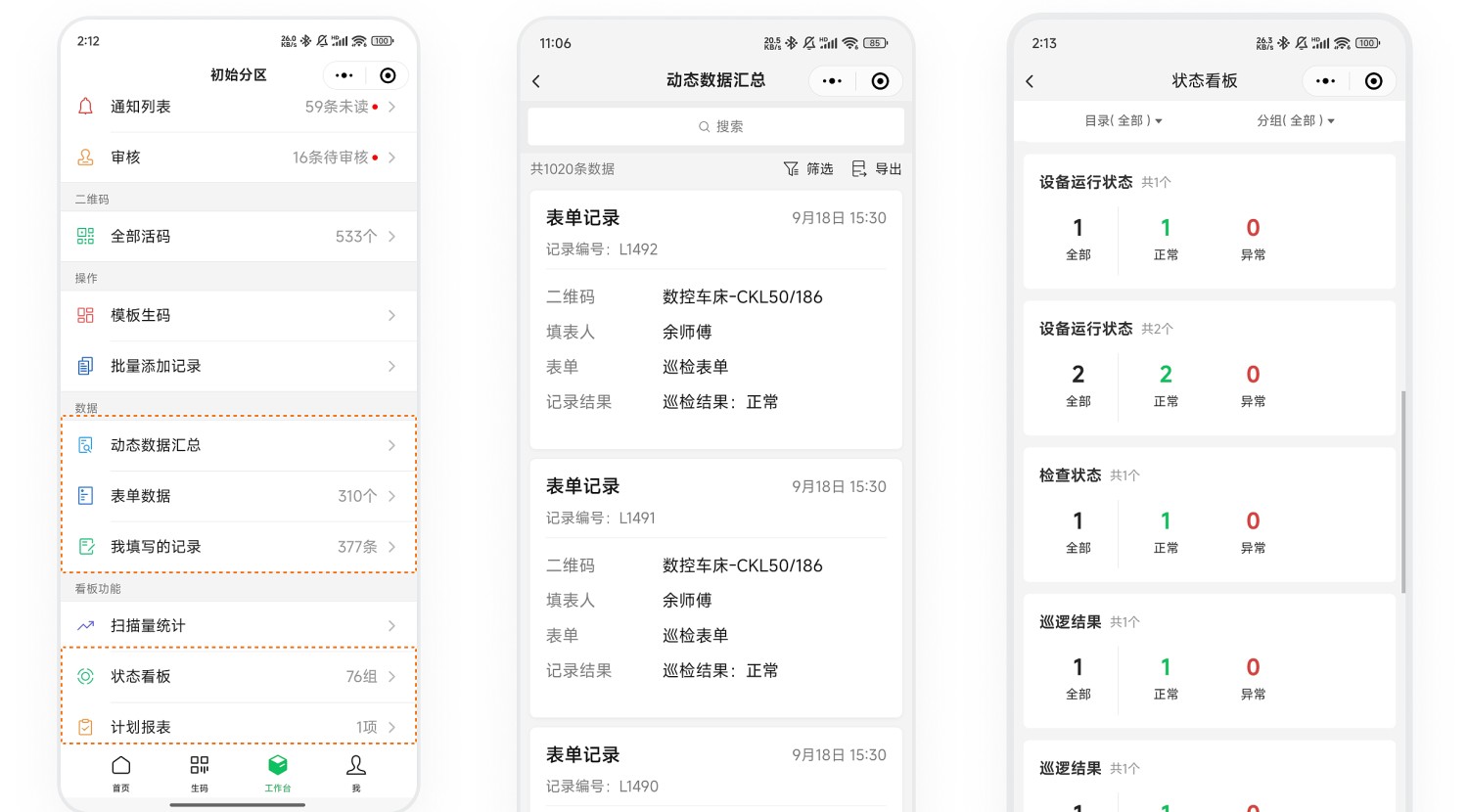
6.2 Data Statistics and Export
On the "Data & Statistics" page of the form, you can view all collected detailed data and view statistics based on associated QR codes, submitters, fields, etc. View Details
You can:
- Export data to Excel files for secondary processing, statistical analysis, and reporting locally.
- Download data as PDF files, summarizing single record details or multiple records for easy printing and sharing.
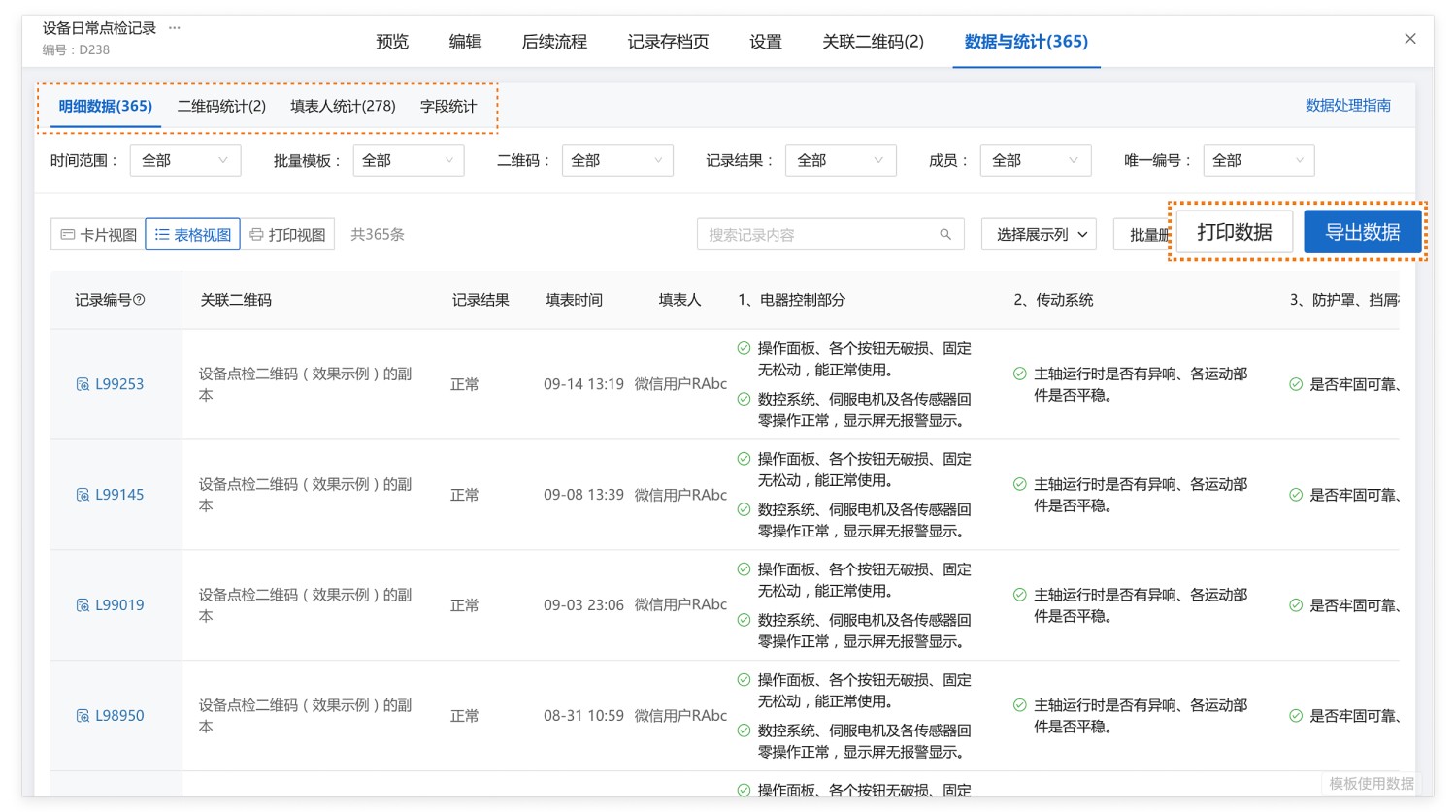
7. Frequently Asked Questions
7.1 Which operations can have permissions set?
Answer: You can set permissions for specific personnel for the following operations:
- Viewing the QR code
- Changing equipment status
- Filling out inspection forms
- Viewing data on the QR code page
7.2 How to manage many types and a large quantity of equipment?
Answer:
- Advanced Members: Versions above the Advanced edition provide slots for advanced members. You can assign other management personnel as advanced members, granting them administrator permissions. They can log into the workbench to assist with generating codes, viewing, and exporting data. Learn About Advanced Members
- Partition Management: Create multiple partitions to manage different types of equipment and data separately. Advanced members can be assigned as partition managers for independent management and control of permissions. View Setup Tutorial
7.3 How can administrators manage all equipment assets?
Answer: Display the equipment operational status (e.g., Normal, Abnormal) on the QR code page. Administrators can view the distribution of equipment statuses (Normal/Abnormal) in the status list on their mobile or desktop workbench to understand the overall equipment status. View Details