Product Details Introduction
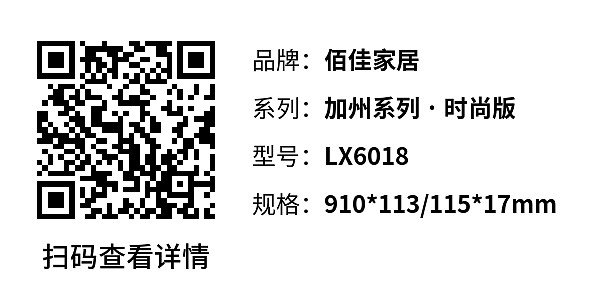
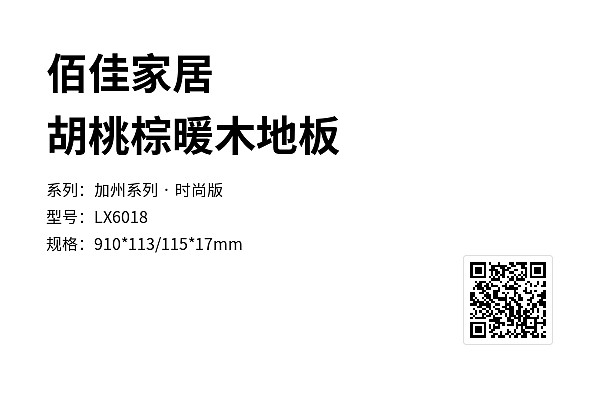
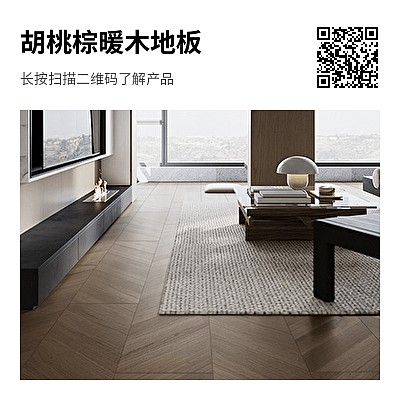
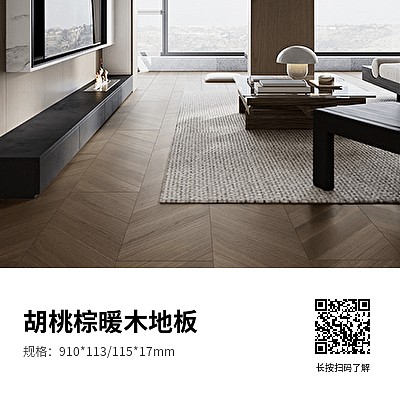
Create a QR code for each product to consolidate various content such as product selling points, specifications, parameters, pricing, and usage instructions. Customers can view the information by scanning the code. Content can be updated at any time later without changing the QR code pattern.
Basic Information
- Monthly installations: 312,765
- Monthly visits: 859,818
- Original text: https://cli.im/template/detail/38373533
Case Label Images
Usage Instructions
All template content can be modified at any time. Text, images, videos, etc., can be replaced with your own product materials, suitable for various product introductions.
1. Applicable Scenarios
Suitable for scenarios requiring detailed display of product functions, parameters, usage instructions, FAQs, and other information. Ideal for promotion, sales, and after-sales processes to help customers fully understand product details.
If only basic information (such as price, parameters) needs to be displayed, we recommend using Product Details Introduction (Simple Version).
If you need to generate QR codes in bulk for a large number of similar products, we recommend using Bulk Product Codes.
2. Core Uses
- Display diverse content: Combine images, videos, and files for richer presentation effects.
- Scannable by various apps: Supports scanning via WeChat, DingTalk, Douyin, and other apps, ensuring accessibility for all customers.
- Update content anytime: Modify content without replacing the QR code, always displaying the latest information.
View Full Application Solution
3. Setup Tutorial
The setup process includes the following five steps. Click to view the Complete Setup Tutorial.
1. Use the Template
Click the "Use Template to Generate Code" button on the right to enter the editor and start building.
2. Edit Content and Beautify Label Style
All content can be modified and combined freely. You can also add contact information, redirect links, etc. View Tutorial
The generated QR code label style can be modified at will, such as adding a logo, changing text, adjusting layout, etc. View Tutorial
3. Set Up the QR Code
You can set the QR code's period of validity, viewing permission settings, and whether sharing and forwarding are allowed. View Tutorial
4. Share the QR Code
Download the QR code image, print it on product packaging, or share it with customers via social platforms. View QR Code Label Printing and Implementation Guide
5. Manage and View Data
You can always find and modify the QR code in your account workbench without changing the QR code pattern.
You can also view scan data in the workbench. View Tutorial
4. Free Features and Paid Benefits
1. Free Version
- Commercial use allowed
- Long-term validity, unlimited number of QR codes and scan times
- Can upload images, files, videos, etc., with standard definition display support
2. Paid Version (Suitable for higher display requirements and team collaboration needs)
- Remove the "CaoLiao QR Code" logo, support watermark-free, high definition images and video playback
- Richer video backgrounds, dynamic backgrounds for a more professional presentation
- Can set personalized logos and enterprise-exclusive WeChat Mini Programs
- Supports multi-person collaboration and permission management (limited to Advanced edition and above)
View Pricing and Detailed Paid Features
5. Frequently Asked Questions
1. Can I add a URL link, for example, so customers can click to view a VR panorama?
Yes, after adding a redirect link, select 'Redirect to URL' and paste the website address. View Tutorial
2. I have a large number of product codes to create, each with similar content but different parameters. How can I generate them all at once?
You can use bulk QR codes generation. After setting up the template, simply input the information for each product to generate a batch of QR codes at once. We recommend using Bulk Product Codes.
3. I have many products. How can I gather them into one code for customers to view?
After generating multiple product introduction QR codes, you can use the directory list function to consolidate the products into one QR code. View Tutorial
You can also create your own product directory by customizing the layout. View Template
4. How do I make a manual QR code?
Add manual files, operation videos, etc., to the code. We recommend using Electronic Manuals.