How to Build a Conference and Event Registration System Using QR Codes
Original: https://cli.im/article/detail/2407
When organizing conferences, lectures, or training sessions, efficiently collecting registration information, reducing on-site queuing time, and ensuring accurate data statistics are common challenges for most event organizers. Compared to paper sign-in sheets or traditional Excel forms, QR codes offer a low-cost and convenient tool, making them a mainstream practice for many teams managing event registration and conference check-ins.
Whether for internal training or external exchange events, using QR codes to collect registrations and perform on-site check-ins streamlines the entire process and makes it easier to manage. This article will combine common application scenarios to introduce the complete operational workflow from form design to on-site verification, aiming to provide a reference method for organizers with similar needs.
1. Which Conference and Event Scenarios are Suitable for QR Codes
The advantages of a QR code conference check-in system lie in its simple operation and flexibility to adapt to conferences of various sizes. Users only need to scan the code with WeChat to enter the registration page, eliminating the complexity of manual registration. It is suitable for the following types of conferences and events:
- Small Events: Such as internal company meetings, employee training, book clubs, etc., where participant numbers are limited. QR codes can quickly complete registration information collection and on-site check-in.
- Medium-sized Events: Such as public lectures, community charity events. QR codes can be promoted through online and offline channels to expand reach.
- Large Conferences: Such as industry forums, exhibitions, competitions, etc. QR codes support online registration for hundreds or thousands of people, enabling data statistics and check-in verification.
Besides facilitating user registration, the system can also summarize registration and check-in data in real-time, generating structured data that is convenient for organizers to export, filter, and analyze, making event organization more professional and efficient.
2. Tutorial for Building a Conference Registration QR Code System
The process of creating a conference registration QR code is very simple and can be roughly divided into five steps: Create Registration QR Code -> Publish Registration QR Code -> Analyze Registration Data -> On-site Check-in Verification. The following uses CaoLiao QR Code as an example for explanation.
1. Create Registration QR Code
The CaoLiao QR Code platform provides various registration templates for conferences and events. You can select a suitable template and modify it as needed to generate a code quickly. Alternatively, you can start from scratch. This generally involves three stages: form design, rule configuration, and QR code generation. Here is a detailed creation tutorial.
1.1 Create Registration Form
The first step in creating the QR code is to make a registration form that meets the event's requirements. Log in to the CaoLiao QR Code workbench, navigate to the 【Forms】-【Create Form】 page, and edit the registration form according to the registration requirements, adding the necessary fields:
- Basic Fields: Name, Phone Number, ID Number, etc.
- Extended Fields: Single Choice/Multiple Choice, Image/File Upload, etc.

1.2 Configure Registration Rules
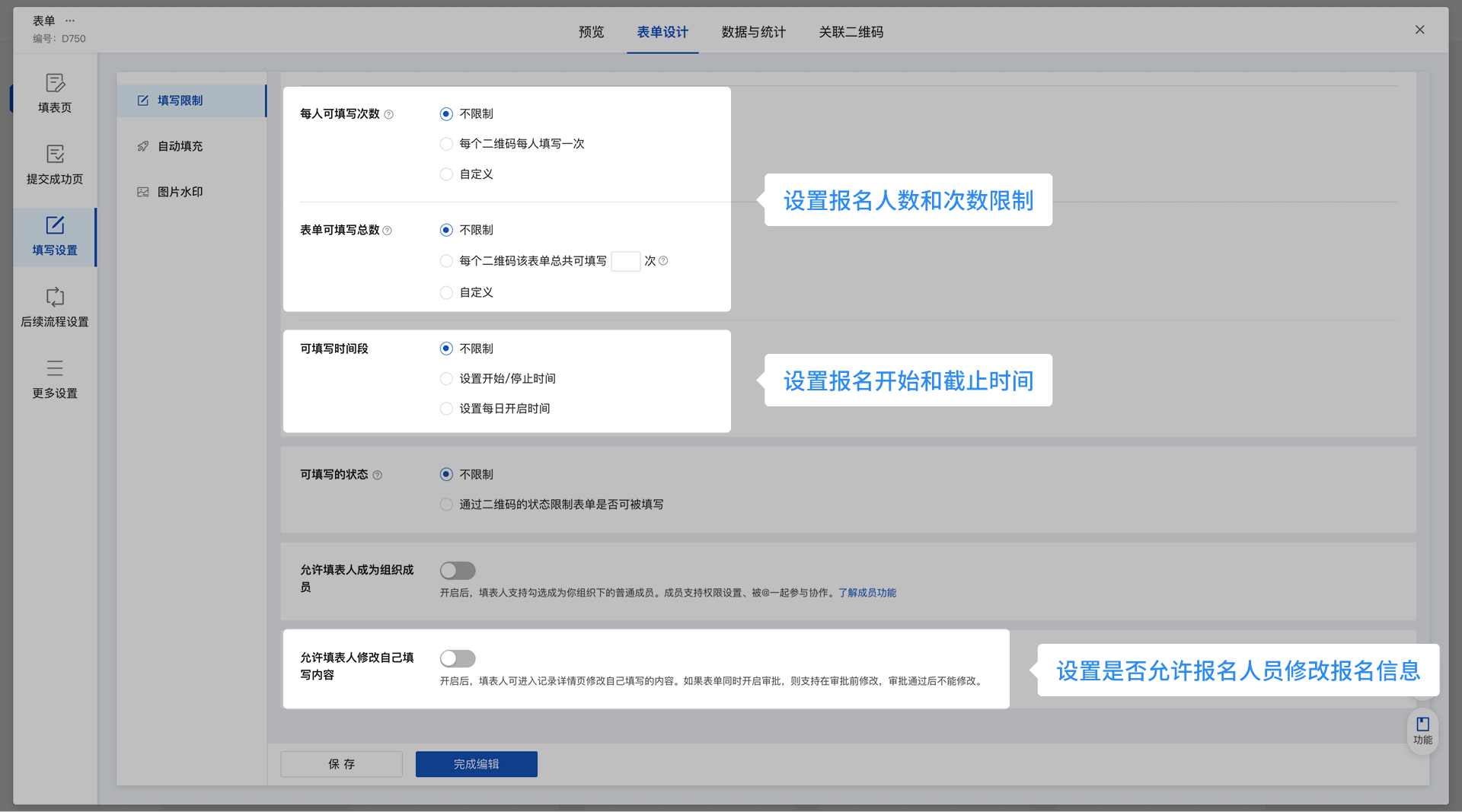
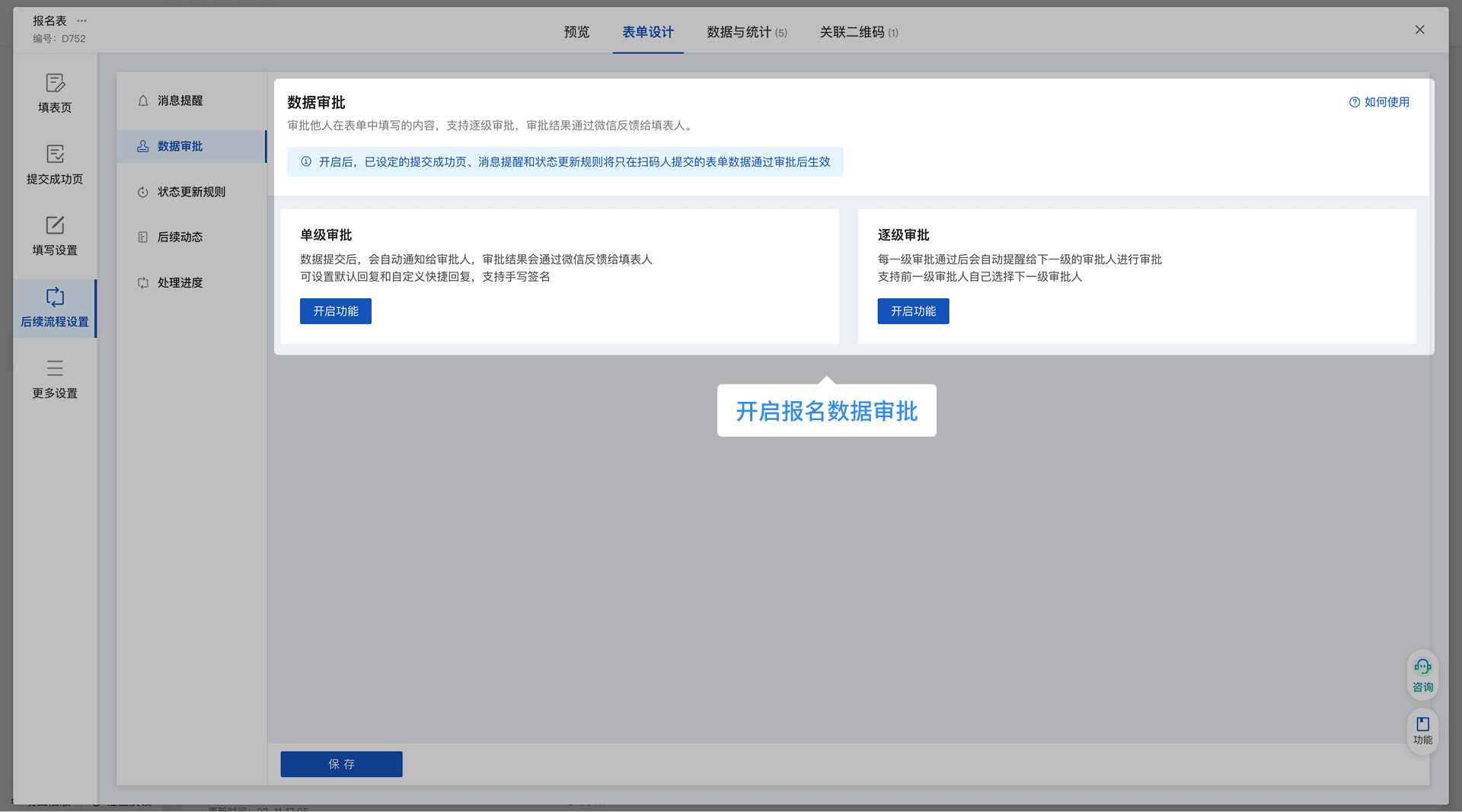
After the form is set up, you can configure rules such as the registration period, participant limit, and whether to enable review. For example, for a networking event limited to 100 people, you can set the maximum number of participants in the system in advance; the registration entry will automatically close once the limit is reached, preventing over-subscription.
- Submission Success Page Settings: Customize the prompt text, dynamic effects, and buttons on the page shown after successful submission.
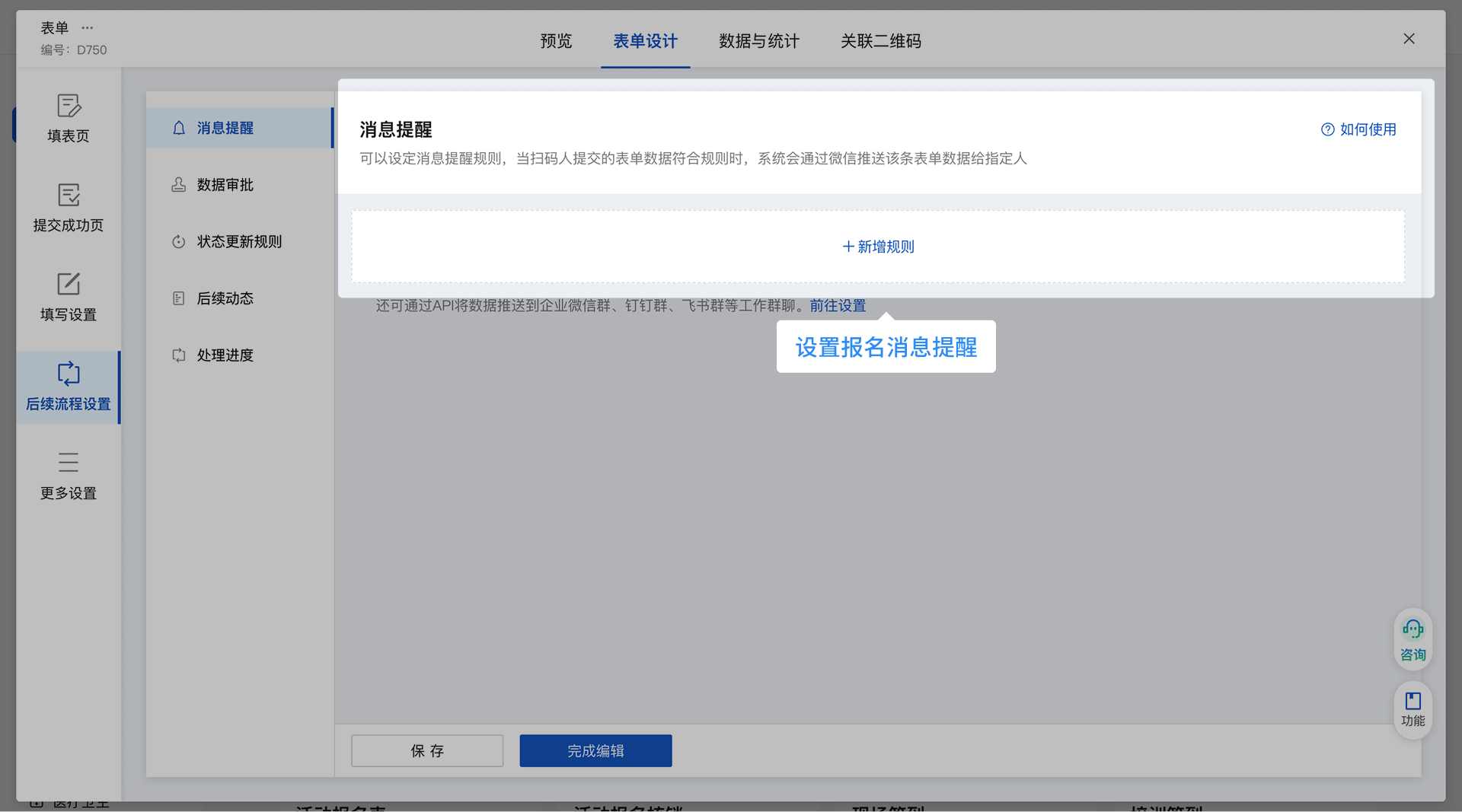
- More Registration-related Settings: Set registration start and end times, limit on the number of participants or submissions per person, enable data review, new data notifications, and other functions.
1.3 Generate and Beautify the QR Code
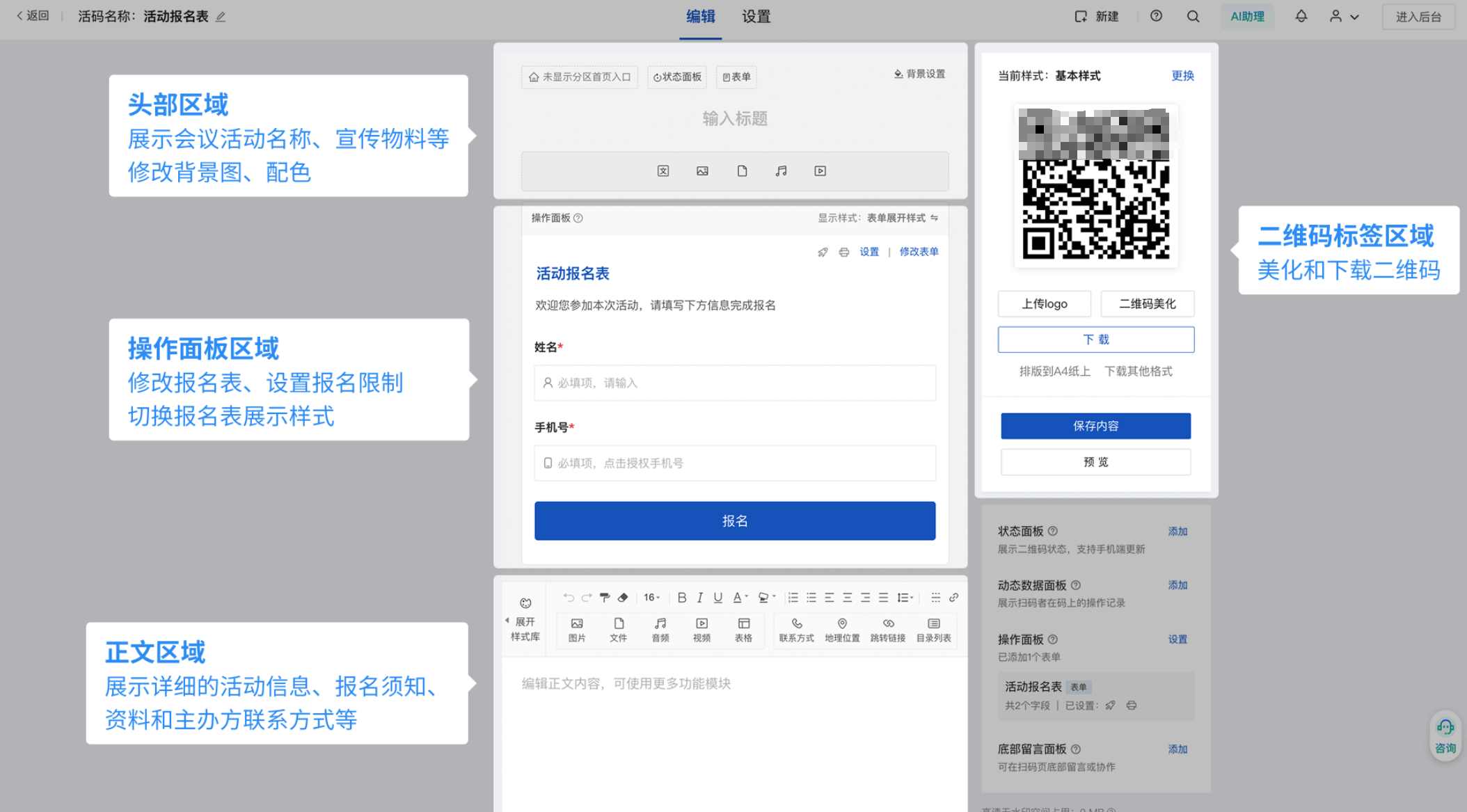
After completing the above settings, go to the forms page, find the created form, and click 【Generate QR Code】 to create a registration QR code. To make your QR code consistent with the event theme, you can also adjust the QR code's color and style, such as adding the organizer's logo, background image, etc.
Furthermore, besides the registration entry, the QR code page supports adding event materials, detailed event information, displaying the organizer's contact details, adding links to photo/video live streams, etc., allowing scanners to quickly understand the event content before registering.
2. Share and Publish the Registration QR Code
The generated QR code can be published in various ways, which is key to expanding the event's reach. Combining online and offline channels allows more potential participants to see and join.
2.1 Online Sharing
You can embed the QR code in a WeChat Public Account menu or article, or share it in group chats and Moments to reach a targeted audience. For formal occasions, adding the QR code to email notifications or invitation letters adds a professional touch.
2.2 Offline Sharing
Offline, the QR code can be printed on posters, flyers, or display boards and posted in company lobbies or community bulletin boards. Placing QR code display boards at the event venue also facilitates quick registration for walk-in participants. This combined online and offline strategy maximizes the event's impact.
3. Analyze Registration Data
After the registration QR code is published, attendees can scan it with WeChat to register. The registration data is automatically summarized in the CaoLiao QR Code workbench. Navigate to the 【Forms】-【Data & Statistics】 page, where you can view the registration data in real-time on the data statistics and management interface. It supports one-click export of data in Excel or PDF format for archiving or sharing.

4. On-site Check-in Verification
For events requiring on-site check-in, you can enable the verification function to make on-site procedures more standardized and efficient:
4.1 Generate Verification Code
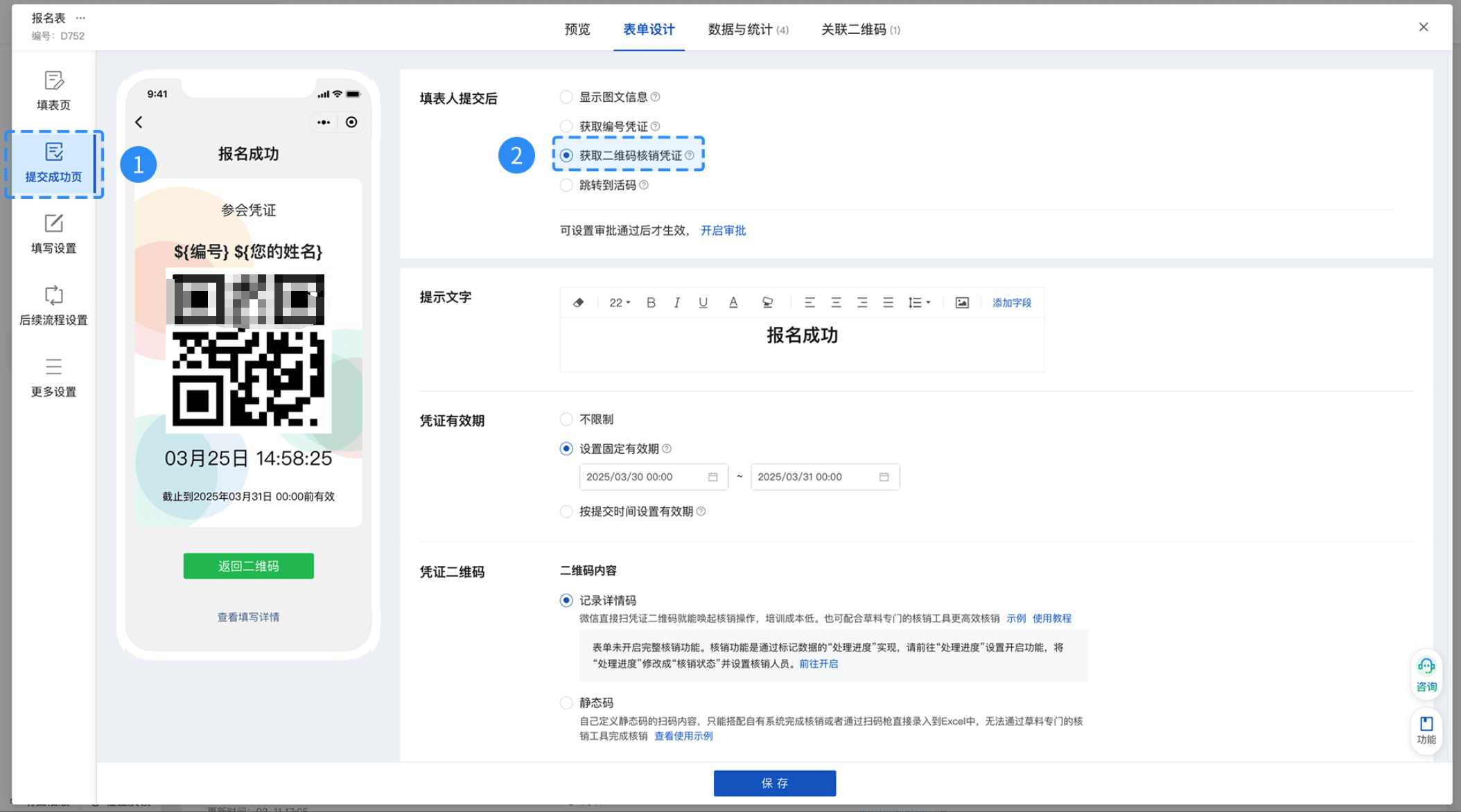
On the form settings page, go to the 【Submission Success Page】 settings and enable 【Get QR Code Verification Voucher】 . The content, style, and period of validity of the verification code can all be freely modified. The system will automatically generate a unique verification QR code for each participant upon successful registration.
Simultaneously, enable 【Follow-up Progress Tracking】 in the subsequent process flow, setting progress names, colors, and specifying who is allowed to change the status. For example, setting processing statuses (like "Registered", "Checked-in") allows you to clearly track each participant's status.
4.2 On-site Verification
On the day of the event, staff can scan the participant's verification code using a mobile phone, computer, or other scanning device to complete the check-in verification. CaoLiao QR Code provides 3 verification methods, adaptable to events of different scales, whether using a mobile phone with WeChat or dedicated equipment like a barcode scanner.
4.3 Check-in Data Management
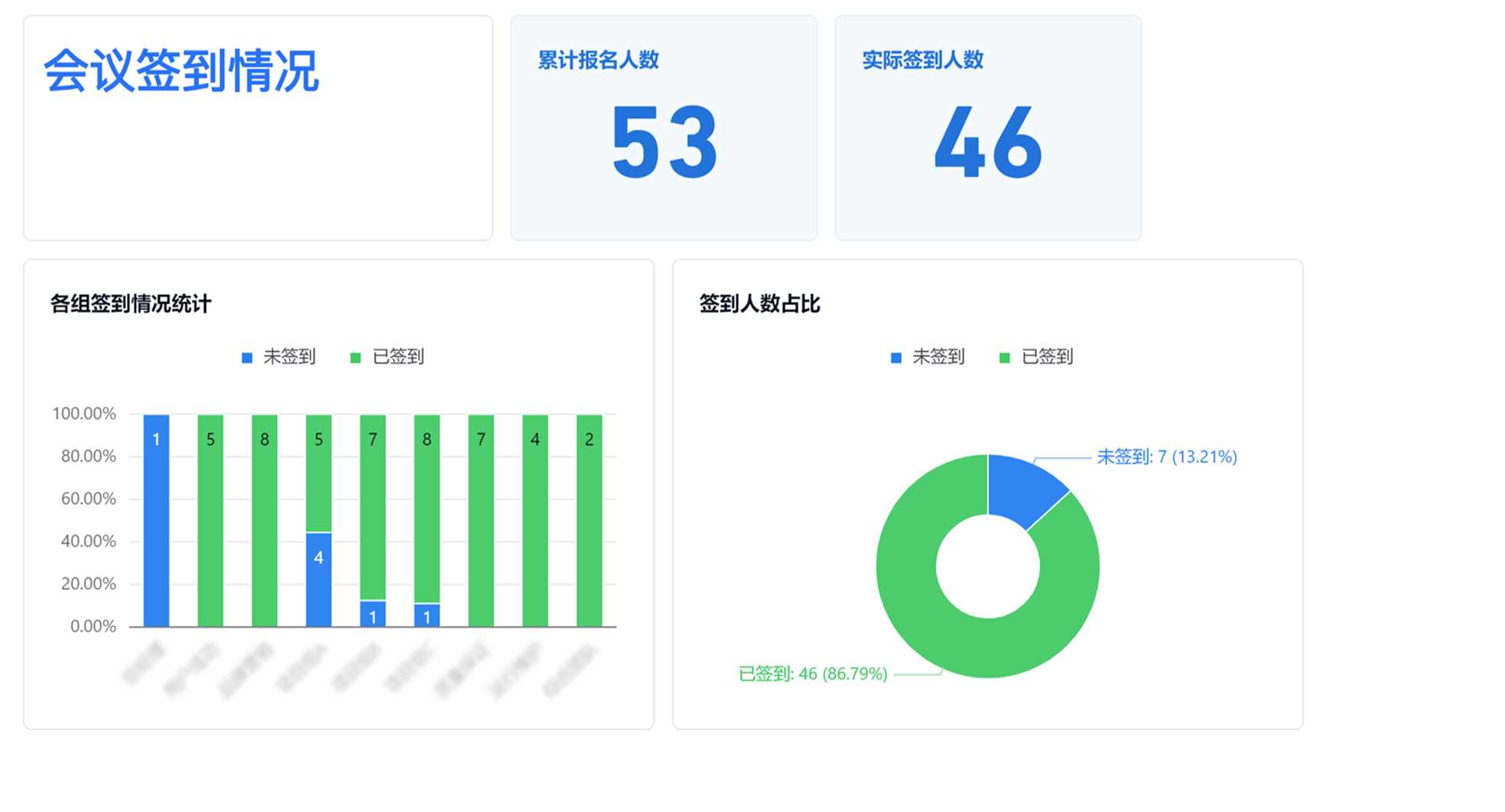
The workbench can update check-in data in real-time, showing the number of attendees and progress. After the event, you can export the check-in data for follow-up visits or statistical analysis. You can also use the data API function to sync check-in data to visualization tools and generate intuitive check-in analysis reports.

3. Techniques for Handling Special On-site Situations
In practice, you might encounter some unexpected situations. Here are coping methods for two common problems:
How to handle unregistered users? Post the registration QR code on-site so unregistered users can quickly scan to register and check-in.
How to quickly resolve on-site QR code check-in failures?
- Method 1: Staff manually change the processing status in the workbench to complete the check-in.
- Method 2: After manual verification, complete the check-in registration using a paper form.