Smart Verification: A Practical Tutorial on Combining QR Code Scanners with Excel
Original: https://cli.im/article/detail/2458
During warehouse shipments or receipts, the most common issue is a mismatch between the listed quantities and the actual quantities of goods. Manually counting each item is time-consuming and prone to errors. To improve efficiency, we can combine a QR code scanner with an Excel template to quickly verify the item list and automatically identify discrepancies.
Click to download the Smart Verification Excel Template
Video Tutorial:
https://blogcdnimg.clewm.net/2025/09/9月19日-11_17582631415876.mp4
Step-by-Step Tutorial:
1. Input the Item List
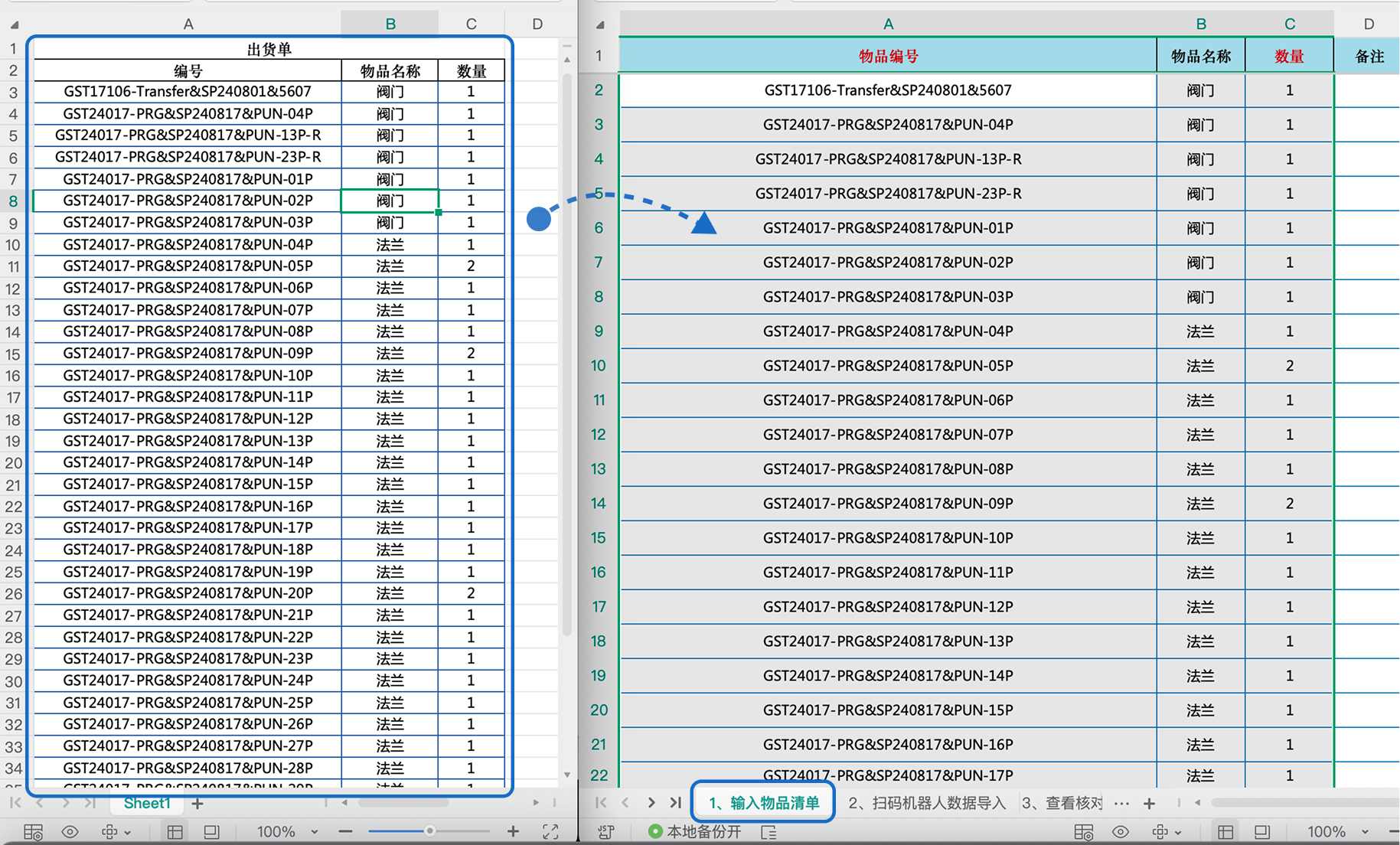
Open the "1. Input Item List" worksheet and enter the shipment or receipt list provided by the warehouse:
- Item ID: Enter the QR code number or the number on the packing list (Required).
- Item Name: Optional.
- Item Quantity: The actual quantity to be received/shipped (Required).
2. Import Data from the QR Code Scanner
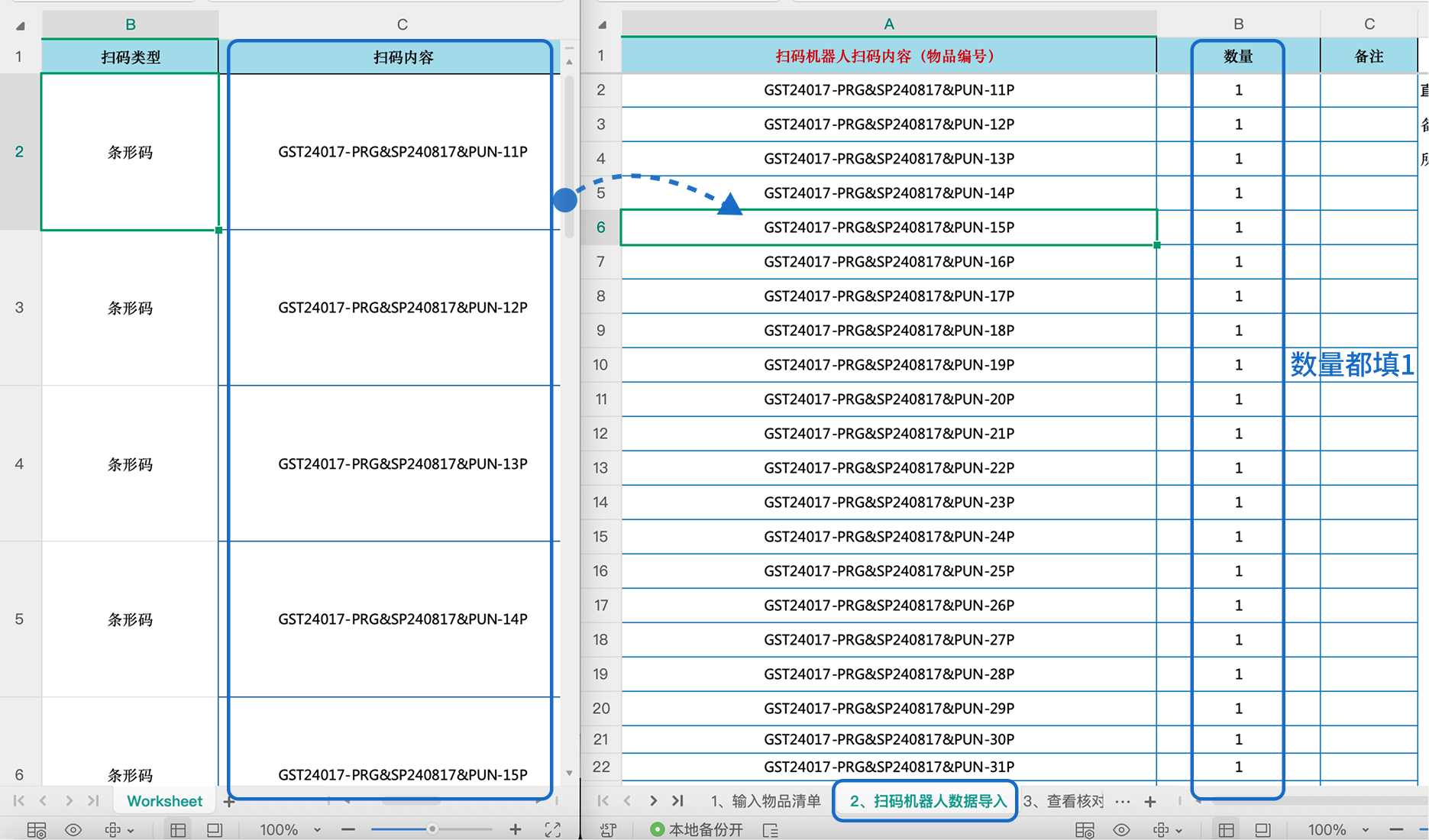
Use the QR code scanner to scan the codes on the goods packaging one by one. Note: The QR code scanner defaults to counting each scan as a quantity of 1, so the generated table will have one row per code. After completion, copy and paste the scanning results into the "2. Import Scanner Data" table.
3. View the Verification Results
Go to the "3. View Verification Results" worksheet. The system will automatically compare:
- Listed Quantity (Quantity to be received/shipped);
- Actual Scanned Quantity (Imported scanning results);
- Difference (Listed Quantity – Actual Quantity).
If inconsistent → the cell will automatically turn red ❌, making discrepancies clear at a glance. 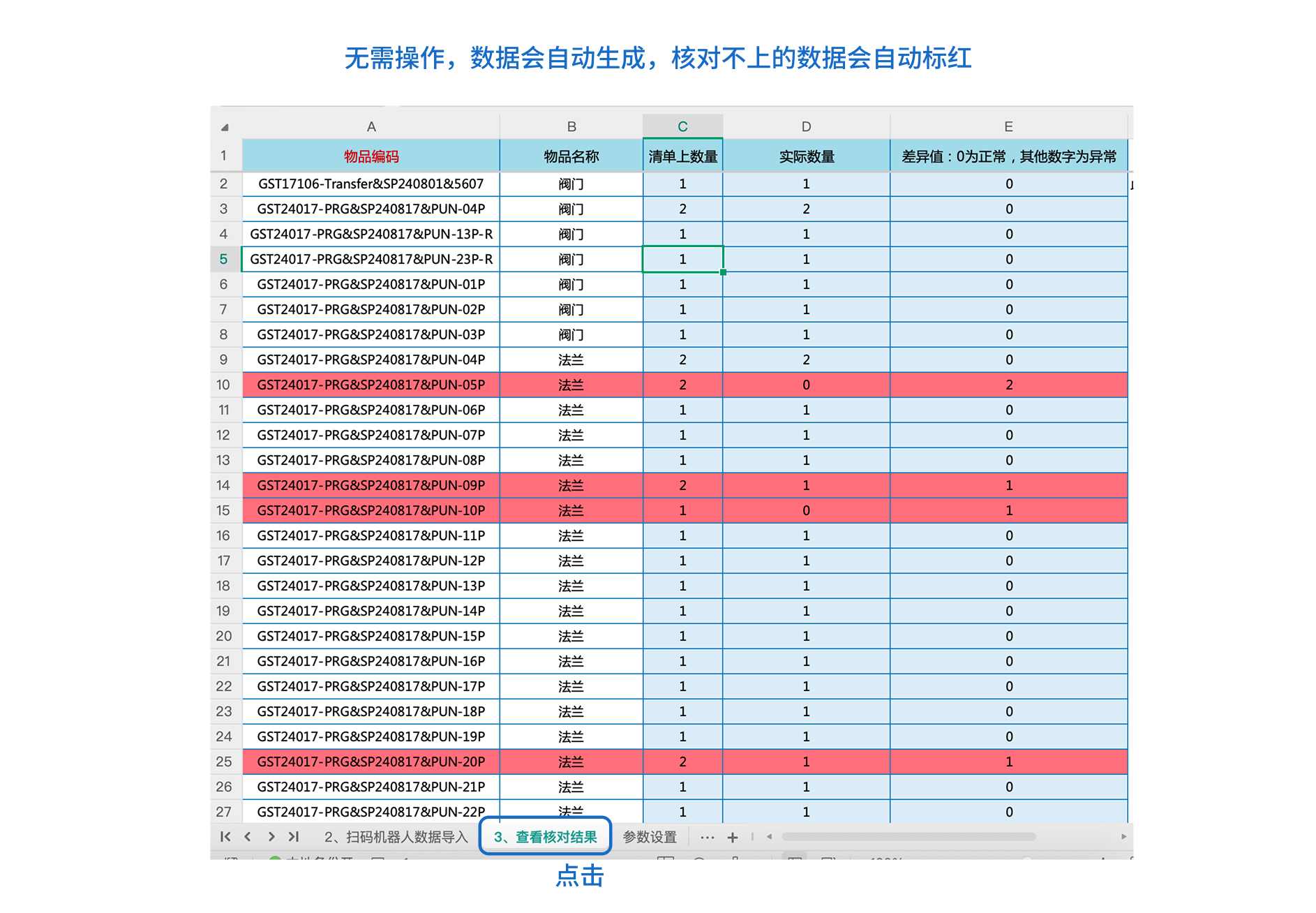
Note: It is recommended to use a new template each time instead of clearing and reusing an old one, to avoid accidentally deleting formulas. If you make an input error, please reopen a blank template file and start over from step one. When deleting list data, use "Clear Contents" instead of "Delete" to avoid damaging the table formulas.