Equipment Inspection
One QR code per device, preventing equipment failures through regular and systematic checks. Complete daily and periodic inspections according to business requirements. All inspection records can be exported for archiving.
Basic Information
- Monthly Installations: 8177
- Monthly Visits: 40254
- Original Text: https://cli.im/template/detail/121463024
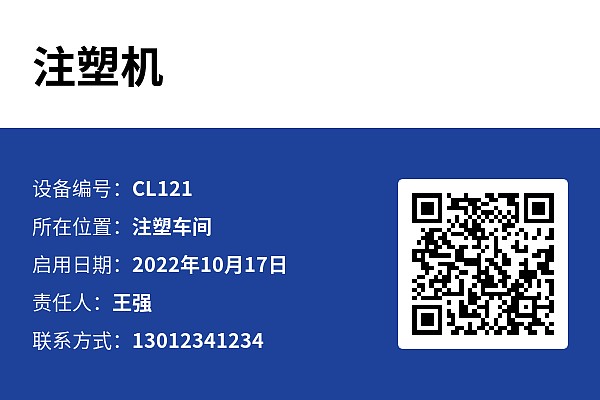
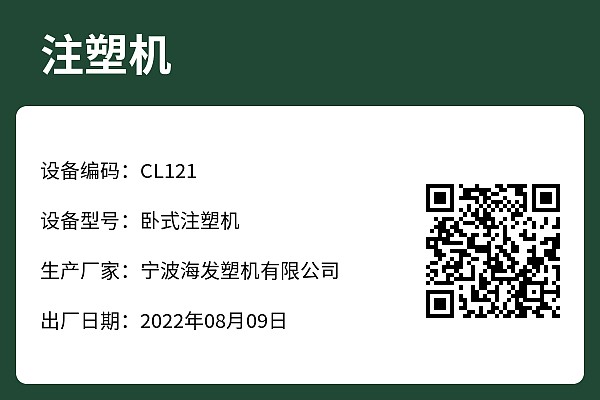
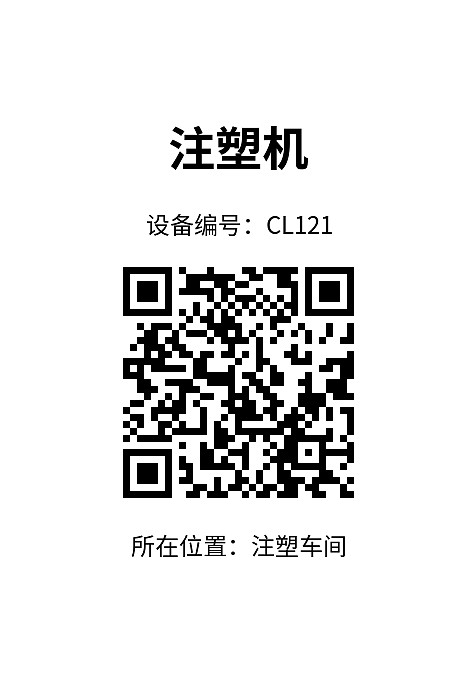
Case Label Images

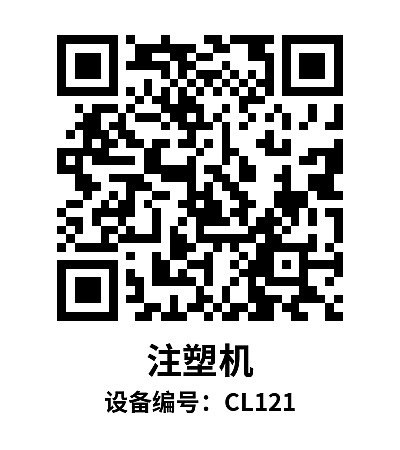
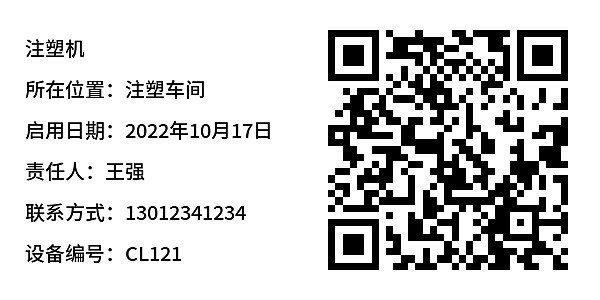
Usage Instructions
1. Problems Solved
Traditional inspection methods have the following issues:
- Manual recording is prone to errors, and data can be falsified
- Abnormal situations cannot be handled promptly
- Paper-based data is difficult to aggregate and analyze
To solve these problems, we use QR codes to replace paper checklists, generating a unique QR code for each device, achieving "one QR code per device."
- Inspectors use WeChat to scan the code, view device information, perform checks item by item, and take on-site photos to prevent missed inspections and falsified checks.
- When inspection results are abnormal, the system automatically alerts the maintenance supervisor for timely response and problem resolution.
- Inspection data is saved under the account, allowing managers to view, trace, and export data for analysis at any time in the workbench.
This template is a general-purpose template suitable for inspection work on most equipment across various industries. You can modify this template based on different device types and management requirements to build a system that meets your management needs.
2. Equipment File Information, Viewable by Scanning
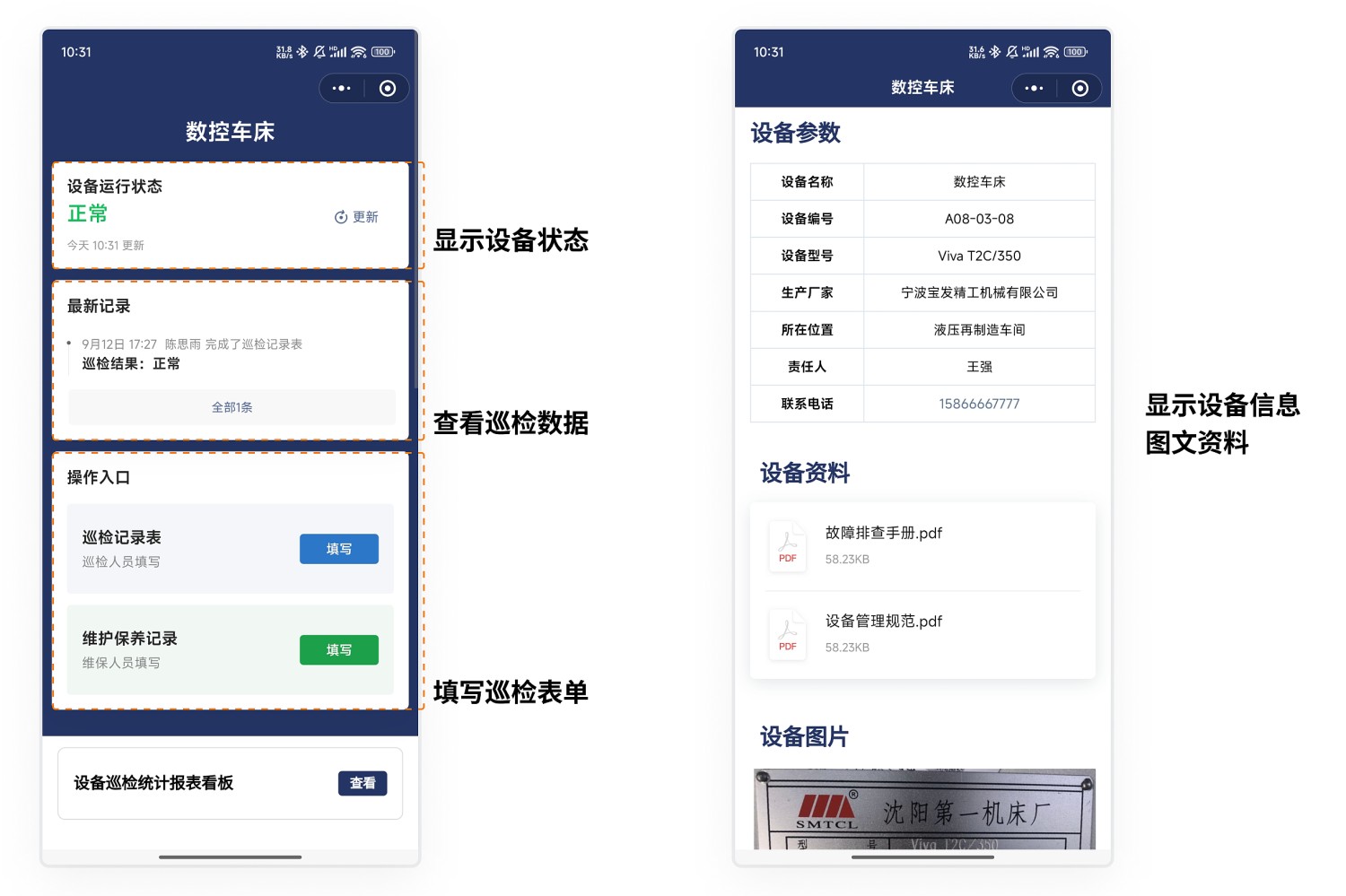
One QR code per device; scan the code to view device information.
- View device parameters and documentation: After scanning, inspectors can see the basic information of the device.
- Change equipment operational status: Update the operational status promptly based on the device condition.
- Fill out the inspection form: Record inspection details item by item.
- View inspection data for this device: Understand historical inspection records and issues.
Note: If there are other matters that need to be recorded for the device, you can add more forms. One QR code can be associated with multiple business forms, such as: inspection forms, fault repair forms, equipment startup/shutdown records, etc.
3. Scan with WeChat to Fill Out and Record Inspection Status
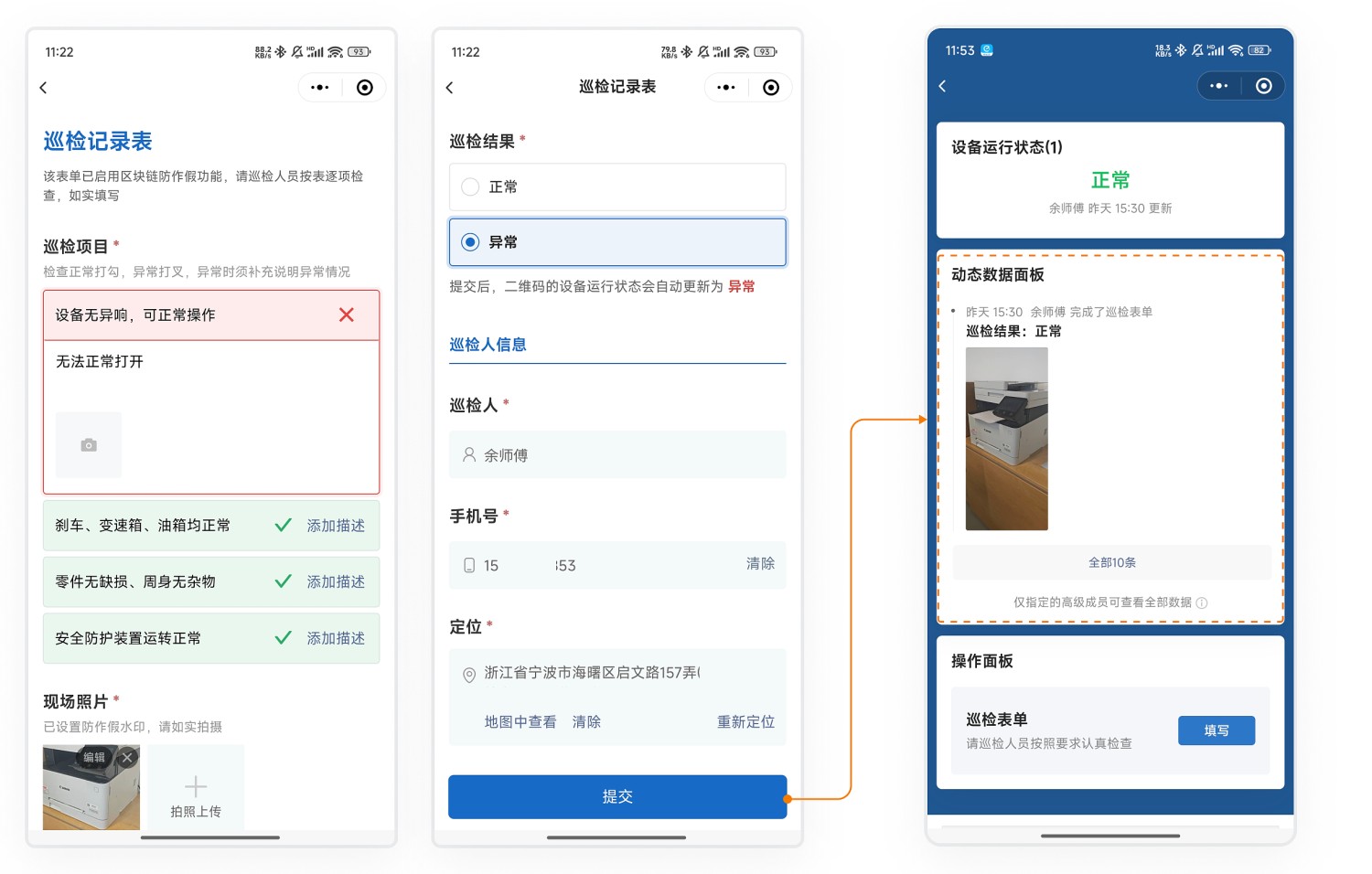
Inspectors use WeChat to scan the code and record the inspection status according to the set inspection form specifications, checking item by item. To prevent falsified inspections, we provide the following features:
- Only allow on-site photos: Ensures the authenticity of the photos.
- Photo watermark: Automatically adds time, location, and other information to the photos.
- Location function: Records the inspection location.
- Blockchain notarization: Protects data authenticity and prevents tampering.
The collected inspection data is displayed on the dynamic data panel and can be viewed by scanning the code. View Forms Features
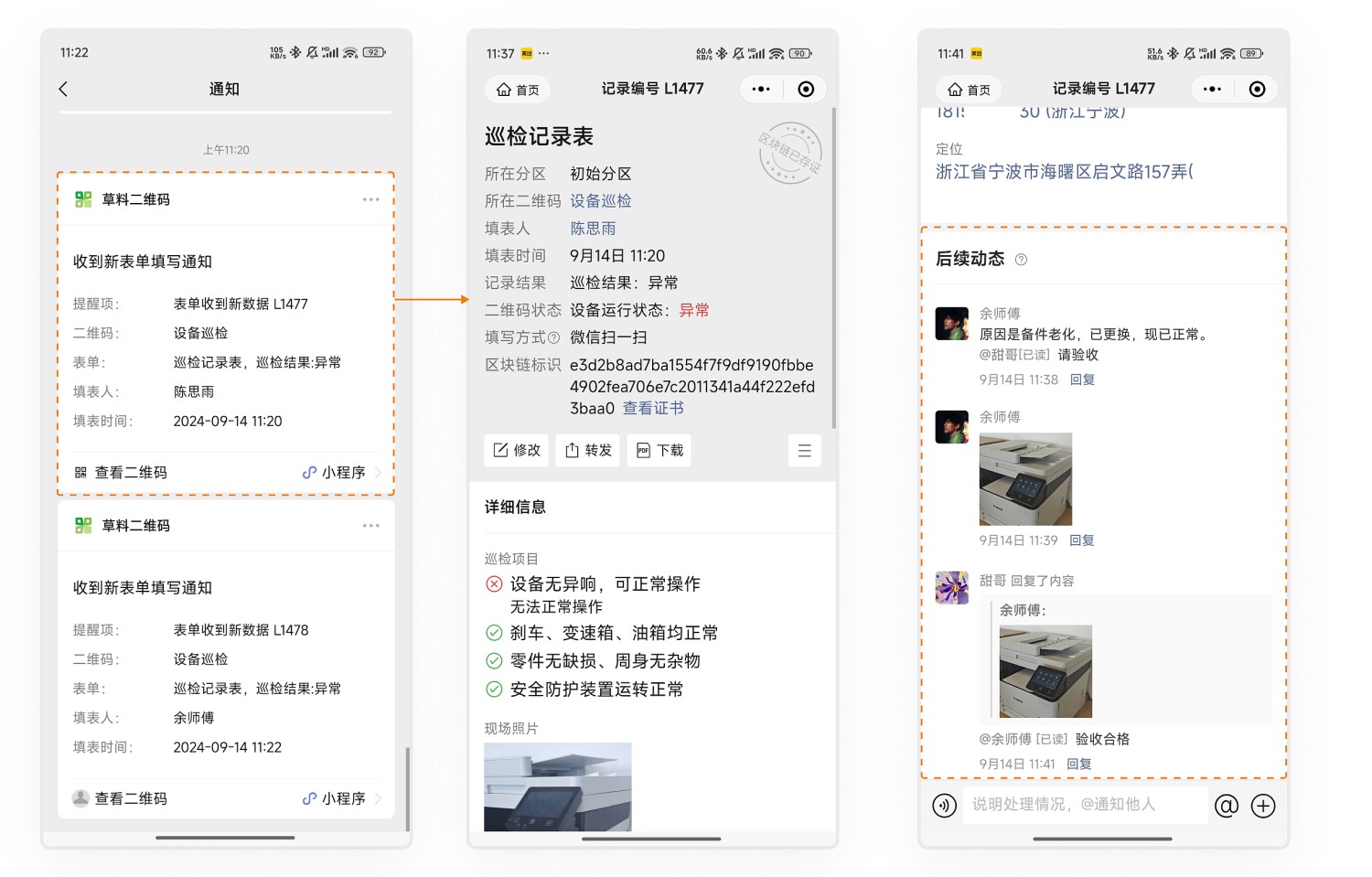
4. Handling Abnormal Situations, Recording Rectification Content
When inspection results are abnormal, the system automatically alerts maintenance personnel via WeChat.
- After receiving the abnormal record, maintenance personnel follow up promptly, fully recording the entire process of maintenance and rectification.
- The acceptance personnel perform acceptance confirmation to ensure the problem is resolved.
The entire process is recorded, facilitating later analysis and improvement. Learn about Scenario Description
5. Periodic Inspections, Reminders Before Expiry
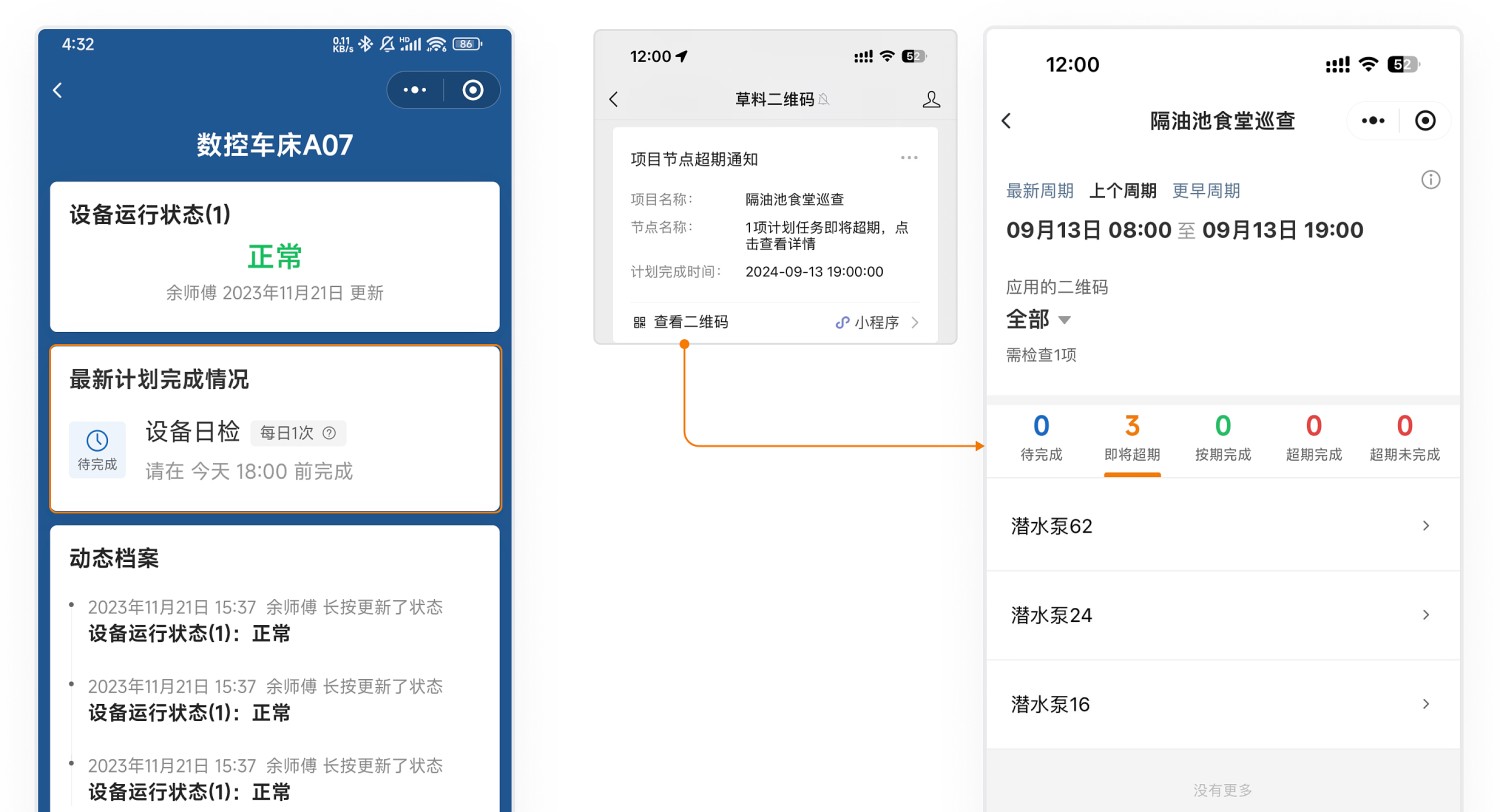
As needed, establish inspection and maintenance plans, such as monthly maintenance.
- After scanning the code, inspectors can view the inspection history and the next inspection time.
- Administrators can view plan reports on the mobile workbench to understand completion status.
- Overdue Reminders: Before the maintenance plan is due, the system reminds the administrator via WeChat, statistics on equipment nearing expiration are provided, facilitating timely arrangement of personnel for maintenance.
6. Data Management
6.1 Data Viewing
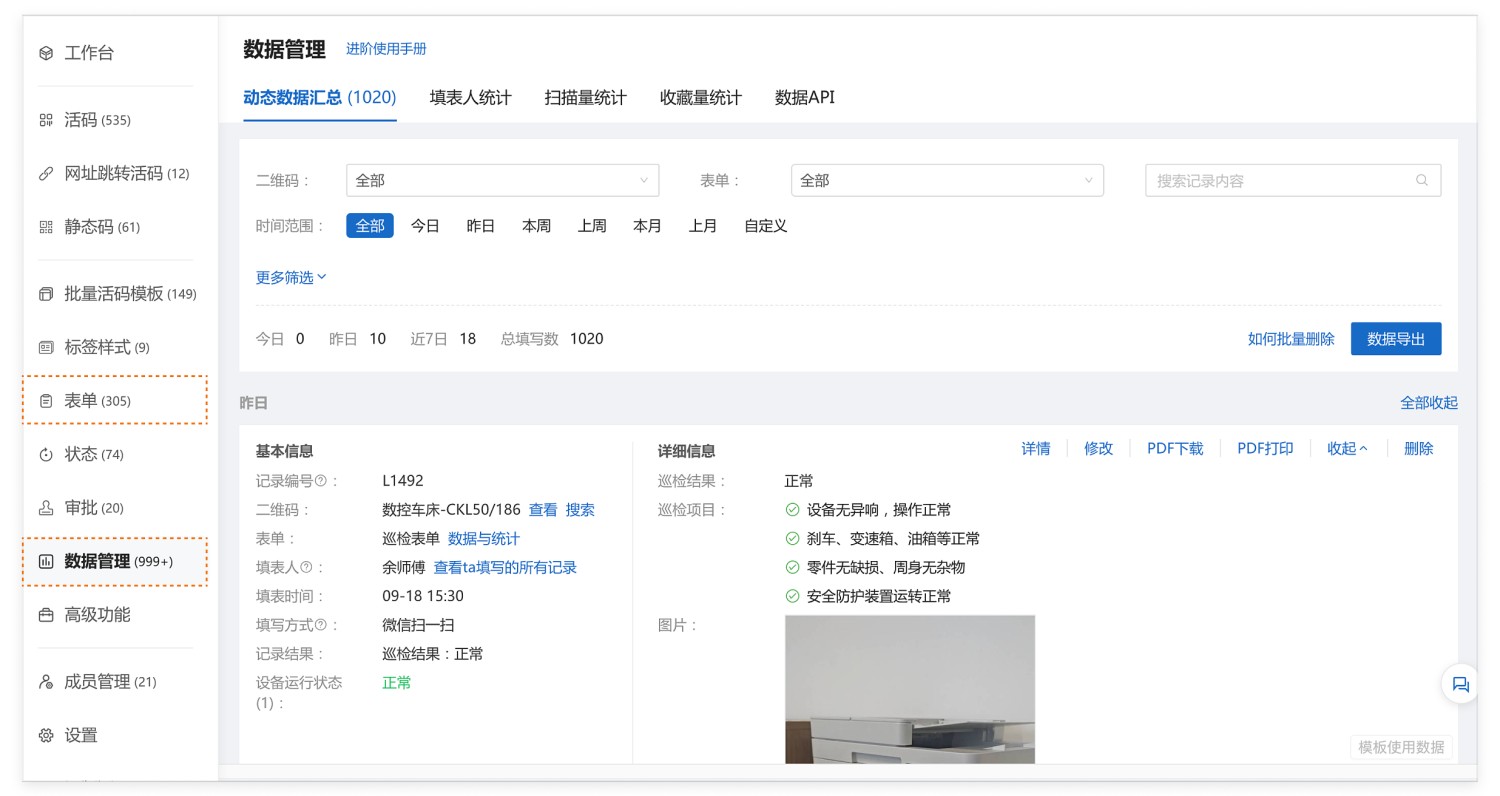
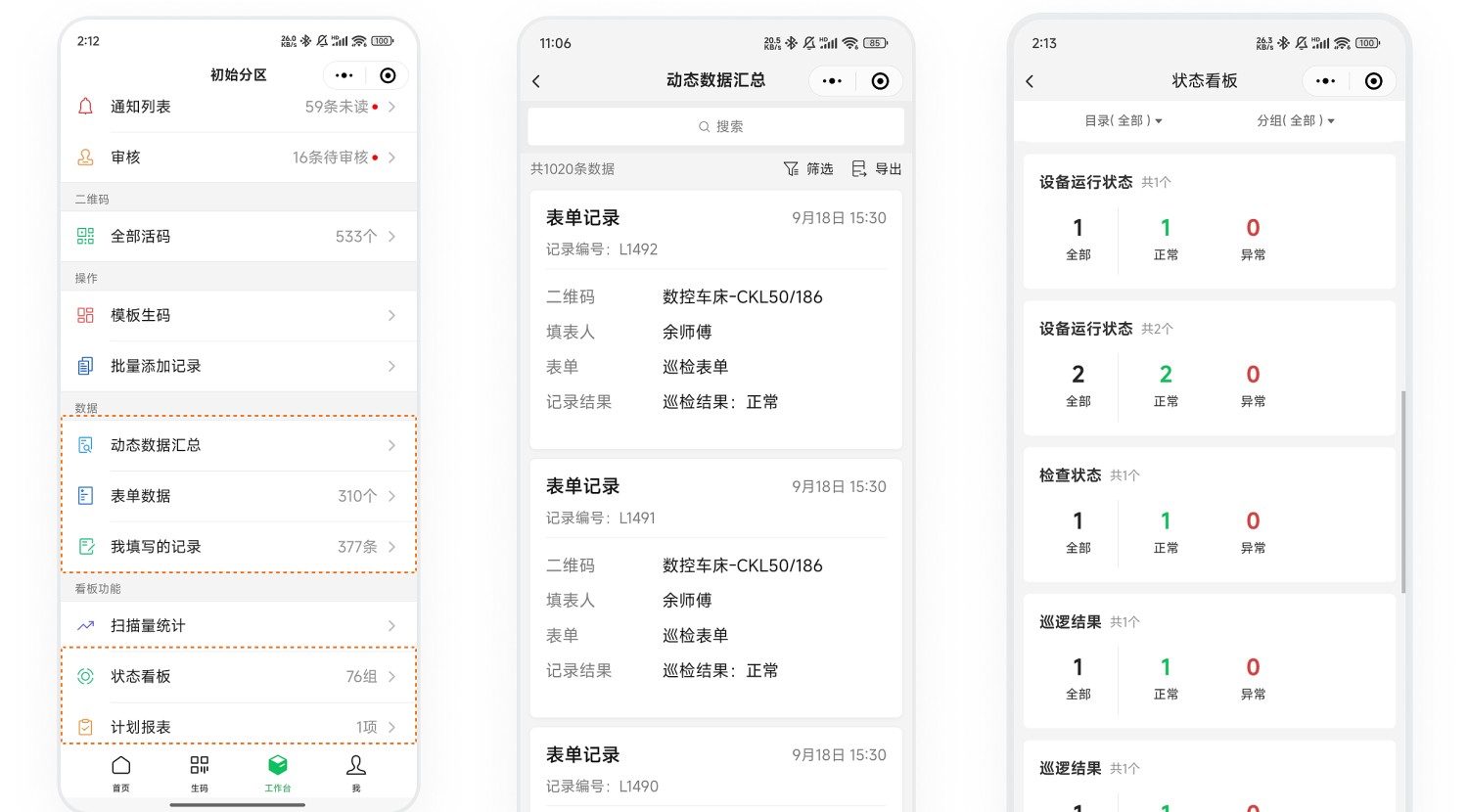
All submitted form data is saved under your account. Administrators can view the inspection status at any time through the following methods:
Desktop Workbench
Mobile WeChat Mini Program Workbench
6.2 Data Statistics and Export
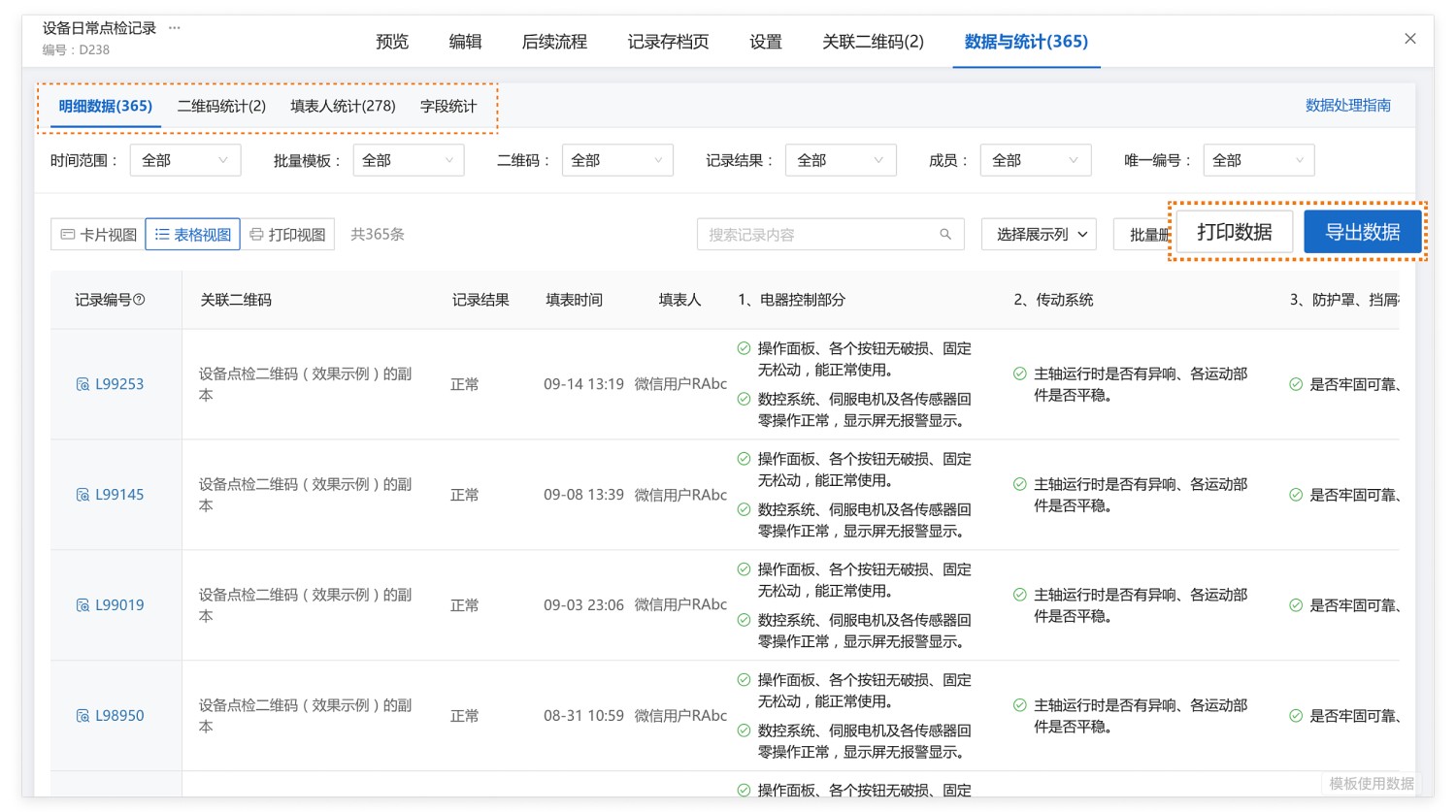
On the "Data & Statistics" page of the form, you can view all collected detailed data and view statistics based on associated QR codes, submitters, fields, etc. View Details
Data can be:
- Exported as Excel files for secondary processing, statistical analysis, and reporting locally;
- Downloaded as PDF files, detailing single records or summarizing multiple records, facilitating printing and sharing.
6.3 Data API
We provide data API functionality, supporting:
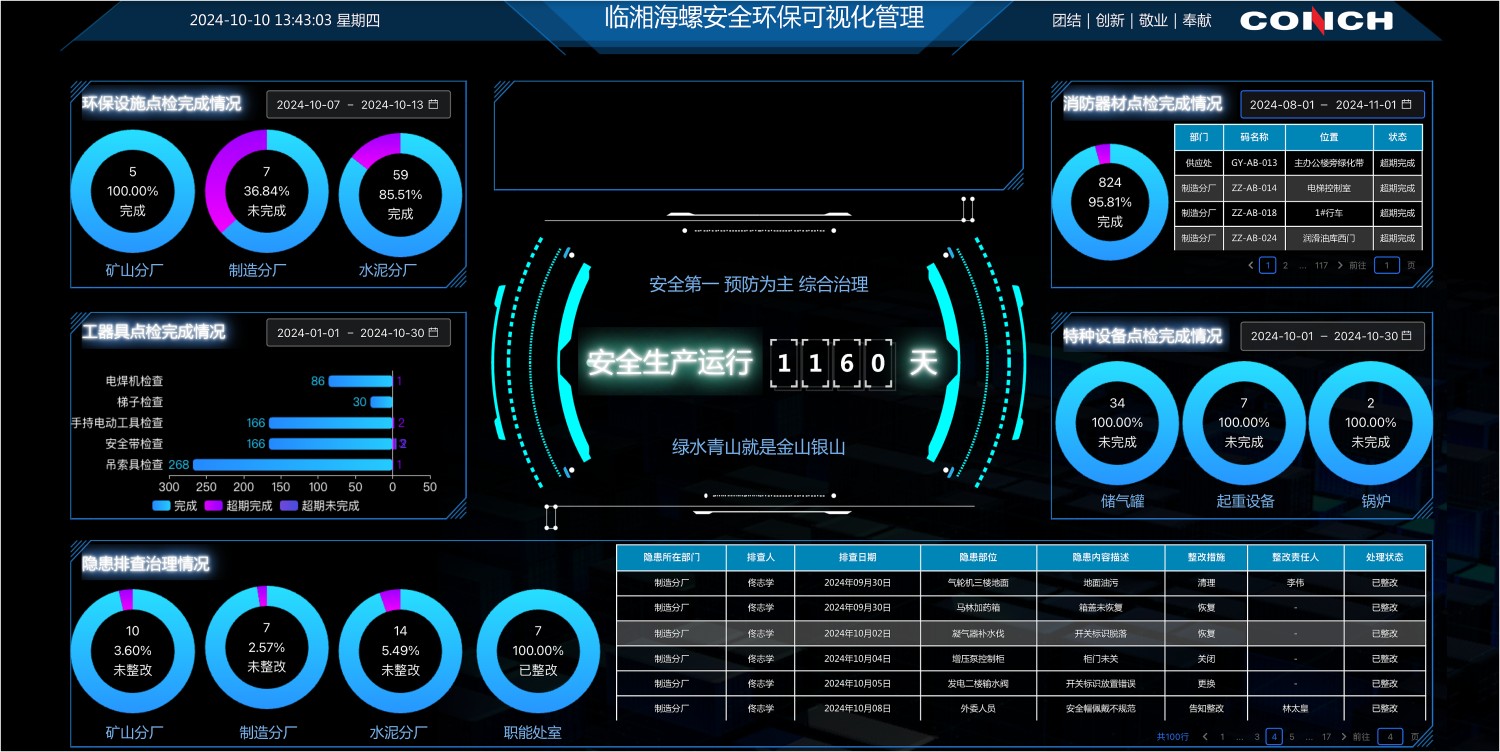
- Automatically pushing inspection data to WeCom, DingTalk, Feishu group chats, etc., for real-time sharing and communication, improving efficiency.
- Creating data statistics dashboards: Use with visualization tools to intuitively understand the inspection situation.
7. Frequently Asked Questions
7.1 Which operations can have permissions set?
Answer: You can set permissions for specific personnel for the following operations:
- Viewing the QR code
- Changing device status
- Filling out the inspection form
- Viewing data on the QR code page
7.2 How to manage many device types and large quantities?
Answer:
- Advanced Members: Versions above the Advanced edition provide advanced member slots. You can set other management personnel as advanced members, granting them administrator permissions. They can log in to the workbench to assist in generating codes, viewing, and exporting data. Learn about Advanced Members
- Partition Management: Create multiple partitions to manage different types of equipment and data separately. Advanced members can be set as partition managers for independent management and control of permissions. View Setup Tutorial
7.3 How can administrators see the inspection results of all devices?
Answer: The device status is displayed on the QR code page and is automatically updated based on inspection records (e.g., changed from "Normal" to "Abnormal").
Administrators can view the distribution of device statuses (Normal/Abnormal) in the status list on the mobile or desktop workbench to understand the inspection results. View Details
7.4 Is there a complete manual for setting up an equipment inspection scenario?
Answer: Yes, please click to view the detailed graphic tutorial